Affichage des données du capteur MPU-6050 sur un écran LCD 1602 ou LCD2004 avec Arduino
Dans ce tutoriel, nous allons apprendre comment afficher les données du capteur MPU-6050 sur un LCD 1602 ou un LCD2004 en utilisant Arduino. Le MPU-6050 est un capteur polyvalent qui combine un gyroscope à 3 axes et un accéléromètre à 3 axes, ce qui le rend idéal pour diverses applications telles que la détection de mouvement et l'orientation. En connectant ce capteur à un écran LCD, nous pouvons visualiser les données du capteur en temps réel, y compris les angles et la température.

Au fur et à mesure que nous avançons dans ce projet, nous aborderons les composants matériels nécessaires, les détails du câblage et l'implémentation du code. Cela vous aidera à comprendre comment configurer le MPU-6050 et afficher sa sortie sur un écran LCD. Pour plus de précisions sur le code, consultez la vidéo (à 00:00).
Le matériel expliqué
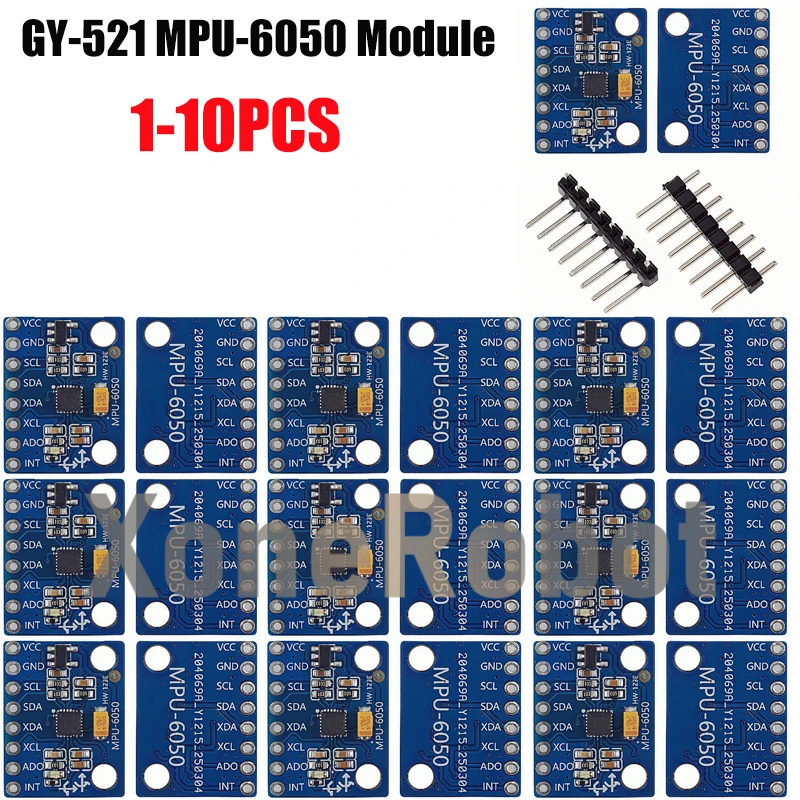
Les composants principaux de ce projet sont la carte Arduino, le capteur MPU-6050 et l'écran LCD (1602 ou 2004). L'Arduino sert de microcontrôleur, traitant les données du MPU-6050 et les envoyant à l'écran LCD.
Le capteur MPU-6050 utilise la communication I2C pour envoyer des données à l'Arduino. Il comprend un accéléromètre et un gyroscope, qui lui permettent de détecter le mouvement et l'orientation. L'écran LCD est utilisé pour afficher les angles dérivés des données du capteur. Il se connecte également à l'Arduino via I2C, ce qui simplifie le câblage et la communication.
Détails de la fiche technique
| Fabricant | Invensense |
|---|---|
| Numéro de pièce | MPU-6050 |
| Tension logique/E/S | 3.3 V / 5 V |
| Tension d'alimentation | 3,3 V à 5 V |
| Débit de données en sortie | 1 kHz (max.) |
| Plage de température | -40 à +85 °C |
| Paquet | QFN |
| Notes / variantes | Gyroscope et accéléromètre intégrés |
- Assurez-vous d'une alimentation électrique adéquate dans la plage de tension spécifiée.
- Utilisez des résistances de pull-up sur les lignes I2C si nécessaire.
- Vérifiez que l'adresse I2C est compatible avec votre configuration.
- Calibrez le capteur pour obtenir des mesures précises.
- Soyez prudent avec le câblage pour éviter les courts-circuits.
Instructions de câblage

Pour câbler le MPU-6050 à l'Arduino, commencez par connecter la broche VCC du MPU-6050 à la broche 5V de l'Arduino. Ensuite, connectez la broche GND du MPU-6050 à l'une des broches GND de l'Arduino. Pour la communication I2C, connectez la broche SDA du MPU-6050 à la broche analogique A4 de l'Arduino, et connectez la broche SCL à la broche analogique A5.
Pour l'écran LCD, branchez la broche VCC sur la broche 5V de l'Arduino et la broche GND sur la broche GND de l'Arduino. Connectez la broche SDA de l'écran LCD à la même broche A4 utilisée pour le MPU-6050, et la broche SCL de l'écran LCD à la broche A5. Ainsi, le MPU-6050 et l'écran LCD partagent les mêmes lignes I2C, ce qui simplifie le câblage.

Assurez-vous que les connexions sont bien fixées et qu'il n'y a aucun fil desserré. Si votre écran LCD ou votre capteur ne s'allume pas, vérifiez à nouveau le câblage et les connexions.
Exemples de code et guide pas à pas
Dans le code, nous commençons par inclure les bibliothèques nécessaires pour le MPU-6050 et l'écran LCD :
#include
#include
#include
Ici, nous créons des instances pour le MPU-6050 et pour l'écran LCD. Le MPU-6050 est initialisé avec la bibliothèque Wire pour la communication I2C, tandis que l'écran LCD est configuré avec son adresse et ses dimensions.
Dans la fonction setup(), nous initialisons le capteur et l'écran LCD :

void setup() {
  Serial.begin(9600);
  Wire.begin();
  mpu6050.begin();
  lcd.begin();
  lcd.backlight();
  lcd.clear();
}
Ce code configure la communication série pour le débogage, initialise la communication I2C et prépare l'écran LCD pour l'affichage. Le rétroéclairage est activé pour rendre l'écran visible.
Dans la fonction loop, nous lisons en continu les données du MPU-6050 et les affichons sur l'écran LCD :
void loop() {
  mpu6050.update();
  lcd.clear();
  lcdDisplay(mpu6050.getAngleX(), mpu6050.getAngleY(), mpu6050.getAngleZ());
  delay(100);
}
Ce fragment de code met à jour les données du capteur et efface l'écran LCD pour de nouvelles mesures toutes les 100 millisecondes. La fonction lcdDisplay est appelée pour afficher les angles sur l'écran LCD.
Pour une compréhension complète, veuillez regarder la vidéo correspondante où le code complet est présenté (dans la vidéo à 00:00).
Démonstration / À quoi s'attendre
Lorsque tout est correctement configuré, l'écran LCD doit afficher en temps réel les angles des axes X, Y et Z. Vous pouvez incliner le capteur MPU-6050 pour voir les variations à l'écran. Si vous rencontrez des problèmes, vérifiez une inversion de polarité dans votre câblage ou assurez-vous que les adresses I2C sont correctement configurées.
Surveiller les valeurs sur l'écran LCD vous permettra de voir comment le capteur réagit aux mouvements et aux changements d'orientation. Si les valeurs semblent statiques ou incorrectes, vérifiez les connexions et assurez-vous que le capteur fonctionne correctement.
Images
/*
 *
 * This code is basic usage of the MPU-6050 accelerometer and gyroscope.
 * Running this code, you will get angles only.
 * The angles at X, Y, and Z are displayed on the LCD2004-I2C display module.
 *
 * Library and code have been taken from:
 * https://github.com/tockn/MPU6050_tockn
 *
 * Updated by Ahmad Shamshiri on July 07, 2018 at 13:43 in Ajax, Ontario, Canada
 * for Robojax.com
 * Get this code from Robojax.com
 * Watch video instruction for this code at: https://youtu.be/ixe--SXemp8
 *
 * You will need to watch two videos before following the instructions in this video:
 * 1-MPU6050 Introduction video and code: https://youtu.be/uhh7ik02aDc
 * 2-LCD1602 with I2C module video and code: https://youtu.be/q9YC_GVHy5A
 */
#include <MPU6050_tockn.h>
#include <Wire.h>

MPU6050 mpu6050(Wire);

#include <LiquidCrystal_I2C.h>
// Set the LCD address to 0x27 for a 20 chars and 4 line display
LiquidCrystal_I2C lcd(0x27, 20, 4);

void setup() {
  Serial.begin(9600);
  Wire.begin();
  mpu6050.begin();
  mpu6050.calcGyroOffsets(false);

  // initialize the LCD,
  lcd.begin();
  // Turn on the backlight and print a message.
  lcd.backlight();
  lcd.clear();
   lcd.setCursor (0,0); //
   lcd.print("Robojax MPU-6050");
   lcd.setCursor (0,1); //

   lcd.print("Please Wait - 3");
   lcd.setCursor (0,1); //
   delay(1000);
   lcd.print("Please Wait - 2");
   delay(1000);
   lcd.setCursor (0,1); //
   lcd.print("Please Wait - 1");
   delay(1000);
}

void loop() {

  mpu6050.update();
  Serial.print("angleX : ");
  Serial.print(mpu6050.getAngleX());
  Serial.print("\tangleY : ");
  Serial.print(mpu6050.getAngleY());
  Serial.print("\tangleZ : ");
  Serial.println(mpu6050.getAngleZ());

  lcd.clear();// clearn previous values from screen
   lcdDisplay(
            mpu6050.getAngleX(), // send angle X
            mpu6050.getAngleY(), // send angle Y
            mpu6050.getAngleZ()  // send angle Z
            );
   delay(100);

}// loop end

/*
 * Written by Ahmad Shamshiri for Robojax.com
 * lcdDisplay(float x, float y, float z)
 * displays value and title on LCD2004-I2C display
 * How to use:
 * just pass the three values and it will display them.
 * lcdDisplay(mpu6050.getAngleX() , mpu6050.getAngleY() , mpu6050.getAngleZ() )
 */
void lcdDisplay(float x, float y, float z)
{
   // Robojax.com MPU6050 Demo with LCD2004-I2C Display
   lcd.setCursor (0,0); //
   lcd.print("Robojax MPU-6050");

   lcd.setCursor (0,1); //character zero, line 1
   lcd.print("Angle X:");
   lcd.setCursor (9,1); //
   lcd.print(x);

   lcd.setCursor (0,2); //character zero, line 2
   lcd.print("Angle Y:");
   lcd.setCursor (9,2); //
   lcd.print(y);

   lcd.setCursor (0,3); //character zero, line 3
   lcd.print("Angle Z:");
   lcd.setCursor (9,3); //
   lcd.print(z);

}/*
*
* This code is basic usage of the MPU-6050 accelerometer and gyroscope.
*
* This code displays data on the LCD2004 display based on
* the option you set. See below.
*
*
* Library and code have been taken from:
* https://github.com/tockn/MPU6050_tockn
*
* Updated by Ahmad Shamshiri on July 03, 2018 in Ajax, Ontario, Canada
* for Robojax.com
* Get this code from Robojax.com
* Watch video instructions for this code at: https://youtu.be/ixe--SXemp8
*
* You will need to watch two videos before following the instructions in this video:
* 1-MPU6050 Introduction video and code: https://youtu.be/uhh7ik02aDc
* 2-LCD1602 with I2C module video and code: https://youtu.be/q9YC_GVHy5A
*/
#include <MPU6050_tockn.h>
#include <Wire.h>
MPU6050 mpu6050(Wire);
long timer = 0;
#include <LiquidCrystal_I2C.h>
// Set the LCD address to 0x27 for a 20 chars and 4 line display
LiquidCrystal_I2C lcd(0x27, 20, 4);
int typeSelect = 6;// select type . See below
String type[]={ "GyroAng and Ang",// select 0
"GyroAng and Acc",// select 1
"GyroAng and Gyro",// select 2
"AccAng and Acc",// select 3
"AccAng & Gyro",// select 4
"AccAng and Ang",// select 5
"Angle and Temp"// select 6
};
void setup() {
Serial.begin(9600);
Wire.begin();
mpu6050.begin();
mpu6050.calcGyroOffsets(true);
// initialize the LCD,
lcd.begin();
// Turn on the backlight and print a message.
lcd.backlight();
}
void loop() {
mpu6050.update();
if(millis() - timer > 1000){
Serial.println("=======================================================");
Serial.print("temp : ");Serial.println(mpu6050.getTemp());
Serial.print("accX : ");Serial.print(mpu6050.getAccX());
Serial.print("\taccY : ");Serial.print(mpu6050.getAccY());
Serial.print("\taccZ : ");Serial.println(mpu6050.getAccZ());
Serial.print("gyroX : ");Serial.print(mpu6050.getGyroX());
Serial.print("\tgyroY : ");Serial.print(mpu6050.getGyroY());
Serial.print("\tgyroZ : ");Serial.println(mpu6050.getGyroZ());
Serial.print("accAngleX : "); Serial.print(mpu6050.getAccAngleX());
Serial.print("\taccAngleY : ");Serial.println(mpu6050.getAccAngleY());
Serial.print("gyroAngleX : ");Serial.print(mpu6050.getGyroAngleX());
Serial.print("\tgyroAngleY : ");Serial.print(mpu6050.getGyroAngleY());
Serial.print("\tgyroAngleZ : ");Serial.println(mpu6050.getGyroAngleZ());
Serial.print("angleX : ");Serial.print(mpu6050.getAngleX());
Serial.print("\tangleY : ");Serial.print(mpu6050.getAngleY());
Serial.print("\tangleZ : ");Serial.println(mpu6050.getAngleZ());
Serial.println("=======================================================\n");
timer = millis();
}// if
lcd.clear();// clearn previous values from screen
switch (typeSelect)
{
case 0:// display GyroAngle and Angle
lcdDisplay(mpu6050.getGyroAngleX(),mpu6050.getGyroAngleY(),mpu6050.getGyroAngleZ(),
mpu6050.getAngleX(),mpu6050.getAngleY(),mpu6050.getAngleZ()
);
break;
case 1:// display GyroAngle and Acceleration value
lcdDisplay(mpu6050.getAngleX(),mpu6050.getAngleY(),mpu6050.getAngleZ(),
mpu6050.getAccX(),mpu6050.getAccY(),mpu6050.getAccZ()
);
break;
case 2:// display GyroAngle and Gyroscope value
lcdDisplay(mpu6050.getAngleX(),mpu6050.getAngleY(),mpu6050.getAngleZ(),
mpu6050.getGyroX(),mpu6050.getGyroY(),mpu6050.getGyroZ()
);
break;
case 3:// display Acceleration Angle and Acceleration value
lcdDisplay(mpu6050.getAccAngleX(),mpu6050.getAccAngleY(),0.0,
mpu6050.getAccX(),mpu6050.getAccY(),mpu6050.getAccZ()
);
break;
case 4:// display Acceleration Angle and Gyro value
lcdDisplay(mpu6050.getAccAngleX(),mpu6050.getAccAngleY(), 0.0,
mpu6050.getGyroX(),mpu6050.getGyroY(),mpu6050.getGyroZ()
);
break;
case 5:// display Acceleration Angle and Angle
lcdDisplay(mpu6050.getAccAngleX(),mpu6050.getAccAngleY(), 0.0,
mpu6050.getAngleX(),mpu6050.getAngleY(),mpu6050.getAngleZ()
);
break;
case 6:// display angle and Temperature
lcdDisplay(mpu6050.getAngleX(),mpu6050.getAngleY(),mpu6050.getAngleZ(),
mpu6050.getTemp(), 0.0, 0.0
);
break;
}// switch end
delay(100);
}// loop
/*
* Written by Ahmad Shamshiri for Robojax.com
* lcdDisplay(lcdDisplay(float x, float y, float z, float x1, float y1, float z1)
* displays values and titles on the LCD2004-I2C display.
* How to use:
* just pass the 6 values and it will display them.
lcdDisplay(mpu6050.getAccAngleX(),mpu6050.getAccAngleY(),mpu6050.getAccAngleZ(),
mpu6050.getAngleX(),mpu6050.getAngleY(),mpu6050.getAngleZ()
);
*/
void lcdDisplay(float x, float y, float z, float x1, float y1, float z1)
{
// Robojax.com MPU6050 Demo with LCD2004-I2C Display
lcd.setCursor (0,0); //
lcd.print(type[typeSelect]);
lcd.setCursor (17,0); //
String dis = "("+String(typeSelect)+")";
lcd.print(dis);
if(typeSelect !=6){
lcd.setCursor (0,1); //character zero, line 1
lcd.print("X:");
lcd.setCursor (2,1); //
lcd.print(x);
/////////////////////
lcd.setCursor (10,1); //character zero, line 1
lcd.print("X1:");
lcd.setCursor (13,1); //
lcd.print(x1);
lcd.setCursor (0,2); //character zero, line 2
lcd.print("Y:");
lcd.setCursor (2,2); //
lcd.print(y);
////////////////////////
lcd.setCursor (10,2); //character zero, line 1
lcd.print("Y1:");
lcd.setCursor (13,2); //
lcd.print(y1);
lcd.setCursor (0,3); //character zero, line 3
lcd.print("Z:");
lcd.setCursor (2,3); //
lcd.print(z);
//////////////////////
lcd.setCursor (10,3); //character zero, line 3
lcd.print("Z1:");
lcd.setCursor (13,3); //
lcd.print(z1);
}else{
lcd.setCursor (0,1); //character zero, line 1
lcd.print("X:");
lcd.setCursor (2,1); //
lcd.print(x);
/////////////////////
lcd.setCursor (10,1); //character zero, line 1
lcd.print("TMP: ");
lcd.setCursor (15,1); //
lcd.print(x1);
lcd.setCursor (0,2); //character zero, line 2
lcd.print("Y:");
lcd.setCursor (2,2); //
lcd.print(y);
lcd.setCursor (0,3); //character zero, line 3
lcd.print("Z:");
lcd.setCursor (2,3); //
lcd.print(z);
}
}Ressources et références
-
ExterneObtenez la bibliothèque depuis GitHubgithub.com
-
ExterneSite Web du fabricantinvensense.com
Fichiers📁
Bibliothèques Arduino (zip)
-
Bibliothèque Arduino pour MPU9250
robojax-MPU9250-master.zip3.38 MB
Fichier Fritzing
-
Module LCD LCD1602-I2C avec 4 fils
LCD1602-I2C.fzpz0.01 MB -
Carte MPU-6050 GY-521
MPU-6050 Board GY-521.fzpz0.01 MB -
LCD2004-I2C
LCD2004-I2C.fzpz0.02 MB
Autres fichiers
-
Bibliothèque LiquidCrystal LCD1602
robojax-LCD1602_LiquidCrystal.zip -
33 MHz relais télécommandé à 4 canaux : Besoins en courant total du module
robojax-MPU6050_tockn-master.zip