This tutorial is part of: Digital Relative Humidity & Temperature Sensor HTU21D
Videos related to Digital Relative Humidity & Temperature Sensor HTU21D. Links to other videos are below this article.
Displaying Temperature from an HTU21D as a Bar Graph on an LCD
In this tutorial, we will learn how to display temperature readings from an HTU21D temperature and humidity sensor on an LCD screen in the form of a bar graph. The readings will include values in Celsius, Fahrenheit, Kelvin, and relative humidity, providing a comprehensive overview of the environmental conditions. This project will help you understand how to wire the components correctly and implement the necessary code to make everything work seamlessly.

For those who want a visual guide, be sure to check out the video associated with this tutorial (in video at 00:00).
Hardware Explained
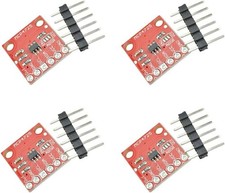
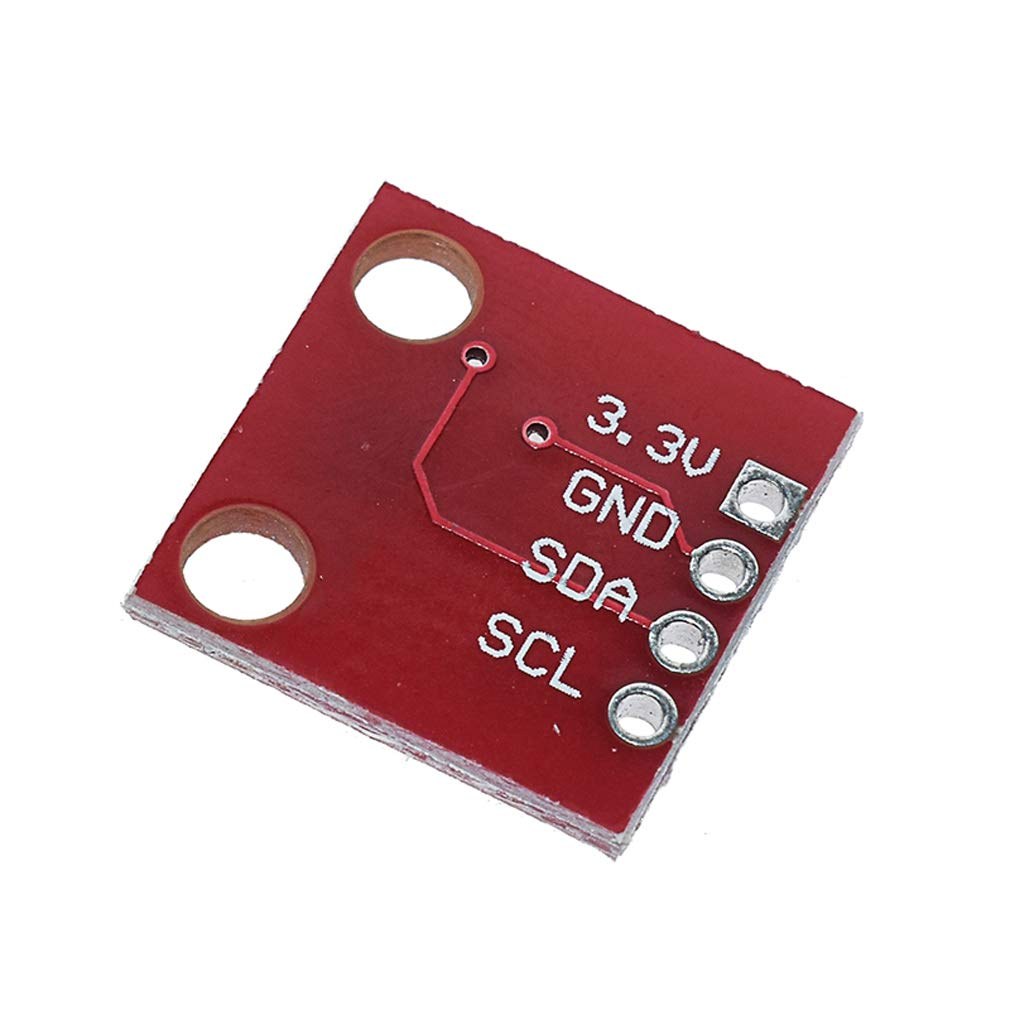
The main components of this project include the HTU21D sensor and the LCD 1602 display. The HTU21D is a digital humidity and temperature sensor that communicates via I2C. It provides accurate readings of temperature and humidity, which can be easily accessed through its library. The LCD 1602 display, on the other hand, shows the readings in a human-readable format, allowing for quick assessments of environmental conditions.
The HTU21D uses a simple I2C interface, making it easy to connect and communicate with microcontrollers like Arduino. The LCD 1602 display also uses I2C, which simplifies the wiring by reducing the number of pins needed to connect to the Arduino. This allows for a cleaner setup while still providing clear visual output.
Datasheet Details
| Manufacturer | Adafruit |
|---|---|
| Part number | HTU21D |
| Logic/IO voltage | 3.3 V (typ.) |
| Supply voltage | 1.5 – 3.6 V |
| Temperature range | -40 to 125 °C |
| Humidity range | 0 to 100 %RH |
| Resolution | 0.01 °C / 0.04 %RH |
| Communication | I2C |
| Package | 4-pin LGA |
- Use 3.3 V to power the HTU21D; connecting to 5 V can damage it.
- Ensure proper pull-up resistors are used on the I2C lines (SDA and SCL).
- Keep the sensor away from heat sources during testing.
- Check for correct I2C address using an I2C scanner sketch.
- Ensure the LCD is correctly initialized with the right address.
Wiring Instructions
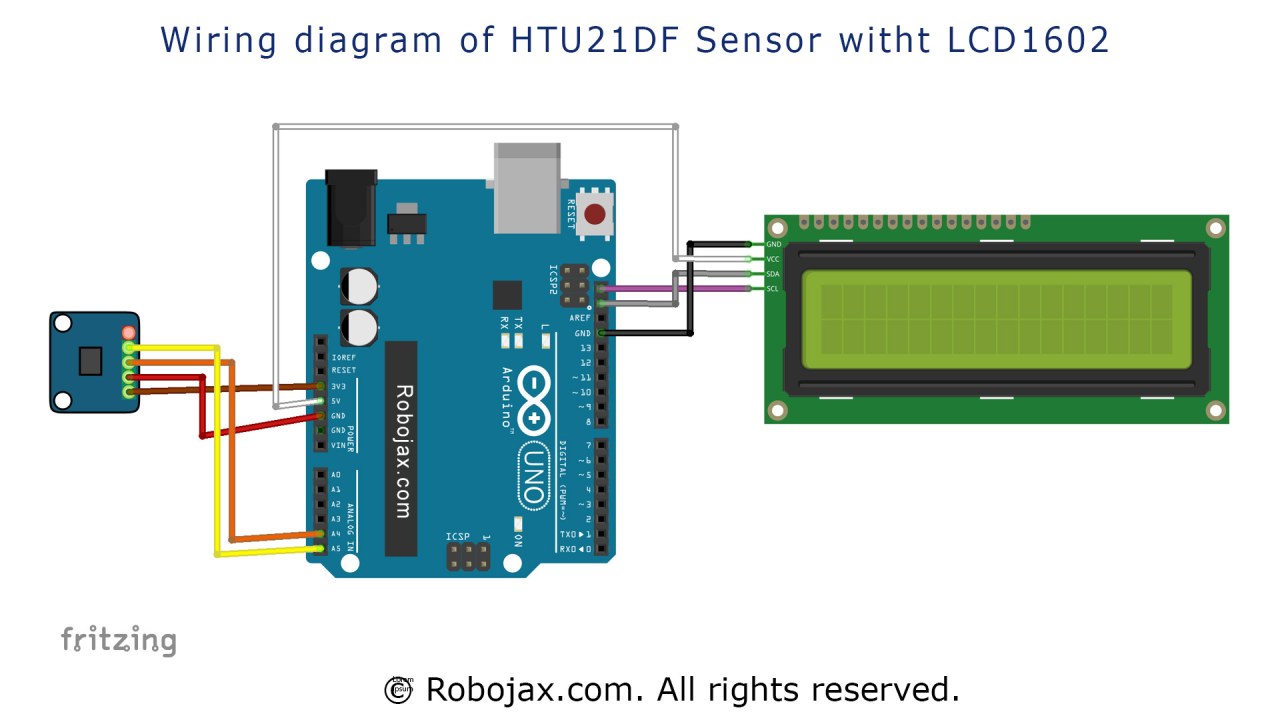
To wire the HTU21D sensor and the LCD 1602 display, follow these steps closely:
First, connect the HTU21D sensor. Connect the first pin (VCC) to the 3.3 V pin on the Arduino. The second pin (GND) should be connected to the ground (GND) of the Arduino. The third pin (SDA) is connected to the A4 pin on the Arduino, and the fourth pin (SCL) connects to the A5 pin. Make sure to use the correct wire colors for clarity, using red for VCC, black for GND, orange for SDA, and yellow for SCL.
Next, for the LCD 1602 display, connect the VCC pin to the 5 V pin on the Arduino and the GND pin to the ground. The SDA pin of the LCD should be connected to the same A4 pin used for the HTU21D, and the SCL pin should connect to the A5 pin. This setup allows both the sensor and the display to communicate via the I2C protocol.
Code Examples & Walkthrough
In the code, the first step is to include the necessary libraries for the sensor and the LCD. The line #include is essential for I2C communication, while #include "Adafruit_HTU21DF.h" initializes the HTU21D sensor. The next line creates an instance of the HTU21D class:
Adafruit_HTU21DF htu = Adafruit_HTU21DF();This line sets up the sensor for use in the program, allowing us to call its methods later to read temperature and humidity values.
Within the setup() function, we initialize the serial monitor and the LCD display. The following lines check if the sensor is working correctly:
if (htu.begin()) {
    lcd.print("HTU21DF Bargraph");
} else {
    lcd.print("missing HTU21DF");
    while(1); // Pause forever.
}
If the sensor fails to initialize, the program will display an error message and halt execution. This is crucial for debugging and ensures that the sensor is connected properly.
In the loop() function, temperature readings are taken and displayed. The line float T = getHTU('H'); retrieves the temperature or humidity based on the parameter passed. The retrieved value is then displayed on the LCD:
lcd.setCursor (0,1);
lcd.print(T); // print
lcd.print((char)223); // prints degree symbol
lcd.print("C"); //
This code positions the cursor on the second line of the LCD and prints the temperature value along with the degree symbol. The use of (char)223 is a handy trick to display the degree symbol on the LCD.
Demonstration / What to Expect
Once everything is set up and the code is uploaded, you should see the temperature readings displayed on the LCD as a bar graph. The readings will update continuously, reflecting the current temperature and humidity. If you blow hot air onto the sensor, you will see the temperature rise rapidly, confirming that the system works as expected. Be cautious of reversed polarity or incorrect wiring, as these can lead to malfunction or damage (in video at 02:30).
Video Timestamps
- 00:00 - Introduction
- 01:30 - Wiring Explanation
- 02:30 - Code Walkthrough
- 04:00 - Demonstration
- 05:30 - Conclusion
Images
This tutorial is part of: Digital Relative Humidity & Temperature Sensor HTU21D
- Lesson 35-1: Using the HTU21D Temperature Sensor
- Lesson 35-2: Using the HTU21D Temperature Sensor Custom Code
- Lesson 35: Using HTU21D Temperature Sensor with Arduino
- Lesson 36: Using the HTU21D Temperature Sensor with an LCD Arduino Step-by-Step Course
- Using Two More HTU21DF Humidity and Temperature Sensors with Arduino
- Displaying Temperature from an HTU21D on an LCD
- How to Use the HTU21DF Humidity and Temperature Sensor with Arduino (Basic Code)
- How to Use the HTU21DF Humidity and Temperature Sensor with Arduino (Custom Code)
/*
 *  Display Temperature from HTU21D(F) on LCD as bargraph
 *  Written and Updated by Ahmad Shamshiri on July 18, 2019
 *  for Robojax in Ajax, Ontario, Canada
  Watch Video tutorial for this code: https://youtu.be/kpGvzNWLHuk

  Must watch:
  1- Introduction to HTU21DF
  https://youtu.be/Q5y18rgTAhA
  2- LCD1602-I2C video: https://youtu.be/q9YC_GVHy5A

 *  Original Sources:
 *  LCD library: https://github.com/fdebrabander/Arduino-LiquidCrystal-I2C-library
 *  Bargraph library from https://playground.arduino.cc/Code/LcdBarGraph/
 *
 *


- (GND) to GND
+ (VDD) to 3.3V

(WARNING: Do not connect + to 5V or the sensor will be damaged!)

*/

#include <Wire.h>
#include "Adafruit_HTU21DF.h"
Adafruit_HTU21DF htu = Adafruit_HTU21DF();

#define maxValue 160 // is the value in celsius or fahrenheit set in line above

// LCD settings
#include <LiquidCrystal_I2C.h>
byte lcdNumCols = 16; // -- number of columns in the LCD
byte lcdLine = 2; // -- number of lines in the LCD

LiquidCrystal_I2C lcd(0x3f,lcdNumCols,lcdLine); //0x3f is address for I2C
                  // to get I2C address, run I2C Scanner.
                  //Link is provided (in same page as this code) at http://robojax.com/learn/arduino
// bargraph settings
#include <LcdBarGraphRobojax.h>
LcdBarGraphRobojax robojax(&lcd, 16, 0, 0);  // -- creating 16 character long bargraph starting at char 0 of line 0 (see video)


void setup()
{
  Serial.begin(9600);//initialize serial monitor
 // -- initializing the LCD
  lcd.begin();
  lcd.clear();
  lcd.print("Robojax");


  // Initialize the sensor (it is important to get calibration values stored on the device).

  if (htu.begin())
  {
   lcd.setCursor (0,1); //
    lcd.print("HTU21DF Bargraph");
  }else {
    lcd.setCursor (0,1); //
    lcd.print("missing HTU21DF");
    while(1); // Pause forever.
  }
  // -- give user some time to read the text above
  delay(2000);
  lcd.clear();
}// setup

void loop()
{
 // Robojax HTU21DF Bargraph main loop

 robojax.clearLine(1);// clear line 1 to display fresh temperature
 float T = getHTU('H');// get the temperature
 float Tgraph=T;

     if( Tgraph > maxValue){
        Tgraph =0;
     }
        robojax.drawValue( Tgraph, maxValue);// draw the bargraph
      // Print out the measurement:
      Serial.print("temperature: ");
      Serial.print(T,2);


      lcd.setCursor (0,1); //
      if(T< maxValue){
       lcd.print("Temp.:");
       //lcd.print("Humi.:");
      }else{
       lcd.print("Max.:");
      }
      lcd.setCursor (7,1); //
      lcd.print(T); // print
      lcd.print((char)223);// prints degree symbol
      //lcd.print("%");// prints degree symbol
      lcd.print("C");//


delay(500);
}


/*
 * @brief returns temperature or relative humidity
 * @param "type" is a character
 *     C = Celsius
 *     K = Kelvin
 *     F = Fahrenheit
 *     H = Humidity
 * @return returns one of the values above
 * Usage: to get Fahrenheit, type: getHTU('F')
 * to print it on the serial monitor: Serial.println(getHTU('F'));
 * Written by Ahmad Shamshiri on July 13, 2019
 * in Ajax, Ontario, Canada
 * www.Robojax.com
 */
float getHTU(char type)
{
  float value;
    float temp = htu.readTemperature();
    float rel_hum = htu.readHumidity();
   if(type =='F')
   {
    value = temp *9/5 + 32;//convert to Fahrenheit
   }else if(type =='K')
   {
    value = temp + 273.15;//convert to Kelvin
   }else if(type =='H')
   {
    if(rel_hum<0){rel_hum =0;}//prevents it from negative value
    value = rel_hum;//return relative humidity
   }else{
    value = temp;// return Celsius
   }
   return value;
}//
Resources & references
-
ExternalAdafruit HTU21D Library (GitHub)github.com
-
ExternalHTU21D Datasheet (PDF)cdn-shop.adafruit.com
Files📁
Arduino Libraries (zip)
-
Robojax LCD Bargraph Library (ZIP file)
robojax-LCD-bargraph-Library.zip0.10 MB
Datasheet (pdf)
-
HTU21D_temerature_humidity_datasheet
HTU21D_temerature_humidity_datasheet.pdf0.96 MB