This tutorial is part of: Digital Relative Humidity & Temperature Sensor HTU21D
Videos related to Digital Relative Humidity & Temperature Sensor HTU21D. Links to other videos are below this article.

Displaying Temperature from an HTU21D on an LCD
In this tutorial, we will learn how to display temperature readings from the HTU21D temperature and humidity sensor on an LCD. The outcome will be a functional setup where the temperature can be viewed in degrees Celsius, Fahrenheit, and Kelvin, along with the relative humidity displayed on the same screen. This project will give you practical experience with I2C communication and basic sensor data handling. For a detailed visual guide, be sure to watch the video (in video at 00:00).
Hardware Explained
The main components for this project include the HTU21D sensor and the LCD display. The HTU21D is a digital humidity and temperature sensor that communicates over the I2C protocol. It provides precise measurements of temperature in degrees Celsius or Fahrenheit and relative humidity as a percentage. The sensor operates typically at a voltage of 3.3V but can also work with 5V systems. The LCD display we will use is a 16x2 LCD with an I2C interface. This type of display requires only two wires for data communication, making it easier to connect with microcontrollers like Arduino. The I2C interface allows multiple devices to be connected on the same bus, simplifying wiring and reducing the number of pins used.Datasheet Details
| Manufacturer | Adafruit |
|---|---|
| Part number | HTU21D-F |
| Logic/IO voltage | 3.3 V (typ.) |
| Supply voltage | 1.5 V to 3.6 V |
| Output current | 0.5 mA (typ.) |
| Peak current | 1.5 mA (max.) |
| Temperature range | -40 to 125 °C |
| Humidity range | 0 to 100 %RH |
| Package | DFN-6 |
| Notes / variants | None |
- Ensure correct voltage levels to avoid damage to the sensor.
- Use pull-up resistors on the SDA and SCL lines if necessary.
- Check I2C address with a scanner to ensure correct configuration.
- Handle the sensor's output carefully to avoid reading errors.
- Keep the sensor away from heat sources when taking measurements.
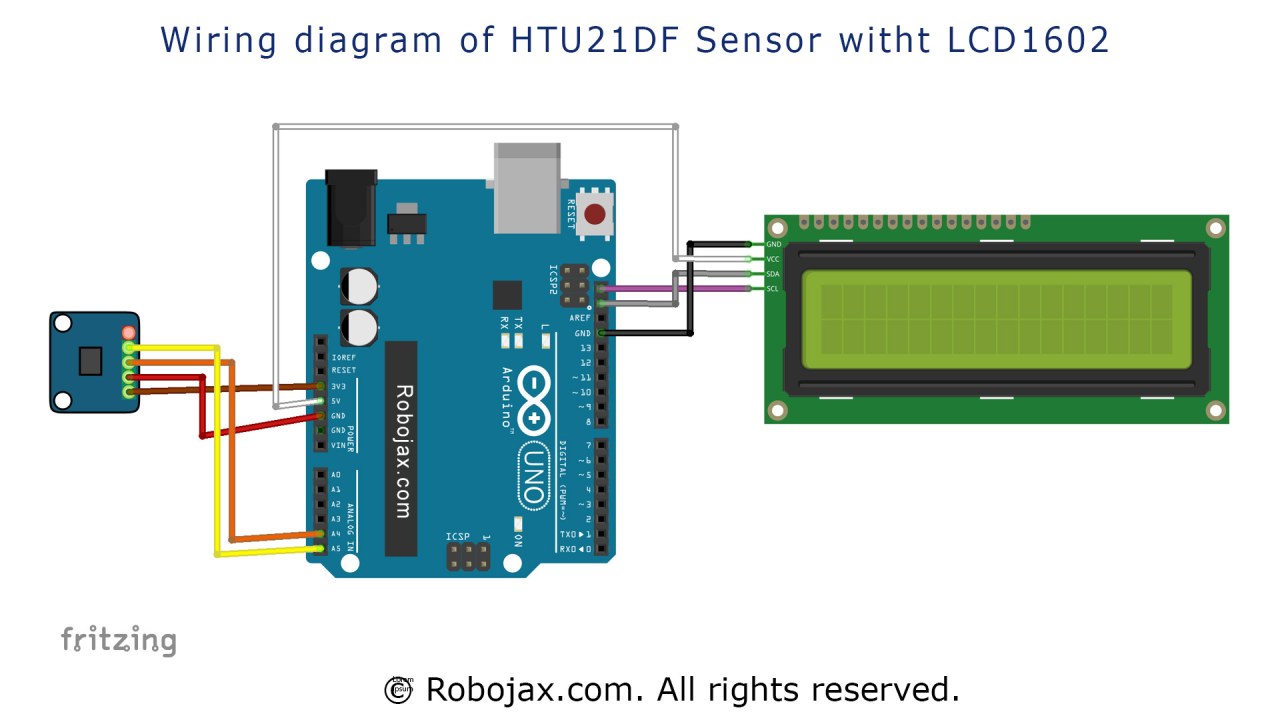
Wiring Instructions
Code Examples & Walkthrough
In the code, we start by including the necessary libraries for the HTU21D sensor and the LCD:#include
#include "Adafruit_HTU21DF.h"
#include
Adafruit_HTU21DF htu = Adafruit_HTU21DF();
LiquidCrystal_I2C lcd(0x3F, 16, 2);
htu is the object for the HTU21D sensor, and lcd is the object for the LCD display. The I2C address for the LCD is set to 0x3F, which you may need to verify based on your configuration.
In the setup() function, we initialize the LCD and check if the sensor is operational:
void setup() {
  lcd.begin();
  lcd.backlight();
  if (!htu.begin()) {
      lcd.print("Sensor missing");
      while (1);
  }
  lcd.print("HTU21D Ready");
}
loop() function, we continuously read the temperature and humidity values and display them:
void loop() {
   lcd.clear();
   lcdDisplay(0, 0, "Celsius: ", 10, 0, getHTU('C'), 'd');
   lcdDisplay(0, 1, "Humidity: ", 10, 1, getHTU('H'), '%');
   delay(5000);
}
lcdDisplay() function to show the temperature in Celsius and the humidity. The getHTU() function retrieves the temperature or humidity based on the character passed.
Demonstration / What to Expect
When the setup is complete and the code is uploaded to the Arduino, the LCD should display the current temperature in Celsius and the relative humidity. If everything is connected properly, you will see the values update every few seconds. Watch out for common pitfalls, such as reversed connections or incorrect I2C addresses, which can lead to sensor communication failures (in video at 05:00).Video Timestamps
- 00:00 - Introduction
- 01:30 - Wiring Instructions
- 03:15 - Code Explanation
- 04:50 - Demonstration
- 05:40 - Conclusion
Images

LCD1602 or LCD2004 with HTU21DF Humidity and Temperature Sensor with Arduino
Arduino wiring for HTU21DF light intesity sensor with LCD
HTU21D module
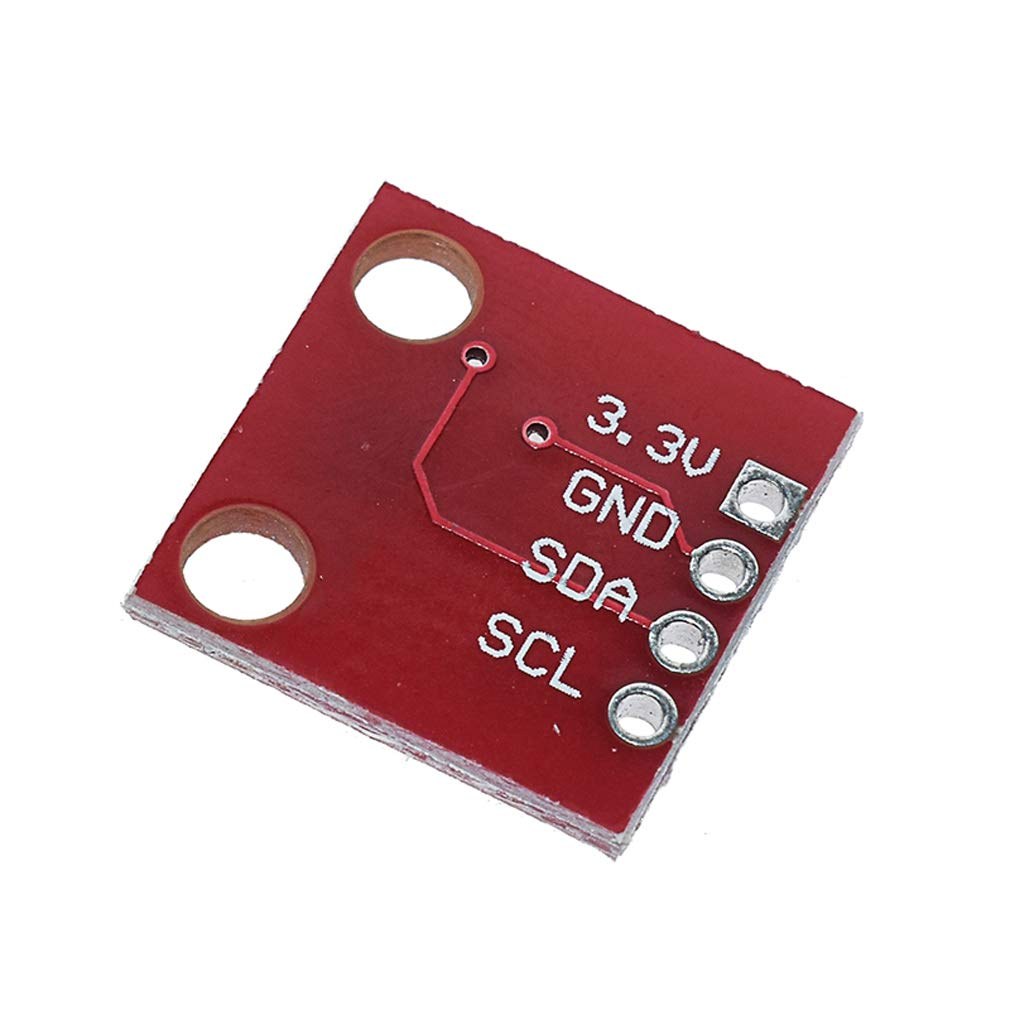
HTU21D module-back
This tutorial is part of: Digital Relative Humidity & Temperature Sensor HTU21D
- Lesson 35-1: Using the HTU21D Temperature Sensor
- Lesson 35-2: Using the HTU21D Temperature Sensor Custom Code
- Lesson 35: Using HTU21D Temperature Sensor with Arduino
- Lesson 36: Using the HTU21D Temperature Sensor with an LCD Arduino Step-by-Step Course
- Using Two More HTU21DF Humidity and Temperature Sensors with Arduino
- Displaying Temperature from an HTU21D as a Bar Graph on an LCD
- How to Use the HTU21DF Humidity and Temperature Sensor with Arduino (Basic Code)
- How to Use the HTU21DF Humidity and Temperature Sensor with Arduino (Custom Code)
213-Display Temperature from HTU21DF on LCD1602-I2C or LCD2004
Language: C++
/*
 * Display Temperature from HTU21DF on LCD1602-I2C or LCD2004
 * Updated by Ahmad Shamshiri on July 13, 2019
 * in Ajax, Ontario, Canada
 * Watch video instructions for this sketch:
**************************************************
*
  This is an example for the HTU21D-F Humidity & Temp Sensor

  Designed specifically to work with the HTU21D-F sensor from Adafruit
  ----> https://www.adafruit.com/products/1899

  These displays use I2C to communicate; 2 pins are required to
  interface

 Watch Introduction to  360 Servo video with code: https://youtu.be/b_xvu6wWafA
You can get the wiring diagram from my Arduino Course at Udemy.com
Learn Arduino step by step with all libraries, codes, wiring diagrams all in one place
visit my course now http://robojax.com/L/?id=62

If you found this tutorial helpful, please support me so I can continue creating
content like this.
or make a donation using PayPal http://robojax.com/L/?id=64

 * Code is available at http://robojax.com/learn/arduino

 * This code is "AS IS" without warranty or liability. Free to be used as long as you keep this note intact.
 * This code has been downloaded from Robojax.com
    This program is free software: you can redistribute it and/or modify
    it under the terms of the GNU General Public License as published by
    the Free Software Foundation, either version 3 of the License, or
    (at your option) any later version.

    This program is distributed in the hope that it will be useful,
    but WITHOUT ANY WARRANTY; without even the implied warranty of
    MERCHANTABILITY or FITNESS FOR A PARTICULAR PURPOSE.  See the
    GNU General Public License for more details.

    You should have received a copy of the GNU General Public License
    along with this program.  If not, see <https://www.gnu.org/licenses/>.

*/

#include <Wire.h>
#include "Adafruit_HTU21DF.h"

// Connect Vin to 3-5VDC
// Connect GND to ground
// Connect SCL to I2C clock pin (A5 on UNO)
// Connect SDA to I2C data pin (A4 on UNO)

Adafruit_HTU21DF htu = Adafruit_HTU21DF();

// start of settings for LCD1602 with I2C
#include <LiquidCrystal_I2C.h>
// Set the LCD address to 0x27 for a 16 chars and 2 line display
LiquidCrystal_I2C lcd(0x3F, 16, 2);
// end of settings for LCD1602 with I2C

void setup() {
  lcd.begin();
  lcd.backlight();
  if (!htu.begin()) {
      lcd.print("Robojax HTUD1DF");
      lcd.setCursor(0,1);
      lcd.print("sensor missing");
    while (1);
  }else{
  // initialize the LCD

  lcd.print("Robojax HTUD1DF");
  lcd.setCursor(0,1);
  lcd.print("Demo");
  }
  delay(2000);
}

void loop() {
   lcd.clear();// clear previous values from screen
lcdDisplay(
             // to print Celsius:
             0, // character 0
             0, // line 0
             "Celsius: ",

             // to print Celsius
             10, // character 10
             0, // line 0
             getHTU('C'),
             'd'
             );

  lcdDisplay(
             // to print Fahrenheit:
             0, // character 0
             1, // line 1
             "Fahrenheit: ",

             // to print Fahrenheit
             10, // character 9
             1, // line 0
             getHTU('F'),
             'd'
             );
    delay(5000);
lcdDisplay(
             // to print Kelvin:
             0, // character 0
             0, // line 0
             "Kelvin: ",

             // to print Celsius
             9, // character 10
             0, // line 0
             getHTU('K'),
             'k'
             );
  lcdDisplay(
             // to print humidity text
             0, // character 0
             1, // line 1
             "Humidity: ",

             // to print humidity
             10, // character 9
             1, // line 1
             getHTU('H'),
             '%'
             );

        delay(5000);
}

/*
 * @brief returns temperature or relative humidity
 * @param "type" is character
 *     C = Celsius
 *     K = Kelvin
 *     F = Fahrenheit
 *     H = Humidity
 * @return returns one of the values above
 * Usage: to get Fahrenheit type: getHTU('F')
 * to print it on serial monitor Serial.println(getHTU('F'));
 * Written by Ahmad Shamshiri on July 13, 2019
 * in Ajax, Ontario, Canada
 * www.Robojax.com
 */
float getHTU(char type)
{
  float value;
    float temp = htu.readTemperature();
    float rel_hum = htu.readHumidity();
   if(type =='F')
   {
    value = temp *9/5 + 32;//convert to Fahrenheit
   }else if(type =='K')
   {
    value = temp + 273.15;//convert to Kelvin
   }else if(type =='H')
   {
    value = rel_hum;//return relative humidity
   }else{
    value = temp;// return Celsius
   }
   return value;
}//


/*
 * lcdDisplay(int tc, int tr, String title, int vc, int vr, float value)
 * displays value and title on LCD1602
 * How to use:
 * If you want to display: "Voltage: 13.56mV" starting from the first character
 * on the second row.
 * use:
 * lcdDisplay(0, 1, "Voltage: ", 13.56,'d')
 *
 *   'd' is degree symbol
 * tc  is character number  (0)
 * tr is row in the lcd (1)
 * title is the text (Voltage:)
 * vc value for character
 * vr value for  row or line
 * value is the value (13.56)
 */
void lcdDisplay(int tc, int tr, String title, int vc, int vr, float value,char symbol)
{
   // Robojax.com LCD1602 for HTU21D Demo
   lcd.setCursor (tc,tr); //
   lcd.print(title);

   lcd.setCursor (vc,vr); //
   lcd.print(value);
   if(symbol == 'd')
   {
    lcd.print((char)223);
   }else if(symbol =='%')
   {
    lcd.print("%");
   }else if(symbol =='k')
   {
    lcd.print("K");
   }
 // Robojax.com LCD1602 for HTU21D Demo
}
Things you might need
-
Amazon
-
eBayPurchase HTU21D from eBayebay.us
-
AliExpressPurchase HTU21D or SHT21 from AliExpresss.click.aliexpress.com
Resources & references
-
ExternalAdafruit HTU21D Library (GitHub)github.com
Files📁
Datasheet (pdf)
-
HTU21D_temerature_humidity_datasheet
HTU21D_temerature_humidity_datasheet.pdf0.96 MB