This tutorial is part of: ESP32-S3 RGB LED Matrix
Cool project to create for fun and practical applications using ESP32-S3 RGB Matrix module. Links to other videos are below this article.
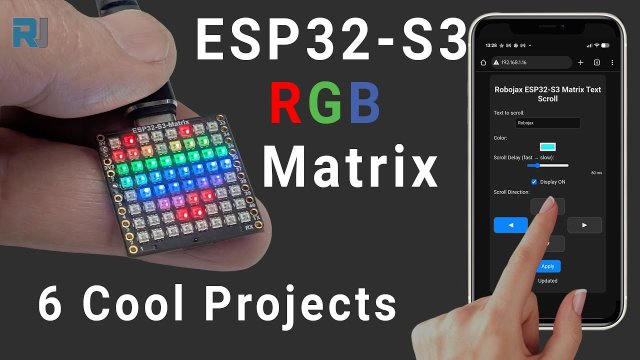
ESP32-S3 RGB LED Matrix Project 1- Basic Dot
Project 1 – Moving Dot and Heart Animation on ESP32-S3 RGB LED Matrix
In this project we start with the simplest possible animation on the ESP32-S3 RGB LED Matrix: a single dot moving across the 8×8 RGB display. On top of that, we add a small heart animation so you can turn the board into a tiny decorative display when it is powered on. This is a great first step to getting comfortable with controlling individual pixels, colors, and animation speed on the matrix.
All six projects in this series are demonstrated and explained in a single video. The same video is embedded on this page, so you can watch the full step-by-step explanation and live demonstration of the moving dot and heart animations. The complete code for this project is loaded automatically below the article, and you can purchase the ESP32-S3 RGB LED Matrix module from affiliate stores listed under the code section.
If you are just starting with this board, this project is a perfect way to:
- Verify that your ESP32-S3 board and USB connection are working.
- Confirm that the 8×8 RGB matrix is wired to the correct pin.
- Experiment with basic animation timing, color, and brightness.

ESP32-S3 RGB LED Matrix Module Overview
The board used in this project is based on the ESP32-S3 microcontroller, combined with an 8×8 RGB LED matrix (64 individually addressable RGB LEDs), a QMI8658C motion sensor on the back, and a USB port for power and programming.:contentReference[oaicite:0]{index=0}
Key features of this module:

- ESP32-S3 dual-core microcontroller with Wi-Fi and Bluetooth support.
- 8×8 RGB LED matrix (64 RGB LEDs) on the front of the board, ideal for icons, text, and small games.
- QMI8658C accelerometer / motion sensor on the back side, so you can detect tilt, movement, and orientation for interactive projects.
- USB port for both programming and power.
- Accessible pins around the edges, so the board can still be used like a regular ESP32 for other IO projects.
- Boot and reset buttons for entering programming mode and restarting your sketch.
In this first project we only use the LED matrix part of the board, but the same hardware is powerful enough to run text displays, web-controlled messages, motion-controlled games, and more — which are covered in the other projects of this series.
Projects Covered in the Video (Timestamps)
All six projects share the same YouTube video. The approximate timestamps are:
- 00:00 – Introduction
- 02:01 – Installing ESP32 boards
- 03:32 – Installing libraries
- 05:32 – Project 1: Moving Dot (and basic color / speed settings)
- 11:11 – Project 2: Text Scroll
- 12:59 – Project 3: HTTP Text
- 16:41 – Project 4: Tilt Dot
- 18:55 – Project 5: Arrow Up
- 20:02 – Project 6: Target Game
For the best understanding, you are strongly encouraged to watch the video while following this article. The video shows the live behavior of the dot and the heart on the matrix, plus all the steps inside the Arduino IDE.
Installing ESP32 Boards in Arduino IDE
Before uploading any code to the ESP32-S3, you must install the ESP32 board support package in the Arduino IDE. In the video, this is demonstrated around the “installing boards” section.
General steps:
- Open the Arduino IDE and go to
File > Preferences. - In the “Additional Boards Manager URLs” field, add the official ESP32 boards URL.
- Open
Tools > Board > Boards Manager…, search forESP32, and install the package for ESP32 boards. - After installation, go to
Tools > Boardand select the correct board entry for your ESP32-S3 RGB Matrix module. - Connect the board via USB and choose its serial port under
Tools > Port.
If the correct board and port are not selected, your sketch will not upload, even if your code is correct.
Installing NeoMatrix and Required Libraries
The LED matrix uses the Adafruit NeoPixel driver internally, and for easier 2D drawing we use the Adafruit NeoMatrix library. Installing NeoMatrix will automatically pull in the dependencies.
NeoMatrix and Dependencies
Install the following from the Library Manager:
Adafruit NeoMatrixAdafruit NeoPixelAdafruit GFX Library
In the Library Manager:
- Open
Sketch > Include Library > Manage Libraries…. - Search for
Adafruit NeoMatrixand click Install. - Allow the IDE to install all suggested dependencies (Adafruit GFX and Adafruit NeoPixel).
QMI8658C Motion Sensor Library (For Later Projects)
Project 1 does not use the accelerometer directly, but it is a good idea to install the motion sensor library now because it will be needed for Projects 4, 5, and 6.
From Library Manager:
- Search for the QMI8658 library by its author name.
- Install the library so it appears under
File > Examplesfor quick testing.
Project 1 – Code Settings (Moving Dot and Heart)
The full sketch that runs Project 1 is automatically loaded below this article on the website. Here we only focus on the key settings you are likely to change: pin, number of pixels, brightness, color, and animation speed. For the heart animation we also show how to control the color and whether the heart is solid or outlined.
LED Pin and Number of Pixels
On this module, the 8×8 RGB matrix is connected to GPIO 14 of the ESP32-S3. The total number of pixels is 64 (8 × 8). In your code, you should see something similar to:
// Pin connected to the 8×8 RGB matrix
const int MATRIX_PIN = 14;
 // must be 14 on this module
// Total number of LEDs (8 × 8 matrix)
const int NUMPIXELS = 64; // change only if you use a different matrix size
If you accidentally leave NUMPIXELS at 16 (from the original NeoPixel example), only a quarter of the matrix will be used and the animation will not fill the entire 8×8 screen.
Color Order and LED Type
Different LED strips and matrices may use different color orders (for example, GRB instead of RGB). The matrix on this board expects RGB order. In the NeoPixel or NeoMatrix constructor, make sure the color type is set correctly:
 // Example for a NeoPixel-style object:
Adafruit_NeoPixel pixels( NUMPIXELS, MATRIX_PIN, NEO_RGB + NEO_KHZ800 // make sure this matches the matrix color order );
If you notice that red and green are swapped on the display, check this line first and correct the color order.
Animation Speed (Delay Between Steps)
The speed of the moving dot is usually controlled by a simple delay value in milliseconds. A smaller delay means faster movement; a larger delay means slower movement. Look for a variable similar to:
// Delay between dot moves (in milliseconds)
 int dotDelayMs = 50; // 50 ms is fairly fast
Typical adjustments:
- Set
dotDelayMs = 20;for a very fast moving dot. - Set
dotDelayMs = 100;or higher for a slow, calm animation.
In the loop() function, this value is usually passed to delay(dotDelayMs); after each frame update.
Dot Color and Brightness
The RGB color of the moving dot is controlled by three values in the range 0–255 (red, green, blue). For example:
// Dot color (R, G, B) from 0–255 uint8_t dotRed = 255; // full red
uint8_t dotGreen = 0; // no green
uint8_t dotBlue = 0; // no blue
This would produce a bright red dot. Some useful combinations:
- Pure red:
(255, 0, 0) - Pure green:
(0, 255, 0) - Pure blue:
(0, 0, 255) - Yellow:
(255, 255, 0) - White:
(255, 255, 255)
Overall brightness is often controlled by a separate brightness function:
// Overall matrix brightness (0–255)
uint8_t matrixBrightness = 40; // keep it low to avoid too much glare // In setup(): matrix.setBrightness(matrixBrightness);
A value around 30–60 is usually comfortable for indoor use.
Heart Shape Settings
In addition to the moving dot, you can display a small heart on the matrix when the board first powers up. The article’s sample code (loaded below) includes settings similar to:
// Heart color (solid heart)
uint8_t heartRed = 255;
uint8_t heartGreen = 0;
uint8_t heartBlue = 0;
// Optional: rainbow or outline modes
bool showOutlinedHeart = false;
// true = outline only
bool useRainbowHeart = false;
// true = cycle colors over time
Typical usage:
- Set
showOutlinedHeart = false;anduseRainbowHeart = false;for a solid red heart. - Set
showOutlinedHeart = true;to show only the heart outline. - Set
useRainbowHeart = true;to continuously cycle the heart color through a rainbow effect.
The heart is drawn using NeoMatrix coordinate functions inside the code below the article. You only need to change the variables above to customize its look.
Summary
Project 1 gives you a simple but powerful starting point with the ESP32-S3 RGB LED Matrix: you learn how to address all 64 pixels, control color, adjust brightness, and set animation speed. You also see how easy it is to switch from a moving dot to a static or animated heart on the same hardware.
Make sure to watch the full video embedded on this page for a complete, step-by-step demonstration of the moving dot and heart animations, along with the remaining five projects. The full source code is available below this article, and you can support future projects by purchasing the module through the affiliate links listed under the code section.
Images


This tutorial is part of: ESP32-S3 RGB LED Matrix
- ESP32-S3 RGB LED Matrix Project 2 - Scrolling Text
- ESP32-S3 RGB LED Matrix Project 3 - Text from mobile phone
- ESP32-S3 RGB LED Matrix Project 4 - Tilt dot
- ESP32-S3 RGB LED Matrix Project 5 - Arrow always up
- ESP32-S3 RGB LED Matrix Project 6 - Cible game
- ESP32-S3 RGB LED Matrix Wi-Fi + NTP Time Clock Project -1 Basic Clock
- ESP32-S3 RGB LED Matrix Internet Clock Project - 2 Clock multi color Time & Date Display
- ESP32-S3 RGB LED Matrix Internet Clock Project - 3 Night Color with Date
- ESP32-S3 RGB LED Matrix Internet Clock Project - 5 Rainbow color
- ESP32-S3 RGB LED Matrix Internet Clock Project - 4 Random color
- ESP32-S3 RGB LED Matrix test for RGB, GRB setting
/*
  Project 1: the Dot – ESP32-S3 RGB LED Matrix (Waveshare)

  dialysis a dot on scree and moves it

  ▶️ Video Tutorial:
  https://youtu.be/JKLuYrRcLMI

  📚⬇️ Resources & Code Page:
  https://robojax.com/RJT829

  QMI8658_RGB_2
*/

#include <Adafruit_NeoPixel.h>
#ifdef __AVR__
 #include <avr/power.h> // Required for 16 MHz Adafruit Trinket
#endif

// Which pin on the Arduino is connected to the NeoPixels?
#define PIN        14 // On Trinket or Gemma, suggest changing this to 1

// How many NeoPixels are attached to the Arduino?
#define NUMPIXELS 64 // Popular NeoPixel ring size

// When setting up the NeoPixel library, we tell it how many pixels,
// and which pin to use to send signals. Note that for older NeoPixel
// strips you might need to change the third parameter -- see the
// strandtest example for more information on possible values.
Adafruit_NeoPixel pixels(NUMPIXELS, PIN, NEO_RGB + NEO_KHZ800);

#define DELAYVAL 50 // Time (in milliseconds) to pause between pixels

void setup() {
  // These lines are specifically to support the Adafruit Trinket 5V 16 MHz.
  // Any other board, you can remove this part (but no harm leaving it):
#if defined(__AVR_ATtiny85__) && (F_CPU == 16000000)
  clock_prescale_set(clock_div_1);
#endif
  // END of Trinket-specific code.

  pixels.begin(); // INITIALIZE NeoPixel strip object (REQUIRED)
}

void loop() {
  pixels.clear(); // Set all pixel colors to 'off'

  // The first NeoPixel in a strand is #0, second is 1, all the way up
  // to the count of pixels minus one.
  for(int i=0; i<NUMPIXELS; i++) { // For each pixel...

    // pixels.Color() takes RGB values, from 0,0,0 up to 255,255,255
    // Here we're using a moderately bright green color:
    pixels.setPixelColor(i, pixels.Color(255, 255, 0));

    pixels.show();   // Send the updated pixel colors to the hardware.

    delay(DELAYVAL); // Pause before next pass through loop
    pixels.clear();
  }


}
Things you might need
-
Amazon
-
eBay
-
AliExpressPurchase ESP32-S3 RGB Matrix from AliExpresss.click.aliexpress.com
-
AliExpressPurchase ESP32-S3 RGB Matrix from AliExpress (2)s.click.aliexpress.com
Resources & references
-
Internal🎨 Color picker Toolrobojax.com
Files📁
Fritzing File
-
esp32-S3-supermini-tht fritzing part
esp32-S3-supermini-tht.fzpz0.02 MB