ESP32 Tutorial 51/55 - Temperature and Humidity over WiFi with DHT | SunFounder's ESP32 IoT Learning Kit
In this tutorial, we will learn how to use the SunFounder ESP32 with a DHT11 or DHT22 sensor to measure temperature and humidity. This project will allow us to read the sensor data on our mobile devices or browsers via Wi-Fi, showcasing the ESP32's capabilities as a web server. We will set up the ESP32, wire the components correctly, and write the necessary code to get everything running smoothly (in video at 00:15).
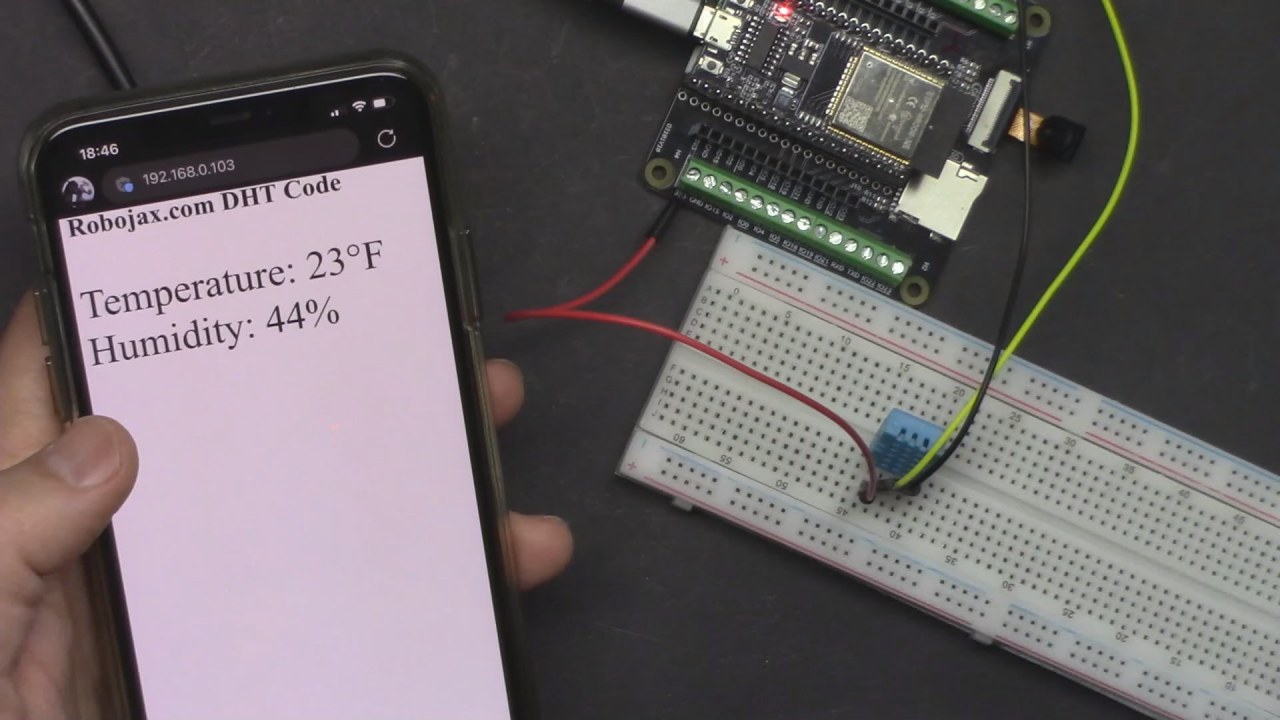
The ESP32 microcontroller is a powerful device with built-in Wi-Fi and Bluetooth. This allows us to connect to the internet and transmit sensor data wirelessly. The DHT sensor will measure the temperature and humidity, which will then be displayed on a web page accessible through the ESP32's IP address. This setup is ideal for monitoring environmental conditions remotely.
Hardware Explained
For this project, we will use the following main components:
- ESP32 Microcontroller: This is the core of the project that handles Wi-Fi connectivity and serves as a web server to display the sensor data.
- DHT11 or DHT22 Sensor: These sensors measure temperature and humidity. The DHT11 is suitable for basic applications, while the DHT22 offers better accuracy and a wider range.
The DHT sensor communicates with the ESP32 using a single data pin. It sends temperature and humidity readings in a digital format, which the ESP32 can easily interpret. The ESP32 will then host a web page that displays these readings in real-time.
Datasheet Details
| Manufacturer | Adafruit |
|---|---|
| Part number | DHT11/DHT22 |
| Logic/IO voltage | 3.3 V - 5.5 V |
| Supply voltage | 3.3 V - 5.5 V |
| Output current (per channel) | 0.5 mA (typ.) |
| Peak current (per channel) | 2.5 mA (max.) |
| Response time | 1 s (typ.) |
| Humidity range | 20% to 90% RH |
| Temperature range | -40°C to 80°C |
| Package | DIP-4 |
- Ensure the DHT sensor is connected to the correct GPIO pin on the ESP32.
- Use pull-up resistors to stabilize the data line.
- Pay attention to the power supply voltage; both DHT11 and DHT22 operate well at 3.3V.
- Keep the wiring short to avoid signal degradation.
- Check for correct library installation for DHT sensors in the Arduino IDE.
Wiring Instructions
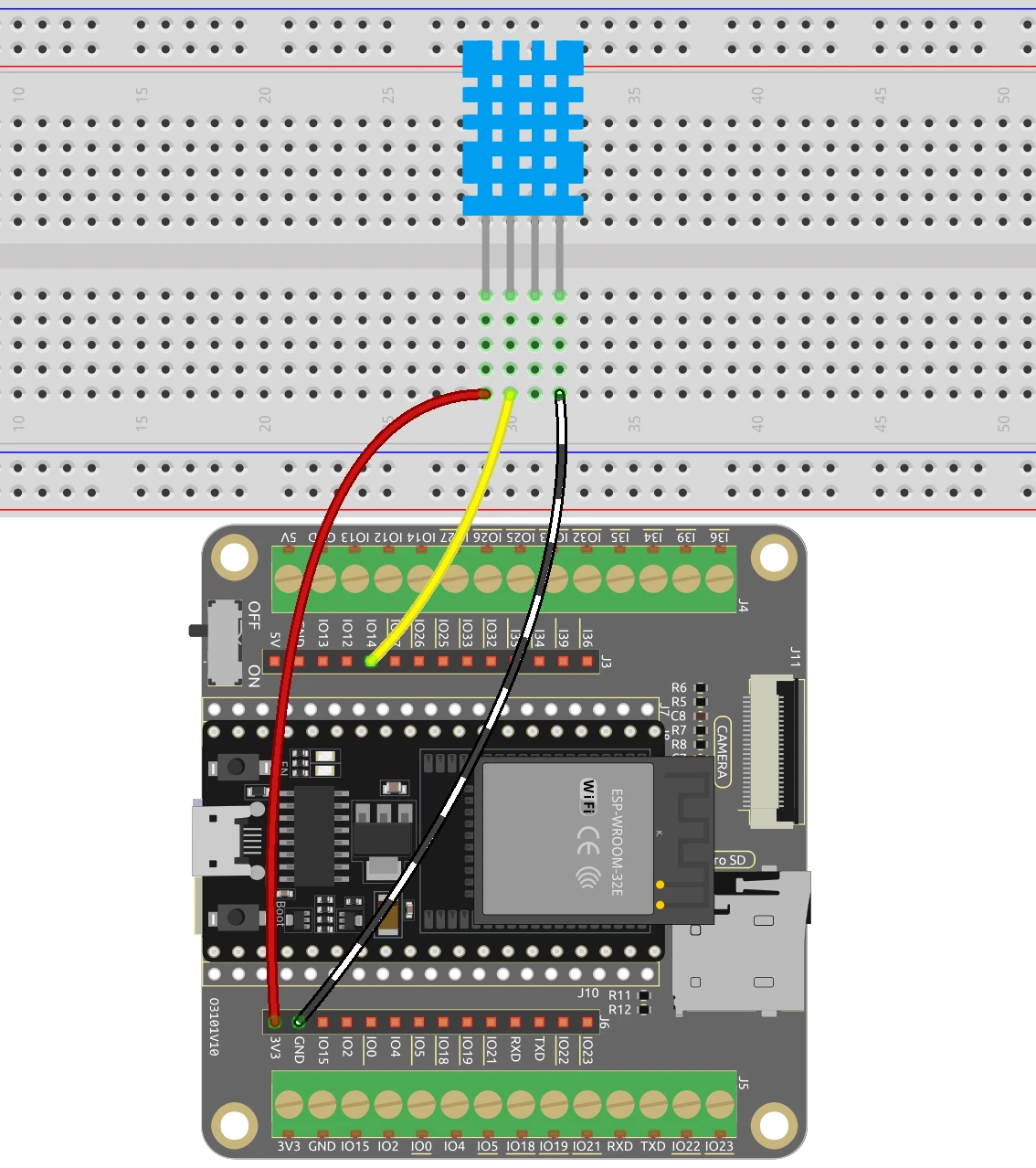
To wire the DHT sensor to the ESP32, connect the following pins:
- DHT Sensor VCC: Connect to the 3.3V pin on the ESP32.
- DHT Sensor GND: Connect to a GND pin on the ESP32.
- DHT Sensor Data: Connect to GPIO 14 on the ESP32 (this is defined in the code as
DHTPIN).
Ensure that you have the correct resistor (typically 4.7kΩ) connected between the VCC and the data pin for proper signal integrity. If using the DHT22, simply change the DHTTYPE in the code from DHT11 to DHT22 to accommodate the differences in sensor characteristics.
Code Examples & Walkthrough
In the code, we start by including the necessary libraries and defining some key identifiers. For instance, refresh is set to 3 seconds, which determines how often the temperature and humidity readings are updated.
const int refresh=3; // read every 3 seconds
boolean showSerial = true; // true or false
The showSerial variable allows us to control whether to print readings to the Serial Monitor. Next, we define the sensor pin and type:
#define DHTPIN 14  // Set the pin connected to the DHT11 data pin
#define DHTTYPE DHT11 // DHT 11
DHT dht(DHTPIN, DHTTYPE);
Here, the DHT object is created, linking it to the specified pin and type of sensor. The main function for sending temperature data over the web is defined as sendTemp():
void sendTemp() {
    String page = "\n";
    page += "\n";
    page += "\n";
    page += "\n";
    page += "\n";
    // Additional HTML content...
}
This function generates an HTML page that displays the temperature and humidity readings. The page is refreshed based on the refresh interval defined earlier. For full code details, please refer to the complete code loaded below the article.
Demonstration / What to Expect

After uploading the code to the ESP32, you should see the IP address printed in the Serial Monitor. Open a web browser and enter the IP address to view the temperature and humidity readings. The values will refresh every 3 seconds, providing real-time data (in video at 12:30).
Be cautious of common pitfalls, such as ensuring the ESP32 and your device are connected to the same Wi-Fi network. If you encounter issues, check the wiring and ensure the DHT sensor is functioning properly.
Video Timestamps
- 00:00 Start
- 1:45 Introduction to DHT wifi project
- 3:59 Arduino Code for ESP32 DHT Wifi
- 13:31 Selecting ESP32 board and COM port in Arduino IDE
- 15:13 Demonstration of Temperature over Wifi
Images
/*
 * Display temperature on Browswer screen using DHT11, DHT22 with ESP32
 *
 * Written by Ahmad Shamshiri on Dec 18, 2023
 📚⬇️ Download and resource page https://robojax.com/RJT385
 *
 * Watch video instruciton for this video:  https://youtu.be/drrW1EHqKuM
 *
 * I have combined DHT library of Adafruit with ESP8266 WebServer both links
 * Adafruit DHT library on GitHub: https://github.com/adafruit/DHT-sensor-library
 * and
 * ESP8266 on GitHub : https://github.com/esp8266/Arduino
 *
   Copyright (c) 2015, Majenko Technologies
   All rights reserved.

   Redistribution and use in source and binary forms, with or without modification,
   are permitted provided that the following conditions are met:

 * * Redistributions of source code must retain the above copyright notice, this
     list of conditions and the following disclaimer.

 * * Redistributions in binary form must reproduce the above copyright notice, this
     list of conditions and the following disclaimer in the documentation and/or
     other materials provided with the distribution.

 * * Neither the name of Majenko Technologies nor the names of its
     contributors may be used to endorse or promote products derived from
     this software without specific prior written permission.

   THIS SOFTWARE IS PROVIDED BY THE COPYRIGHT HOLDERS AND CONTRIBUTORS "AS IS" AND
   ANY EXPRESS OR IMPLIED WARRANTIES, INCLUDING, BUT NOT LIMITED TO, THE IMPLIED
   WARRANTIES OF MERCHANTABILITY AND FITNESS FOR A PARTICULAR PURPOSE ARE
   DISCLAIMED. IN NO EVENT SHALL THE COPYRIGHT HOLDER OR CONTRIBUTORS BE LIABLE FOR
   ANY DIRECT, INDIRECT, INCIDENTAL, SPECIAL, EXEMPLARY, OR CONSEQUENTIAL DAMAGES
   (INCLUDING, BUT NOT LIMITED TO, PROCUREMENT OF SUBSTITUTE GOODS OR SERVICES;
   LOSS OF USE, DATA, OR PROFITS; OR BUSINESS INTERRUPTION) HOWEVER CAUSED AND ON
   ANY THEORY OF LIABILITY, WHETHER IN CONTRACT, STRICT LIABILITY, OR TORT
   (INCLUDING NEGLIGENCE OR OTHERWISE) ARISING IN ANY WAY OUT OF THE USE OF THIS
   SOFTWARE, EVEN IF ADVISED OF THE POSSIBILITY OF SUCH DAMAGE.
*/

const int refresh=3;//read every 3 seconds
boolean showSerial =true;//true or false

unsigned int unit=0;//0=C, 1=F,
char *title[]={"Temperature","Temperature","Humidity"};
char *unitText[]={"°C","°F","%"};\

#include "DHT.h"
#define DHTPIN 14  // Set the pin connected to the DHT11 data pin
#define DHTTYPE DHT11 // DHT 11
//#define DHTTYPE DHT22   // DHT 22  (AM2302), AM2321
//#define DHTTYPE DHT21   // DHT 21 (AM2301)
DHT dht(DHTPIN, DHTTYPE);
float temperatureValue,temperatureFValue, humidityValue;//


#include <WiFi.h>
#include <WiFiClient.h>
#include <WebServer.h>
#include <ESPmDNS.h>

const char *ssid = "dars";
const char *password = "5152535455";

WebServer server(80);

void sendTemp() {
//see video
  String page = "<!DOCTYPE html>\n";
  page +="<html>\n";
  page +="<head>\n";
  page +="<title>Robojax DHT</title>\n";
  page +="    <meta http-equiv='refresh' content='";
  page += String(refresh);// how often temperature is read
  page +="'/>\n";

  page +="<head>\n";
  page +="<body>\n";
  page +="<h1>Robojax.com DHT Code</h1>\n";
  page +="<p style=\"font-size:50px\"> \n";
  page +=title[unit];
  page +=": ";
  if (DHTTYPE ==DHT11){
    page += String((int)temperatureValue);
  }else{
    page += String(temperatureValue, 1);
  }
  page +=unitText[unit];
  page +="<br/>\n";
  //humidity starts
  page +=title[2];
  page +=": \n";
  page += String((int)humidityValue);
  page +=unitText[2];
  //humidity ends
  page +="</p>\n";

  page +="</body>";
  page +="</html>\n";
  server.send(200,  "text/html", page);

}


void handleNotFound() {
  String message = "File Not Found\n\n";
  message += "URI: ";
  message += server.uri();
  message += "\nMethod: ";
  message += (server.method() == HTTP_GET) ? "GET" : "POST";
  message += "\nArguments: ";
  message += server.args();
  message += "\n";

  for (uint8_t i = 0; i < server.args(); i++) {
    message += " " + server.argName(i) + ": " + server.arg(i) + "\n";
  }

  server.send(404, "text/plain", message);

}

void setup(void) {
   dht.begin();
  Serial.begin(115200);
  WiFi.mode(WIFI_STA);
  WiFi.begin(ssid, password);
  Serial.println("");

  // Wait for connection
  while (WiFi.status() != WL_CONNECTED) {
    delay(500);
    Serial.print(".");
  }

  Serial.println("");
  Serial.print("Connected to ");
  Serial.println(ssid);
  Serial.print("Open: http://");
  Serial.print(WiFi.localIP());
  Serial.println(" to read temperature");

  if (MDNS.begin("robojaxDHT")) {
    Serial.println("MDNS responder started");
  }

  server.on("/", sendTemp);

  server.on("/inline", []() {
    server.send(200, "text/plain", "this works as well");
  });
  server.onNotFound(handleNotFound);
  server.begin();
  Serial.println("HTTP server started");
}

void loop(void) {
  //Robojax.com code for ESP32 DHT11 DHT22
  server.handleClient();
  temperatureValue = dht.readTemperature();// Read temperature as Celsius (the default)
  humidityValue = dht.readHumidity();// Reading humidity
  temperatureFValue = dht.readTemperature(true);// Read temperature as Fahrenheit (isFahrenheit = true)

    if(showSerial){
        Serial.print(title[unit]);
        Serial.print(": ");
        if (DHTTYPE ==DHT11){
      Serial.println((int)temperatureValue);
        }else{
        Serial.print(temperatureValue,1);
        }

    }
  Serial.println();//just adds new line

  delay(300);// change this to larger value (1000 or more) if you don't need very often reading
  // Robojax.com code for ESP32 and DHT11 DHT22
}
Common Course Links
Common Course Files
Things you might need
-
AliExpressAliExpresss.click.aliexpress.com
Resources & references
-
ExternalAliExpresss.click.aliexpress.com
-
Internal
Files📁
No files available.