BMP180 Temperature and Barometric Pressure Sensor for Arduino
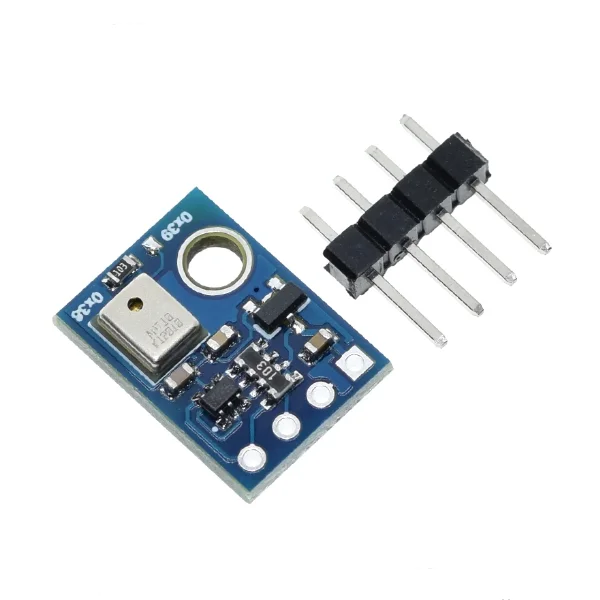
The BMP180 sensor is a versatile device that measures temperature and barometric pressure, making it ideal for various applications such as weather monitoring and altitude measurement. In this tutorial, we will connect the BMP180 sensor to an Arduino, read temperature and pressure data, and display the results. By the end of this project, you will be able to obtain accurate temperature readings in Celsius and Fahrenheit, as well as pressure values in millibars and inches of mercury.

To clarify the concepts and coding steps, I encourage you to watch the associated video for detailed explanations (in video at 00:00).
Hardware Explained
The BMP180 is a digital sensor that communicates via I2C, which allows it to interface easily with microcontrollers like Arduino. It has four pins: Vn (power supply), GND (ground), SDA (data line), and SCL (clock line). The sensor operates within a voltage range of 1.8 to 3.6 volts, but it can be powered by a regulated 5V supply using a voltage regulator.
This sensor's ability to measure atmospheric pressure makes it suitable for applications that require altitude estimation and weather monitoring. The BMP180 also includes a built-in temperature sensor, which is essential for obtaining accurate pressure readings. By measuring temperature first, the sensor can compensate for temperature variances that affect pressure readings.
Datasheet Details
| Manufacturer | Bosch |
|---|---|
| Part number | BMP180 |
| Logic/IO voltage | 1.8 - 3.6 V |
| Supply voltage | 1.8 - 5.0 V |
| Output current (typ.) | 5 μA |
| Peak current (max.) | 1 mA |
| PWM frequency guidance | N/A |
| Input logic thresholds | N/A |
| Voltage drop / RDS(on) / saturation | N/A |
| Thermal limits | -40 to 85 °C |
| Package | 3.6 x 3.8 mm |
| Notes / variants | Low power consumption |
- Ensure proper voltage levels to avoid damaging the sensor.
- Use pull-up resistors on the I2C lines if necessary.
- Keep the sensor in a stable temperature environment for accurate readings.
- Calibrate the altitude based on your specific location for precise results.
- Monitor the power supply to ensure it remains within specified limits.
Wiring Instructions

To wire the BMP180 sensor to your Arduino, start by connecting the Vn pin of the BMP180 to the 5V pin on the Arduino. Next, connect the GND pin to the Arduino's ground. For the I2C communication, connect the SDA pin to the Arduino's analog pin A4 and the SCL pin to A5. Make sure your connections are secure to prevent any communication issues.
If you're using a different Arduino model, be aware that the I2C pins may vary. For example, on a Mega2560, the SDA and SCL pins are 20 and 21, respectively. Always double-check the pin mapping for your specific board to ensure proper functionality.
Code Examples & Walkthrough
#include
#include

SFE_BMP180 pressure;
#define ALTITUDE 90.0 // Altitude of Robojax Headquarter
In the code, we start by including the necessary libraries: SFE_BMP180.h for the sensor and Wire.h for I2C communication. We create an instance of the BMP180 object named pressure and define the altitude at which our readings will be taken using the ALTITUDE constant.
void setup() {
  Serial.begin(9600);
  if (pressure.begin()) Serial.println("BMP180 init success");
  else { Serial.println("BMP180 init fail\n\n"); while(1); }
}
The setup function initializes the serial communication at 9600 baud and attempts to start the BMP180 sensor. If the initialization fails, the program enters an infinite loop to halt further execution, indicating a connection problem.
void loop() {
  char status;
  double T, P, p0, a;

  status = pressure.startTemperature();
  if (status != 0) {
    delay(status);
    status = pressure.getTemperature(T);
    if (status != 0) {
      Serial.print("temperature: "); Serial.print(T,2);
    }
  }
}
In the loop function, we first initiate a temperature reading by calling startTemperature(). If successful, we wait for the measurement to complete and retrieve the temperature with getTemperature(T), where T stores the temperature value. The temperature is then printed to the serial monitor.
Demonstration / What to Expect
When powered and correctly wired, the BMP180 will continuously read and display the temperature and pressure data every five seconds. You should see the temperature values in both Celsius and Fahrenheit, as well as the absolute and relative pressure values. If the sensor is functioning correctly, you will receive readings without errors. Be aware of potential pitfalls like incorrect voltage levels or loose connections, which can lead to failure in obtaining data.
图像


/*
 *
 * Arduino Sketch for BMP180 Temperature and Barometric Pressure sensor for Arduino
 * to display temperature and pressure and altitude (calculated from pressure)

 *
 *
 * updated by Ahmad Shamshiri on June 27, 2018 at 17:30 in Ajax, Ontario, Canada
 * for Robojax.com

 * This code has been explained in this video: https://youtu.be/76zxBjIK3WM
 * This code has been downloaded from Robojax.com
 */
/* SFE_BMP180 library example sketch

This sketch shows how to use the SFE_BMP180 library to read the
Bosch BMP180 barometric pressure sensor.
https://www.sparkfun.com/products/11824

Like most pressure sensors, the BMP180 measures absolute pressure.
This is the actual ambient pressure seen by the device, which will
vary with both altitude and weather.

Before taking a pressure reading you must take a temperature reading.
This is done with startTemperature() and getTemperature().
The result is in degrees C.

Once you have a temperature reading, you can take a pressure reading.
This is done with startPressure() and getPressure().
The result is in millibar (mb) aka hectopascals (hPa).

If you'll be monitoring weather patterns, you will probably want to
remove the effects of altitude. This will produce readings that can
be compared to the published pressure readings from other locations.
To do this, use the sealevel() function. You will need to provide
the known altitude at which the pressure was measured.

If you want to measure altitude, you will need to know the pressure
at a baseline altitude. This can be average sealevel pressure, or
a previous pressure reading at your altitude, in which case
subsequent altitude readings will be + or - the initial baseline.
This is done with the altitude() function.

Hardware connections:

- (GND) to GND
+ (VDD) to 3.3V

(WARNING: do not connect + to 5V or the sensor will be damaged!)

You will also need to connect the I2C pins (SCL and SDA) to your
Arduino. The pins are different on different Arduinos:

Any Arduino pins labeled:  SDA  SCL
Uno, Redboard, Pro:        A4   A5
Mega2560, Due:             20   21
Leonardo:                   2    3

Leave the IO (VDDIO) pin unconnected. This pin is for connecting
the BMP180 to systems with lower logic levels such as 1.8V

Have fun! - Your friends at SparkFun.

The SFE_BMP180 library uses floating-point equations developed by the
Weather Station Data Logger project: http://wmrx00.sourceforge.net/

Our example code uses the "beerware" license. You can do anything
you like with this code. No really, anything. If you find it useful,
buy me a beer someday.

V10 Mike Grusin, SparkFun Electronics 10/24/2013
V1.1.2 Updates for Arduino 1.6.4 5/2015
*/

// Your sketch must #include this library, and the Wire library.
// (Wire is a standard library included with Arduino.):

#include <SFE_BMP180.h>
#include <Wire.h>

// You will need to create an SFE_BMP180 object, here called "pressure":

SFE_BMP180 pressure;

#define ALTITUDE 90.0 // Altitude of Robojax Headquarter (Ajax, Ontario, Canada)

void setup()
{
  Serial.begin(9600);
  Serial.println("REBOOT");

  // Initialize the sensor (it is important to get calibration values stored on the device).

  if (pressure.begin())
    Serial.println("BMP180 init success");
  else
  {
    // Oops, something went wrong, this is usually a connection problem,
    // see the comments at the top of this sketch for the proper connections.

    Serial.println("BMP180 init fail\n\n");
    while(1); // Pause forever.
  }
}

void loop()
{
  char status;
  double T,P,p0,a;

  // Loop here getting pressure readings every 10 seconds.

  // If you want sea-level-compensated pressure, as used in weather reports,
  // you will need to know the altitude at which your measurements are taken.
  // We're using a constant called ALTITUDE in this sketch:

  Serial.println();
  Serial.print("provided altitude: ");
  Serial.print(ALTITUDE,0);
  Serial.print(" meters, ");
  Serial.print(ALTITUDE*3.28084,0);
  Serial.println(" feet");

  // If you want to measure altitude, and not pressure, you will instead need
  // to provide a known baseline pressure. This is shown at the end of the sketch.

  // You must first get a temperature measurement to perform a pressure reading.

  // Start a temperature measurement:
  // If request is successful, the number of ms to wait is returned.
  // If request is unsuccessful, 0 is returned.

  status = pressure.startTemperature();
  if (status != 0)
  {
    // Wait for the measurement to complete:
    delay(status);

    // Retrieve the completed temperature measurement:
    // Note that the measurement is stored in the variable T.
    // Function returns 1 if successful, 0 if failure.

    status = pressure.getTemperature(T);
    if (status != 0)
    {
      // Print out the measurement:
      Serial.print("temperature: ");
      Serial.print(T,2);
      Serial.print(" deg C, ");
      Serial.print((9.0/5.0)*T+32.0,2);
      Serial.println(" deg F");

      // Start a pressure measurement:
      // The parameter is the oversampling setting, from 0 to 3 (highest res, longest wait).
      // If request is successful, the number of ms to wait is returned.
      // If request is unsuccessful, 0 is returned.

      status = pressure.startPressure(3);
      if (status != 0)
      {
        // Wait for the measurement to complete:
        delay(status);

        // Retrieve the completed pressure measurement:
        // Note that the measurement is stored in the variable P.
        // Note also that the function requires the previous temperature measurement (T).
        // (If temperature is stable, you can do one temperature measurement for a number of pressure measurements.)
        // Function returns 1 if successful, 0 if failure.

        status = pressure.getPressure(P,T);
        if (status != 0)
        {
          // Print out the measurement:
          Serial.print("absolute pressure: ");
          Serial.print(P,2);
          Serial.print(" mb, ");
          Serial.print(P*0.0295333727,2);
          Serial.println(" inHg");

          // The pressure sensor returns abolute pressure, which varies with altitude.
          // To remove the effects of altitude, use the sealevel function and your current altitude.
          // This number is commonly used in weather reports.
          // Parameters: P = absolute pressure in mb, ALTITUDE = current altitude in m.
          // Result: p0 = sea-level compensated pressure in mb

          p0 = pressure.sealevel(P,ALTITUDE); // we're at 90 meters (Boulder, CO)
          Serial.print("relative (sea-level) pressure: ");
          Serial.print(p0,2);
          Serial.print(" mb, ");
          Serial.print(p0*0.0295333727,2);
          Serial.println(" inHg");

          // On the other hand, if you want to determine your altitude from the pressure reading,
          // use the altitude function along with a baseline pressure (sea-level or other).
          // Parameters: P = absolute pressure in mb, p0 = baseline pressure in mb.
          // Result: a = altitude in m.

          a = pressure.altitude(P,p0);
          Serial.print("computed altitude: ");
          Serial.print(a,0);
          Serial.print(" meters, ");
          Serial.print(a*3.28084,0);
          Serial.println(" feet");
        }
        else Serial.println("error retrieving pressure measurement\n");
      }
      else Serial.println("error starting pressure measurement\n");
    }
    else Serial.println("error retrieving temperature measurement\n");
  }
  else Serial.println("error starting temperature measurement\n");

  delay(5000);  // Pause for 5 seconds.
}
资源与参考
-
外部SparkFun BMP180库github.com
-
外部制造商的产品详情bosch-sensortec.com
文件📁
Arduino 库(zip 格式)
-
BMP180 Arduino library
robojax-BMP180-Library.zip0.02 MB
数据手册 (pdf)
-
Bosch BMP180 Datasheet
https://ae-bst.resource.bosch.com/media/_tech/media/datasheets/BST-BMP180-DS000.pdf0.64 MB