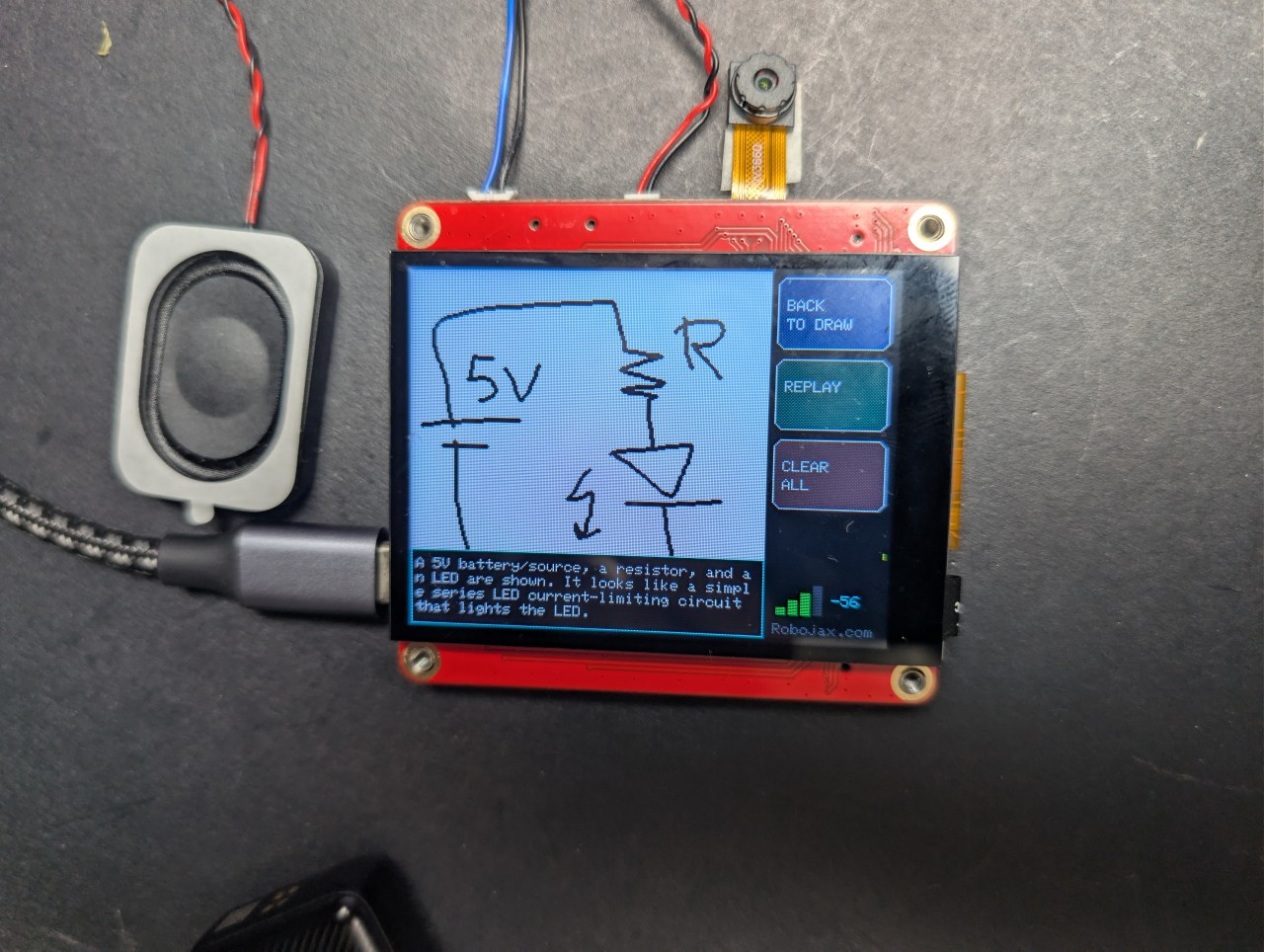
ฉันวาดวงจรบนบอร์ด ESP32 ราคา $40 นี้ และ AI อธิบายมัน
ใช้นิ้ววาดวงจร แล้วให้ AI อธิบายให้ฟัง
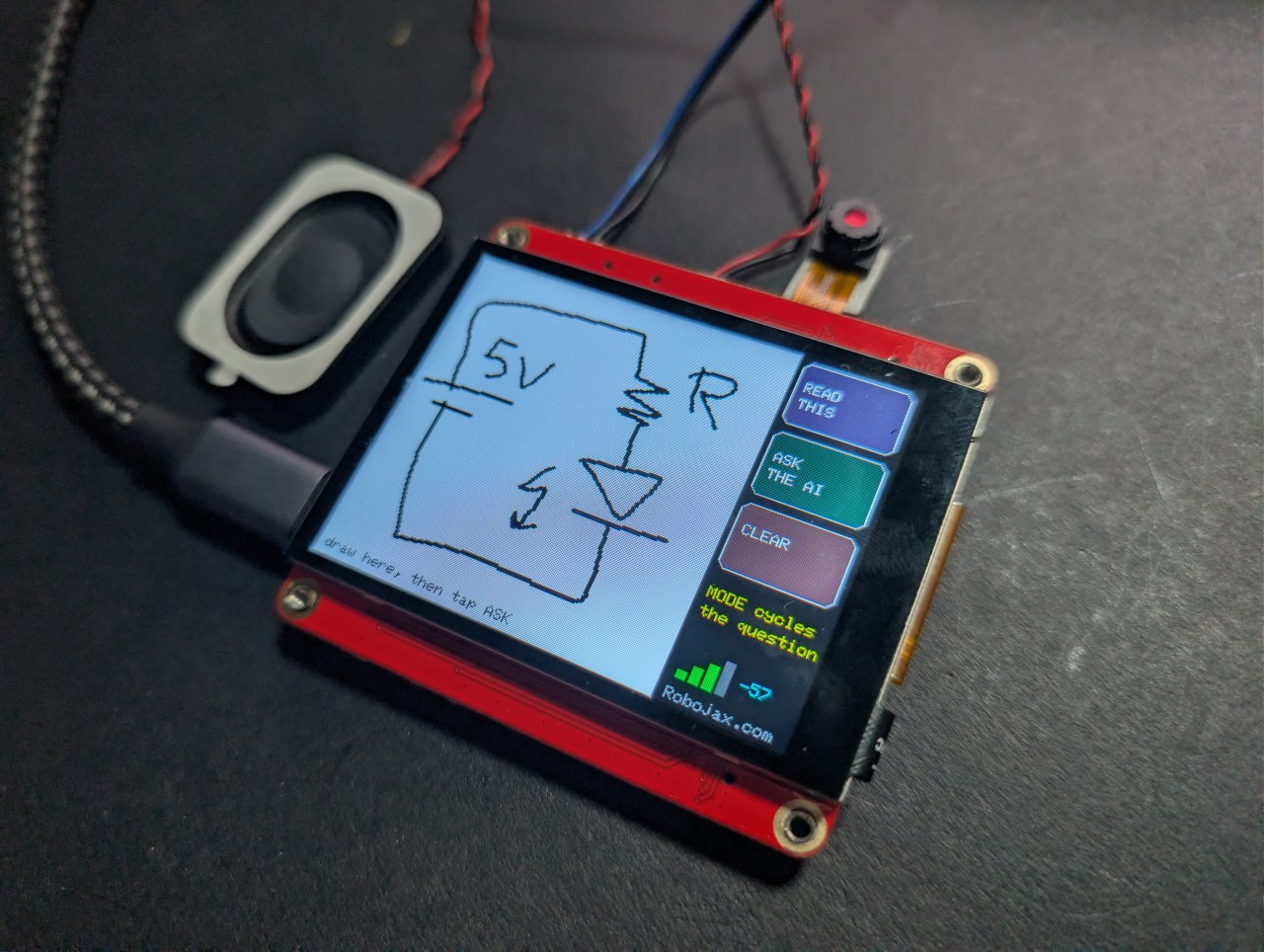
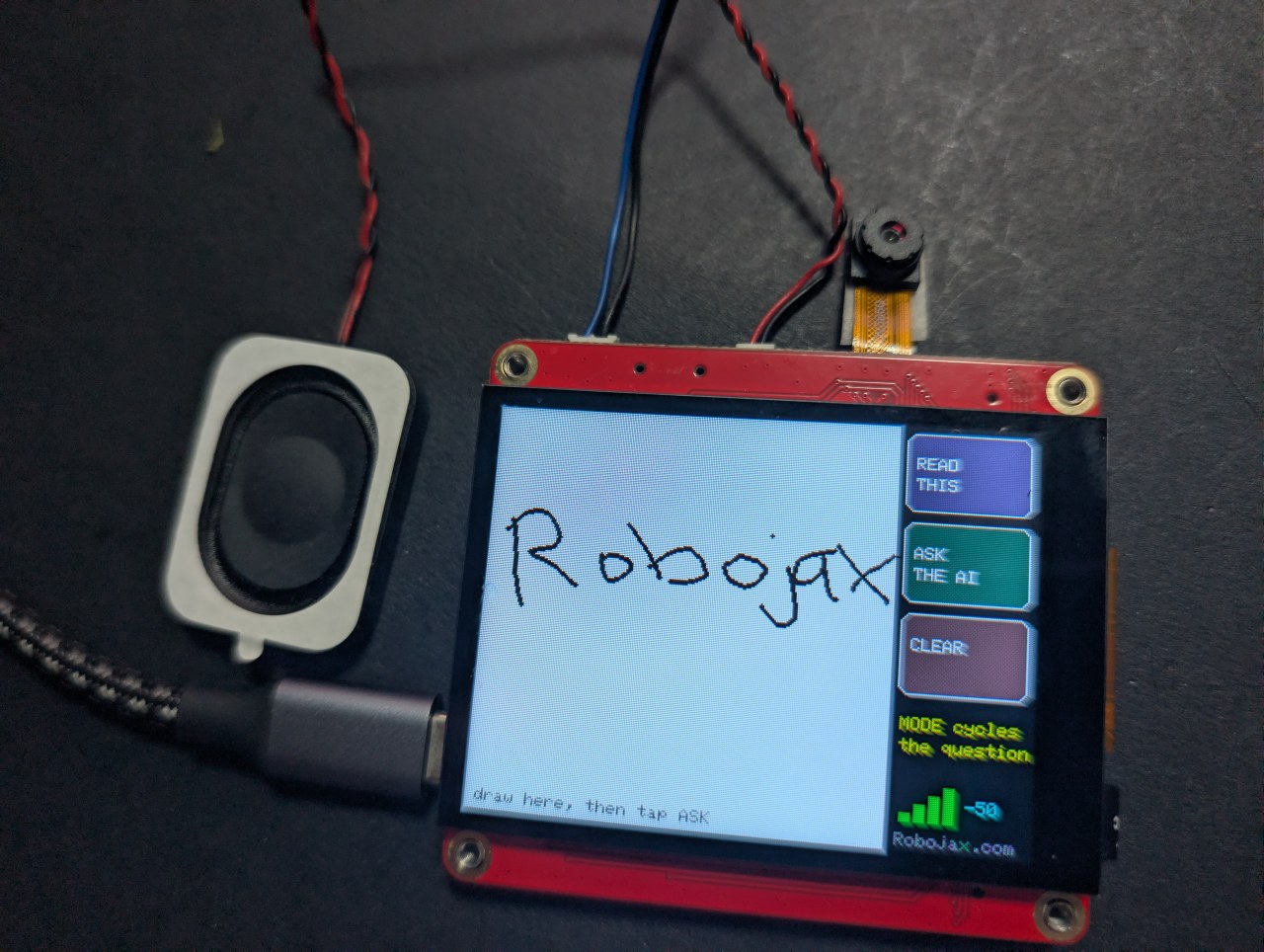
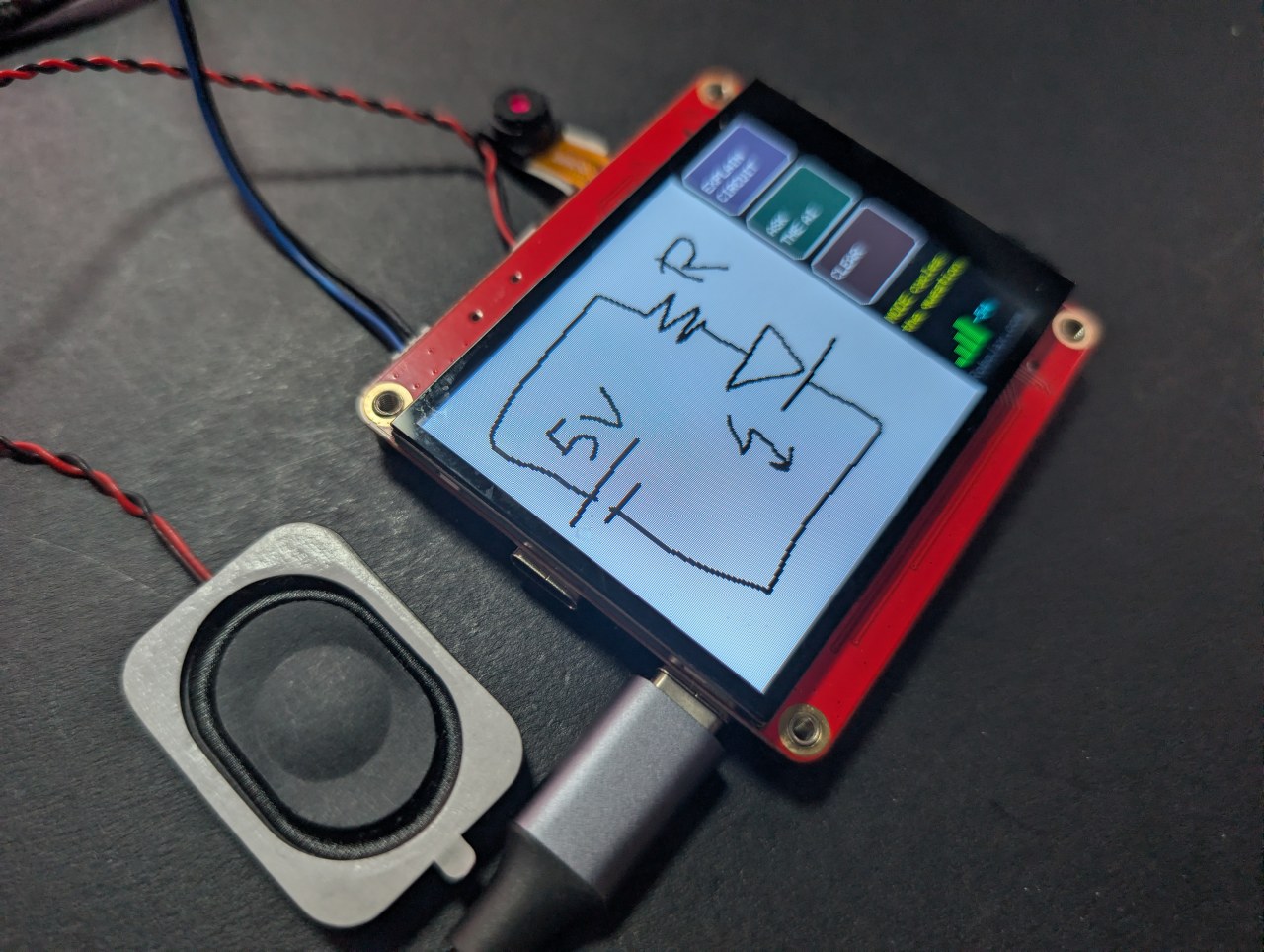
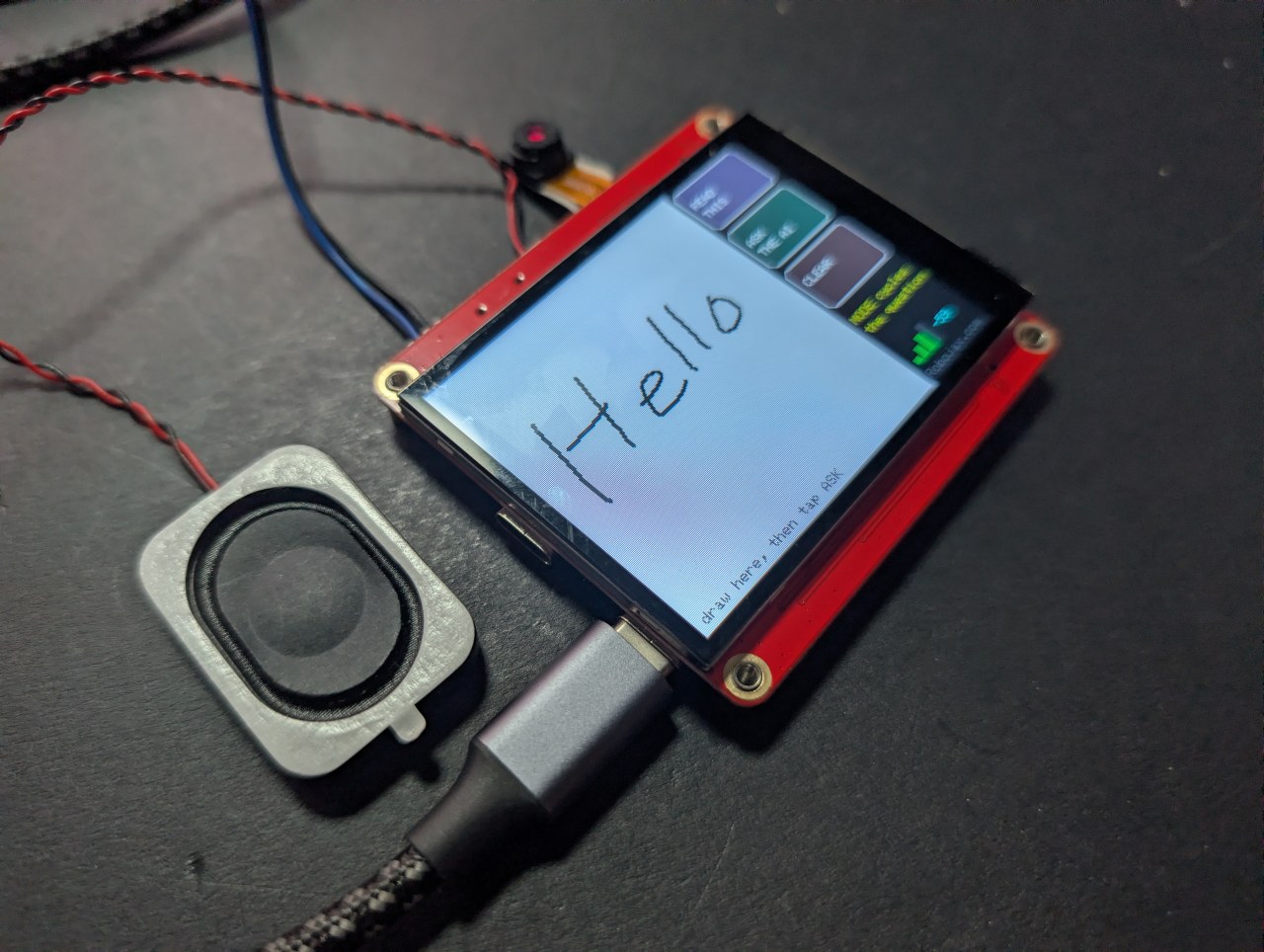
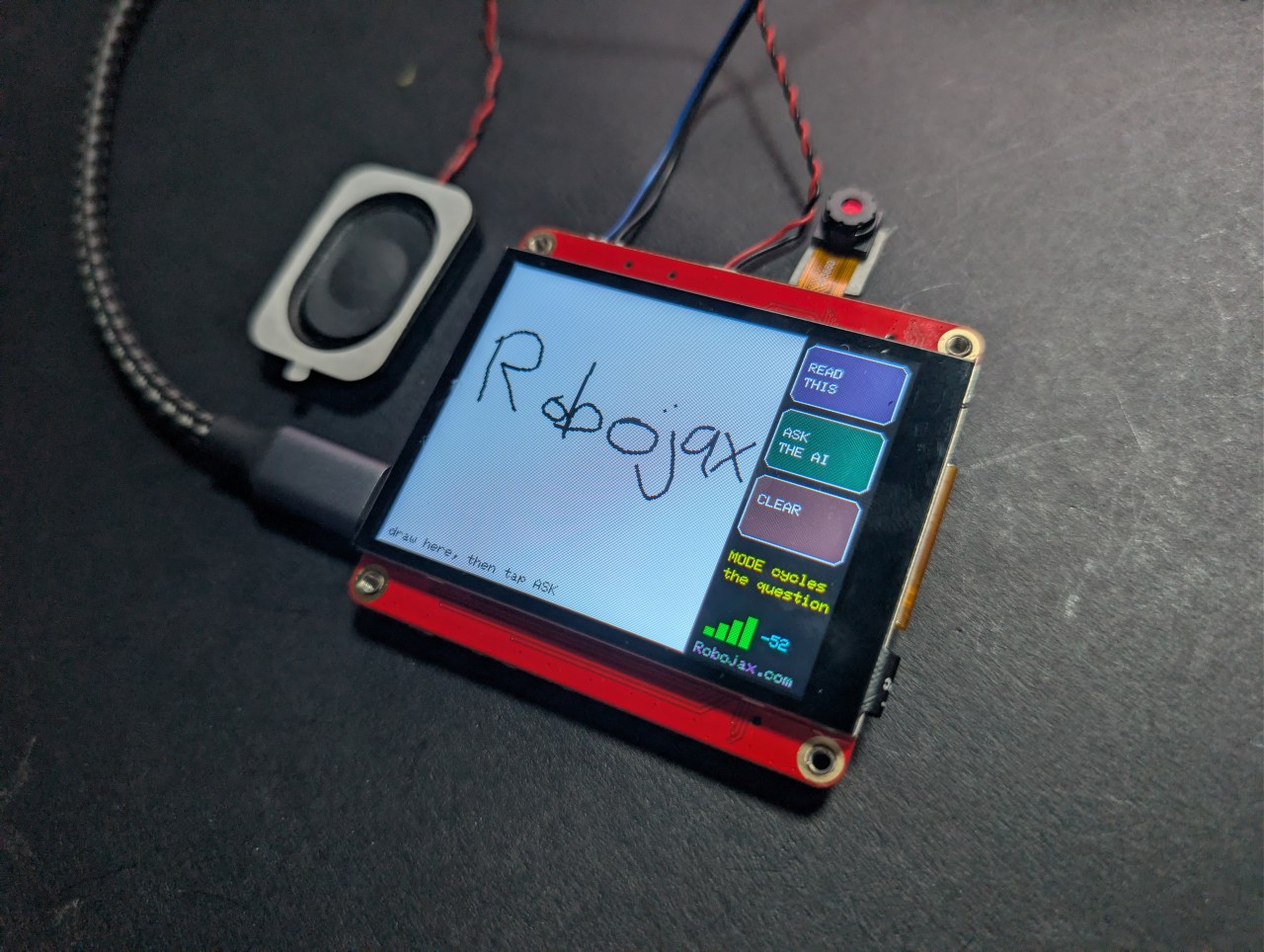
วาดหรือเขียนบนหน้าจอสัมผัสด้วยนิ้วของคุณ แตะถาม แล้ว AI จะบอกคุณว่าคุณวาดอะไร - ทั้งบนหน้าจอและเสียงพูด มีสามโหมด: ระบุชื่อรูปทรง อ่านลายมือ หรืออธิบายวงจรที่วาดด้วยมือ
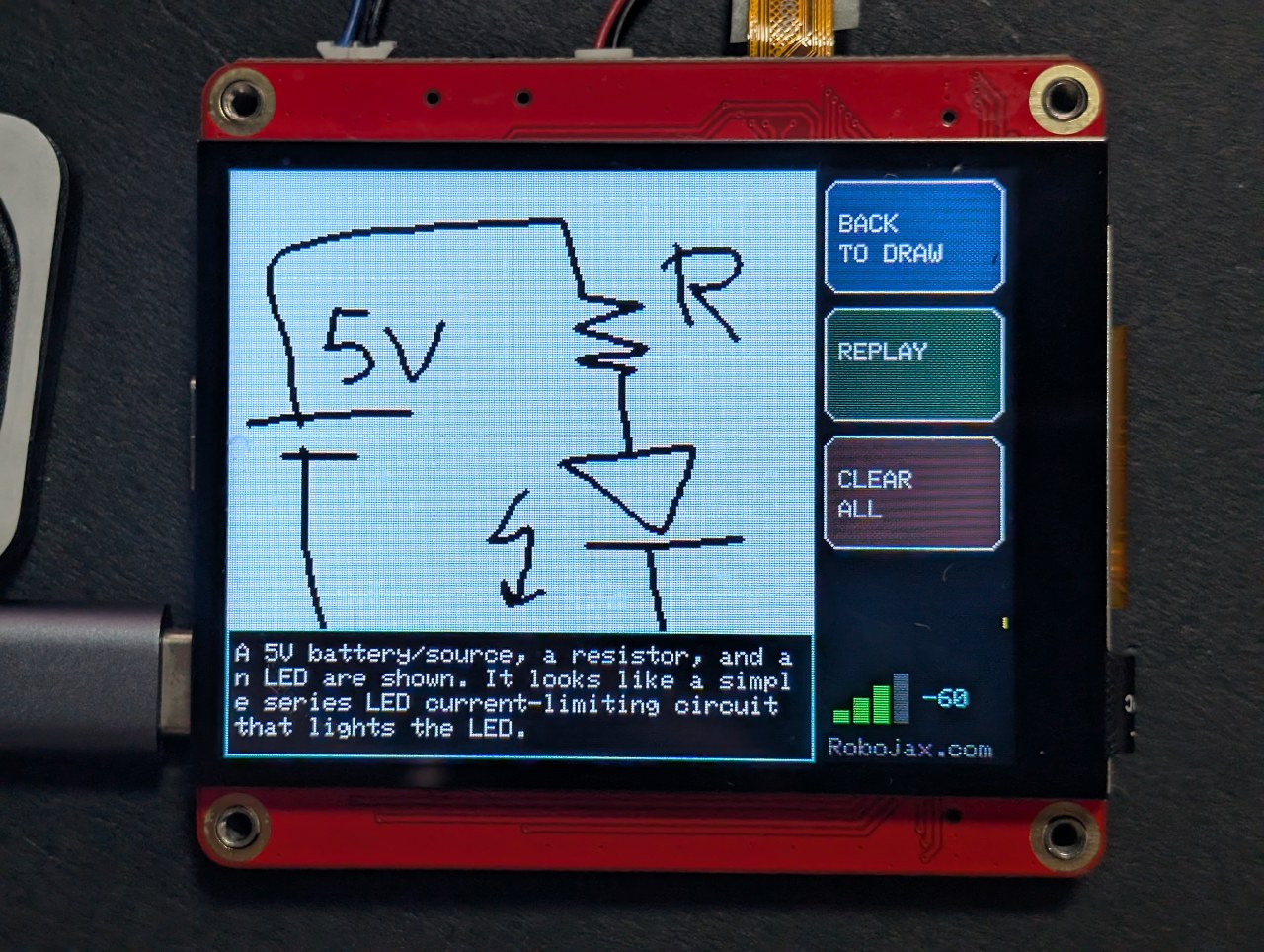
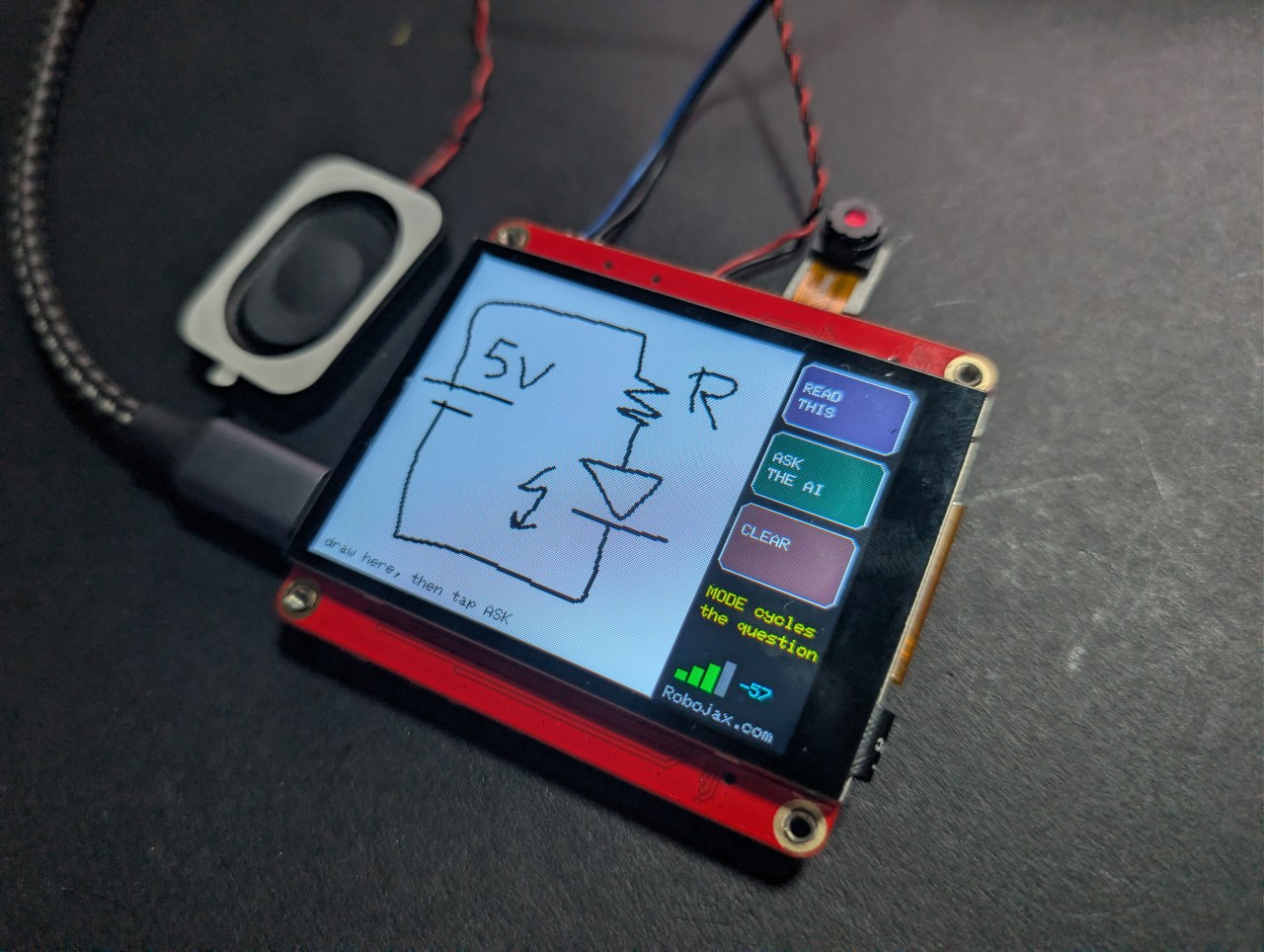
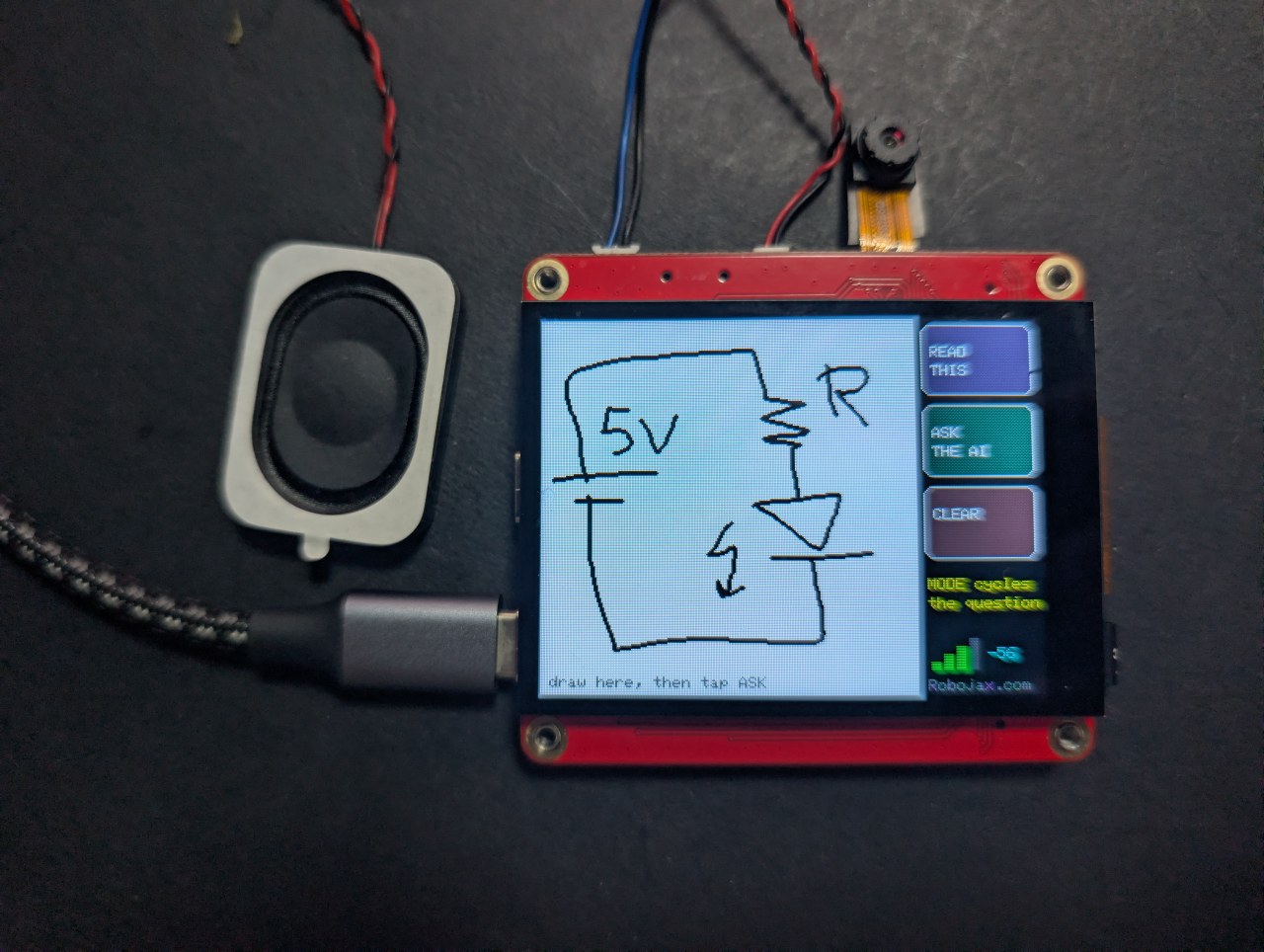
โหมดสุดท้ายน่าสนใจที่สุด วาดแบตเตอรี่ ตัวต้านทาน และ LED แล้วบอร์ดจะระบุชื่อชิ้นส่วนและบอกคุณว่าวงจรนี้ทำงานอย่างไร
Robojax_Makerfab ที่ชำระเงินบน หน้าสินค้า MaTouch AI ESP32-S3 การใช้รหัสนี้ไม่มีค่าใช้จ่ายสำหรับคุณ และช่วยสนับสนุนโค้ดฟรีและบทช่วยสอนที่นี่ปัญหาที่โปรเจกต์นี้ต้องแก้
คุณไม่สามารถอ่านพิกเซลกลับจากจอแสดงผลนี้ผ่าน SPI ได้ และไลบรารีกราฟิกโดยปกติจะวาดตรงไปยังแผงโดยไม่มีการคัดลอกในหน่วยความจำ - ดังนั้นจึงไม่มีภาพหน้าจอที่จะส่งไปที่ใดก็ได้ วิธีแก้ไขคือไม่วาดไปยังแผงโดยตรง สเก็ตช์นี้วาดลงใน Arduino_Canvas ซึ่งเก็บเฟรมบัฟเฟอร์เต็มใน PSRAM บัฟเฟอร์นั้น คือ รูปภาพ ดังนั้น fmt2jpg() จะแปลงเป็น JPEG ได้โดยตรง
ทำไมหมึกเป็นสีดำบนพื้นขาว
โมเดลวิทัศน์อ่านเครื่องหมายสีเข้มบนพื้นหลังสีอ่อนได้น่าเชื่อถือกว่ามากเมื่อเทียบกับในทางกลับกัน และดูเหมือนกระดาษเมื่อถ่ายด้วยกล้อง ปุ่มต่างๆ ถูกวาดบนแผงแทนที่จะวาดลงในแคนวาส ดังนั้นปุ่มเหล่านี้จึงไม่เป็นส่วนหนึ่งของภาพที่ AI เห็น - มันเห็นเพียงภาพวาดของคุณบนพื้นสีขาวสะอาดเท่านั้น
ทำให้เส้นขีดดูเหมือนเส้นขีด
สองสิ่งต้องถูกต้องก่อนที่การวาดจะรู้สึกเหมือนปากกาแทนที่จะเป็นดอทเมทริกซ์:
- แคนวาสจะ ไม่ ถูกล้างไปยังหน้าจอทุกครั้งที่มีการสัมผัส - เพราะจะส่งข้อมูล 115 KB ผ่าน SPI ในแต่ละครั้งและทำให้ทุกอย่างช้าลง แต่ละเส้นขีดจะถูกวาดลงในแคนวาสและทาสีบนแผงแยกกัน ซึ่งแทบไม่มีค่าใช้จ่าย
- เส้นขีดจะสิ้นสุดลงหลังจากแผงเงียบประมาณ 70 มิลลิวินาที ตัวควบคุมการสัมผัสไม่ส่งคืนจุดทุกครั้งที่สอบถาม และการถือว่าการสอบถามที่ว่างเปล่าแต่ละครั้งเป็นการยกนิ้วจะทำให้เส้นแตกเป็นจุดที่ไม่เชื่อมต่อกัน
สามโหมด หนึ่งภาพวาด
ภาพวาดของคุณยังคงอยู่ใต้คำตอบ ดังนั้นคุณสามารถแตะ BACK TO DRAW เปลี่ยนโหมด และถามคำถามที่แตกต่างเกี่ยวกับสเก็ตช์เดียวกัน ในฐานะรูปภาพ มันคือเส้นและรูปร่าง เมื่อถามในฐานะวิศวกร มันกลายเป็นวงจร
เคล็ดลับสำหรับผลลัพธ์ที่ดี
- ปากกาสไตลัส capacitive ราคาถูกทำงานได้ดีกว่าปลายนิ้วมาก
- วาดให้ใหญ่ - แคนวาสคือ 240×240 ดังนั้นควรใช้องค์ประกอบใหญ่ๆ สองสามชิ้น ไม่ใช่รายละเอียดเล็กๆ
- ไม่มีการปฏิเสธฝ่ามือ วางมือของคุณให้พ้นจากกระจก
เกี่ยวกับบอร์ด MaTouch AI ESP32-S3 2.8"
ทุกโปรเจกต์ในหน้านี้ทำงานบน MaTouch AI ESP32-S3 2.8" TFT ST7789V จาก Makerfabs เป็นบอร์ดแบบ all-in-one: หน้าจอสัมผัสสี กล้อง 3 เมกะพิกเซล ไมโครโฟนสองตัว และแอมพลิฟายเออร์ลำโพงจริง ทั้งหมดขับเคลื่อนโดย ESP32-S3 พร้อม PSRAM 8 MB การรวมกันนี้คือสิ่งที่ทำให้โปรเจกต์ AI เหล่านี้เป็นไปได้บนบอร์ดเดียวโดยไม่ต้องเชื่อมต่ออะไรเพิ่มเติม
PSRAM 8 MB มีความสำคัญมากกว่าตัวเลขอื่นๆ ที่นี่ มันทำให้บอร์ดสามารถเก็บเฟรมกล้อง เสียงที่บันทึกไม่กี่วินาที หรือรูปภาพที่เข้ารหัส base64 ในหน่วยความจำพร้อมกัน - ซึ่งไม่มีสิ่งใดที่พอดีกับ RAM ปกติของ ESP32
เอกสารผู้ผลิต: หน้า wiki ของ Makerfabs
ข้อมูลจำเพาะหลัก
- โปรเซสเซอร์: ESP32-S3, dual core 240 MHz, WiFi 2.4 GHz + Bluetooth 5.0
- หน่วยความจำ: แฟลช 16 MB, PSRAM 8 MB (จำเป็นสำหรับเกือบทุกโปรเจกต์ที่นี่)
- จอแสดงผล: IPS 2.8", 320×240, ไดรเวอร์ ST7789V, SPI
- สัมผัส: GT911 capacitive, ติดตาม 5 นิ้วพร้อมกัน
- กล้อง: OV3660, 3 เมกะพิกเซล, สูงสุด 2048×1536
- ไมโครโฟน: INMP441 I2S ดิจิทัลสองตัว (คู่สเตอริโอจริง)
- ลำโพง: แอมพลิฟายเออร์คลาส D MAX98357A, 3.2 W ที่ 4 Ω
- ที่เก็บข้อมูล: ช่องการ์ด microSD (โหมด SPI)
- พลังงาน: USB-C, ขั้วต่อแบตเตอรี่ JST, ที่ชาร์จ TP4056, สวิตช์เปิดปิด
- บนบอร์ดด้วย: WS2812B RGB LED, นาฬิกาเวลาจริง PCF8563T ที่ใช้แบตเตอรี่สำรอง และเกจวัดแบตเตอรี่ MAX17048 ที่ ไม่ได้ ระบุในข้อมูลจำเพาะอย่างเป็นทางการ
USB CDC On Boot เป็น Disabled ใช้พอร์ตผิดและเสียงจะทำงานผิดปกติหรือการอัปโหลดจะล้มเหลวจ่ายไฟจากแบตเตอรี่? ซ็อกเก็ต USB-C สองตัว ที่ชาร์จ TP4056 และสวิตช์เปิดปิดอธิบายอย่างละเอียดพร้อมแผนผังใน บทความทดสอบบอร์ด — รวมถึงซ็อกเก็ตใดชาร์จและสวิตช์ควรเปิดหรือปิด
การตั้งค่า Arduino IDE
การตั้งค่าเหล่านี้สำคัญ ปัญหาส่วนใหญ่ที่ผู้คนรายงานเกี่ยวกับบอร์ดนี้คือหนึ่งในการตั้งค่าเหล่านี้ผิด และการตั้งค่าเหล่านี้จะ รีเซ็ตเมื่อคุณเปลี่ยนเวอร์ชันคอร์ ดังนั้นตรวจสอบอีกครั้งหลังการเปลี่ยนแปลงใดๆ
| การตั้งค่า | ค่า |
|---|---|
| บอร์ด | ESP32S3 Dev Module |
| เวอร์ชันคอร์ ESP32 | 2.0.17 |
| PSRAM | OPI PSRAM |
| ขนาดแฟลช | 16MB (128Mb) |
| รูปแบบพาร์ติชัน | 16M Flash (3MB APP/9.9MB FATFS) |
| USB CDC On Boot | Disabled |
| ความเร็วอัปโหลด | 921600 |
| ลบแฟลชทั้งหมดก่อนอัปโหลด | Disabled |
| พอร์ต | พอร์ต USB-C CH340K |
ไลบรารีที่จำเป็น
โปรเจกต์นี้ต้องการทุกไลบรารีในตารางด้านล่าง - ไม่มากไม่น้อย ส่วนใหญ่ติดตั้งโดยตรงจาก Tools → Manage Libraries ใน Arduino IDE แต่ GFX Library for Arduino ต้องติดตั้งจากไฟล์ ZIP หมายเลขเวอร์ชันมีความสำคัญ ดังนั้นโปรดใช้เวอร์ชันที่ระบุไว้เท่านั้น
| ไลบรารี | เวอร์ชัน | ผู้เขียน | ติดตั้งจาก |
|---|---|---|---|
| GFX Library for Arduino | 1.5.6 | moononournation | ไฟล์ ZIP - ดูด้านล่าง |
| bb_captouch | 1.3.1 | Larry Bank | Library Manager |
| ArduinoJson | 7.x | Benoit Blanchon | Library Manager |
| Adafruit NeoPixel | รุ่นล่าสุดใดก็ได้ | Adafruit | Library Manager |
การติดตั้งไลบรารี GFX จากไฟล์ ZIP
- ดาวน์โหลด ZIP มันรวมอยู่ในไฟล์ดาวน์โหลดของโปรเจกต์นี้ หรือคุณสามารถรับได้จาก ที่เก็บ Arduino_GFX - คลิกปุ่มสีเขียว Code จากนั้น Download ZIP
- บันทึกไว้ในที่ที่คุณสามารถหาได้อีกครั้ง อย่าแตก ZIP
- ใน Arduino IDE คลิก Sketch → Include Library → Add .ZIP Library
- เรียกดูไฟล์ ZIP ที่คุณดาวน์โหลดและคลิก Open
- IDE ติดตั้งและยืนยันที่ด้านล่างของหน้าต่าง หากคุณมีเวอร์ชัน 1.6 ติดตั้งอยู่แล้ว ให้ลบโฟลเดอร์นั้นจาก
Documents/Arduino/librariesก่อน มิฉะนั้นทั้งสองจะขัดแย้งกัน
การตั้งค่า secrets.h
รายละเอียด WiFi ของคุณและคีย์ API ใดๆ อยู่ใน secrets.h ซึ่งรวมอยู่ในไฟล์ดาวน์โหลดพร้อมค่าตัวอย่าง เปิดแท็บนั้นใน Arduino IDE และแทนที่ด้วยค่าของคุณเอง
secrets.hการรับคีย์ API ของคุณ
โปรเจกต์นี้สื่อสารกับบริการ AI บนคลาวด์ ดังนั้นคุณต้องมีคีย์ของคุณเอง หากคุณไม่เคยทำสิ่งนี้มาก่อน ไม่ต้องกังวล - มันเป็นแนวคิดเดียวกับรหัสผ่านที่ระบุบัญชีของคุณกับบริการ ใช้เวลาไม่กี่นาทีเพียงครั้งเดียว
OpenAI - ดวงตา
OpenAI ให้โมเดลวิทัศน์ที่ดูรูปภาพ เฉพาะโปรเจกต์ที่ส่งรูปภาพเท่านั้นที่ต้องการสิ่งนี้
- ไปที่ platform.openai.com/api-keys และลงชื่อเข้าหรือสร้างบัญชี
- คลิก Create new secret key ตั้งชื่อและสร้าง
- คัดลอกทันที - มันแสดงเพียงครั้งเดียว
- เปิด Billing และเพิ่มเครดิตจำนวนเล็กน้อย API เป็นแบบจ่ายล่วงหน้าและแยกจากการสมัครสมาชิก ChatGPT ที่คุณอาจมีอยู่แล้ว
ใส่คีย์ลงใน secrets.h เป็น OPENAI_KEY
Microsoft Azure Speech - สำหรับการฟังและการพูด
Azure แปลงคำพูดของคุณเป็นข้อความและแปลงคำตอบกลับเป็นเสียง ระดับฟรีเพียงพอสำหรับทุกอย่างในหน้านี้
- ไปที่ portal.azure.com และลงชื่อเข้าด้วยบัญชี Microsoft (บัญชีฟรีก็ได้)
- หากคุณไม่เคยใช้ Azure มาก่อน คุณจะเห็นหน้าจอ Welcome to Azure ที่เสนอสามตัวเลือก เลือก Start with an Azure free trial - คุณต้องมีการสมัครสมาชิกก่อนที่ Azure จะให้คุณสร้างอะไรได้ (นักเรียนควรเลือก Azure for Students แทน: ผลลัพธ์เดียวกัน ไม่ต้องใช้บัตร) ไม่ต้องสนใจ Manage Microsoft Entra ID ซึ่งเป็นสิ่งอื่นโดยสิ้นเชิง
- คลิก Create a resource ค้นหา Speech และเลือก Speech service ที่เผยแพร่โดย Microsoft
- กรอกแบบฟอร์ม: กลุ่มทรัพยากรใดก็ได้ ชื่อใดก็ได้ และเลือก Region ที่ใกล้คุณ - จดภูมิภาคนั้นให้ตรงตามที่ปรากฏ เช่น
eastus - สำหรับ Pricing tier เลือก F0 (Free) ซึ่งอนุญาตให้ใช้การแปลงคำพูดเป็นข้อความประมาณห้าชั่วโมงและอักขระครึ่งล้านสำหรับการแปลงข้อความเป็นคำพูดทุกเดือน
- คลิก Review + create จากนั้น Create รอประมาณหนึ่งนาที จากนั้นคลิก Go to resource
- ในเมนูด้านซ้ายเปิด Keys and Endpoint คัดลอก KEY 1 และ Location/Region
ใส่ค่าเหล่านั้นลงใน secrets.h เป็น AZURE_SPEECH_KEY และ AZURE_REGION
ค่าใช้จ่ายในการรัน
น้อยมาก แต่ไม่ฟรี และคุณควรรู้คร่าวๆ ว่าคุณใช้จ่ายเท่าไรก่อนปล่อยให้โปรเจกต์ทำงาน
| บริการ | ค่าใช้จ่ายโดยประมาณ |
|---|---|
| OpenAI vision | ประมาณหนึ่งหรือสองเซนต์ต่อรูปภาพ ขึ้นอยู่กับโมเดล |
| Azure Speech | ระดับฟรีครอบคลุมการฟังประมาณ 5 ชั่วโมงและการพูด 0.5 ล้านอักขระต่อเดือน |
ราคาเปลี่ยนแปลง ดังนั้นถือว่าเป็นแนวทางมากกว่าการเสนอราคา ทุกบริการเหล่านี้มีหน้าการใช้งานที่คุณสามารถดูสิ่งที่คุณใช้จ่าย และทั้งหมดอนุญาตให้คุณตั้งขีดจำกัดการใช้จ่าย - ซึ่งคุ้มค่าที่จะทำตั้งแต่วันแรก
การแก้ไขปัญหา
| อาการ | สาเหตุและวิธีแก้ไข |
|---|---|
| หน้าจอยังคงเป็นสีดำ | เวอร์ชันไลบรารี GFX ผิด (ใช้ 1.5.6) หรือการตั้งค่าบอร์ดผิด |
PSRAM alloc failed |
Tools → PSRAM ไม่ได้ตั้งเป็น OPI PSRAM |
| ไม่มีอะไรอัปโหลด / ไม่มีพอร์ต COM | พอร์ต USB-C ผิด หรือไดรเวอร์ CH340 ไม่ได้ติดตั้ง |
ภาพ
/*
* ===========================================================================
* 08_Draw_AI — MaTouch AI ESP32-S3 2.8" TFT ST7789V
* ===========================================================================
*
* ---------------------------------------------------------------------------
* ROBOJAX.COM - MaTouch AI ESP32-S3 2.8" project series
*
* WATCH THE Introduction and face recognition VIDEO
* https://youtu.be/6AL3g3tC_Hk
* Video 2: Draw AI - https://youtu.be/FaIW1MVIsj4
*
* WRITTEN TUTORIALS - every project, with photos and full explanation
* Camera and touchscreen.... https://robojax.com/RTJ849
* Offline face recognition.. https://robojax.com/RTJ850
* AI voice assistant........ https://robojax.com/RTJ851
* AI vision................. https://robojax.com/RTJ852
* Draw AI ................. https://robojax.com/RTJ867 (this code)
*
* GET THE BOARD - SAVE $5 with coupon code: Robojax_Makerfab
* https://www.makerfabs.com/matouch-ai-esp32s3-2-8-tft-st7789v.html
* (enter the code at checkout)
*
* All of this code is free. If it helped you, a subscribe on YouTube is
* the best way to support more of it.
* ---------------------------------------------------------------------------
*
* Draw or write on the touchscreen with your finger, tap ASK, and an AI
* tells you what you drew - on the screen and out loud.
*
* THREE MODES (tap MODE to cycle):
*
* WHAT IS THIS? draw a house, a cat, a triangle -> it names it
* READ THIS write HELLO in big letters -> it reads it back
* EXPLAIN CIRCUIT sketch a battery, resistor and LED -> it tells you
* what the components are and what the circuit does
*
* That last mode is the interesting one: a hand-drawn schematic, explained
* by an AI, on a forty-dollar board with no computer attached.
*
* NO CAMERA IS USED by this sketch. That means the J1/J3 Mabee sockets are
* free GPIO here (see 07_GPIO_Test), and there is no camera/SD memory
* contention to worry about.
*
* ---------------------------------------------------------------------------
* HOW IT WORKS (the trick worth knowing)
*
* You cannot read pixels back out of the ST7789 over SPI, and Arduino_GFX
* normally draws straight to the panel with no copy in memory - so there is
* no "screenshot" to send anywhere. The fix: draw into an Arduino_Canvas,
* which keeps a full framebuffer in PSRAM and flushes it to the display.
* That buffer IS the image, so fmt2jpg() turns it straight into a JPEG and
* the rest of the path is identical to 05_Vision_AI.
*
* Black ink on a white canvas, deliberately: vision models read dark-on-light
* far more reliably than the reverse, and it looks like paper on camera.
*
* ---------------------------------------------------------------------------
* TIPS
* - A cheap capacitive stylus is MUCH better than a fingertip.
* - Write BIG. The canvas is 240x240 - a few large characters, not a
* sentence.
* - There is no palm rejection: only the first touch point is used, so
* keep your palm off the glass.
*
* ---------------------------------------------------------------------------
* FILL IN secrets.h BEFORE FLASHING (WIFI_* and OPENAI_*; AZURE_* only if
* SPEAK_REPLIES is 1).
*
* BOARD SETTINGS (Tools menu - EVERY line matters)
* Board : ESP32S3 Dev Module
* ESP32 core : 2.0.17
* PSRAM : OPI PSRAM <-- required, the canvas lives there
* Flash Size : 16MB (128Mb)
* Partition Scheme : 16M Flash (3MB APP/9.9MB FATFS)
* USB CDC On Boot : Disabled
* Upload Speed : 921600
* Port : the CH340K USB-C port (the one near RESET)
*
* LIBRARIES
* GFX Library for Arduino v1.5.6 (NOT 1.6.x - that pairs with core 3)
* bb_captouch v1.3.1
* ArduinoJson v7.x
* Adafruit NeoPixel any recent
*
* ---------------------------------------------------------------------------
* FUNCTIONS IN THIS SKETCH
* led(r,g,b) set the RGB status LED colour
* getTouch(&x,&y) read the touch panel, mapped to screen coordinates
* clearCanvas() wipe to white and redraw the hint
* drawStroke(...) one thick line segment, into the canvas AND the panel
* handleDrawing(...) turn touch samples into continuous strokes
* waitData()/readHttpResponse() robust HTTPS reply reader (de-chunking)
* canvasToJpeg(&len) RGB565 canvas -> JPEG in PSRAM
* askVision(...) send the drawing + prompt to OpenAI, get an answer
* spkInit()/speak()/playLastAnswer() Azure voice out, with free REPLAY
* drawButtons()/drawAnswerSide()/showAnswer()/drawWifi() the UI
* askAboutDrawing() one full cycle: encode -> ask -> show -> speak
* setup() / loop() boot + WiFi / drawing and button handling
*
* Robojax.com
* ===========================================================================
*/
#define SPEAK_REPLIES 1 // 1 = read the answer aloud with Azure TTS
#define LED_BRIGHTNESS 15 // WS2812 is on the power rail - 15 is plenty
#include <Arduino_GFX_Library.h>
#include <bb_captouch.h>
#include <Adafruit_NeoPixel.h>
#include <ArduinoJson.h>
#include <WiFi.h>
#include <WiFiClientSecure.h>
#include "mbedtls/base64.h"
#include "img_converters.h" // fmt2jpg()
#include "esp_camera.h" // for the pixformat_t enum used by fmt2jpg
#include "pins.h"
#include "secrets.h"
#if SPEAK_REPLIES
#include "driver/i2s.h"
#define WAV_HEADER_LEN 44
#endif
Arduino_HWSPI *bus = new Arduino_HWSPI(
TFT_DC, TFT_CS, TFT_SCLK, TFT_MOSI, TFT_MISO, &SPI, true);
Arduino_GFX *panel = new Arduino_ST7789(bus, TFT_RES, 1, true);
/* The canvas is what we actually draw into: a real framebuffer in PSRAM that
* we can both flush to the panel AND hand to the JPEG encoder. */
#define CANVAS_W 240
#define CANVAS_H 240
Arduino_Canvas *canvas = new Arduino_Canvas(CANVAS_W, CANVAS_H, panel, 0, 0);
BBCapTouch bbct;
Adafruit_NeoPixel rgb(RGB_LED_NUM, RGB_LED_PIN, NEO_GRB + NEO_KHZ800);
/* --- the three modes ------------------------------------------------------ */
struct DrawMode { const char *l1, *l2; const char *prompt; };
const DrawMode MODES[] = {
{"WHAT IS", "THIS?",
"This is a drawing made with a finger on a small touchscreen. Name the "
"shape or object in ONE short sentence of at most 15 words. Plain text only."},
{"READ", "THIS",
"This image contains handwriting drawn with a finger. Reply with ONLY the "
"text you can read, nothing else. If you cannot read it, say: cannot read it."},
{"EXPLAIN", "CIRCUIT",
"This is a hand-drawn electronic circuit diagram. In at most two short "
"sentences, name the components you can identify and say what the circuit "
"does. Plain text only. If it is not a circuit, say so."},
};
#define N_MODES 3
int mode = 0;
/* --- layout: 240 canvas on the left, buttons on the right ----------------- */
#define BTN_X 244
#define BTN_W 72
#define BTN_H 46
#define BTN_MODE_Y 4
#define BTN_ASK_Y 56
#define BTN_CLEAR_Y 108
bool showing_answer = false;
/* --- drawing state -------------------------------------------------------- */
int last_x = -1, last_y = -1;
bool has_ink = false;
/* --- kept audio for REPLAY ------------------------------------------------ */
uint8_t *last_audio = nullptr;
size_t last_audio_len = 0;
void led(uint8_t r, uint8_t g, uint8_t b) { rgb.setPixelColor(0, rgb.Color(r, g, b)); rgb.show(); }
void playLastAnswer();
void drawButtons();
/* ===========================================================================
* Touch
* =========================================================================== */
bool getTouch(uint16_t *x, uint16_t *y) {
TOUCHINFO ti;
if (!bbct.getSamples(&ti)) return false;
if (ti.count < 1) return false; // first point only - no palm rejection
*x = ti.y[0];
*y = (ti.x[0] > 240) ? 0 : (240 - ti.x[0]);
return true;
}
/* ===========================================================================
* Canvas / drawing
* =========================================================================== */
void clearCanvas() {
canvas->fillScreen(WHITE);
canvas->flush(); // one full push: paint it white
has_ink = false;
last_x = last_y = -1;
/* The hint goes on the PANEL, never into the canvas - anything drawn into
* the canvas becomes part of the image the AI sees, and it would happily
* read this text back to you. */
panel->setTextSize(1);
panel->setTextColor(panel->color565(170, 170, 170));
panel->setCursor(6, CANVAS_H - 12);
panel->print("draw here, then tap ASK");
}
/* One thick line segment, drawn into BOTH the canvas and the panel.
*
* Why both: the canvas is the image we will send to the AI, but flushing the
* whole 240x240 buffer to the screen costs ~115 KB of SPI. Doing that per
* touch sample throttled the loop so hard that most samples were missed -
* which is exactly what "it only draws dots" looks like. Painting the same
* few pixels directly to the panel is essentially free, so the canvas is only
* flushed when the screen genuinely has to be rebuilt. */
static const int8_t STROKE_OFFS[5][2] = {{0,0},{1,0},{-1,0},{0,1},{0,-1}};
void drawStroke(int x0, int y0, int x1, int y1) {
for (int i = 0; i < 5; i++) {
int ox = STROKE_OFFS[i][0], oy = STROKE_OFFS[i][1];
canvas->drawLine(x0 + ox, y0 + oy, x1 + ox, y1 + oy, BLACK);
panel->drawLine(x0 + ox, y0 + oy, x1 + ox, y1 + oy, BLACK);
}
}
/* Touch is read once per loop and handed in here.
*
* THE IMPORTANT BIT - why this is time-based rather than "no touch = lifted":
* the GT911 does not return a point on every poll. It reports when its own
* internal sample is ready, so a poll in between comes back empty even though
* your finger never left the glass. Treating each empty poll as a lift resets
* the stroke, and every real sample then lands as an isolated dot instead of
* a line joined to the previous one - which is exactly what "it only draws
* dots" looks like. So a stroke only ends after the panel has been quiet for
* LIFT_MS, which bridges the dropouts but is still far shorter than a genuine
* lift-and-reposition. */
#define LIFT_MS 70
void handleDrawing(bool touched, int x, int y) {
static uint32_t last_seen = 0;
if (touched && x >= 0 && x < CANVAS_W) {
if (last_x >= 0) drawStroke(last_x, last_y, x, y); // join to the last point
else drawStroke(x, y, x, y); // start of a stroke
last_x = x; last_y = y;
last_seen = millis();
has_ink = true;
} else if (last_x >= 0 && millis() - last_seen > LIFT_MS) {
last_x = last_y = -1; // really lifted now
}
}
/* ===========================================================================
* HTTP — the same robust reader proven in 04 and 05
* =========================================================================== */
static bool waitData(WiFiClientSecure &c, uint32_t ms) {
uint32_t t0 = millis();
while (!c.available()) {
if (!c.connected()) return false;
if (millis() - t0 > ms) return false;
delay(10);
}
return true;
}
static int readHttpResponse(WiFiClientSecure &client, String &body_out, uint32_t idle_ms) {
body_out = "";
if (!waitData(client, idle_ms)) { Serial.println("HTTP: no response at all"); return 0; }
String status_line = client.readStringUntil('\n');
int code = 0;
sscanf(status_line.c_str(), "HTTP/%*s %d", &code);
bool chunked = false;
while (waitData(client, idle_ms)) {
String h = client.readStringUntil('\n');
if (h == "\r" || h.length() <= 1) break;
h.toLowerCase();
if (h.startsWith("transfer-encoding:") && h.indexOf("chunked") >= 0) chunked = true;
}
if (chunked) {
int blanks = 0;
while (true) {
if (!waitData(client, idle_ms)) { Serial.println("HTTP: chunk timeout"); break; }
String szline = client.readStringUntil('\n');
szline.trim();
if (szline.length() == 0) { if (++blanks > 4) break; continue; }
blanks = 0;
long sz = strtol(szline.c_str(), NULL, 16);
if (sz <= 0) break;
long got = 0;
while (got < sz) {
if (!waitData(client, idle_ms)) break;
while (client.available() && got < sz) { body_out += (char)client.read(); got++; }
}
if (waitData(client, 3000)) client.readStringUntil('\n');
if (got < sz) break;
}
} else {
while (waitData(client, idle_ms))
while (client.available()) body_out += (char)client.read();
}
return code;
}
/* ===========================================================================
* Canvas -> JPEG
* The canvas framebuffer is plain RGB565, which fmt2jpg() accepts directly.
* =========================================================================== */
uint8_t *canvasToJpeg(size_t *len_out) {
*len_out = 0;
uint16_t *fb = canvas->getFramebuffer();
if (!fb) { Serial.println("no canvas framebuffer"); return nullptr; }
uint8_t *jpg = NULL;
size_t jpg_len = 0;
if (!fmt2jpg((uint8_t *)fb, (size_t)CANVAS_W * CANVAS_H * 2,
CANVAS_W, CANVAS_H, PIXFORMAT_RGB565, 90, &jpg, &jpg_len)) {
Serial.println("fmt2jpg failed");
return nullptr;
}
*len_out = jpg_len;
return jpg; // caller frees
}
/* ===========================================================================
* OpenAI vision — identical shape to 05_Vision_AI
* =========================================================================== */
bool askVision(const uint8_t *jpg, size_t jpg_len, const char *prompt, String &answer_out) {
size_t b64_cap = ((jpg_len + 2) / 3) * 4 + 16;
unsigned char *b64 = (unsigned char *)ps_malloc(b64_cap);
if (!b64) return false;
size_t b64_len = 0;
if (mbedtls_base64_encode(b64, b64_cap, &b64_len, jpg, jpg_len) != 0) { free(b64); return false; }
const char *head_fmt =
"{\"model\":\"%s\",\"max_completion_tokens\":%d,\"messages\":[{\"role\":\"user\","
"\"content\":[{\"type\":\"text\",\"text\":\"%s\"},"
"{\"type\":\"image_url\",\"image_url\":{\"url\":\"data:image/jpeg;base64,";
const char *tail = "\"}}]}]}";
char head[900];
int head_len = snprintf(head, sizeof(head), head_fmt, OPENAI_MODEL, LLM_MAX_TOKENS, prompt);
size_t body_len = head_len + b64_len + strlen(tail);
char *body = (char *)ps_malloc(body_len + 1);
if (!body) { free(b64); return false; }
memcpy(body, head, head_len);
memcpy(body + head_len, b64, b64_len);
strcpy(body + head_len + b64_len, tail);
free(b64);
WiFiClientSecure client;
client.setInsecure();
client.setTimeout(45);
if (!client.connect(OPENAI_HOST, 443)) {
Serial.println("Vision: TLS connect failed");
free(body);
return false;
}
client.print(String("POST /v1/chat/completions HTTP/1.1\r\n"
"Host: " OPENAI_HOST "\r\n"
"Authorization: Bearer " OPENAI_KEY "\r\n"
"Content-Type: application/json\r\n"
"Connection: close\r\n"
"Content-Length: ") + String(body_len) + "\r\n\r\n");
size_t sent = 0;
while (sent < body_len) {
size_t n = min((size_t)4096, body_len - sent);
size_t w = client.write((uint8_t *)body + sent, n);
if (w == 0) { delay(50); w = client.write((uint8_t *)body + sent, n); if (w == 0) break; }
sent += w;
yield();
}
free(body);
if (sent < body_len) { client.stop(); Serial.println("Vision: upload stalled"); return false; }
String resp;
int code = readHttpResponse(client, resp, 45000);
client.stop();
if (code != 200) { Serial.printf("Vision HTTP %d: %s\n", code, resp.c_str()); return false; }
JsonDocument doc;
if (deserializeJson(doc, resp)) {
Serial.printf("Vision: JSON parse failed, %u bytes\n", resp.length());
return false;
}
const char *content = doc["choices"][0]["message"]["content"];
if (!content) return false;
answer_out = String(content);
answer_out.trim();
return answer_out.length() > 0;
}
/* ===========================================================================
* Azure voice out — same de-chunked player as 04/05
* =========================================================================== */
#if SPEAK_REPLIES
void spkInit() {
i2s_config_t cfg = {
.mode = (i2s_mode_t)(I2S_MODE_MASTER | I2S_MODE_TX),
.sample_rate = 16000,
.bits_per_sample = I2S_BITS_PER_SAMPLE_16BIT,
.channel_format = I2S_CHANNEL_FMT_ONLY_LEFT,
.communication_format = I2S_COMM_FORMAT_STAND_I2S,
.intr_alloc_flags = ESP_INTR_FLAG_LEVEL1,
.dma_buf_count = 8,
.dma_buf_len = 256,
.use_apll = false,
.tx_desc_auto_clear = true,
.fixed_mclk = 0
};
i2s_pin_config_t pins = {
.mck_io_num = I2S_PIN_NO_CHANGE,
.bck_io_num = I2S_SPK_BCLK,
.ws_io_num = I2S_SPK_LRC,
.data_out_num = I2S_SPK_DOUT,
.data_in_num = I2S_PIN_NO_CHANGE
};
i2s_driver_install(I2S_SPK_PORT, &cfg, 0, NULL);
i2s_set_pin(I2S_SPK_PORT, &pins);
i2s_zero_dma_buffer(I2S_SPK_PORT);
}
void playLastAnswer() {
if (!last_audio || last_audio_len <= WAV_HEADER_LEN) return;
static const uint8_t lead_in[640] = {0};
size_t w = 0;
i2s_write(I2S_SPK_PORT, lead_in, sizeof(lead_in), &w, portMAX_DELAY);
i2s_write(I2S_SPK_PORT, last_audio + WAV_HEADER_LEN,
last_audio_len - WAV_HEADER_LEN, &w, portMAX_DELAY);
i2s_write(I2S_SPK_PORT, lead_in, sizeof(lead_in), &w, portMAX_DELAY);
delay(150);
i2s_zero_dma_buffer(I2S_SPK_PORT);
}
/* Read exactly n bytes into a raw buffer. BINARY SAFE - unlike the String
* based reader used for JSON, which cannot carry audio: PCM is full of 0x00
* bytes, and an Arduino String treats those as end-of-string. */
static size_t readExact(WiFiClientSecure &c, uint8_t *dst, size_t n) {
size_t got = 0;
uint32_t t0 = millis();
while (got < n && millis() - t0 < 10000) {
int r = c.read(dst + got, n - got);
if (r > 0) { got += r; t0 = millis(); }
else if (!c.connected() && !c.available()) break;
else delay(2);
}
return got;
}
void speak(const String &text) {
String safe = text;
safe.replace("&", "&"); safe.replace("<", "<"); safe.replace(">", ">");
String ssml = "<speak version='1.0' xml:lang='" AZURE_TTS_LANG "'>"
"<voice name='" AZURE_TTS_VOICE "'>" + safe + "</voice></speak>";
WiFiClientSecure client;
client.setInsecure();
client.setTimeout(30);
const char *host = AZURE_REGION ".tts.speech.microsoft.com";
if (!client.connect(host, 443)) { Serial.println("TTS: TLS connect failed"); return; }
client.print(String("POST /cognitiveservices/v1 HTTP/1.1\r\nHost: ") + host + "\r\n"
"Ocp-Apim-Subscription-Key: " AZURE_SPEECH_KEY "\r\n"
"Content-Type: application/ssml+xml\r\n"
"X-Microsoft-OutputFormat: riff-16khz-16bit-mono-pcm\r\n"
"User-Agent: MaTouchRobojax\r\nConnection: close\r\n"
"Content-Length: " + String(ssml.length()) + "\r\n\r\n");
client.print(ssml);
/* --- status line + headers (text, so String is fine here) --- */
if (!waitData(client, 30000)) { Serial.println("TTS: no response"); client.stop(); return; }
String status_line = client.readStringUntil('\n');
int code = 0;
sscanf(status_line.c_str(), "HTTP/%*s %d", &code);
bool chunked = false;
long content_len = -1;
while (waitData(client, 30000)) {
String h = client.readStringUntil('\n');
if (h == "\r" || h.length() <= 1) break;
h.toLowerCase();
if (h.startsWith("transfer-encoding:") && h.indexOf("chunked") >= 0) chunked = true;
if (h.startsWith("content-length:")) content_len = h.substring(15).toInt();
}
if (code != 200) { Serial.printf("TTS HTTP %d\n", code); client.stop(); return; }
/* --- body straight into PSRAM as raw bytes --- */
const size_t AUDIO_CAP = 1200 * 1024; // ~37 s of 16 kHz mono
uint8_t *audio = (uint8_t *)ps_malloc(AUDIO_CAP);
if (!audio) { Serial.println("TTS: PSRAM alloc failed"); client.stop(); return; }
size_t alen = 0;
if (chunked) {
int blanks = 0;
while (alen < AUDIO_CAP) {
if (!waitData(client, 15000)) break;
String szline = client.readStringUntil('\n');
szline.trim();
if (szline.length() == 0) { if (++blanks > 4) break; continue; }
blanks = 0;
long sz = strtol(szline.c_str(), NULL, 16);
if (sz <= 0) break; // final chunk
if ((size_t)sz > AUDIO_CAP - alen) sz = (long)(AUDIO_CAP - alen);
size_t got = readExact(client, audio + alen, (size_t)sz);
alen += got;
if (waitData(client, 3000)) client.readStringUntil('\n'); // CRLF
if (got < (size_t)sz) break;
}
} else if (content_len > 0) {
size_t want = (size_t)content_len < AUDIO_CAP ? (size_t)content_len : AUDIO_CAP;
alen = readExact(client, audio, want);
} else {
uint32_t idle = millis();
while (millis() - idle < 5000 && alen < AUDIO_CAP) {
int r = client.read(audio + alen, AUDIO_CAP - alen);
if (r > 0) { alen += r; idle = millis(); }
else if (!client.connected()) break;
else delay(5);
}
}
client.stop();
if (alen <= WAV_HEADER_LEN) { Serial.println("TTS: no audio"); free(audio); return; }
if (last_audio) free(last_audio);
last_audio = audio; // kept for REPLAY
last_audio_len = alen;
Serial.printf("TTS: %u KB clean audio (%s), playing\n",
(unsigned)(alen / 1024), chunked ? "de-chunked" : "plain");
playLastAnswer();
}
#else
void spkInit() {}
void speak(const String &t) { (void)t; }
void playLastAnswer() {}
#endif
/* ===========================================================================
* UI — right-hand button column (drawn on the PANEL, not the canvas, so
* it is never part of the image sent to the AI)
* =========================================================================== */
void drawWifi() {
panel->fillRect(BTN_X, 196, BTN_W, 44, BLACK);
bool up = (WiFi.status() == WL_CONNECTED);
long rssi = up ? WiFi.RSSI() : -100;
int bars = rssi > -55 ? 4 : rssi > -65 ? 3 : rssi > -75 ? 2 : rssi > -85 ? 1 : 0;
for (int b = 0; b < 4; b++) {
int bh = 5 + b * 5;
panel->fillRect(BTN_X + 4 + b * 8, 224 - bh, 6, bh,
(b < bars) ? GREEN : panel->color565(60, 60, 60));
}
panel->setTextSize(1);
panel->setCursor(BTN_X + 40, 210);
panel->setTextColor(up ? CYAN : RED);
if (up) panel->printf("%ld", rssi); else panel->print("--");
panel->setCursor(BTN_X + 2, 230);
panel->setTextColor(panel->color565(120, 120, 120));
panel->print("Robojax.com");
}
void drawButton(int y, const char *l1, const char *l2, uint16_t colour) {
panel->fillRoundRect(BTN_X, y, BTN_W, BTN_H, 6, colour);
panel->drawRoundRect(BTN_X, y, BTN_W, BTN_H, 6, WHITE);
panel->setTextSize(1);
panel->setTextColor(WHITE);
panel->setCursor(BTN_X + 6, y + 14);
panel->print(l1);
panel->setCursor(BTN_X + 6, y + 26);
panel->print(l2);
}
void drawButtons() {
panel->fillRect(BTN_X, 0, BTN_W, 196, BLACK);
drawButton(BTN_MODE_Y, MODES[mode].l1, MODES[mode].l2, panel->color565(90, 60, 140));
drawButton(BTN_ASK_Y, "ASK", "THE AI", panel->color565(0, 100, 60));
drawButton(BTN_CLEAR_Y, "CLEAR", "", panel->color565(110, 35, 35));
panel->setTextColor(YELLOW);
panel->setCursor(BTN_X + 2, 166);
panel->print("MODE cycles");
panel->setCursor(BTN_X + 2, 178);
panel->print("the question");
drawWifi();
showing_answer = false;
}
void drawAnswerSide() {
panel->fillRect(BTN_X, 0, BTN_W, 196, BLACK);
drawButton(BTN_MODE_Y, "BACK", "TO DRAW", panel->color565(0, 90, 160));
#if SPEAK_REPLIES
if (last_audio_len) drawButton(BTN_ASK_Y, "REPLAY", "", panel->color565(0, 110, 60));
#endif
drawButton(BTN_CLEAR_Y, "CLEAR", "ALL", panel->color565(110, 35, 35));
drawWifi();
showing_answer = true;
}
/* The answer is drawn on the PANEL over the canvas area, and stays until the
* user taps BACK or CLEAR - the canvas underneath is untouched. */
void showAnswer(const String &text) {
const int max_chars = 38;
int lines = (text.length() + max_chars - 1) / max_chars;
if (lines > 8) lines = 8;
int h = lines * 10 + 12;
int y = CANVAS_H - h;
panel->fillRect(0, y, CANVAS_W, h, BLACK);
panel->drawRect(0, y, CANVAS_W, h, CYAN);
panel->setTextSize(1);
panel->setTextColor(WHITE);
for (int i = 0; i < lines; i++) {
panel->setCursor(4, y + 6 + i * 10);
panel->print(text.substring(i * max_chars,
min((int)text.length(), (i + 1) * max_chars)));
}
}
/* ===========================================================================
* One full ask cycle
* =========================================================================== */
void askAboutDrawing() {
if (!has_ink) {
showAnswer("Draw something first, then tap ASK.");
drawAnswerSide();
return;
}
led(255, 120, 0); // amber: working
panel->fillRect(0, CANVAS_H - 22, CANVAS_W, 22, BLACK);
panel->setTextSize(1);
panel->setTextColor(YELLOW);
panel->setCursor(6, CANVAS_H - 15);
panel->printf("asking the AI (%s)...", MODES[mode].l1);
size_t jpg_len = 0;
uint8_t *jpg = canvasToJpeg(&jpg_len);
if (!jpg) {
showAnswer("Could not encode the drawing.");
drawAnswerSide();
led(255, 0, 0);
return;
}
Serial.printf("drawing encoded: %u KB\n", (unsigned)(jpg_len / 1024));
String answer;
uint32_t t0 = millis();
bool ok = askVision(jpg, jpg_len, MODES[mode].prompt, answer);
uint32_t ms = millis() - t0;
free(jpg);
if (!ok) {
showAnswer("No answer - see the serial monitor.");
drawAnswerSide();
led(255, 0, 0);
return;
}
Serial.printf("AI (%lu ms): %s\n", (unsigned long)ms, answer.c_str());
showAnswer(answer);
drawAnswerSide();
#if SPEAK_REPLIES
led(0, 255, 40);
speak(answer);
#endif
led(0, 0, 0);
}
/* ===========================================================================
* SETUP
* =========================================================================== */
void setup() {
Serial.begin(115200);
delay(400);
Serial.println("\n=== 08 Draw + AI | Robojax.com ===");
pinMode(TFT_BLK, OUTPUT);
digitalWrite(TFT_BLK, LOW);
pinMode(SD_CS, OUTPUT);
digitalWrite(SD_CS, HIGH);
SPI.begin(TFT_SCLK, TFT_MISO, TFT_MOSI);
panel->begin();
panel->fillScreen(BLACK);
digitalWrite(TFT_BLK, HIGH);
if (!canvas->begin()) {
panel->setTextColor(RED);
panel->setTextSize(2);
panel->setCursor(10, 100);
panel->print("Canvas alloc failed!");
panel->setTextSize(1);
panel->setCursor(10, 130);
panel->print("Tools > PSRAM > OPI PSRAM must be set.");
while (1) delay(1000);
}
bbct.init(TOUCH_SDA, TOUCH_SCL, TOUCH_RST, TOUCH_INT);
delay(50);
rgb.begin();
rgb.setBrightness(LED_BRIGHTNESS);
led(0, 0, 0);
spkInit();
clearCanvas();
panel->setTextSize(1);
panel->setTextColor(YELLOW);
panel->setCursor(BTN_X + 2, 4);
panel->printf("WiFi...");
WiFi.mode(WIFI_STA);
WiFi.begin(WIFI_SSID, WIFI_PASS);
uint32_t t0 = millis();
while (WiFi.status() != WL_CONNECTED && millis() - t0 < 20000) delay(300);
Serial.println(WiFi.status() == WL_CONNECTED
? "WiFi ok" : "WiFi FAILED (2.4GHz only - check secrets.h)");
drawButtons();
Serial.println("Draw on the screen, then tap ASK. MODE cycles the question.");
}
/* ===========================================================================
* LOOP
* =========================================================================== */
void loop() {
/* edge-detected buttons: one action per tap, finger must lift first */
static bool btn_down = false;
static uint8_t misses = 0;
uint16_t ux, uy;
bool touched = getTouch(&ux, &uy);
int x = touched ? (int)ux : -1;
int y = touched ? (int)uy : -1;
if (touched && x >= BTN_X) {
misses = 0;
if (!btn_down) {
btn_down = true;
last_x = last_y = -1; // never draw from a button tap
if (y >= BTN_MODE_Y && y < BTN_MODE_Y + BTN_H) {
if (showing_answer) { // BACK TO DRAW
canvas->flush(); // repaint the drawing
drawButtons();
} else { // MODE
mode = (mode + 1) % N_MODES;
drawButtons();
Serial.printf("mode: %s %s\n", MODES[mode].l1, MODES[mode].l2);
}
} else if (y >= BTN_ASK_Y && y < BTN_ASK_Y + BTN_H) {
if (showing_answer) {
#if SPEAK_REPLIES
led(0, 255, 40); playLastAnswer(); led(0, 0, 0);
#endif
} else {
askAboutDrawing();
}
} else if (y >= BTN_CLEAR_Y && y < BTN_CLEAR_Y + BTN_H) {
clearCanvas();
drawButtons();
}
}
} else {
if (btn_down && ++misses >= 4) { btn_down = false; misses = 0; }
/* Draw only when no answer overlay is up and we are not mid-button-press. */
if (!btn_down && !showing_answer) handleDrawing(touched, x, y);
}
/* The WiFi meter repaints only when the pen has been up for a moment, so it
* can never steal SPI time in the middle of a stroke. */
static uint32_t last_wifi = 0;
if (last_x < 0 && millis() - last_wifi > 3000) { last_wifi = millis(); drawWifi(); }
/* Poll as fast as possible while the pen is down - every millisecond spent
* sleeping here is a touch sample missed and a gap in the line. */
if (last_x < 0) delay(5);
}
สิ่งที่คุณอาจต้องการ
-
อื่น ๆProduct page for MaTouch AI ESP32S3 2.8" TFT ST7789Vmakerfabs.com
แหล่งข้อมูลและเอกสารอ้างอิง
-
เอกสารMakerfabs MaTouch ESP32-S3 2.8" Camera and Touchscreen: user's manualwiki.makerfabs.com
-
เอกสาร
-
เอกสารProduct page for MaTouch AI ESP32S3 2.8" TFT ST7789Vmakerfabs.com
-
ภายนอกMakerfabs websitemakerfabs.com
ไฟล์📁
โค้ด Arduino (.ino)
-
makerfabs_ESP32S3_Draw_AI.zip Arduino sketchincludes the pin header and secrete header .h files
makerfabs_ESP32S3_Draw_AI.zip0.02 MB