Ik heb een circuit getekend op dit ESP32-bord van $40 en AI legde het uit
Schets een circuit met je vinger en laat een AI het uitleggen
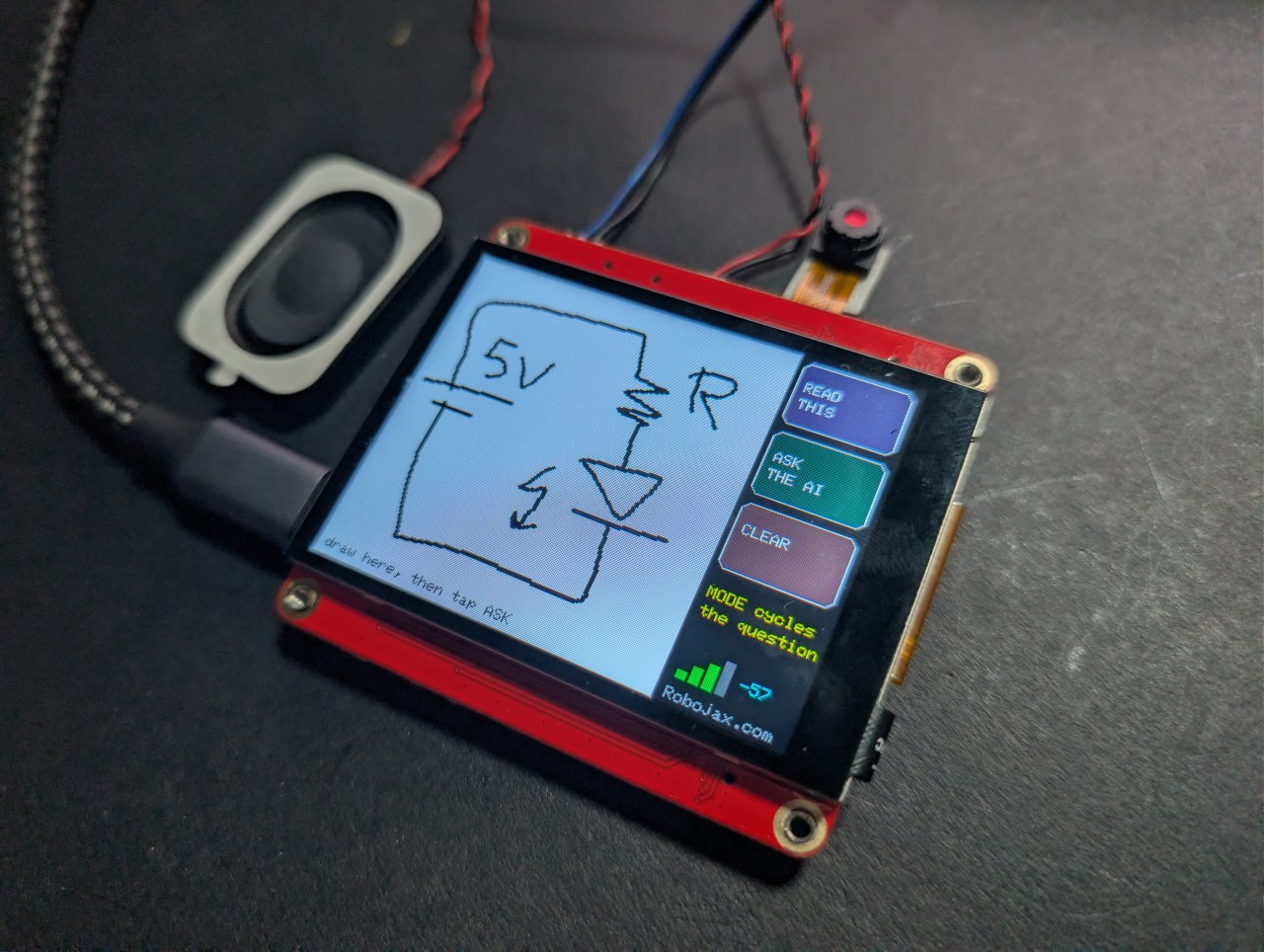
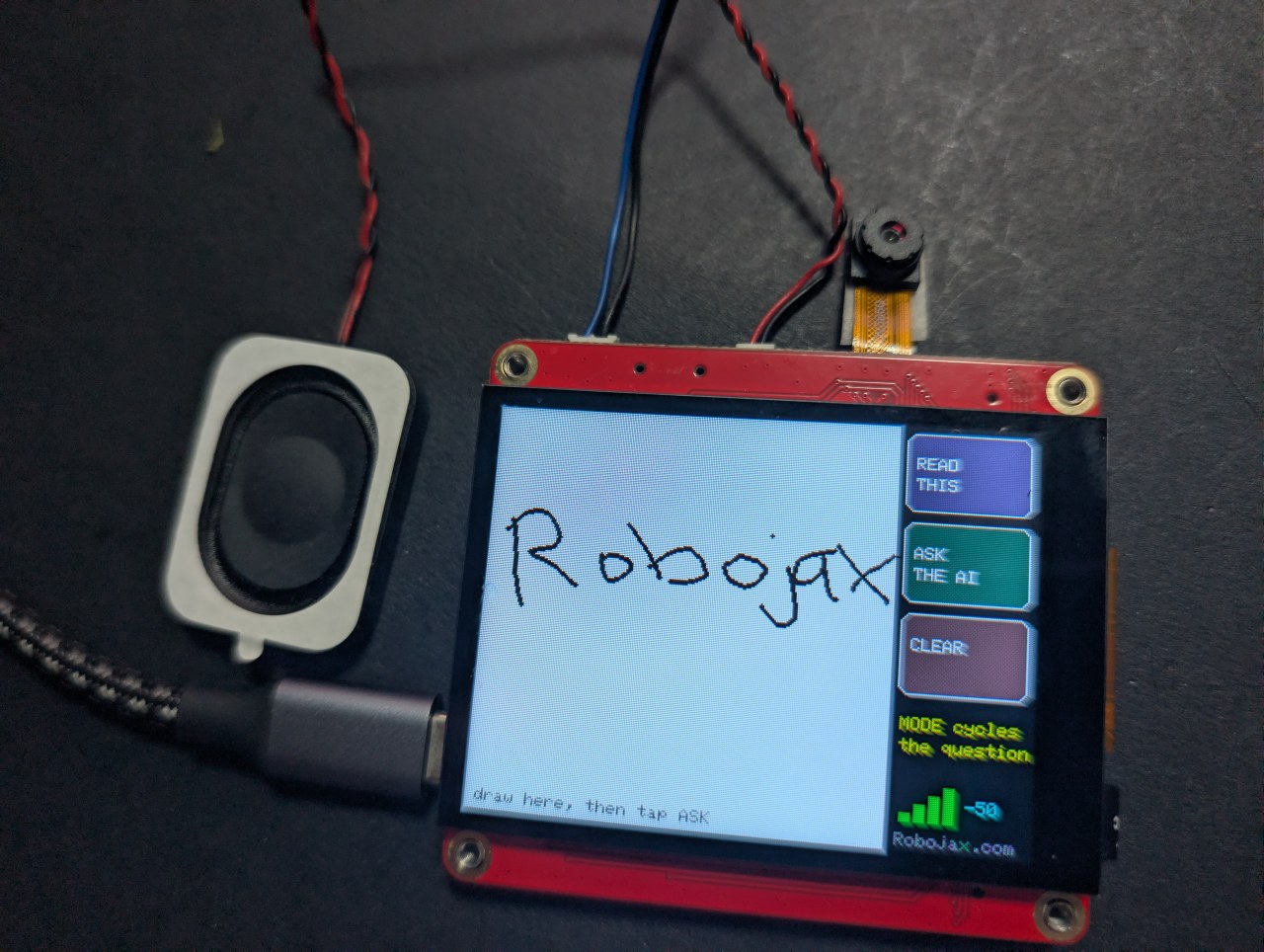
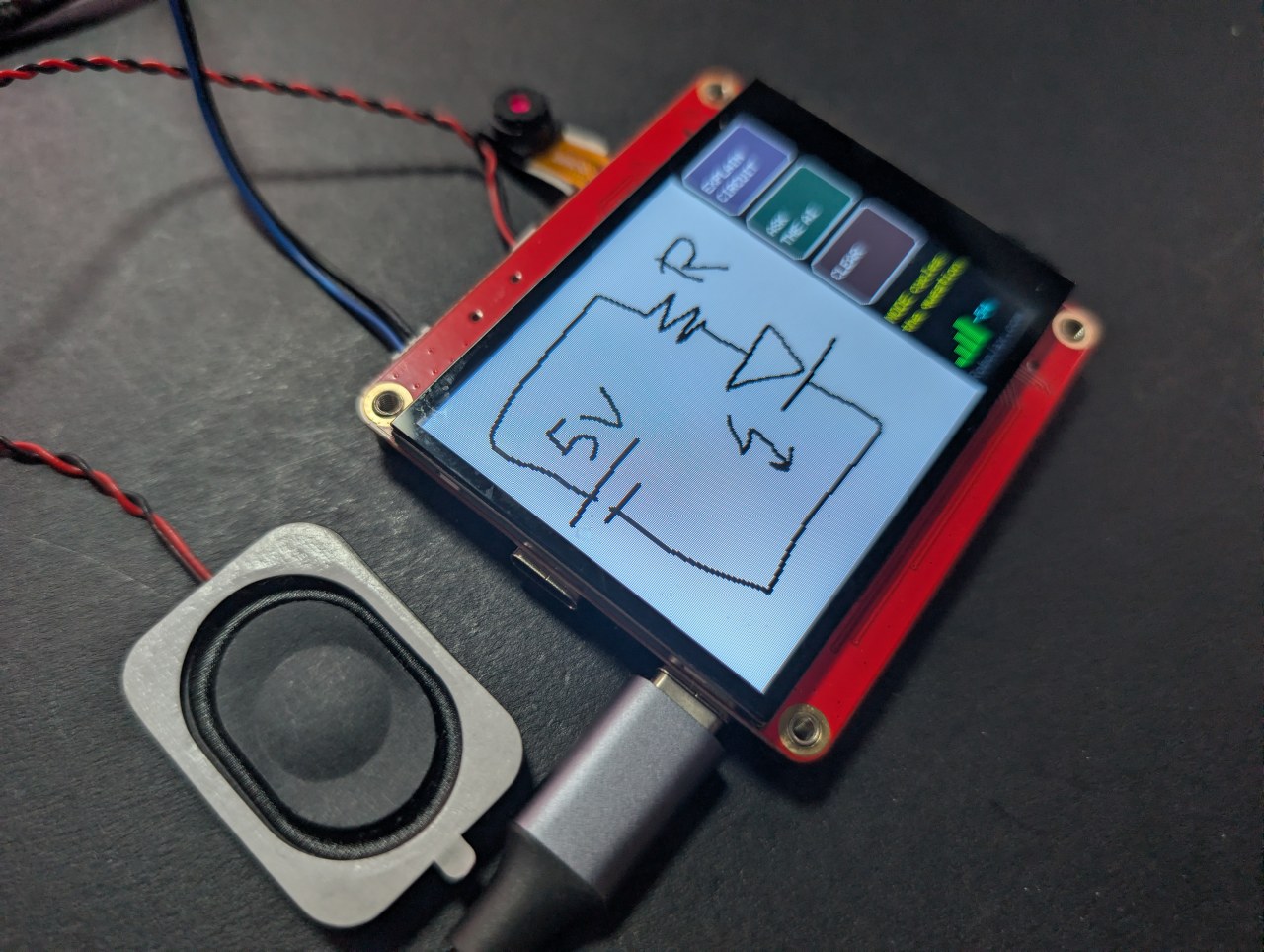
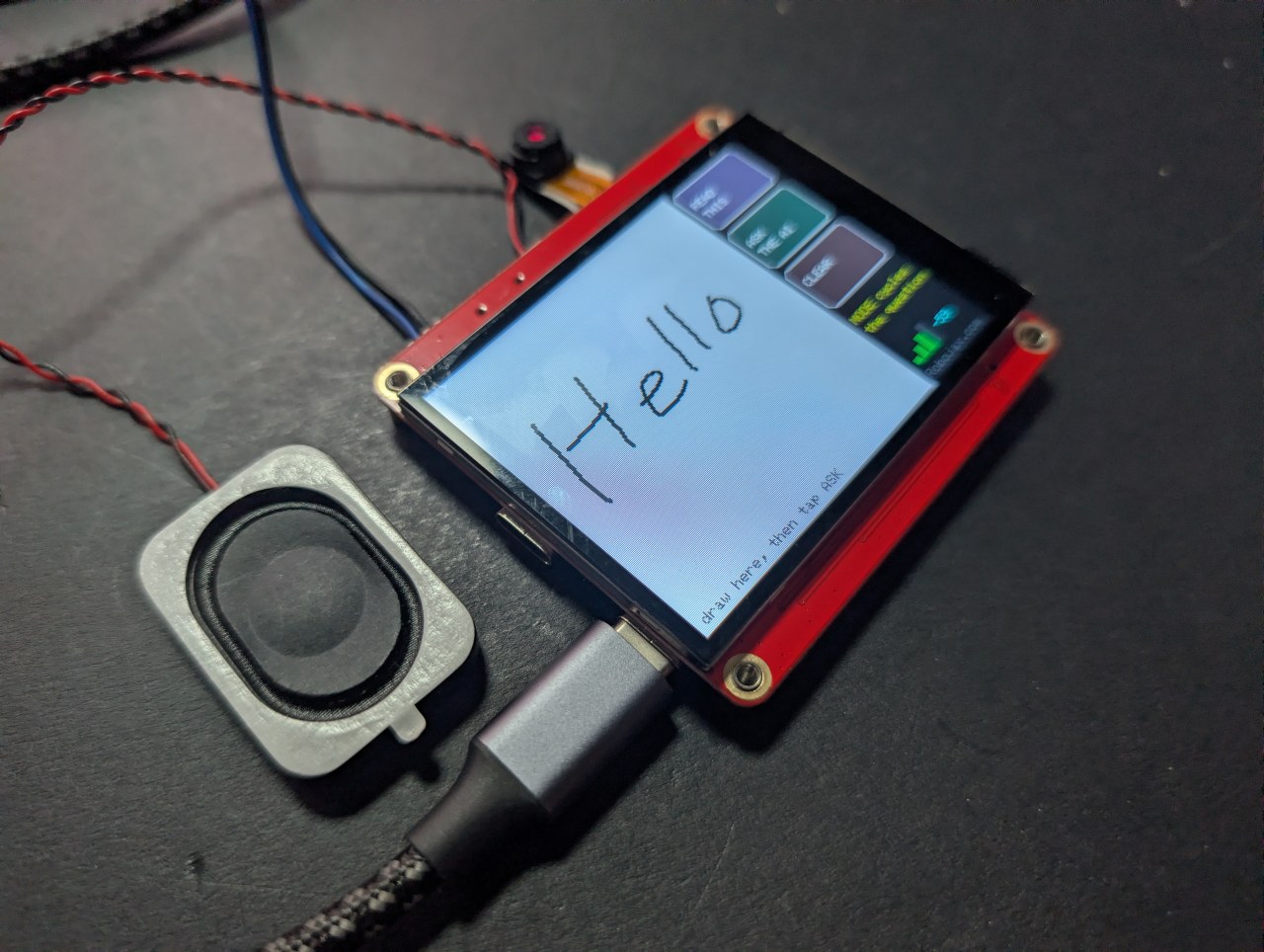
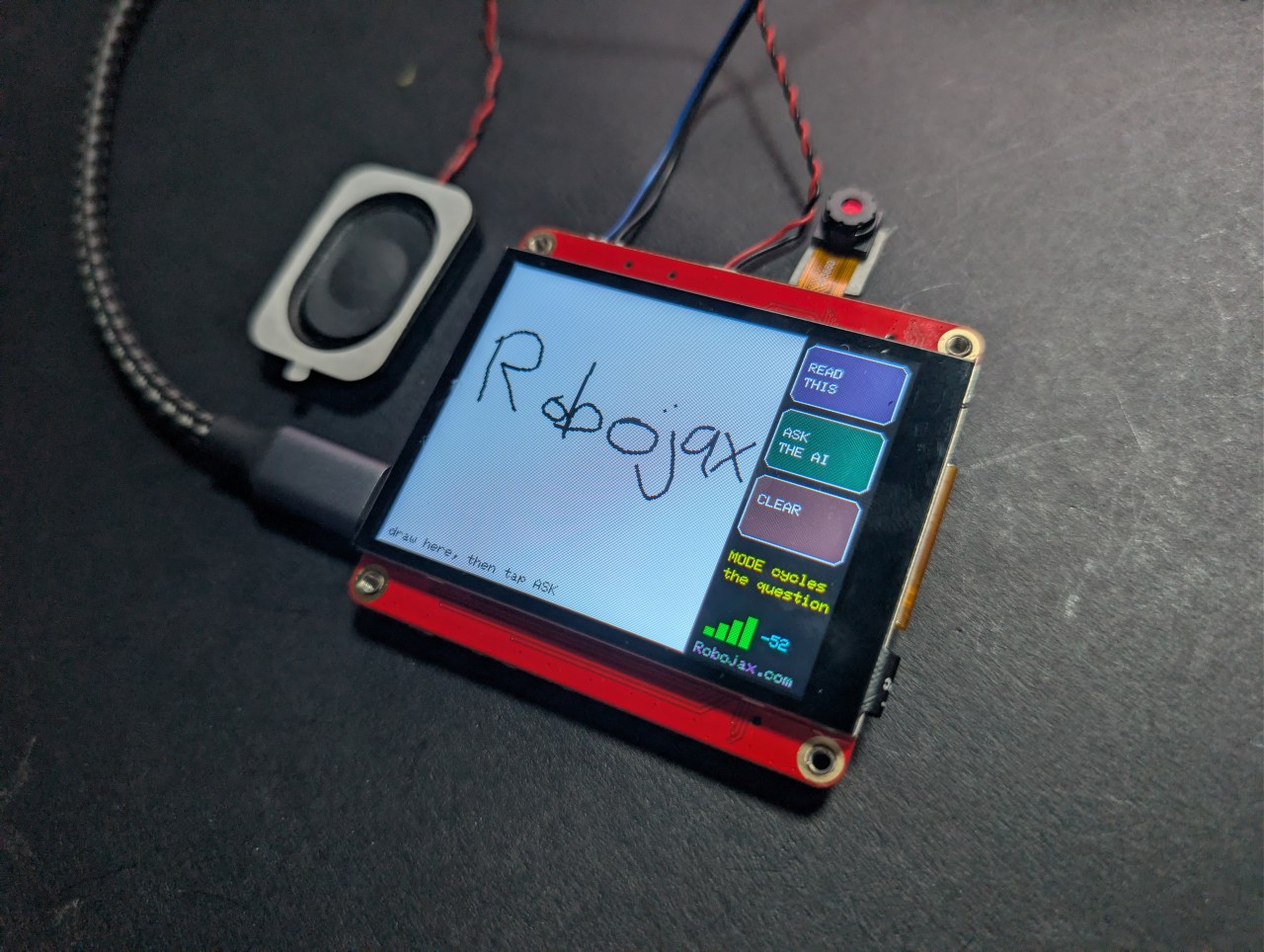
Teken of schrijf op het touchscreen met je vinger, tik op ASK, en een AI vertelt je wat je hebt getekend - op het scherm en hardop. Drie modi: benoem de vorm, lees het handschrift, of leg het handgetekende circuit uit.
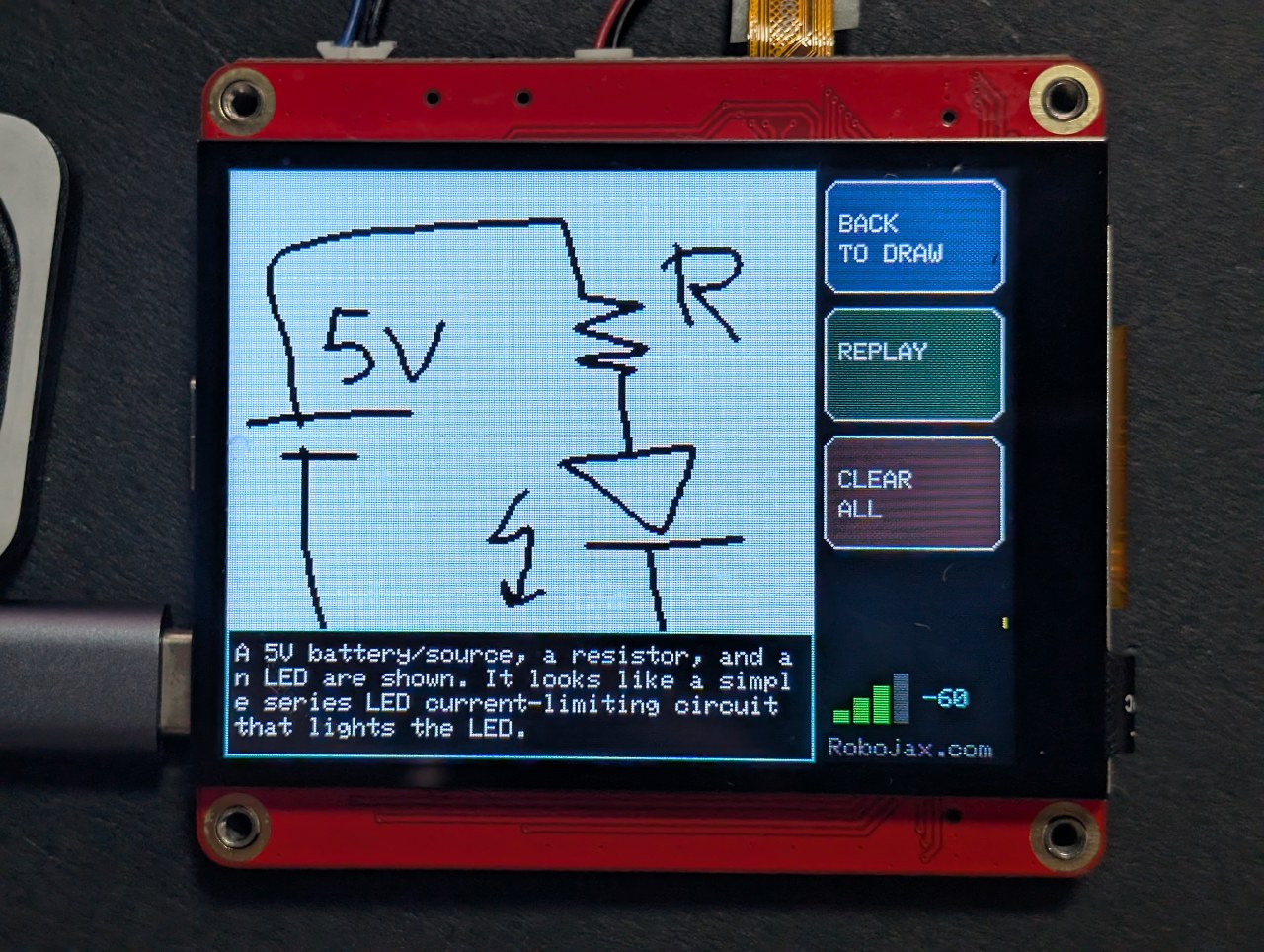
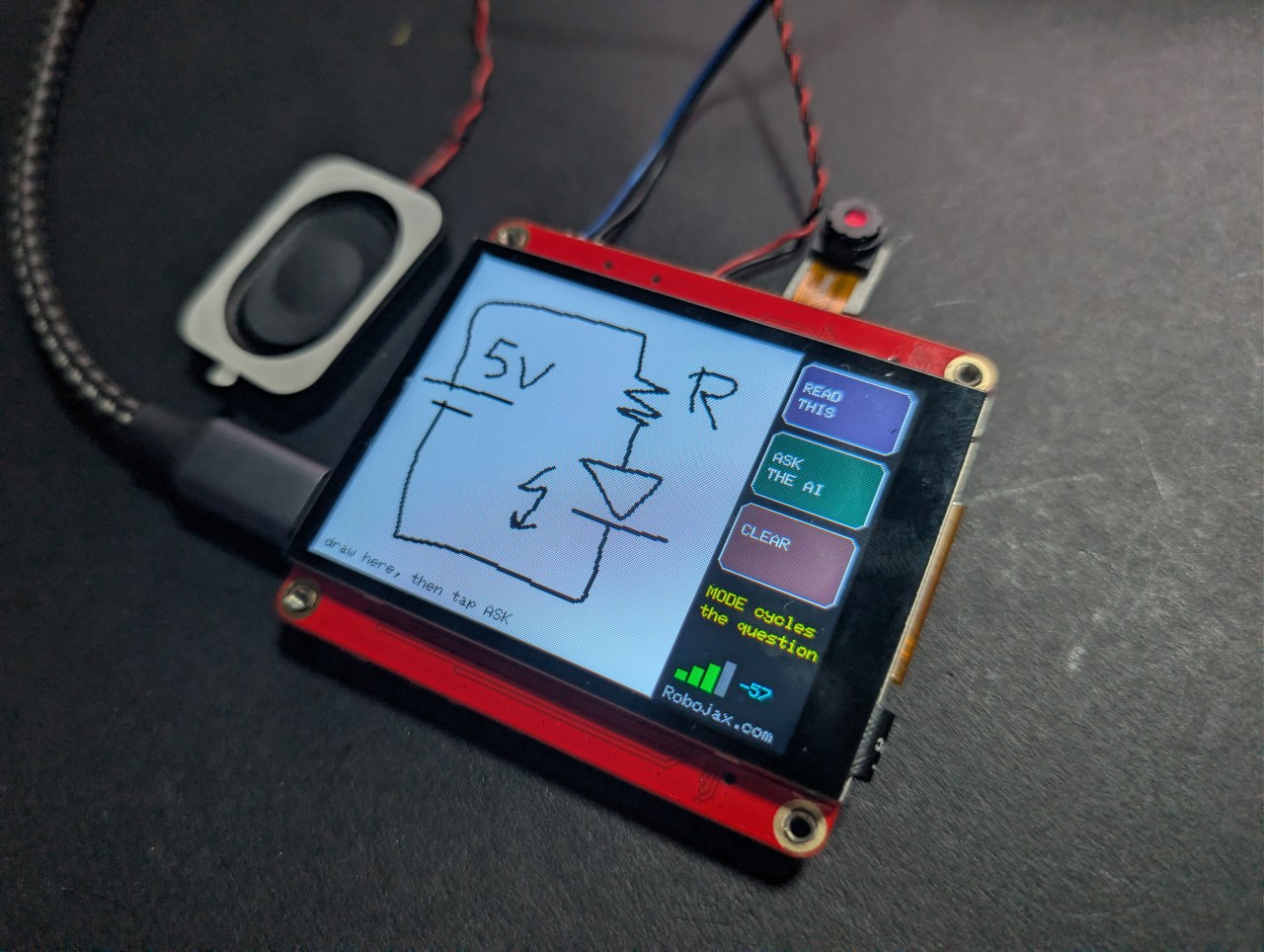
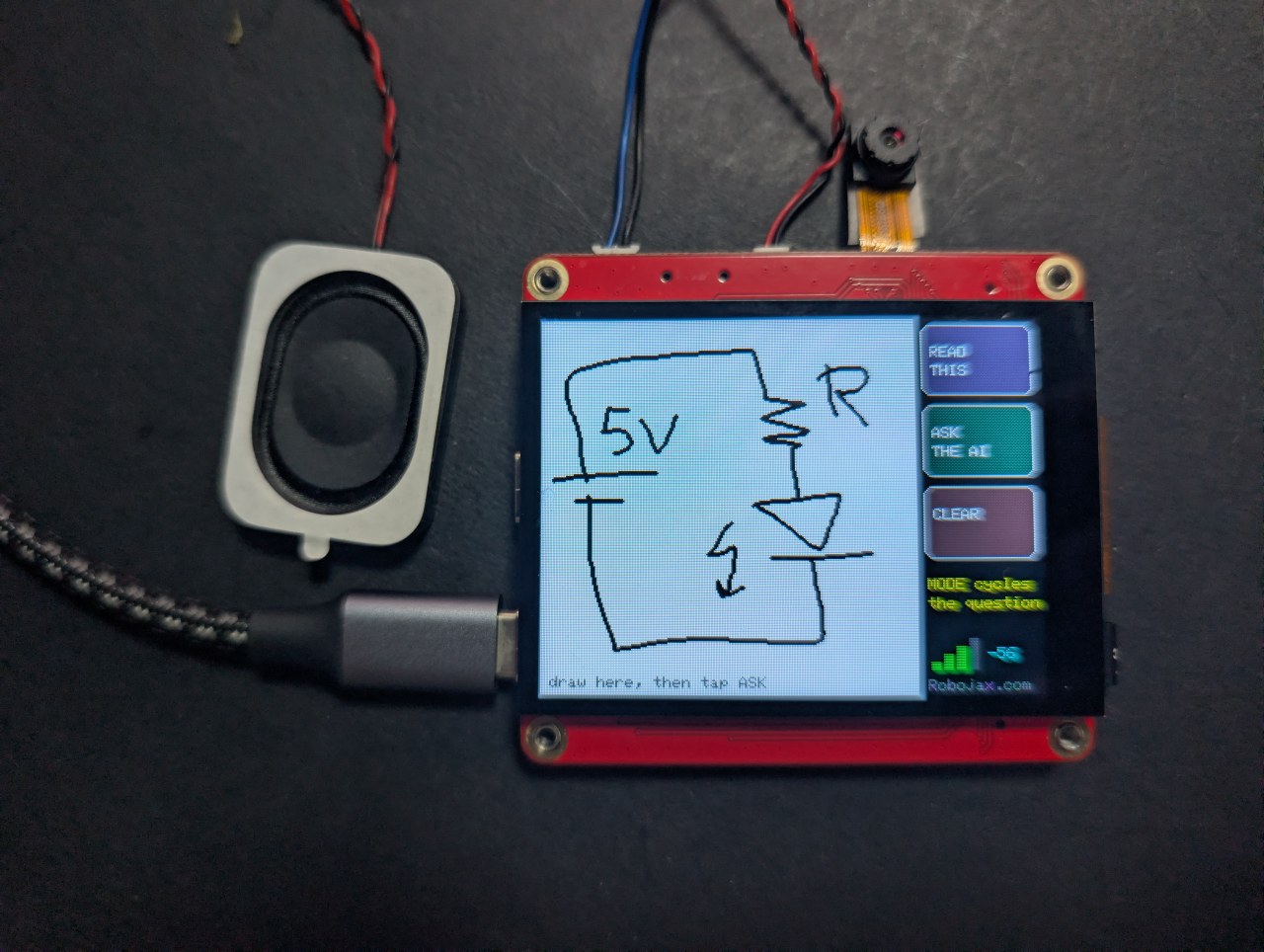
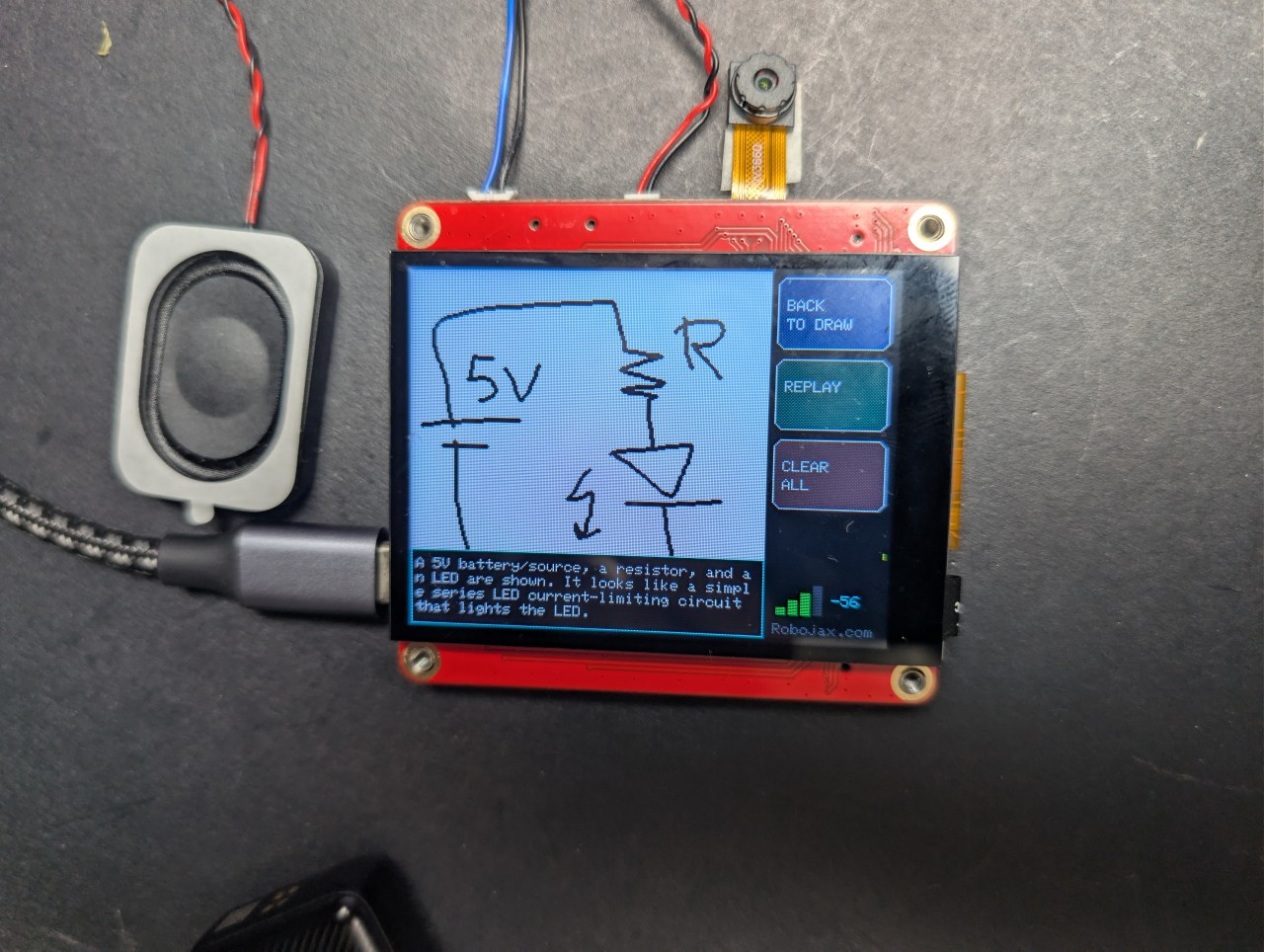
Die laatste is de interessante. Schets een batterij, een weerstand en een LED, en het bord benoemt de componenten en vertelt je wat het circuit doet.
Robojax_Makerfab in bij het afrekenen op de MaTouch AI ESP32-S3 productpagina. Het kost je niets om te gebruiken, en het helpt de gratis code en tutorials hier te ondersteunen.Het probleem dat dit project moest oplossen
Je kunt pixels niet teruglezen van dit display via SPI, en de grafische bibliotheek tekent normaal gesproken direct naar het paneel zonder kopie in het geheugen - dus er is geen screenshot om ergens naartoe te sturen. De oplossing is om nooit direct naar het paneel te tekenen. Deze sketch tekent in een Arduino_Canvas, die een volledige framebuffer in PSRAM bewaart. Die buffer is de afbeelding, dus fmt2jpg() zet het direct om in een JPEG.
Waarom de inkt zwart op wit is
Visiemodellen lezen donkere markeringen op een lichte achtergrond veel betrouwbaarder dan andersom, en het ziet eruit als papier op camera. De knoppen worden op het paneel getekend in plaats van in de canvas, zodat ze nooit deel uitmaken van de afbeelding die de AI ziet - het krijgt niets anders dan jouw tekening op een schoon wit veld.
Streken eruit laten zien als streken
Twee dingen moesten kloppen voordat tekenen aanvoelde als een pen in plaats van een dotmatrix:
- De canvas wordt niet naar het scherm gestuurd bij elk aanraakmonster - dat duwt elke keer 115 KB over SPI en vertraagt alles. Elke streek wordt in de canvas getekend en afzonderlijk op het paneel geschilderd, wat bijna niets kost.
- Een streek eindigt pas nadat het paneel ongeveer 70 milliseconden stil is geweest. De aanraakcontroller retourneert niet bij elke poll een punt, en het behandelen van elke lege poll als een opgetilde vinger breekt de lijn in losse stippen.
Drie modi, één tekening
Je tekening blijft bestaan onder het antwoord, dus je kunt op BACK TO DRAW tikken, de modus wijzigen en een andere vraag stellen over dezelfde schets. Als afbeelding zijn het lijnen en vormen; gevraagd als ingenieur, wordt het een circuit.
Tips voor goede resultaten
- Een goedkope capacitieve stylus werkt veel beter dan een vingertop.
- Teken groot - de canvas is 240×240, dus een paar grote elementen, geen fijne details.
- Er is geen palmherkenning. Houd je hand van het glas.
Over het MaTouch AI ESP32-S3 2.8" bord
Elk project op deze pagina draait op de MaTouch AI ESP32-S3 2.8" TFT ST7789V van Makerfabs. Het is een alles-in-één bord: een kleurentouchscreen, een 3 megapixelcamera, twee microfoons en een echte luidsprekerversterker, allemaal aangestuurd door een ESP32-S3 met 8 MB PSRAM. Die combinatie maakt deze AI-projecten mogelijk op een enkel bord zonder iets anders erop aan te sluiten.
De 8 MB PSRAM is belangrijker dan elk ander getal hier. Het stelt het bord in staat om een cameraframe, een paar seconden opgenomen audio, of een base64-gecodeerde foto tegelijkertijd in het geheugen te houden - niets daarvan past in het normale RAM van de ESP32.
Fabrikantdocumentatie: Makerfabs wiki-pagina.
Belangrijkste specificaties
- Processor: ESP32-S3, dual core 240 MHz, WiFi 2.4 GHz + Bluetooth 5.0
- Geheugen: 16 MB flash, 8 MB PSRAM (vereist door bijna elk project hier)
- Display: 2.8" IPS, 320×240, ST7789V-driver, SPI
- Aanraking: GT911 capacitief, volgt 5 vingers tegelijk
- Camera: OV3660, 3 megapixel, tot 2048×1536
- Microfoons: twee INMP441 I2S digitale microfoons (een echt stereopaar)
- Luidspreker: MAX98357A klasse-D versterker, 3.2 W in 4 Ω
- Opslag: microSD-kaartsleuf (SPI-modus)
- Voeding: USB-C, JST-batterijconnector, TP4056-lader, aan/uit-schakelaar
- Ook aan boord: WS2812B RGB-LED, PCF8563T real-time klok met batterijback-up, en een MAX17048-batterijmeter die niet in de officiële specificaties staat
USB CDC On Boot in op Disabled. Gebruik de verkeerde poort en audio zal zich misdragen of uploads zullen mislukken.Voeden via een batterij? De twee USB-C-aansluitingen, de TP4056-lader en de aan/uit-schakelaar worden volledig uitgelegd, met het schema, in het bordtestartikel — inclusief welke aansluiting oplaadt en of de schakelaar aan of uit moet staan.
Arduino IDE-instellingen
Deze instellingen zijn belangrijk. De meeste problemen die mensen met dit bord melden, zijn een van deze die verkeerd is, en ze worden gereset wanneer je de core-versie wijzigt, dus controleer ze opnieuw na elke wijziging.
| Instelling | Waarde |
|---|---|
| Board | ESP32S3 Dev Module |
| ESP32 core-versie | 2.0.17 |
| PSRAM | OPI PSRAM |
| Flash-grootte | 16MB (128Mb) |
| Partitieschema | 16M Flash (3MB APP/9.9MB FATFS) |
| USB CDC On Boot | Disabled |
| Uploadsnelheid | 921600 |
| Erase All Flash Before Upload | Disabled |
| Poort | de CH340K USB-C-poort |
Vereiste bibliotheken
Dit project heeft elke bibliotheek in de onderstaande tabel nodig - niets meer, niets minder. De meeste installeren direct via Tools → Manage Libraries in de Arduino IDE, maar GFX Library for Arduino moet vanuit een ZIP-bestand worden geïnstalleerd. De versienummers zijn belangrijk, dus gebruik precies de genoemde.
| Bibliotheek | Versie | Auteur | Installeren vanuit |
|---|---|---|---|
| GFX Library for Arduino | 1.5.6 | moononournation | ZIP-bestand - zie hieronder |
| bb_captouch | 1.3.1 | Larry Bank | Library Manager |
| ArduinoJson | 7.x | Benoit Blanchon | Library Manager |
| Adafruit NeoPixel | elke recente | Adafruit | Library Manager |
De GFX-bibliotheek installeren vanuit een ZIP-bestand
- Download het ZIP-bestand. Het zit in de download van dit project, of je kunt het krijgen van de Arduino_GFX-repository - klik op de groene Code-knop en vervolgens op Download ZIP.
- Sla het op waar je het terug kunt vinden. Pak het niet uit.
- Klik in de Arduino IDE op Sketch → Include Library → Add .ZIP Library.
- Blader naar het ZIP-bestand dat je hebt gedownload en klik op Open.
- De IDE installeert het en bevestigt dit onderaan het venster. Als je al een 1.6-versie hebt geïnstalleerd, verwijder dan eerst die map uit
Documents/Arduino/libraries, anders zullen de twee conflicteren.
secrets.h instellen
Je WiFi-gegevens en eventuele API-sleutels gaan in secrets.h, dat in de download zit met placeholder-waarden. Open dat tabblad in de Arduino IDE en vervang ze door je eigen.
secrets.h.Je API-sleutels verkrijgen
Dit project praat met een cloud-AI-service, dus je hebt je eigen sleutel nodig. Als je dit nog nooit hebt gedaan, maak je geen zorgen - het is hetzelfde idee als een wachtwoord dat je account identificeert bij de service. Het duurt een paar minuten, eenmalig.
OpenAI - de ogen
OpenAI levert het visiemodel dat naar afbeeldingen kijkt. Alleen projecten die een afbeelding sturen, hebben deze nodig.
- Ga naar platform.openai.com/api-keys en log in of maak een account aan.
- Klik op Create new secret key, geef het een naam en maak het aan.
- Kopieer het onmiddellijk - het wordt maar één keer getoond.
- Open Billing en voeg een klein bedrag aan tegoed toe. De API is vooraf betaald en apart van eventuele ChatGPT-abonnementen die je al hebt.
Zet de sleutel in secrets.h als OPENAI_KEY.
Microsoft Azure Speech - voor luisteren en praten
Azure zet je spraak om in tekst en zet het antwoord terug in een stem. De gratis laag is ruim voldoende voor alles op deze pagina.
- Ga naar portal.azure.com en log in met een Microsoft-account (een gratis is prima).
- Als je Azure nog nooit hebt gebruikt, zie je een Welcome to Azure-scherm met drie keuzes. Kies Start with an Azure free trial - je hebt een abonnement nodig voordat Azure je iets laat maken. (Studenten moeten in plaats daarvan Azure for Students kiezen: zelfde resultaat, geen kaart vereist.) Negeer Manage Microsoft Entra ID, dat is iets heel anders.
- Klik op Create a resource, zoek naar Speech en kies Speech service gepubliceerd door Microsoft.
- Vul het formulier in: elke resourcegroep, elke naam, en kies een Regio bij jou in de buurt - schrijf die regio precies op zoals die verschijnt, bijvoorbeeld
eastus. - Kies bij Pricing tier voor F0 (Free). Dat staat ongeveer vijf uur spraak-naar-tekst en een half miljoen tekens tekst-naar-spraak per maand toe.
- Klik op Review + create en vervolgens op Create. Wacht ongeveer een minuut en klik dan op Go to resource.
- Open in het linkermenu Keys and Endpoint. Kopieer KEY 1 en de Location/Region.
Zet die in secrets.h als AZURE_SPEECH_KEY en AZURE_REGION.
Wat het kost om te draaien
Heel weinig, maar het is niet gratis, en je moet ongeveer weten wat je uitgeeft voordat je een project laat draaien.
| Service | Geschatte kosten |
|---|---|
| OpenAI vision | ongeveer een cent of twee per afbeelding, afhankelijk van het model |
| Azure Speech | gratis laag dekt ongeveer 5 uur luisteren en 0.5 M tekens spreken per maand |
Prijzen veranderen, dus behandel deze als richtlijn in plaats van een offerte. Elk van deze services heeft een gebruikspagina waar je kunt zien wat je hebt uitgegeven, en ze laten allemaal een uitgavenlimiet instellen - wat de moeite waard is om op dag één te doen.
Problemen oplossen
| Symptoom | Oorzaak en oplossing |
|---|---|
| Scherm blijft zwart | Verkeerde GFX-bibliotheekversie (gebruik 1.5.6) of verkeerde bordinstellingen. |
PSRAM alloc failed |
Tools → PSRAM staat niet op OPI PSRAM. |
| Niets uploadt / geen COM-poort | Verkeerde USB-C-poort, of de CH340-driver is niet geïnstalleerd. |
Afbeeldingen
/*
* ===========================================================================
* 08_Draw_AI — MaTouch AI ESP32-S3 2.8" TFT ST7789V
* ===========================================================================
*
* ---------------------------------------------------------------------------
* ROBOJAX.COM - MaTouch AI ESP32-S3 2.8" project series
*
* WATCH THE Introduction and face recognition VIDEO
* https://youtu.be/6AL3g3tC_Hk
* Video 2: Draw AI - https://youtu.be/FaIW1MVIsj4
*
* WRITTEN TUTORIALS - every project, with photos and full explanation
* Camera and touchscreen.... https://robojax.com/RTJ849
* Offline face recognition.. https://robojax.com/RTJ850
* AI voice assistant........ https://robojax.com/RTJ851
* AI vision................. https://robojax.com/RTJ852
* Draw AI ................. https://robojax.com/RTJ867 (this code)
*
* GET THE BOARD - SAVE $5 with coupon code: Robojax_Makerfab
* https://www.makerfabs.com/matouch-ai-esp32s3-2-8-tft-st7789v.html
* (enter the code at checkout)
*
* All of this code is free. If it helped you, a subscribe on YouTube is
* the best way to support more of it.
* ---------------------------------------------------------------------------
*
* Draw or write on the touchscreen with your finger, tap ASK, and an AI
* tells you what you drew - on the screen and out loud.
*
* THREE MODES (tap MODE to cycle):
*
* WHAT IS THIS? draw a house, a cat, a triangle -> it names it
* READ THIS write HELLO in big letters -> it reads it back
* EXPLAIN CIRCUIT sketch a battery, resistor and LED -> it tells you
* what the components are and what the circuit does
*
* That last mode is the interesting one: a hand-drawn schematic, explained
* by an AI, on a forty-dollar board with no computer attached.
*
* NO CAMERA IS USED by this sketch. That means the J1/J3 Mabee sockets are
* free GPIO here (see 07_GPIO_Test), and there is no camera/SD memory
* contention to worry about.
*
* ---------------------------------------------------------------------------
* HOW IT WORKS (the trick worth knowing)
*
* You cannot read pixels back out of the ST7789 over SPI, and Arduino_GFX
* normally draws straight to the panel with no copy in memory - so there is
* no "screenshot" to send anywhere. The fix: draw into an Arduino_Canvas,
* which keeps a full framebuffer in PSRAM and flushes it to the display.
* That buffer IS the image, so fmt2jpg() turns it straight into a JPEG and
* the rest of the path is identical to 05_Vision_AI.
*
* Black ink on a white canvas, deliberately: vision models read dark-on-light
* far more reliably than the reverse, and it looks like paper on camera.
*
* ---------------------------------------------------------------------------
* TIPS
* - A cheap capacitive stylus is MUCH better than a fingertip.
* - Write BIG. The canvas is 240x240 - a few large characters, not a
* sentence.
* - There is no palm rejection: only the first touch point is used, so
* keep your palm off the glass.
*
* ---------------------------------------------------------------------------
* FILL IN secrets.h BEFORE FLASHING (WIFI_* and OPENAI_*; AZURE_* only if
* SPEAK_REPLIES is 1).
*
* BOARD SETTINGS (Tools menu - EVERY line matters)
* Board : ESP32S3 Dev Module
* ESP32 core : 2.0.17
* PSRAM : OPI PSRAM <-- required, the canvas lives there
* Flash Size : 16MB (128Mb)
* Partition Scheme : 16M Flash (3MB APP/9.9MB FATFS)
* USB CDC On Boot : Disabled
* Upload Speed : 921600
* Port : the CH340K USB-C port (the one near RESET)
*
* LIBRARIES
* GFX Library for Arduino v1.5.6 (NOT 1.6.x - that pairs with core 3)
* bb_captouch v1.3.1
* ArduinoJson v7.x
* Adafruit NeoPixel any recent
*
* ---------------------------------------------------------------------------
* FUNCTIONS IN THIS SKETCH
* led(r,g,b) set the RGB status LED colour
* getTouch(&x,&y) read the touch panel, mapped to screen coordinates
* clearCanvas() wipe to white and redraw the hint
* drawStroke(...) one thick line segment, into the canvas AND the panel
* handleDrawing(...) turn touch samples into continuous strokes
* waitData()/readHttpResponse() robust HTTPS reply reader (de-chunking)
* canvasToJpeg(&len) RGB565 canvas -> JPEG in PSRAM
* askVision(...) send the drawing + prompt to OpenAI, get an answer
* spkInit()/speak()/playLastAnswer() Azure voice out, with free REPLAY
* drawButtons()/drawAnswerSide()/showAnswer()/drawWifi() the UI
* askAboutDrawing() one full cycle: encode -> ask -> show -> speak
* setup() / loop() boot + WiFi / drawing and button handling
*
* Robojax.com
* ===========================================================================
*/
#define SPEAK_REPLIES 1 // 1 = read the answer aloud with Azure TTS
#define LED_BRIGHTNESS 15 // WS2812 is on the power rail - 15 is plenty
#include <Arduino_GFX_Library.h>
#include <bb_captouch.h>
#include <Adafruit_NeoPixel.h>
#include <ArduinoJson.h>
#include <WiFi.h>
#include <WiFiClientSecure.h>
#include "mbedtls/base64.h"
#include "img_converters.h" // fmt2jpg()
#include "esp_camera.h" // for the pixformat_t enum used by fmt2jpg
#include "pins.h"
#include "secrets.h"
#if SPEAK_REPLIES
#include "driver/i2s.h"
#define WAV_HEADER_LEN 44
#endif
Arduino_HWSPI *bus = new Arduino_HWSPI(
TFT_DC, TFT_CS, TFT_SCLK, TFT_MOSI, TFT_MISO, &SPI, true);
Arduino_GFX *panel = new Arduino_ST7789(bus, TFT_RES, 1, true);
/* The canvas is what we actually draw into: a real framebuffer in PSRAM that
* we can both flush to the panel AND hand to the JPEG encoder. */
#define CANVAS_W 240
#define CANVAS_H 240
Arduino_Canvas *canvas = new Arduino_Canvas(CANVAS_W, CANVAS_H, panel, 0, 0);
BBCapTouch bbct;
Adafruit_NeoPixel rgb(RGB_LED_NUM, RGB_LED_PIN, NEO_GRB + NEO_KHZ800);
/* --- the three modes ------------------------------------------------------ */
struct DrawMode { const char *l1, *l2; const char *prompt; };
const DrawMode MODES[] = {
{"WHAT IS", "THIS?",
"This is a drawing made with a finger on a small touchscreen. Name the "
"shape or object in ONE short sentence of at most 15 words. Plain text only."},
{"READ", "THIS",
"This image contains handwriting drawn with a finger. Reply with ONLY the "
"text you can read, nothing else. If you cannot read it, say: cannot read it."},
{"EXPLAIN", "CIRCUIT",
"This is a hand-drawn electronic circuit diagram. In at most two short "
"sentences, name the components you can identify and say what the circuit "
"does. Plain text only. If it is not a circuit, say so."},
};
#define N_MODES 3
int mode = 0;
/* --- layout: 240 canvas on the left, buttons on the right ----------------- */
#define BTN_X 244
#define BTN_W 72
#define BTN_H 46
#define BTN_MODE_Y 4
#define BTN_ASK_Y 56
#define BTN_CLEAR_Y 108
bool showing_answer = false;
/* --- drawing state -------------------------------------------------------- */
int last_x = -1, last_y = -1;
bool has_ink = false;
/* --- kept audio for REPLAY ------------------------------------------------ */
uint8_t *last_audio = nullptr;
size_t last_audio_len = 0;
void led(uint8_t r, uint8_t g, uint8_t b) { rgb.setPixelColor(0, rgb.Color(r, g, b)); rgb.show(); }
void playLastAnswer();
void drawButtons();
/* ===========================================================================
* Touch
* =========================================================================== */
bool getTouch(uint16_t *x, uint16_t *y) {
TOUCHINFO ti;
if (!bbct.getSamples(&ti)) return false;
if (ti.count < 1) return false; // first point only - no palm rejection
*x = ti.y[0];
*y = (ti.x[0] > 240) ? 0 : (240 - ti.x[0]);
return true;
}
/* ===========================================================================
* Canvas / drawing
* =========================================================================== */
void clearCanvas() {
canvas->fillScreen(WHITE);
canvas->flush(); // one full push: paint it white
has_ink = false;
last_x = last_y = -1;
/* The hint goes on the PANEL, never into the canvas - anything drawn into
* the canvas becomes part of the image the AI sees, and it would happily
* read this text back to you. */
panel->setTextSize(1);
panel->setTextColor(panel->color565(170, 170, 170));
panel->setCursor(6, CANVAS_H - 12);
panel->print("draw here, then tap ASK");
}
/* One thick line segment, drawn into BOTH the canvas and the panel.
*
* Why both: the canvas is the image we will send to the AI, but flushing the
* whole 240x240 buffer to the screen costs ~115 KB of SPI. Doing that per
* touch sample throttled the loop so hard that most samples were missed -
* which is exactly what "it only draws dots" looks like. Painting the same
* few pixels directly to the panel is essentially free, so the canvas is only
* flushed when the screen genuinely has to be rebuilt. */
static const int8_t STROKE_OFFS[5][2] = {{0,0},{1,0},{-1,0},{0,1},{0,-1}};
void drawStroke(int x0, int y0, int x1, int y1) {
for (int i = 0; i < 5; i++) {
int ox = STROKE_OFFS[i][0], oy = STROKE_OFFS[i][1];
canvas->drawLine(x0 + ox, y0 + oy, x1 + ox, y1 + oy, BLACK);
panel->drawLine(x0 + ox, y0 + oy, x1 + ox, y1 + oy, BLACK);
}
}
/* Touch is read once per loop and handed in here.
*
* THE IMPORTANT BIT - why this is time-based rather than "no touch = lifted":
* the GT911 does not return a point on every poll. It reports when its own
* internal sample is ready, so a poll in between comes back empty even though
* your finger never left the glass. Treating each empty poll as a lift resets
* the stroke, and every real sample then lands as an isolated dot instead of
* a line joined to the previous one - which is exactly what "it only draws
* dots" looks like. So a stroke only ends after the panel has been quiet for
* LIFT_MS, which bridges the dropouts but is still far shorter than a genuine
* lift-and-reposition. */
#define LIFT_MS 70
void handleDrawing(bool touched, int x, int y) {
static uint32_t last_seen = 0;
if (touched && x >= 0 && x < CANVAS_W) {
if (last_x >= 0) drawStroke(last_x, last_y, x, y); // join to the last point
else drawStroke(x, y, x, y); // start of a stroke
last_x = x; last_y = y;
last_seen = millis();
has_ink = true;
} else if (last_x >= 0 && millis() - last_seen > LIFT_MS) {
last_x = last_y = -1; // really lifted now
}
}
/* ===========================================================================
* HTTP — the same robust reader proven in 04 and 05
* =========================================================================== */
static bool waitData(WiFiClientSecure &c, uint32_t ms) {
uint32_t t0 = millis();
while (!c.available()) {
if (!c.connected()) return false;
if (millis() - t0 > ms) return false;
delay(10);
}
return true;
}
static int readHttpResponse(WiFiClientSecure &client, String &body_out, uint32_t idle_ms) {
body_out = "";
if (!waitData(client, idle_ms)) { Serial.println("HTTP: no response at all"); return 0; }
String status_line = client.readStringUntil('\n');
int code = 0;
sscanf(status_line.c_str(), "HTTP/%*s %d", &code);
bool chunked = false;
while (waitData(client, idle_ms)) {
String h = client.readStringUntil('\n');
if (h == "\r" || h.length() <= 1) break;
h.toLowerCase();
if (h.startsWith("transfer-encoding:") && h.indexOf("chunked") >= 0) chunked = true;
}
if (chunked) {
int blanks = 0;
while (true) {
if (!waitData(client, idle_ms)) { Serial.println("HTTP: chunk timeout"); break; }
String szline = client.readStringUntil('\n');
szline.trim();
if (szline.length() == 0) { if (++blanks > 4) break; continue; }
blanks = 0;
long sz = strtol(szline.c_str(), NULL, 16);
if (sz <= 0) break;
long got = 0;
while (got < sz) {
if (!waitData(client, idle_ms)) break;
while (client.available() && got < sz) { body_out += (char)client.read(); got++; }
}
if (waitData(client, 3000)) client.readStringUntil('\n');
if (got < sz) break;
}
} else {
while (waitData(client, idle_ms))
while (client.available()) body_out += (char)client.read();
}
return code;
}
/* ===========================================================================
* Canvas -> JPEG
* The canvas framebuffer is plain RGB565, which fmt2jpg() accepts directly.
* =========================================================================== */
uint8_t *canvasToJpeg(size_t *len_out) {
*len_out = 0;
uint16_t *fb = canvas->getFramebuffer();
if (!fb) { Serial.println("no canvas framebuffer"); return nullptr; }
uint8_t *jpg = NULL;
size_t jpg_len = 0;
if (!fmt2jpg((uint8_t *)fb, (size_t)CANVAS_W * CANVAS_H * 2,
CANVAS_W, CANVAS_H, PIXFORMAT_RGB565, 90, &jpg, &jpg_len)) {
Serial.println("fmt2jpg failed");
return nullptr;
}
*len_out = jpg_len;
return jpg; // caller frees
}
/* ===========================================================================
* OpenAI vision — identical shape to 05_Vision_AI
* =========================================================================== */
bool askVision(const uint8_t *jpg, size_t jpg_len, const char *prompt, String &answer_out) {
size_t b64_cap = ((jpg_len + 2) / 3) * 4 + 16;
unsigned char *b64 = (unsigned char *)ps_malloc(b64_cap);
if (!b64) return false;
size_t b64_len = 0;
if (mbedtls_base64_encode(b64, b64_cap, &b64_len, jpg, jpg_len) != 0) { free(b64); return false; }
const char *head_fmt =
"{\"model\":\"%s\",\"max_completion_tokens\":%d,\"messages\":[{\"role\":\"user\","
"\"content\":[{\"type\":\"text\",\"text\":\"%s\"},"
"{\"type\":\"image_url\",\"image_url\":{\"url\":\"data:image/jpeg;base64,";
const char *tail = "\"}}]}]}";
char head[900];
int head_len = snprintf(head, sizeof(head), head_fmt, OPENAI_MODEL, LLM_MAX_TOKENS, prompt);
size_t body_len = head_len + b64_len + strlen(tail);
char *body = (char *)ps_malloc(body_len + 1);
if (!body) { free(b64); return false; }
memcpy(body, head, head_len);
memcpy(body + head_len, b64, b64_len);
strcpy(body + head_len + b64_len, tail);
free(b64);
WiFiClientSecure client;
client.setInsecure();
client.setTimeout(45);
if (!client.connect(OPENAI_HOST, 443)) {
Serial.println("Vision: TLS connect failed");
free(body);
return false;
}
client.print(String("POST /v1/chat/completions HTTP/1.1\r\n"
"Host: " OPENAI_HOST "\r\n"
"Authorization: Bearer " OPENAI_KEY "\r\n"
"Content-Type: application/json\r\n"
"Connection: close\r\n"
"Content-Length: ") + String(body_len) + "\r\n\r\n");
size_t sent = 0;
while (sent < body_len) {
size_t n = min((size_t)4096, body_len - sent);
size_t w = client.write((uint8_t *)body + sent, n);
if (w == 0) { delay(50); w = client.write((uint8_t *)body + sent, n); if (w == 0) break; }
sent += w;
yield();
}
free(body);
if (sent < body_len) { client.stop(); Serial.println("Vision: upload stalled"); return false; }
String resp;
int code = readHttpResponse(client, resp, 45000);
client.stop();
if (code != 200) { Serial.printf("Vision HTTP %d: %s\n", code, resp.c_str()); return false; }
JsonDocument doc;
if (deserializeJson(doc, resp)) {
Serial.printf("Vision: JSON parse failed, %u bytes\n", resp.length());
return false;
}
const char *content = doc["choices"][0]["message"]["content"];
if (!content) return false;
answer_out = String(content);
answer_out.trim();
return answer_out.length() > 0;
}
/* ===========================================================================
* Azure voice out — same de-chunked player as 04/05
* =========================================================================== */
#if SPEAK_REPLIES
void spkInit() {
i2s_config_t cfg = {
.mode = (i2s_mode_t)(I2S_MODE_MASTER | I2S_MODE_TX),
.sample_rate = 16000,
.bits_per_sample = I2S_BITS_PER_SAMPLE_16BIT,
.channel_format = I2S_CHANNEL_FMT_ONLY_LEFT,
.communication_format = I2S_COMM_FORMAT_STAND_I2S,
.intr_alloc_flags = ESP_INTR_FLAG_LEVEL1,
.dma_buf_count = 8,
.dma_buf_len = 256,
.use_apll = false,
.tx_desc_auto_clear = true,
.fixed_mclk = 0
};
i2s_pin_config_t pins = {
.mck_io_num = I2S_PIN_NO_CHANGE,
.bck_io_num = I2S_SPK_BCLK,
.ws_io_num = I2S_SPK_LRC,
.data_out_num = I2S_SPK_DOUT,
.data_in_num = I2S_PIN_NO_CHANGE
};
i2s_driver_install(I2S_SPK_PORT, &cfg, 0, NULL);
i2s_set_pin(I2S_SPK_PORT, &pins);
i2s_zero_dma_buffer(I2S_SPK_PORT);
}
void playLastAnswer() {
if (!last_audio || last_audio_len <= WAV_HEADER_LEN) return;
static const uint8_t lead_in[640] = {0};
size_t w = 0;
i2s_write(I2S_SPK_PORT, lead_in, sizeof(lead_in), &w, portMAX_DELAY);
i2s_write(I2S_SPK_PORT, last_audio + WAV_HEADER_LEN,
last_audio_len - WAV_HEADER_LEN, &w, portMAX_DELAY);
i2s_write(I2S_SPK_PORT, lead_in, sizeof(lead_in), &w, portMAX_DELAY);
delay(150);
i2s_zero_dma_buffer(I2S_SPK_PORT);
}
/* Read exactly n bytes into a raw buffer. BINARY SAFE - unlike the String
* based reader used for JSON, which cannot carry audio: PCM is full of 0x00
* bytes, and an Arduino String treats those as end-of-string. */
static size_t readExact(WiFiClientSecure &c, uint8_t *dst, size_t n) {
size_t got = 0;
uint32_t t0 = millis();
while (got < n && millis() - t0 < 10000) {
int r = c.read(dst + got, n - got);
if (r > 0) { got += r; t0 = millis(); }
else if (!c.connected() && !c.available()) break;
else delay(2);
}
return got;
}
void speak(const String &text) {
String safe = text;
safe.replace("&", "&"); safe.replace("<", "<"); safe.replace(">", ">");
String ssml = "<speak version='1.0' xml:lang='" AZURE_TTS_LANG "'>"
"<voice name='" AZURE_TTS_VOICE "'>" + safe + "</voice></speak>";
WiFiClientSecure client;
client.setInsecure();
client.setTimeout(30);
const char *host = AZURE_REGION ".tts.speech.microsoft.com";
if (!client.connect(host, 443)) { Serial.println("TTS: TLS connect failed"); return; }
client.print(String("POST /cognitiveservices/v1 HTTP/1.1\r\nHost: ") + host + "\r\n"
"Ocp-Apim-Subscription-Key: " AZURE_SPEECH_KEY "\r\n"
"Content-Type: application/ssml+xml\r\n"
"X-Microsoft-OutputFormat: riff-16khz-16bit-mono-pcm\r\n"
"User-Agent: MaTouchRobojax\r\nConnection: close\r\n"
"Content-Length: " + String(ssml.length()) + "\r\n\r\n");
client.print(ssml);
/* --- status line + headers (text, so String is fine here) --- */
if (!waitData(client, 30000)) { Serial.println("TTS: no response"); client.stop(); return; }
String status_line = client.readStringUntil('\n');
int code = 0;
sscanf(status_line.c_str(), "HTTP/%*s %d", &code);
bool chunked = false;
long content_len = -1;
while (waitData(client, 30000)) {
String h = client.readStringUntil('\n');
if (h == "\r" || h.length() <= 1) break;
h.toLowerCase();
if (h.startsWith("transfer-encoding:") && h.indexOf("chunked") >= 0) chunked = true;
if (h.startsWith("content-length:")) content_len = h.substring(15).toInt();
}
if (code != 200) { Serial.printf("TTS HTTP %d\n", code); client.stop(); return; }
/* --- body straight into PSRAM as raw bytes --- */
const size_t AUDIO_CAP = 1200 * 1024; // ~37 s of 16 kHz mono
uint8_t *audio = (uint8_t *)ps_malloc(AUDIO_CAP);
if (!audio) { Serial.println("TTS: PSRAM alloc failed"); client.stop(); return; }
size_t alen = 0;
if (chunked) {
int blanks = 0;
while (alen < AUDIO_CAP) {
if (!waitData(client, 15000)) break;
String szline = client.readStringUntil('\n');
szline.trim();
if (szline.length() == 0) { if (++blanks > 4) break; continue; }
blanks = 0;
long sz = strtol(szline.c_str(), NULL, 16);
if (sz <= 0) break; // final chunk
if ((size_t)sz > AUDIO_CAP - alen) sz = (long)(AUDIO_CAP - alen);
size_t got = readExact(client, audio + alen, (size_t)sz);
alen += got;
if (waitData(client, 3000)) client.readStringUntil('\n'); // CRLF
if (got < (size_t)sz) break;
}
} else if (content_len > 0) {
size_t want = (size_t)content_len < AUDIO_CAP ? (size_t)content_len : AUDIO_CAP;
alen = readExact(client, audio, want);
} else {
uint32_t idle = millis();
while (millis() - idle < 5000 && alen < AUDIO_CAP) {
int r = client.read(audio + alen, AUDIO_CAP - alen);
if (r > 0) { alen += r; idle = millis(); }
else if (!client.connected()) break;
else delay(5);
}
}
client.stop();
if (alen <= WAV_HEADER_LEN) { Serial.println("TTS: no audio"); free(audio); return; }
if (last_audio) free(last_audio);
last_audio = audio; // kept for REPLAY
last_audio_len = alen;
Serial.printf("TTS: %u KB clean audio (%s), playing\n",
(unsigned)(alen / 1024), chunked ? "de-chunked" : "plain");
playLastAnswer();
}
#else
void spkInit() {}
void speak(const String &t) { (void)t; }
void playLastAnswer() {}
#endif
/* ===========================================================================
* UI — right-hand button column (drawn on the PANEL, not the canvas, so
* it is never part of the image sent to the AI)
* =========================================================================== */
void drawWifi() {
panel->fillRect(BTN_X, 196, BTN_W, 44, BLACK);
bool up = (WiFi.status() == WL_CONNECTED);
long rssi = up ? WiFi.RSSI() : -100;
int bars = rssi > -55 ? 4 : rssi > -65 ? 3 : rssi > -75 ? 2 : rssi > -85 ? 1 : 0;
for (int b = 0; b < 4; b++) {
int bh = 5 + b * 5;
panel->fillRect(BTN_X + 4 + b * 8, 224 - bh, 6, bh,
(b < bars) ? GREEN : panel->color565(60, 60, 60));
}
panel->setTextSize(1);
panel->setCursor(BTN_X + 40, 210);
panel->setTextColor(up ? CYAN : RED);
if (up) panel->printf("%ld", rssi); else panel->print("--");
panel->setCursor(BTN_X + 2, 230);
panel->setTextColor(panel->color565(120, 120, 120));
panel->print("Robojax.com");
}
void drawButton(int y, const char *l1, const char *l2, uint16_t colour) {
panel->fillRoundRect(BTN_X, y, BTN_W, BTN_H, 6, colour);
panel->drawRoundRect(BTN_X, y, BTN_W, BTN_H, 6, WHITE);
panel->setTextSize(1);
panel->setTextColor(WHITE);
panel->setCursor(BTN_X + 6, y + 14);
panel->print(l1);
panel->setCursor(BTN_X + 6, y + 26);
panel->print(l2);
}
void drawButtons() {
panel->fillRect(BTN_X, 0, BTN_W, 196, BLACK);
drawButton(BTN_MODE_Y, MODES[mode].l1, MODES[mode].l2, panel->color565(90, 60, 140));
drawButton(BTN_ASK_Y, "ASK", "THE AI", panel->color565(0, 100, 60));
drawButton(BTN_CLEAR_Y, "CLEAR", "", panel->color565(110, 35, 35));
panel->setTextColor(YELLOW);
panel->setCursor(BTN_X + 2, 166);
panel->print("MODE cycles");
panel->setCursor(BTN_X + 2, 178);
panel->print("the question");
drawWifi();
showing_answer = false;
}
void drawAnswerSide() {
panel->fillRect(BTN_X, 0, BTN_W, 196, BLACK);
drawButton(BTN_MODE_Y, "BACK", "TO DRAW", panel->color565(0, 90, 160));
#if SPEAK_REPLIES
if (last_audio_len) drawButton(BTN_ASK_Y, "REPLAY", "", panel->color565(0, 110, 60));
#endif
drawButton(BTN_CLEAR_Y, "CLEAR", "ALL", panel->color565(110, 35, 35));
drawWifi();
showing_answer = true;
}
/* The answer is drawn on the PANEL over the canvas area, and stays until the
* user taps BACK or CLEAR - the canvas underneath is untouched. */
void showAnswer(const String &text) {
const int max_chars = 38;
int lines = (text.length() + max_chars - 1) / max_chars;
if (lines > 8) lines = 8;
int h = lines * 10 + 12;
int y = CANVAS_H - h;
panel->fillRect(0, y, CANVAS_W, h, BLACK);
panel->drawRect(0, y, CANVAS_W, h, CYAN);
panel->setTextSize(1);
panel->setTextColor(WHITE);
for (int i = 0; i < lines; i++) {
panel->setCursor(4, y + 6 + i * 10);
panel->print(text.substring(i * max_chars,
min((int)text.length(), (i + 1) * max_chars)));
}
}
/* ===========================================================================
* One full ask cycle
* =========================================================================== */
void askAboutDrawing() {
if (!has_ink) {
showAnswer("Draw something first, then tap ASK.");
drawAnswerSide();
return;
}
led(255, 120, 0); // amber: working
panel->fillRect(0, CANVAS_H - 22, CANVAS_W, 22, BLACK);
panel->setTextSize(1);
panel->setTextColor(YELLOW);
panel->setCursor(6, CANVAS_H - 15);
panel->printf("asking the AI (%s)...", MODES[mode].l1);
size_t jpg_len = 0;
uint8_t *jpg = canvasToJpeg(&jpg_len);
if (!jpg) {
showAnswer("Could not encode the drawing.");
drawAnswerSide();
led(255, 0, 0);
return;
}
Serial.printf("drawing encoded: %u KB\n", (unsigned)(jpg_len / 1024));
String answer;
uint32_t t0 = millis();
bool ok = askVision(jpg, jpg_len, MODES[mode].prompt, answer);
uint32_t ms = millis() - t0;
free(jpg);
if (!ok) {
showAnswer("No answer - see the serial monitor.");
drawAnswerSide();
led(255, 0, 0);
return;
}
Serial.printf("AI (%lu ms): %s\n", (unsigned long)ms, answer.c_str());
showAnswer(answer);
drawAnswerSide();
#if SPEAK_REPLIES
led(0, 255, 40);
speak(answer);
#endif
led(0, 0, 0);
}
/* ===========================================================================
* SETUP
* =========================================================================== */
void setup() {
Serial.begin(115200);
delay(400);
Serial.println("\n=== 08 Draw + AI | Robojax.com ===");
pinMode(TFT_BLK, OUTPUT);
digitalWrite(TFT_BLK, LOW);
pinMode(SD_CS, OUTPUT);
digitalWrite(SD_CS, HIGH);
SPI.begin(TFT_SCLK, TFT_MISO, TFT_MOSI);
panel->begin();
panel->fillScreen(BLACK);
digitalWrite(TFT_BLK, HIGH);
if (!canvas->begin()) {
panel->setTextColor(RED);
panel->setTextSize(2);
panel->setCursor(10, 100);
panel->print("Canvas alloc failed!");
panel->setTextSize(1);
panel->setCursor(10, 130);
panel->print("Tools > PSRAM > OPI PSRAM must be set.");
while (1) delay(1000);
}
bbct.init(TOUCH_SDA, TOUCH_SCL, TOUCH_RST, TOUCH_INT);
delay(50);
rgb.begin();
rgb.setBrightness(LED_BRIGHTNESS);
led(0, 0, 0);
spkInit();
clearCanvas();
panel->setTextSize(1);
panel->setTextColor(YELLOW);
panel->setCursor(BTN_X + 2, 4);
panel->printf("WiFi...");
WiFi.mode(WIFI_STA);
WiFi.begin(WIFI_SSID, WIFI_PASS);
uint32_t t0 = millis();
while (WiFi.status() != WL_CONNECTED && millis() - t0 < 20000) delay(300);
Serial.println(WiFi.status() == WL_CONNECTED
? "WiFi ok" : "WiFi FAILED (2.4GHz only - check secrets.h)");
drawButtons();
Serial.println("Draw on the screen, then tap ASK. MODE cycles the question.");
}
/* ===========================================================================
* LOOP
* =========================================================================== */
void loop() {
/* edge-detected buttons: one action per tap, finger must lift first */
static bool btn_down = false;
static uint8_t misses = 0;
uint16_t ux, uy;
bool touched = getTouch(&ux, &uy);
int x = touched ? (int)ux : -1;
int y = touched ? (int)uy : -1;
if (touched && x >= BTN_X) {
misses = 0;
if (!btn_down) {
btn_down = true;
last_x = last_y = -1; // never draw from a button tap
if (y >= BTN_MODE_Y && y < BTN_MODE_Y + BTN_H) {
if (showing_answer) { // BACK TO DRAW
canvas->flush(); // repaint the drawing
drawButtons();
} else { // MODE
mode = (mode + 1) % N_MODES;
drawButtons();
Serial.printf("mode: %s %s\n", MODES[mode].l1, MODES[mode].l2);
}
} else if (y >= BTN_ASK_Y && y < BTN_ASK_Y + BTN_H) {
if (showing_answer) {
#if SPEAK_REPLIES
led(0, 255, 40); playLastAnswer(); led(0, 0, 0);
#endif
} else {
askAboutDrawing();
}
} else if (y >= BTN_CLEAR_Y && y < BTN_CLEAR_Y + BTN_H) {
clearCanvas();
drawButtons();
}
}
} else {
if (btn_down && ++misses >= 4) { btn_down = false; misses = 0; }
/* Draw only when no answer overlay is up and we are not mid-button-press. */
if (!btn_down && !showing_answer) handleDrawing(touched, x, y);
}
/* The WiFi meter repaints only when the pen has been up for a moment, so it
* can never steal SPI time in the middle of a stroke. */
static uint32_t last_wifi = 0;
if (last_x < 0 && millis() - last_wifi > 3000) { last_wifi = millis(); drawWifi(); }
/* Poll as fast as possible while the pen is down - every millisecond spent
* sleeping here is a touch sample missed and a gap in the line. */
if (last_x < 0) delay(5);
}
Dingen die je misschien nodig hebt
-
OverigProduct page for MaTouch AI ESP32S3 2.8" TFT ST7789Vmakerfabs.com
Hulpmiddelen en referenties
-
DocumentatieMakerfabs MaTouch ESP32-S3 2.8" Camera and Touchscreen: User's Manualwiki.makerfabs.com
-
Documentatie
-
DocumentatieProduct page for MaTouch AI ESP32S3 2.8" TFT ST7789Vmakerfabs.com
-
ExternMakerfabs websitemakerfabs.com
Bestanden📁
Arduino-code (.ino)
-
makerfabs_ESP32S3_Draw_AI.zip Arduino sketchincludes the pin header and secrete header .h files
makerfabs_ESP32S3_Draw_AI.zip0.02 MB