CC3D Firmware Bootloader Fixed
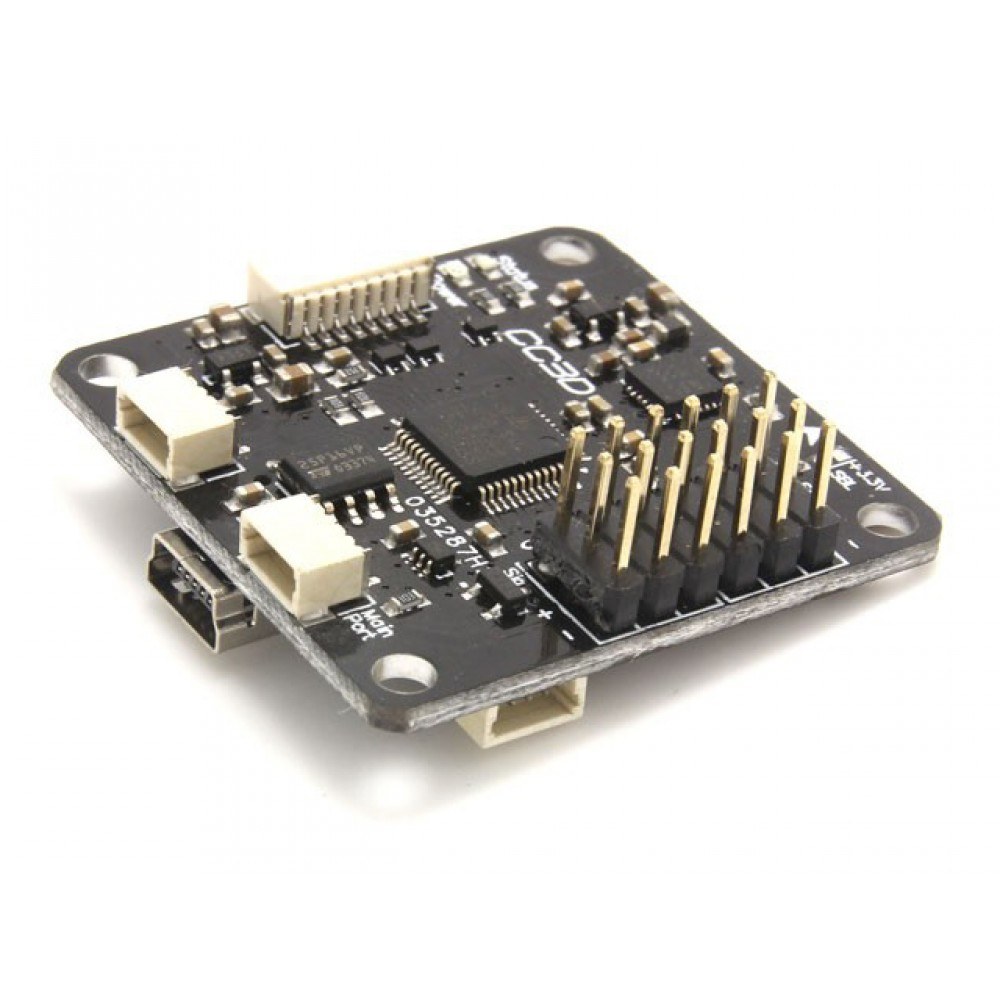
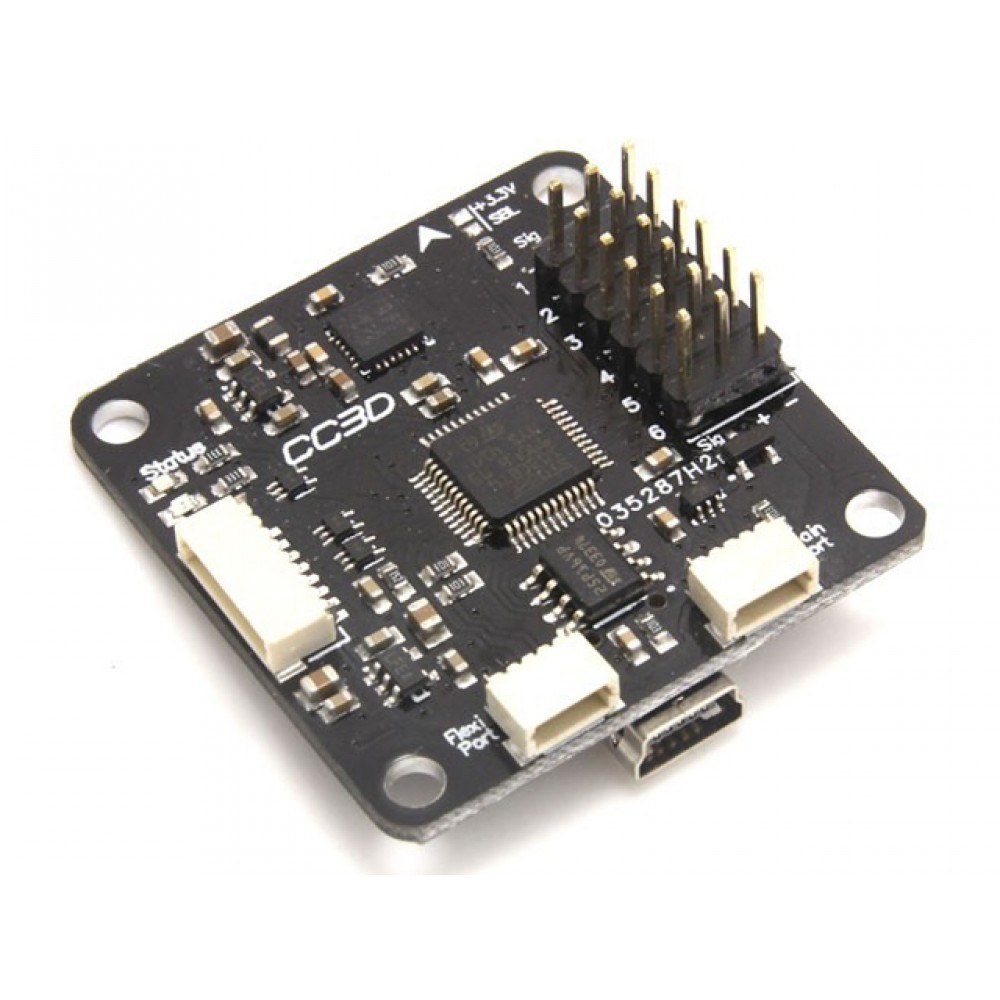
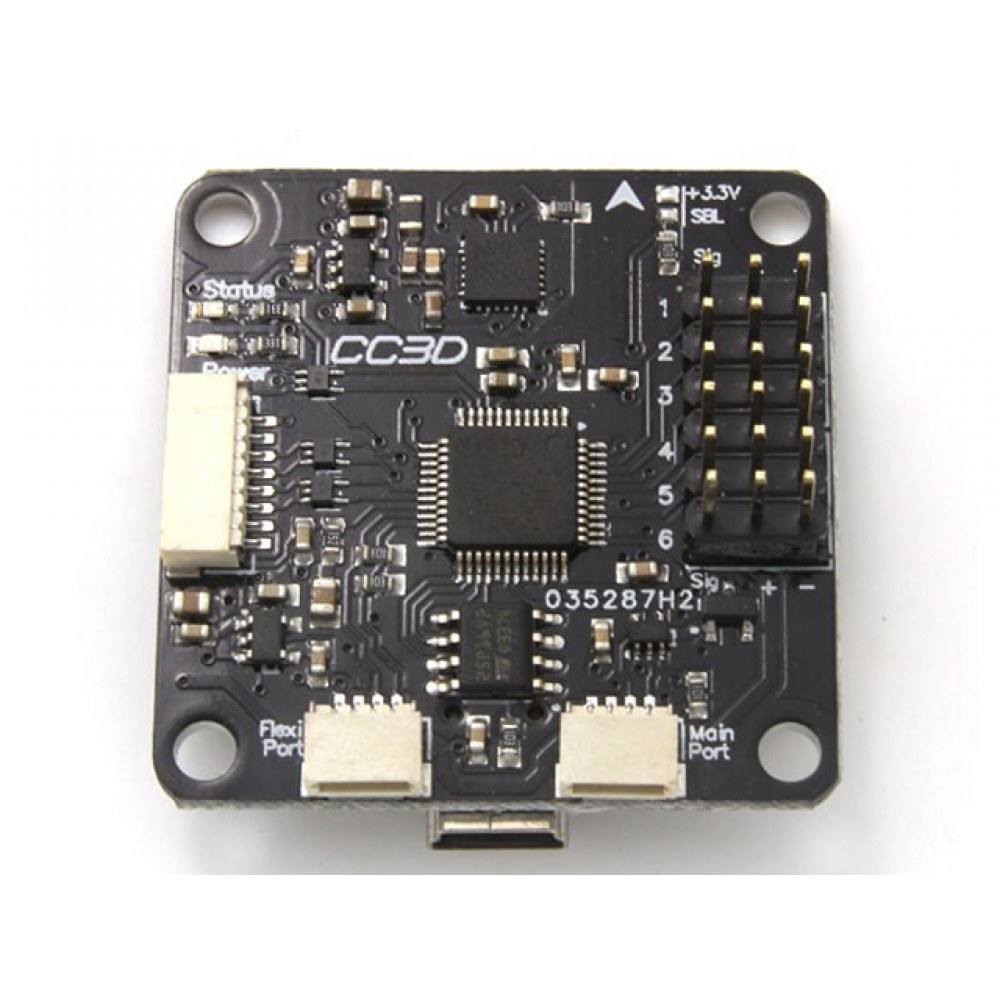
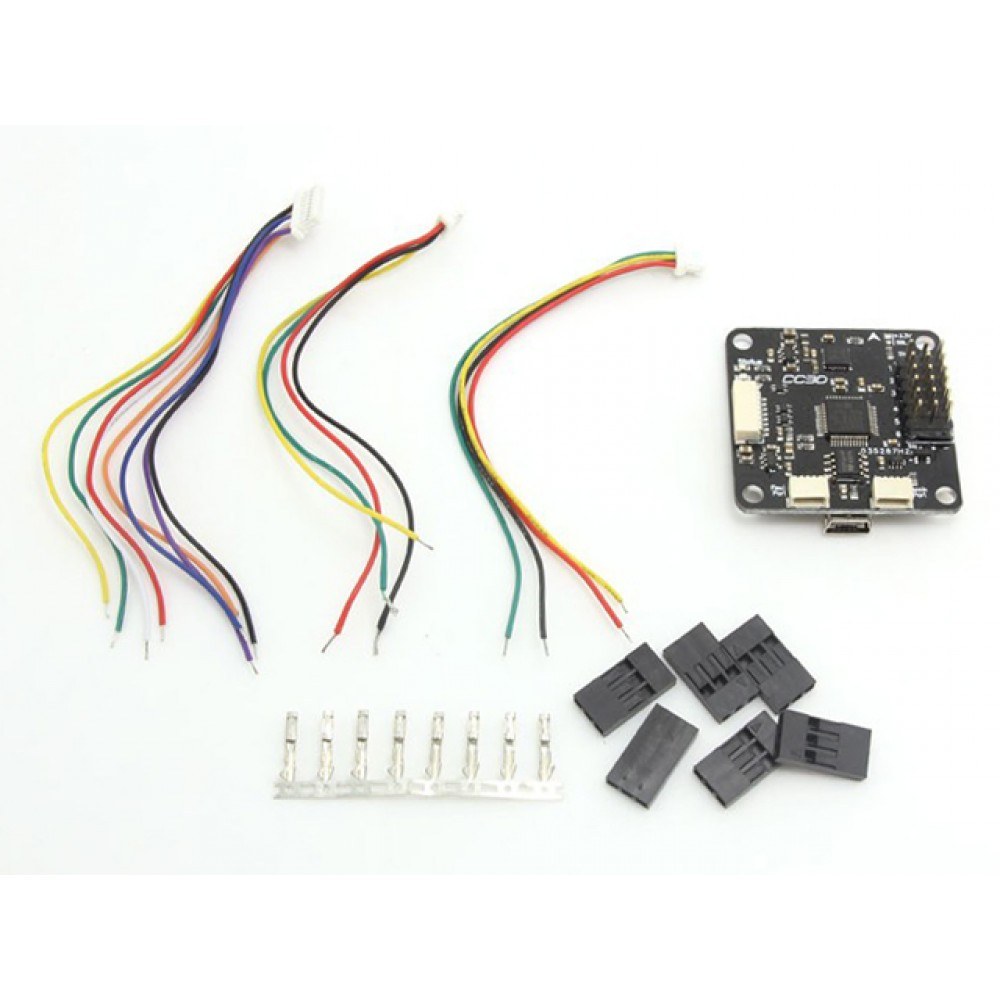
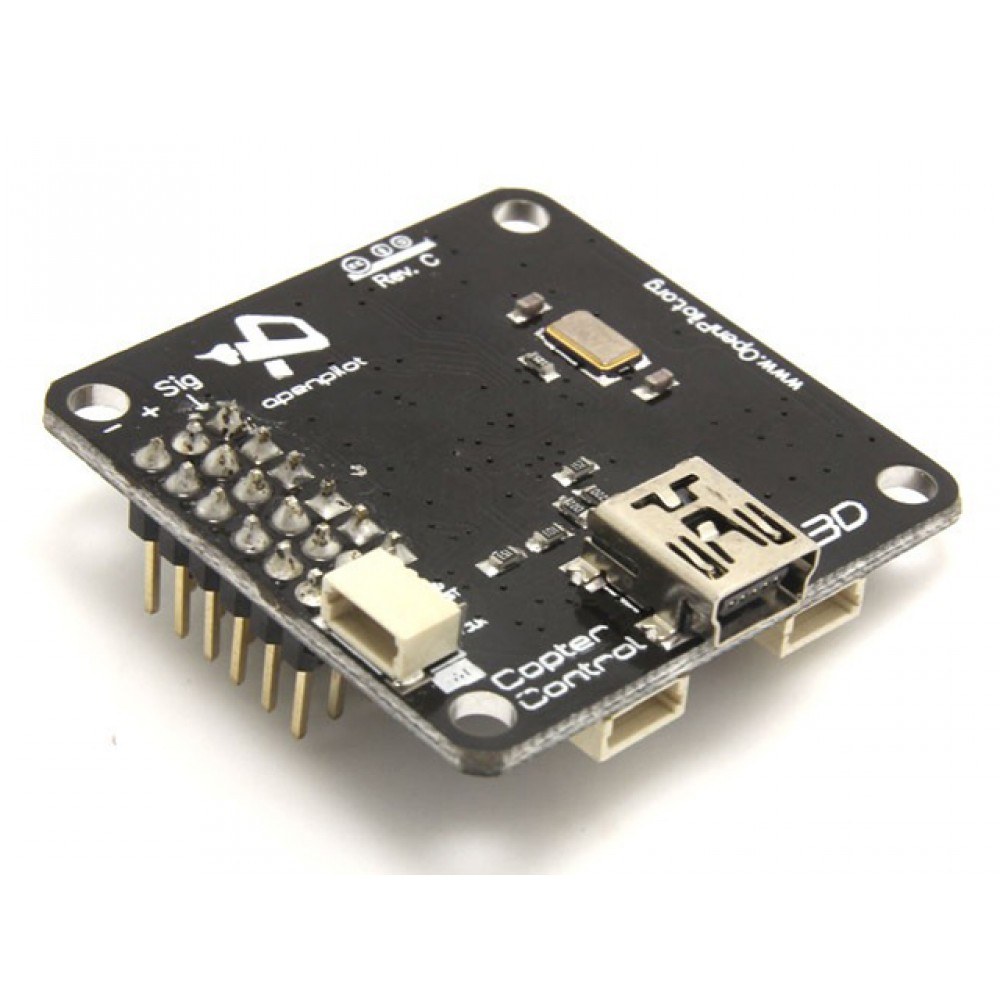
This guide walks you through fixing a common problem with the OpenPilot CC3D flight controller: a corrupted or missing bootloader. When the bootloader is damaged, the flight controller becomes unresponsive to firmware updates, leaving your drone or multirotor grounded. This tutorial provides a reliable, step-by-step method to restore the bootloader and flash the correct firmware, bringing your CC3D back to life. This process is essential for anyone who has encountered the dreaded "timeout" error during a firmware upgrade.
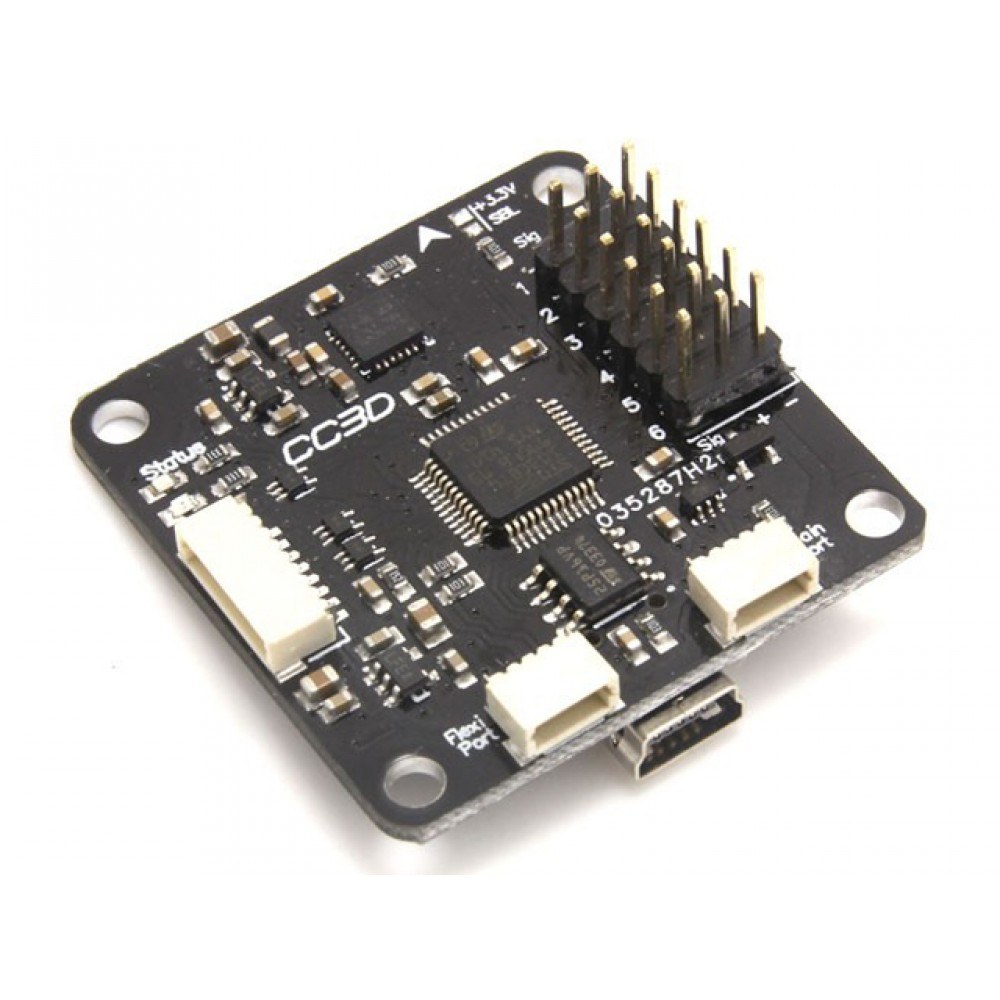
This fix is valuable for a variety of practical applications, including:
- Reviving an old or second-hand CC3D flight controller that has a corrupted bootloader.
- Recovering a flight controller after a failed or interrupted firmware update.
- Preparing a CC3D for a new build or a fresh configuration.
- Troubleshooting connectivity issues between your computer and the flight controller.
Hardware and Software Needed
Before you begin, ensure you have the following items ready. The process is straightforward, but having the correct software versions is critical for success.
- A CC3D flight controller (with or without its protective case).
- A USB cable compatible with the CC3D board.
- A Windows, macOS, or Linux computer.
- The OpenPilot Ground Control Station (GCS) software, version 15.02.
- The custom bootloader and firmware fix file,
cc3dfxdrobojax.com.bin, available from the Robojax website.
Step-by-Step Guide to Fix the Bootloader
Follow these steps carefully to restore your CC3D flight controller. The key is to use the correct software versions and the recovery file.
1. Installing the Correct OpenPilot Software
The first step is to install the correct version of the OpenPilot GCS. The latest version on the official website may not work correctly with the CC3D. The reliable version is 15.02 (in video at 01:07).
- Go to the OpenPilot website (
openpilot.org) and navigate to the software download section. - Locate and download version 15.02 for your operating system (Windows, Mac, or Linux) (in video at 01:14).
- Run the installer and follow the on-screen instructions. During installation, it may prompt you to install the "OpenPilot COM port" driver; proceed with this installation (in video at 02:09).
- Once the installation is complete, do not launch the software yet.
2. Connecting the CC3D and Verifying the Problem
Now, let's connect the flight controller to your computer to confirm the bootloader issue.
- Launch the OpenPilot GCS software you just installed (in video at 02:27).
- Connect your CC3D flight controller to your computer using the USB cable (in video at 02:44).
- Open your computer's Device Manager. You should see a new device listed under "Ports" named "CopterControl Virtual COM Port" (in video at 03:21). If you don't see this, you must resolve the driver issue before proceeding.
- In the OpenPilot GCS, go to the "Firmware" tab and click the "Upgrade" button (in video at 03:56).
- You will likely encounter a "Timeout" error, indicating that the software cannot communicate with the bootloader. This confirms the bootloader is corrupted or missing (in video at 04:21).
-
CC32-flight-controller-6
3. Flashing the Recovery Firmware
This is the core of the fix. We will use a special firmware file to restore the bootloader.
- Disconnect the CC3D from your computer (in video at 06:04).
- Go to the Robojax website (
robojax.com), navigate to the "Flight Controllers" category, and select the CC3D product page (in video at 05:03). - Under the "Downloads" tab, download the file named
cc3dfxdrobojax.com.bin(in video at 05:44). This is the recovery file. - Reconnect the CC3D to your computer. The OpenPilot GCS should recognize it again, but likely with an older firmware version (in video at 06:28).
- In the OpenPilot GCS, click the "Open" button (in video at 06:38).
- Navigate to your "Downloads" folder and select the
cc3dfxdrobojax.com.binfile you just downloaded (in video at 06:43). - Click "Open," then acknowledge the warning by clicking "I know what I'm doing" (in video at 06:55).
- Click the "Flash" button to begin flashing the recovery firmware (in video at 06:59). Wait for the process to complete.
4. Upgrading to the Correct Firmware
With the bootloader restored, you can now upgrade to the standard, working firmware.
- Once the flashing process is complete, disconnect the CC3D and close the OpenPilot GCS (in video at 07:19).
- Reopen the OpenPilot GCS software (in video at 07:24).
- Reconnect your CC3D. You may see a warning about the firmware version; this is expected and can be ignored (in video at 07:46).
- Go to the "Firmware" tab and click the "Upgrade" button again (in video at 07:58). This time, the process should proceed successfully, uploading the correct firmware to the board (in video at 08:19).
- Wait for the upgrade to complete. You should see a "Successful" message, and the firmware date should update to a newer version (in video at 08:50).
Your CC3D flight controller is now fixed. You can proceed to the "Welcome" or "Setup" wizard to configure it for your drone (in video at 09:05).
Live Project Demonstration
In the video, the presenter demonstrates the entire process live. The key visual moments include checking the Device Manager to confirm the CC3D is recognized, observing the initial "Timeout" error during the faulty upgrade attempt, and finally witnessing a successful firmware upgrade after flashing the recovery file. The video clearly shows the difference between a failed and a successful upgrade, providing a clear visual reference for what to expect at each step.
Chapters
- [00:00] Introduction to the CC3D Bootloader Problem
- [00:32] Downloading and Installing the Correct OpenPilot Software
- [02:38] Connecting the CC3D and Verifying the Issue
- [04:51] Downloading the Recovery Firmware from Robojax
- [06:04] Flashing the Bootloader Recovery File
- [07:24] Upgrading to the Correct Firmware
- [09:05] Setup Wizard and Conclusion
Images
Ce dont vous pourriez avoir besoin
-
AmazonCC3D flight controller on Amazonamzn.to
-
AliExpressCC3D flight controller on AliExpresss.click.aliexpress.com
Ressources et références
Aucune ressource pour le moment.
Fichiers📁
Windows Application
-
OpenPilot-RELEASE-15.02.02-win32OpenPilot RELEASE 15.02.02 win32 software package for flight controllers, including firmware and tools for setup and configuration.
OpenPilot-RELEASE-15.02.02-win32.zip63.56 MB