$34 USB Sniffer Tutorial: Capture Mouse Movement and Keyboard Keystrokes Using Wireshark

$34 USB Sniffer Tutorial: Capture Mouse Movement and Keyboard Keystrokes Using Wireshark

USB Sniffer Tutorial: Capture Mouse Movement and Keyboard Keystrokes Using Wireshark

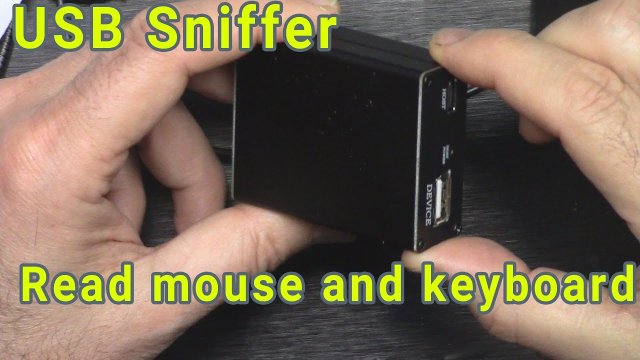
In this project, we explore how a USB sniffer device can be used to monitor and analyze USB communication between a computer and common input devices such as a mouse and a keyboard. By placing a USB sniffer inline between the USB device and the computer, all USB packets passing through can be captured and analyzed in real time using Wireshark.

usb_sniffter-12

This tutorial demonstrates how mouse movements, button clicks, and even keyboard keystrokes (including passwords) can be observed at the USB protocol level. The project is intended for educational purposes to understand how USB Human Interface Devices (HID) work internally and why physical security is just as important as software security.

What Is a USB Sniffer?

A USB sniffer is a hardware device that sits between a USB peripheral (such as a mouse or keyboard) and a host computer. It transparently passes data through so the device works normally, while simultaneously capturing and exposing the USB data packets through a separate monitoring interface.

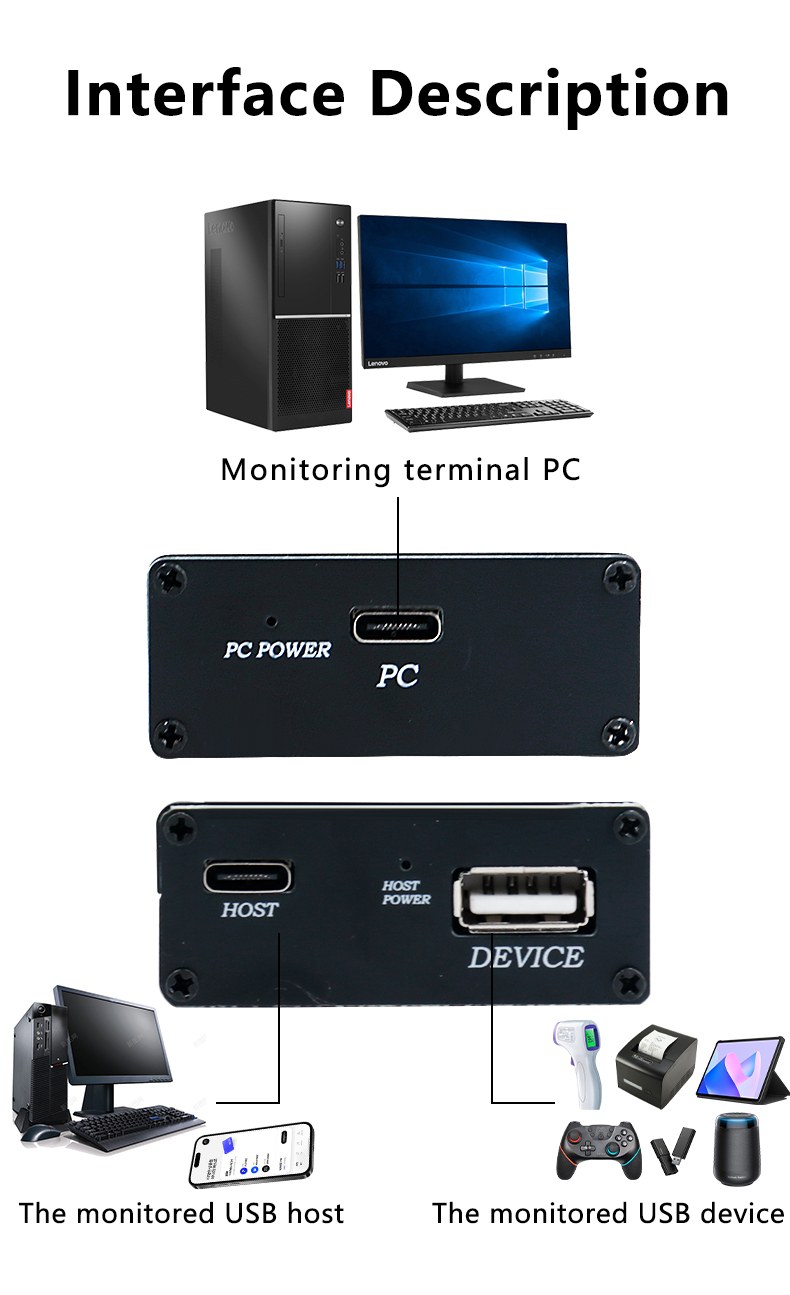
In this project, the USB sniffer acts as a pass-through device:

  • The USB mouse or keyboard connects to the sniffer
  • The sniffer connects to the computer
  • A separate USB connection from the sniffer goes to a monitoring computer running Wireshark

All USB traffic passing between the device and the computer can be captured and decoded without affecting normal operation :contentReference[oaicite:0]{index=0}.

Main Components Used

USB Sniffer Hardware

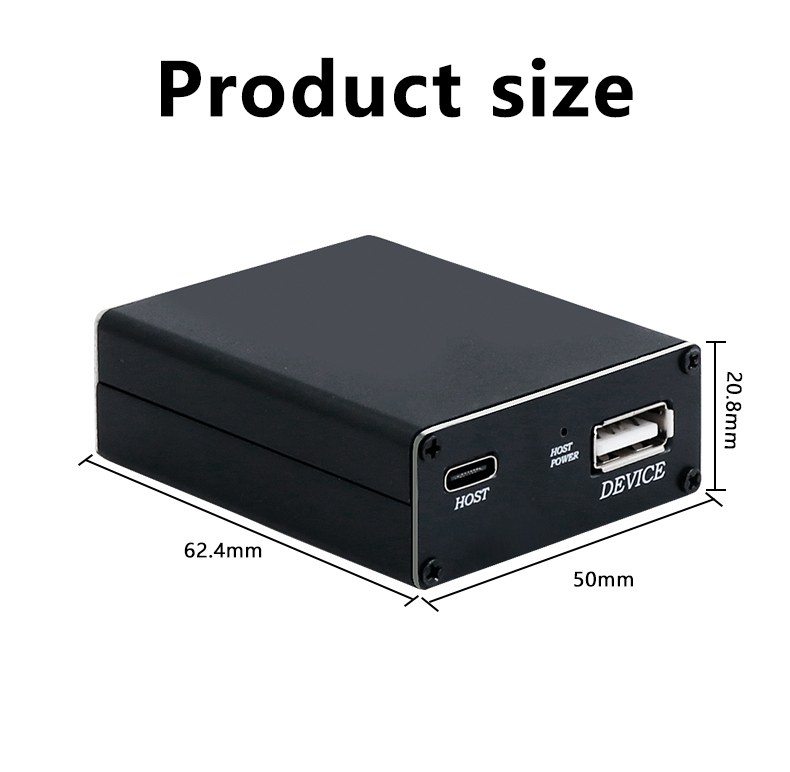
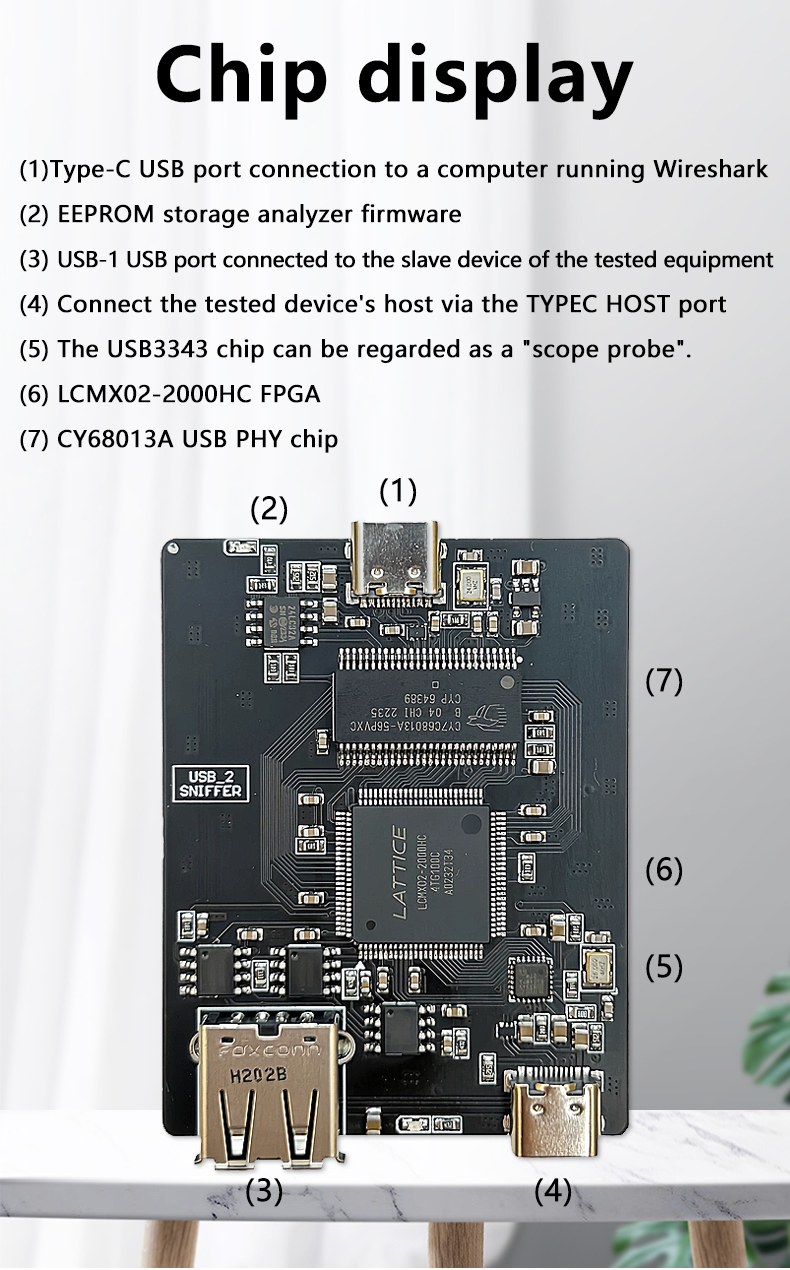
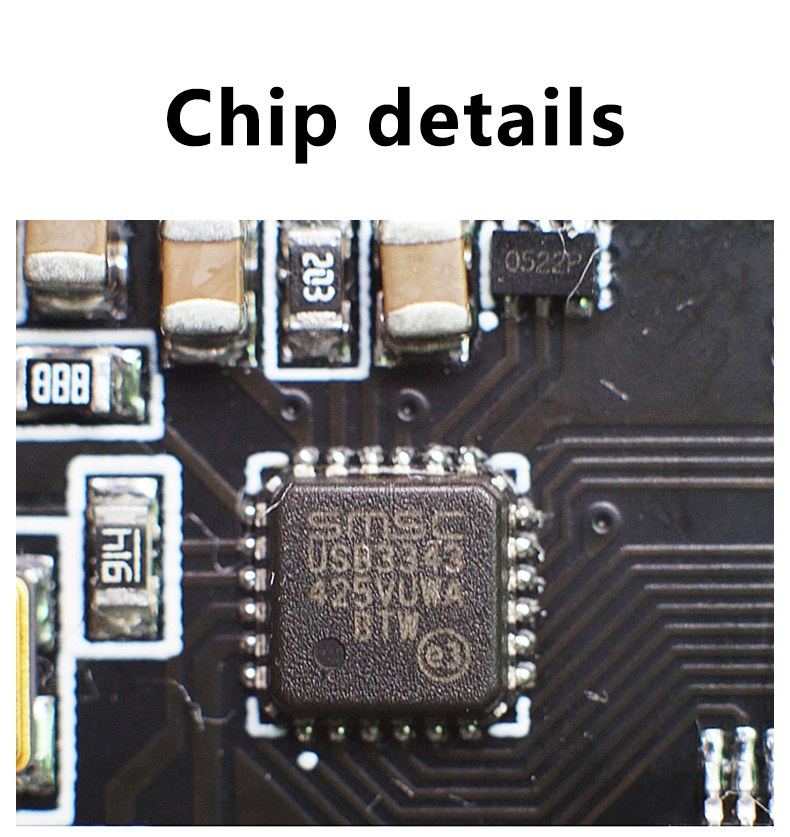
The USB sniffer used in this project is based on an FPGA design created by Alex Tarasov. The complete design includes firmware, PCB files, and software tools. The commercial unit used here comes preloaded with firmware, so no flashing or configuration is required before use.

Internally, the sniffer taps into the USB differential data lines and mirrors the packets to a separate USB interface that Wireshark can monitor.

usb_sniffter-4

Mouse and Keyboard (USB HID Devices)

Both mouse and keyboard are USB Human Interface Devices (HID). These devices send periodic reports to the host computer describing their state:

  • Mouse: button states, X movement, Y movement
  • Keyboard: modifier keys and key scan codes

These reports are transmitted in clear, unencrypted form over USB, which is why they can be captured by a sniffer.

Computer with Wireshark

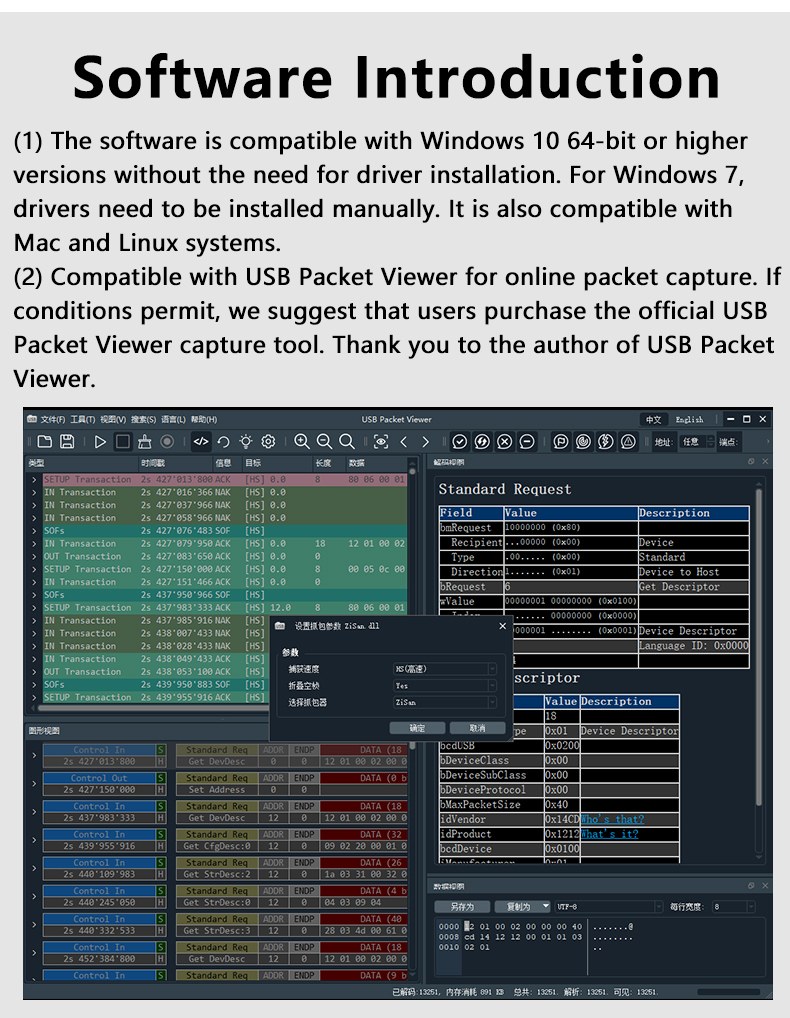
Wireshark is used to capture and analyze the USB packets. On Windows, USB capture requires additional components to enable access to USB traffic at the driver level.

Wiring and Connection

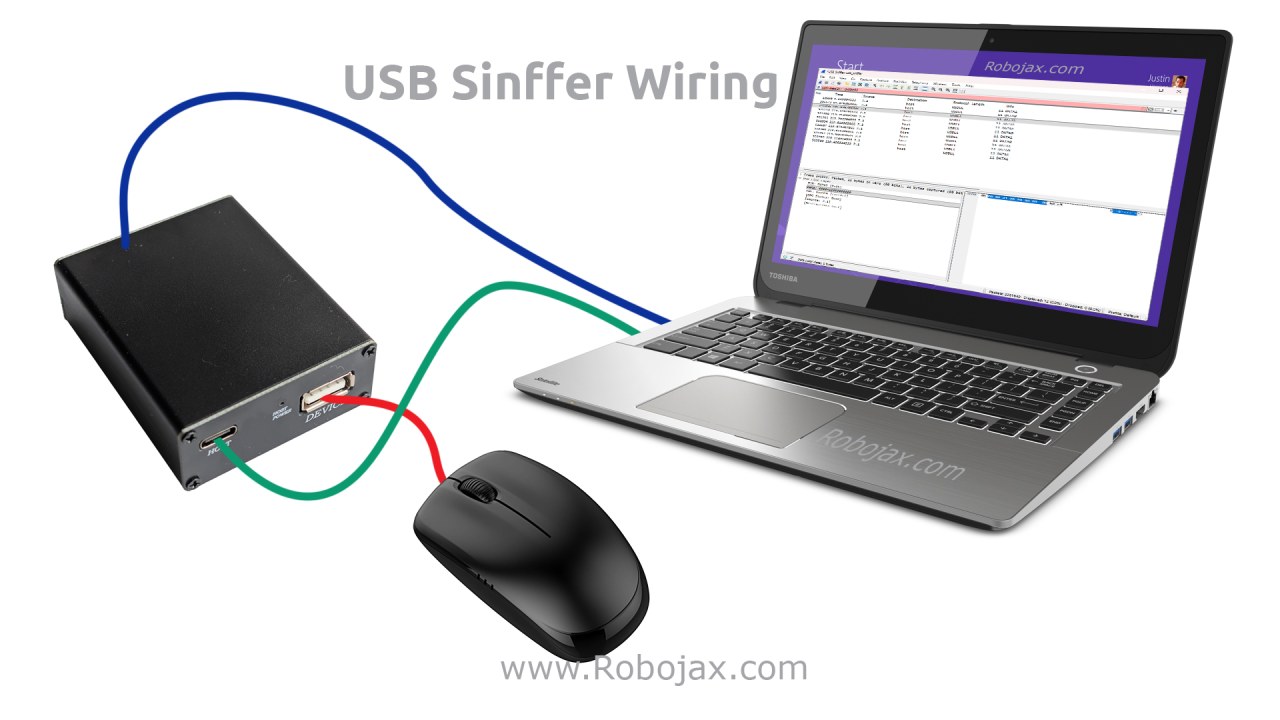
The USB sniffer is connected inline between the USB device and the computer.

usb-sniffer-wiring-keyboard
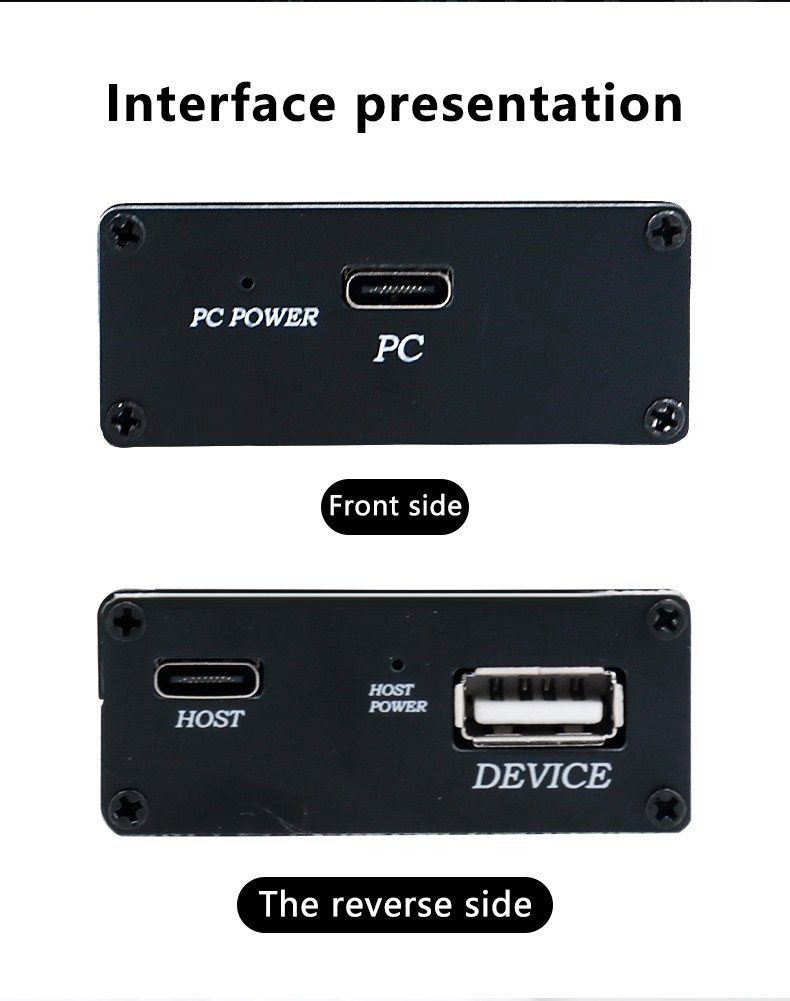
  • Connect the mouse or keyboard to the USB input port of the sniffer
  • Connect the sniffer’s USB output port to the computer
  • Connect the sniffer’s monitoring USB port to the same or another computer running Wireshark

The USB device continues to work normally while its traffic is mirrored to the monitoring port.

Installing Required Software

Wireshark Installation

Wireshark must be installed on the monitoring computer. During installation on Windows, it is essential to enable the USB capture support component. Without this driver, USB traffic cannot be captured.

Once installed, Wireshark will list USB capture interfaces alongside network interfaces.

USB Sniffer Driver (Windows)

A small helper executable is required on Windows to allow Wireshark to access USB sniffing data from the hardware. This executable must be placed in the system path (for example, directly under the C: drive) so Wireshark can communicate with the sniffer.

Capturing USB Data in Wireshark

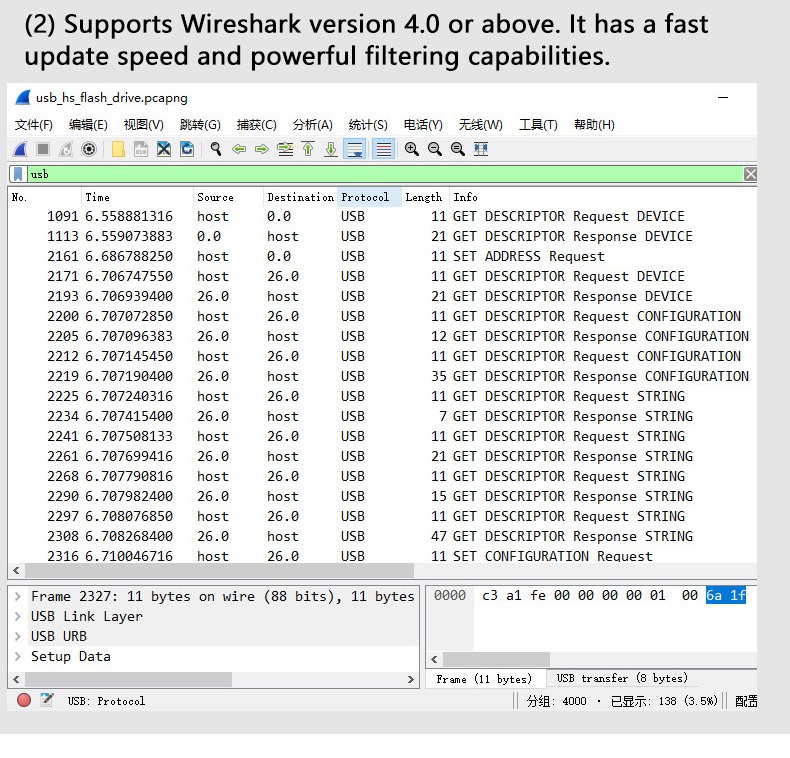
After launching Wireshark, select the USB sniffer interface and start capturing. Initially, a large amount of unrelated USB traffic may appear.

usb_sniffter-11

Applying USB Filters

To focus only on relevant USB data, a display filter is applied:

usbll

This filter shows only USB Link Layer packets, which contain the raw USB transactions exchanged between the device and the host.

Further filtering is required because USB produces a very high volume of data.

Filtering by Packet ID (PID)

Mouse and keyboard data packets can be identified by specific Packet IDs (PID). In this project, the relevant PIDs observed are:

  • 0xC3
  • 0x4B

These can be filtered in Wireshark using:

usbll.pid == 0xC3 || usbll.pid == 0x4B

This filter isolates HID report packets coming from the mouse or keyboard.

Understanding Mouse Data

When the mouse is moved or clicked, HID reports are sent continuously. Each report contains several bytes:

  • Report ID
  • Button states (left, right, middle)
  • X-axis movement
  • Y-axis movement

By observing the changing byte values in Wireshark, mouse movement direction and speed can be inferred. Even without clicking, movement alone generates visible USB activity.

Understanding Keyboard Data

Keyboard data is sent as HID reports containing scan codes rather than ASCII values. Each key corresponds to a specific HID usage ID.

For example:

  • 0x04 → Letter A
  • 0x05 → Letter B
  • 0x0E → Letter K

Uppercase and lowercase letters are determined by modifier keys such as Shift, which appear in separate bytes of the report.

Function keys such as F12 also generate unique scan codes that can be observed directly in the captured packets.

Security Implications

This project clearly demonstrates that USB HID traffic is not encrypted. If a malicious device is placed physically between a keyboard and a computer, it can capture every keystroke, including usernames and passwords.

This is why USB security, trusted hardware, and physical access control are critical in sensitive environments.

Demonstration Summary

In this demonstration, the following were successfully captured and decoded:

  • Mouse movement and button activity
  • Individual keyboard key presses
  • Function keys and modifier keys
  • Complete words typed on the keyboard

The USB sniffer operates transparently, making detection difficult without physical inspection.

Conclusion

This USB sniffer project provides a powerful hands-on demonstration of how USB communication works at the lowest level. By combining dedicated sniffing hardware with Wireshark, it becomes possible to see exactly how input devices communicate with computers.

The project is ideal for learning USB protocols, HID report structures, and real-world security considerations. While demonstrated with a mouse and keyboard, the same principles apply to many other USB devices.

Software Download

The Windows helper application usb_sniffer_win.exe required for capturing USB data with Wireshark is available for download below this article.

图像

usb_sniffter-3
usb_sniffter-3
usb_sniffter-4
usb_sniffter-4
usb_sniffter-5
usb_sniffter-5
usb_sniffter-6
usb_sniffter-6
USB Sniffer
USB Sniffer
usb_sniffter-10
usb_sniffter-10
usb_sniffter-11
usb_sniffter-11
usb_sniffter-12
usb_sniffter-12
usb_sniffter-8_software
usb_sniffter-9
usb_sniffter-9
usb-sniffer-wiring-keyboard
没有附加代码。

|||您可能需要的东西

资源与参考

文件📁

用户手册

其他文件