Lesson 42: Using LM35 Temperature Sensor | Arduino Step By Step Course
In this lesson, we will learn how to use the LM35 temperature sensor with an Arduino to measure and display temperature in Celsius, Fahrenheit, and Kelvin. This sensor outputs a voltage that is proportional to the temperature, allowing us to easily read and process the data in our Arduino program. By the end of this tutorial, you will be able to implement temperature-based actions in your projects.
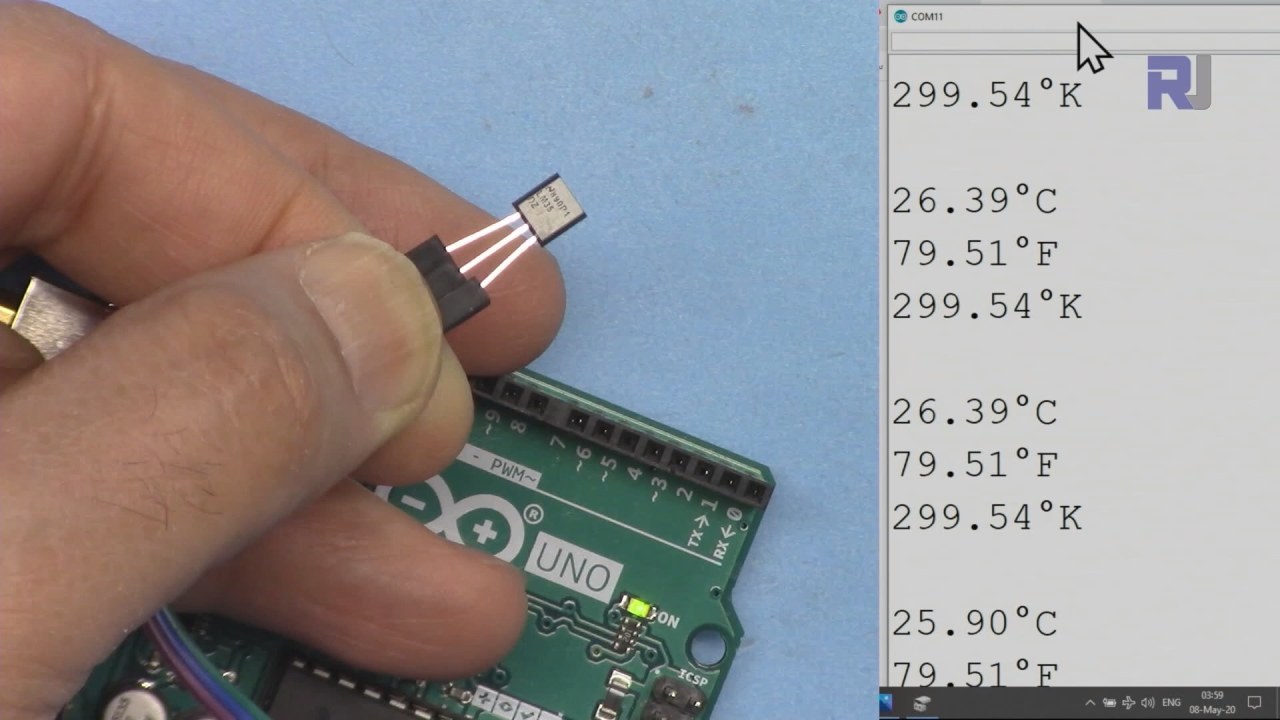
The LM35 temperature sensor features three pins: the left pin is for the power supply, the middle pin outputs a voltage corresponding to the temperature, and the right pin is for ground. The sensor operates within a voltage range of 4 to 30 volts and provides an output of 10 millivolts per degree Celsius. This precision allows for accurate temperature readings in various applications.
Hardware Explained
The main component in this project is the LM35 temperature sensor. It is designed to provide an analog voltage output that is linearly proportional to the temperature in degrees Celsius. The sensor is suitable for a wide range of temperatures, from -55°C to +150°C, making it versatile for different environments.
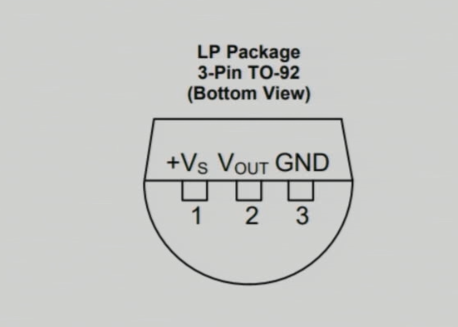
The LM35 requires minimal power (60 microamps) and operates over a wide voltage range. Its output impedance is low, allowing it to interface directly with the Arduino's analog input pins without additional circuitry. This simplicity in design makes the LM35 an excellent choice for temperature measurement tasks.
Datasheet Details
| Manufacturer | Texas Instruments |
|---|---|
| Part number | LM35 |
| Logic/IO voltage | 4–30 V |
| Output current (per channel) | 1 mA max |
| Temperature range | -55 to +150 °C |
| Output voltage | 10 mV/°C |
| Accuracy | ±0.5 °C at 25 °C |
| Package | TO-92 |
- Ensure proper power supply between 4V and 30V for accurate readings.
- The output voltage is directly proportional to temperature (10 mV/°C).
- Use decoupling capacitors near the power pin for stabilization.
- Maintain correct polarity when connecting to avoid damage.
- Ensure good connections to avoid floating inputs, which can cause erroneous readings.
Wiring Instructions
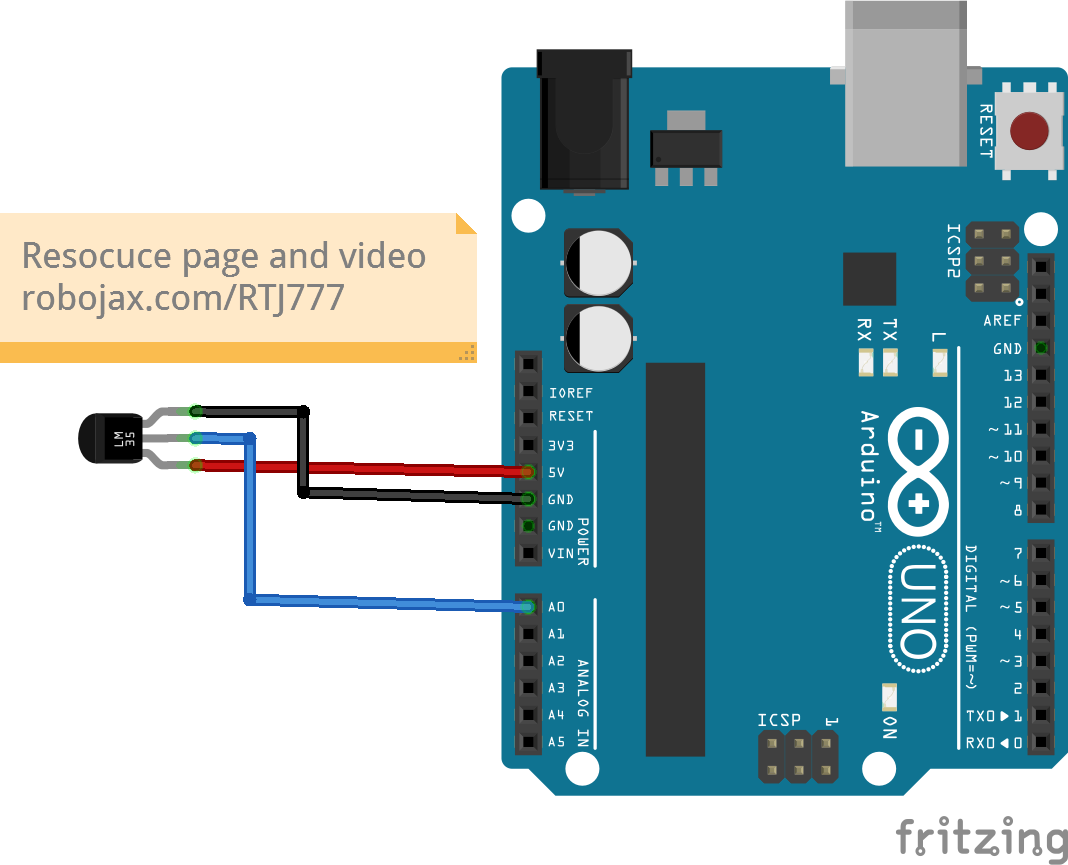
To wire the LM35 temperature sensor, connect the left pin (VCC) to the 5V output on the Arduino. The middle pin (Output) should be connected to the analog input pin A0, which we will use to read the temperature. Finally, connect the right pin (Ground) to one of the ground pins on the Arduino. Ensure that all connections are secure to prevent any issues during operation.
When wiring, remember that the LM35 can be powered with a supply voltage between 4V and 30V, but using 5V is sufficient for Arduino applications. If you see unexpected temperature readings, double-check the connections and ensure that the sensor is properly powered.
Code Examples & Walkthrough
In the Arduino code, we define the analog input pin for reading the LM35 output voltage with the identifier inPin, which is set to A0. Additionally, we define a constant LM35_FACTOR set to 0.01 to represent the sensor's output per degree Celsius.
const int inPin = A0; // can change
const float LM35_FACTOR = 0.01; // do not change
This setup allows us to read the temperature in a straightforward manner. Next, we initialize serial communication in the setup() function to begin outputting temperature data to the serial monitor.
void setup() {
  Serial.begin(9600);
  Serial.println("Robojax LM35 for Arduino");
}
Within the loop() function, we continuously read the temperature and print it in different units. The printTemperature() function takes a character parameter to specify the desired temperature format, allowing us to display the temperature in Celsius, Fahrenheit, or Kelvin.
void loop() {
  printTemperature('C');
  printTemperature('F');
  printTemperature('K');
  delay(1000); // Wait for 1000ms
}
To take action based on the temperature, we can check if the temperature exceeds a certain threshold using the getTemperature() function. This function calculates the average temperature over a specified number of samples.
For further details, watch the associated video for a complete code walkthrough (in video at 10:15).
Demonstration / What to Expect
When the LM35 sensor is properly connected and the Arduino code is uploaded, you should see the temperature displayed in Celsius, Fahrenheit, and Kelvin on the serial monitor. If you apply heat to the sensor, you will observe the temperature readings increase accordingly.
Be aware that incorrect wiring may lead to erratic temperature readings, such as extremely high or low values. Always ensure the sensor is connected correctly to avoid such issues (in video at 12:30).
Video Timestamps
- 00:00 - Introduction to LM35
- 02:30 - Wiring Instructions
- 05:00 - Code Explanation
- 10:15 - Demonstration of Temperature Readings
- 12:30 - Common Issues and Troubleshooting
Images
++
/*
 * Robojax Arduino Step-by-Step Course
 * Part 4: Temperature Sensors
 * Lesson 42: Introduction to LM35
 * This Arduino sketch is to use LM35 to measure temperature
 * This code has two ways to get temperature
 * 1-To print the temperature either in C, F or K on the serial monitor
 * 2-To return the value in C, F and K
 *


  Please watch video instruction here https://youtu.be/DRIC4wDu878
 This code is available at http://robojax.com/course1/?vid=lecture37

with over 100 lectures free on YouTube. Watch it here http://robojax.com/L/?id=338
Get the code for the course: http://robojax.com/L/?id=339

 * Written by Ahmad Shamshiri on May 08, 2020 at 02:45 in Ajax, Ontario, Canada
 * in Ajax, Ontario, Canada. www.robojax.com
 *


 *  * This code is "AS IS" without warranty or liability. Free to be used as long as you keep this note intact.*
 * This code has been downloaded from Robojax.com
    This program is free software: you can redistribute it and/or modify
    it under the terms of the GNU General Public License as published by
    the Free Software Foundation, either version 3 of the License, or
    (at your option) any later version.

    This program is distributed in the hope that it will be useful,
    but WITHOUT ANY WARRANTY; without even the implied warranty of
    MERCHANTABILITY or FITNESS FOR A PARTICULAR PURPOSE.  See the
    GNU General Public License for more details.

    You should have received a copy of the GNU General Public License
    along with this program.  If not, see <https://www.gnu.org/licenses/>.


*/

const int inPin =A0;//can change
const int iteration = 1000; //can change (see video)
const float LM35_FACTOR =0.01;// do not change

// the setup routine runs once when you press reset:
void setup() {
  // initialize serial communication at 9600 bits per second:
// Robojax.com Code YouTube Watch it here http://robojax.com/L/?id=338
  Serial.begin(9600);
  Serial.println("Robojax LM35 for Arduino");
  delay(500);
}

// the loop routine runs over and over again forever:
void loop() {
 //robojax.com LM35 Code for Arduino
  printTemperature('C');
  Serial.println();
  printTemperature('F');
  Serial.println();
  printTemperature('K');
  Serial.println();
  Serial.println();
//  Serial.print(" Temperature: ");
//  printDegree();
//  Serial.print(getTemperature('C'));
if(getTemperature('C') >87)
{
 // do something here (watch video)
}
//  Serial.println();
  delay(1000);//Wait for 1000ms (change it if you want)
}

/*
 * getTemperature()
 * @brief gets the average temperature
 * @param average temperature
 * @param "type" is character
 *     C = Celsius
 *     K = Kelvin
 *     F = Fahrenheit
 * @return returns one of the values above
 * Written by Ahmad Shamshiri for robojax.com
 * on May 08, 2020 at 02:36 in Ajax, Ontario, Canada
 */
float getTemperature(char type)
{
	// Robojax.com Code YouTube Watch it here http://robojax.com/L/?id=338
    float value,voltage,temperature;//define variables
    int sensorValue;
    float averageTemperature =0;

    for(int i=0; i< iteration; i++)
    {
      sensorValue = analogRead(inPin);//read analog value
      voltage = sensorValue * (5.0 / 1023.0); //convert it to voltage
      temperature = voltage / LM35_FACTOR; //convert voltage to temperature
      averageTemperature += temperature;//add
    }

    averageTemperature /=iteration;
  if(type =='F')
   {
    value = averageTemperature *9/5 + 32;//convert to Fahrenheit
   }else if(type =='K')
   {
    value = averageTemperature + 273.15;//convert to Kelvin
   }else{
    value = averageTemperature;// return Celsius
   }
    return value ;
}//getTemperature()

/*
 * printTemperature()
 * @brief prints  temperature on serial monitor
 * @param charact type
 * @param "type" is character
 *     C = Celsius
 *     K = Kelvin
 *     F = Fahrenheit
 * @return none
 * Written by Ahmad Shamshiri for robojax.com
 * on May 08, 2020 at 02:45 in Ajax, Ontario, Canada
 */
void printTemperature(char type)
{
	// Robojax.com Code YouTube Watch it here http://robojax.com/L/?id=338
    float value;
    float temp = getTemperature(type);
   Serial.print(temp);
    printDegree();
  if(type =='F')
   {
     Serial.print("F");
    }else if(type =='K')
   {
     Serial.print("K");
   }else{
     Serial.print("C");
   }

}//printTemperature()

/*
 * @brief prints degree symbol on serial monitor
 * @param none
 * @return returns nothing
 * Written by Ahmad Shamshiri on July 13, 2019
 * for Robojax Tutorial Robojax.com
 */
void printDegree()
{
    Serial.print("\\xC2");
    Serial.print("\\xB0");
}
Things you might need
-
AmazonPurchase LM35 from Amazonamzn.to
-
eBayPurchase LM35 from eBayebay.us
Resources & references
-
DatasheetLM35 Datasheetti.com
Files📁
No files available.