ESP32 Tutorial 37/55 - Using Bluetooth App with ESP32 BLE | SunFounder's ESP32 IoT Learning kit
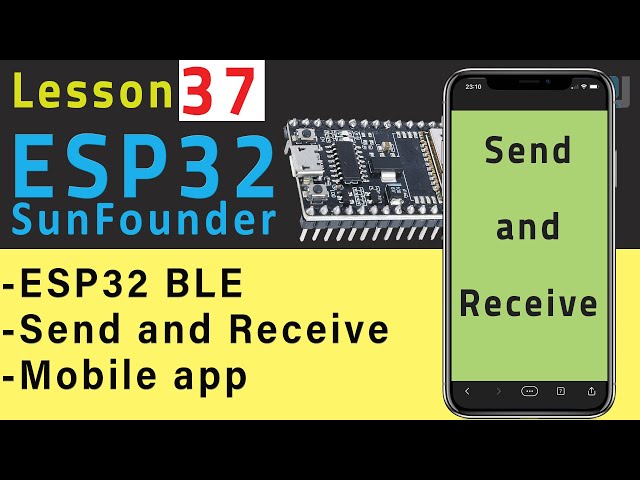
In this tutorial, we will explore how to use the ESP32 as a Bluetooth server to send and receive messages from a mobile app. This allows for interactive communication between your ESP32 board and your mobile device, making it a versatile addition to your IoT projects. By the end of this lesson, you will be able to send text from your mobile device to the ESP32 and see it displayed on the serial monitor.
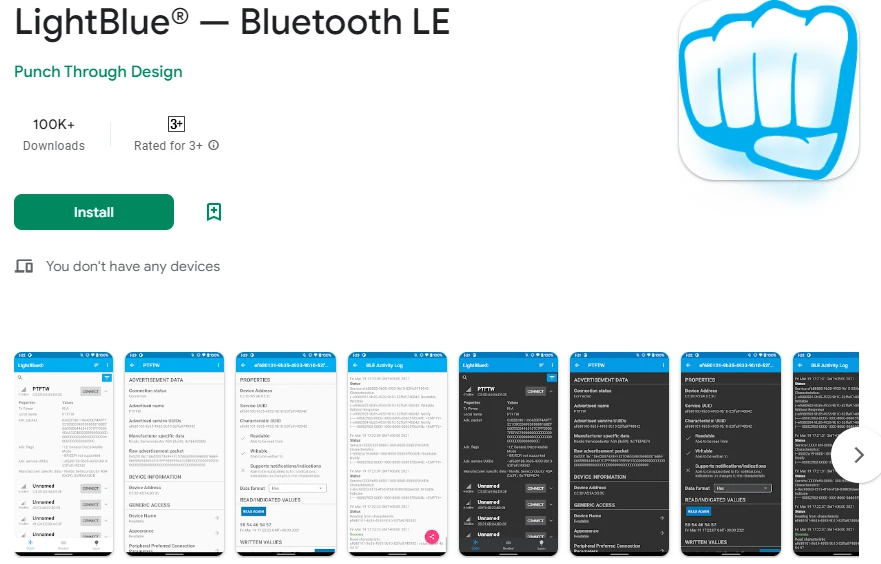
We will utilize the LightBlue Explorer app, available on both iOS and Android, to communicate with the ESP32. This tutorial is foundational for understanding Bluetooth Low Energy (BLE) communication and sets the stage for more advanced projects. For a visual guide, please refer to the video at (in video at 02:00).
Hardware Explained
The primary component in this project is the ESP32 microcontroller, which integrates both Wi-Fi and Bluetooth capabilities. This allows the ESP32 to act as a server, receiving and sending data wirelessly. The ESP32's built-in Bluetooth functionality supports BLE, making it efficient for low-power applications.
In addition to the ESP32, we will use a mobile device with the LightBlue app installed. This app allows users to connect to the ESP32 and send data through Bluetooth. The integration of these components enables seamless communication between the ESP32 and mobile devices, enhancing user interaction.
Datasheet Details
| Manufacturer | Espressif Systems |
|---|---|
| Part number | ESP32-WROOM-32 |
| Logic/IO voltage | 3.3 V |
| Supply voltage | 3.0 – 3.6 V |
| Output current (per channel) | 40 mA |
| Peak current (per channel) | 160 mA |
| PWM frequency guidance | 1 kHz |
| Input logic thresholds | 0.2 VCC (low), 0.8 VCC (high) |
| Voltage drop / RDS(on) / saturation | 0.1 V |
| Thermal limits | 125 °C |
| Package | QFN48 |
| Notes / variants | ESP32-WROOM-32, ESP32-WROVER |
- Ensure stable power supply (3.3 V) to prevent brownouts.
- Use capacitors for decoupling near the power pins.
- Maintain proper heat dissipation if using high current.
- Be cautious with GPIO pin voltage levels; they are 3.3 V tolerant.
- Utilize pull-up or pull-down resistors as needed for GPIO configurations.
- Monitor BLE connections; ensure the app is properly paired.
- Verify UUIDs for services and characteristics are unique.
- Regularly check the serial monitor for debugging messages.
- Consider using a logic analyzer for complex signal troubleshooting.
Wiring Instructions
Wiring for this project is straightforward since the ESP32 primarily connects via USB for power and programming. Connect the ESP32 to your computer using a micro USB cable. Ensure that the USB port is providing sufficient power (typically 5 V). The serial monitor will be used for debugging, so no additional hardware connections are needed for this application.
When using the ESP32 with external components in future projects, remember to connect the ground pins to a common ground. This ensures that the ESP32 and any connected sensors or modules share the same reference point. Additionally, if you're using a battery, connect the positive terminal to the 3.3 V pin and the negative terminal to a ground pin on the ESP32.
Code Examples & Walkthrough
The provided code initializes the Bluetooth server, sets up the necessary services and characteristics, and handles incoming messages. Key identifiers include bleName, which defines the name of the Bluetooth device, and receivedText, which stores the incoming message from the mobile app.
const char *bleName = "ESP32_Bluetooth";
String receivedText = "";
The setup() function initializes the serial communication and the BLE setup. This is crucial for establishing a connection with the LightBlue app.
void setup() {
  Serial.begin(115200);  // Initialize the serial port
  setupBLE();            // Initialize the Bluetooth BLE
}
Within the loop() function, the code checks for incoming messages. If a new message is received, it gets printed to the serial monitor, and a notification is sent to the connected BLE device.
if (receivedText.length() > 0 && millis() - lastMessageTime > 1000) {
    Serial.print("Received message: ");
    Serial.println(receivedText);
    pCharacteristic->setValue(receivedText.c_str());
    pCharacteristic->notify();
    receivedText = "";
}
For a complete understanding, refer to the full code which loads below the article. This will provide you with all the necessary details to implement the project successfully.
Demonstration / What to Expect
Upon successful implementation, you should be able to send messages from the LightBlue app to the ESP32. As you type a message, such as "Hello," it will appear on the serial monitor. Additionally, you can send messages back to the app, confirming the two-way communication. If you encounter issues like messages not appearing, ensure that the ESP32 is properly paired with the app and that the UUIDs match.
Video Timestamps
- 00:00 Start
- 2:10 Introduction to the project
- 2:45 Documentation page
- 4:04 Arduino code
- 6:31 Installing Bluetooth App
- 7:12 Selecting ESP32 board and COM port
- 8:54 Demonstration of project
图像
#include "BLEDevice.h"
#include "BLEServer.h"
#include "BLEUtils.h"
#include "BLE2902.h"

// Define the Bluetooth device name
const char *bleName = "ESP32_Bluetooth";

// Define the received text and the time of the last message
String receivedText = "";
unsigned long lastMessageTime = 0;

// Define the UUIDs of the service and characteristics
#define SERVICE_UUID           "your_service_uuid_here"
#define CHARACTERISTIC_UUID_RX "your_rx_characteristic_uuid_here"
#define CHARACTERISTIC_UUID_TX "your_tx_characteristic_uuid_here"

// Define the Bluetooth characteristic
BLECharacteristic *pCharacteristic;

void setup() {
  Serial.begin(115200);  // Initialize the serial port
  setupBLE();            // Initialize the Bluetooth BLE
}

void loop() {
  // When the received text is not empty and the time since the last message is over 1 second
  // Send a notification and print the received text
  if (receivedText.length() > 0 && millis() - lastMessageTime > 1000) {
    Serial.print("Received message: ");
    Serial.println(receivedText);
    pCharacteristic->setValue(receivedText.c_str());
    pCharacteristic->notify();
    receivedText = "";
  }

  // Read data from the serial port and send it to BLE characteristic
  if (Serial.available() > 0) {
    String str = Serial.readStringUntil('\n');
    const char *newValue = str.c_str();
    pCharacteristic->setValue(newValue);
    pCharacteristic->notify();
  }
}

// Define the BLE server callbacks
class MyServerCallbacks : public BLEServerCallbacks {
  // Print the connection message when a client is connected
  void onConnect(BLEServer *pServer) {
    Serial.println("Connected");
  }
  // Print the disconnection message when a client is disconnected
  void onDisconnect(BLEServer *pServer) {
    Serial.println("Disconnected");
  }
};

// Define the BLE characteristic callbacks
class MyCharacteristicCallbacks : public BLECharacteristicCallbacks {
  void onWrite(BLECharacteristic *pCharacteristic) {
    // When data is received, get the data and save it to receivedText, and record the time
    std::string value = std::string(pCharacteristic->getValue().c_str());
    receivedText = String(value.c_str());
    lastMessageTime = millis();
    Serial.print("Received: ");
    Serial.println(receivedText);
  }
};

// Initialize the Bluetooth BLE
void setupBLE() {
  BLEDevice::init(bleName);                        // Initialize the BLE device
  BLEServer *pServer = BLEDevice::createServer();  // Create the BLE server
  // Print the error message if the BLE server creation fails
  if (pServer == nullptr) {
    Serial.println("Error creating BLE server");
    return;
  }
  pServer->setCallbacks(new MyServerCallbacks());  // Set the BLE server callbacks

  // Create the BLE service
  BLEService *pService = pServer->createService(SERVICE_UUID);
  // Print the error message if the BLE service creation fails
  if (pService == nullptr) {
    Serial.println("Error creating BLE service");
    return;
  }
  // Create the BLE characteristic for sending notifications
  pCharacteristic = pService->createCharacteristic(CHARACTERISTIC_UUID_TX, BLECharacteristic::PROPERTY_NOTIFY);
  pCharacteristic->addDescriptor(new BLE2902());  // Add the descriptor
  // Create the BLE characteristic for receiving data
  BLECharacteristic *pCharacteristicRX = pService->createCharacteristic(CHARACTERISTIC_UUID_RX, BLECharacteristic::PROPERTY_WRITE);
  pCharacteristicRX->setCallbacks(new MyCharacteristicCallbacks());  // Set the BLE characteristic callbacks
  pService->start();                                                 // Start the BLE service
  pServer->getAdvertising()->start();                                // Start advertising
  Serial.println("Waiting for a client connection...");              // Wait for a client connection
}
Common Course Links
Common Course Files
资源与参考
-
文档ESP32 教程 37/55 - SunFounder 蓝牙应用文档页面docs.sunfounder.com
文件📁
没有可用的文件。