ESP32 Tutorial 54/55 - Set WS2812 LED Strip Color over Wifi | SunFounder's ESP32 IoT Learning kit
In this tutorial, we will learn how to control the color of a WS2812 RGB LED strip using an ESP32 microcontroller over Wi-Fi. By utilizing a color picker, you can select different colors from your mobile device or desktop and send that information to the LED strip. This project showcases the capabilities of the ESP32, allowing for seamless interaction with LED lighting through a web interface.

The ESP32 microcontroller is equipped with both Wi-Fi and Bluetooth, making it a versatile choice for IoT applications. In this project, we will focus on the Wi-Fi functionality to control the LED strip. Users will be able to choose colors dynamically, creating a visually engaging experience. For additional clarity on this project, be sure to check out the video at (in video at 00:00).
Hardware Explained
The primary components for this project include the ESP32 microcontroller and the WS2812 LED strip. The ESP32 is a powerful microcontroller with built-in Wi-Fi capabilities, enabling wireless communication and control.
The WS2812 LED strip consists of individually addressable RGB LEDs, allowing you to set the color of each LED independently. Each LED incorporates a control circuit and a RGB LED within a single package, which simplifies the wiring and control of multiple LEDs.
Datasheet Details
| Manufacturer | Worldsemi |
|---|---|
| Part number | WS2812B |
| Logic/IO voltage | 3.5–5.3 V |
| Supply voltage | 5 V |
| Output current (per channel) | 20 mA |
| Peak current (per channel) | 60 mA |
| PWM frequency guidance | 400 Hz |
| Input logic thresholds | 0.3 × VDD (low), 0.7 × VDD (high) |
| Voltage drop / RDS(on) / saturation | 0.5 V |
| Thermal limits | –40 to +80 °C |
| Package | 5050 SMD |
| Notes / variants | Available in various lengths and configurations. |
- Ensure proper power supply to avoid damaging the LEDs.
- Use a common ground between the ESP32 and the LED strip.
- Keep data lines short to prevent signal degradation.
- Consider adding a capacitor (1000 µF) across the power supply for stability.
- Use a resistor (470 Ω) on the data line for signal integrity.
Wiring Instructions
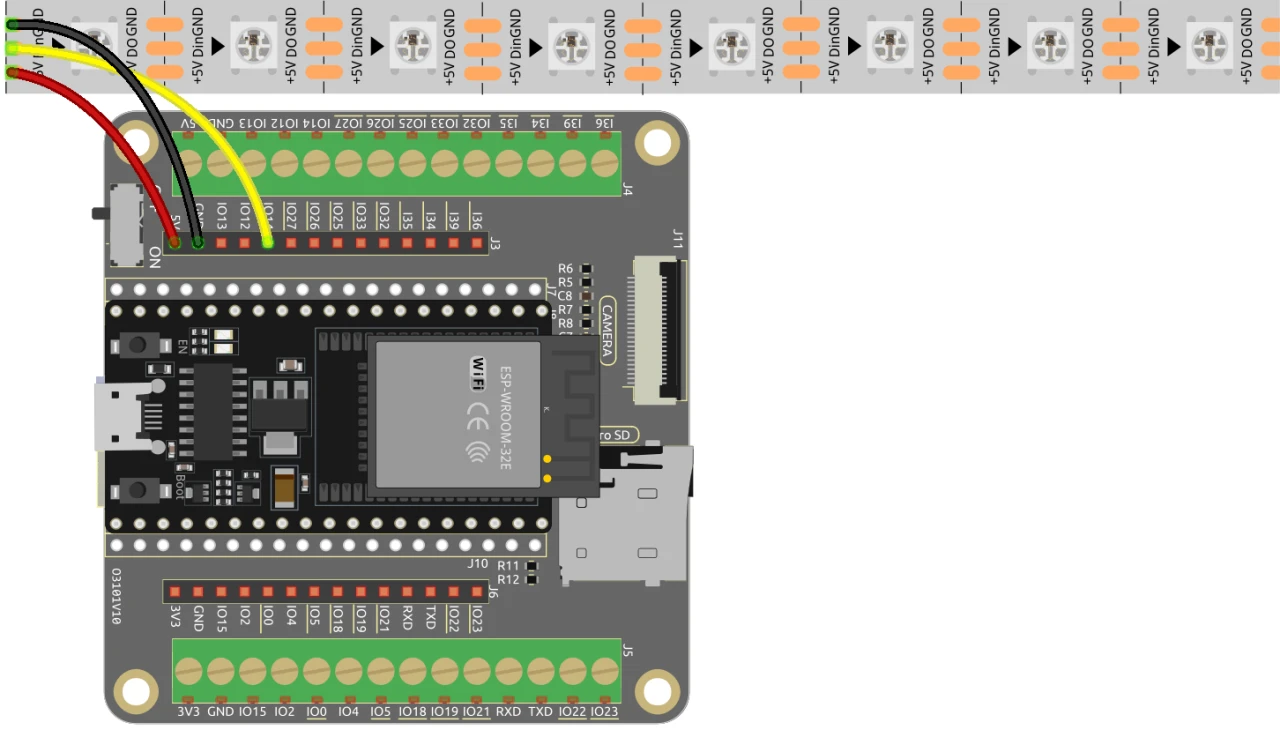
To wire the ESP32 to the WS2812 LED strip, connect the components as follows: First, connect the 5V pin of the LED strip to the 5V output of the ESP32. Next, connect the ground (GND) pin of the LED strip to a GND pin on the ESP32. Finally, connect the data pin of the LED strip (usually labeled as DI or Data In) to GPIO pin 13 on the ESP32. Make sure all connections are secure to ensure proper functionality.
In the video, alternative wiring methods are briefly mentioned, but the setup described here is the recommended configuration for optimal performance (in video at 03:00).
Code Examples & Walkthrough
The code begins by including the necessary libraries for controlling the WS2812 LED strip and setting up the web server. The LED pin is defined as LED_PIN and the number of LEDs in the strip is set with NUM_LEDS.
#define LED_PIN 13 // NeoPixel LED strip
#define NUM_LEDS 8 // Number of LEDs
Adafruit_NeoPixel strip = Adafruit_NeoPixel(NUM_LEDS, LED_PIN, NEO_GRB + NEO_KHZ800);
This snippet initializes the NeoPixel library and sets up the LED strip on the specified pin. The Adafruit_NeoPixel object, strip, is what you will use to control the LED colors.
Next, the code initializes Wi-Fi and sets up a web server to handle incoming requests. The SSID and password for the network are defined, allowing the ESP32 to connect to the Wi-Fi.
const char *ssid = "your_SSID";
const char *password = "your_PASSWORD";
WebServer server(80);
In this excerpt, replace your_SSID and your_PASSWORD with your actual Wi-Fi credentials. This connection enables the ESP32 to communicate with devices on the same network, allowing for remote control of the LED strip.
The main function for changing the LED color is setColor(), which iterates through each LED and sets its color based on the selected RGB values.
void setColor() {
  for (int i = 0; i < NUM_LEDS; i++) {
    strip.setPixelColor(i, valueR, valueG, valueB); // Set the color of the i-th LED
    strip.show(); // Update the LED strip with the new colors
    delay(10); // Wait for 10 milliseconds
  }
}
This function ensures that each LED in the strip is updated with the selected color. The delay allows the LEDs to change color smoothly. As you interact with the web interface, this function will be called to reflect your color choices.
Demonstration / What to Expect
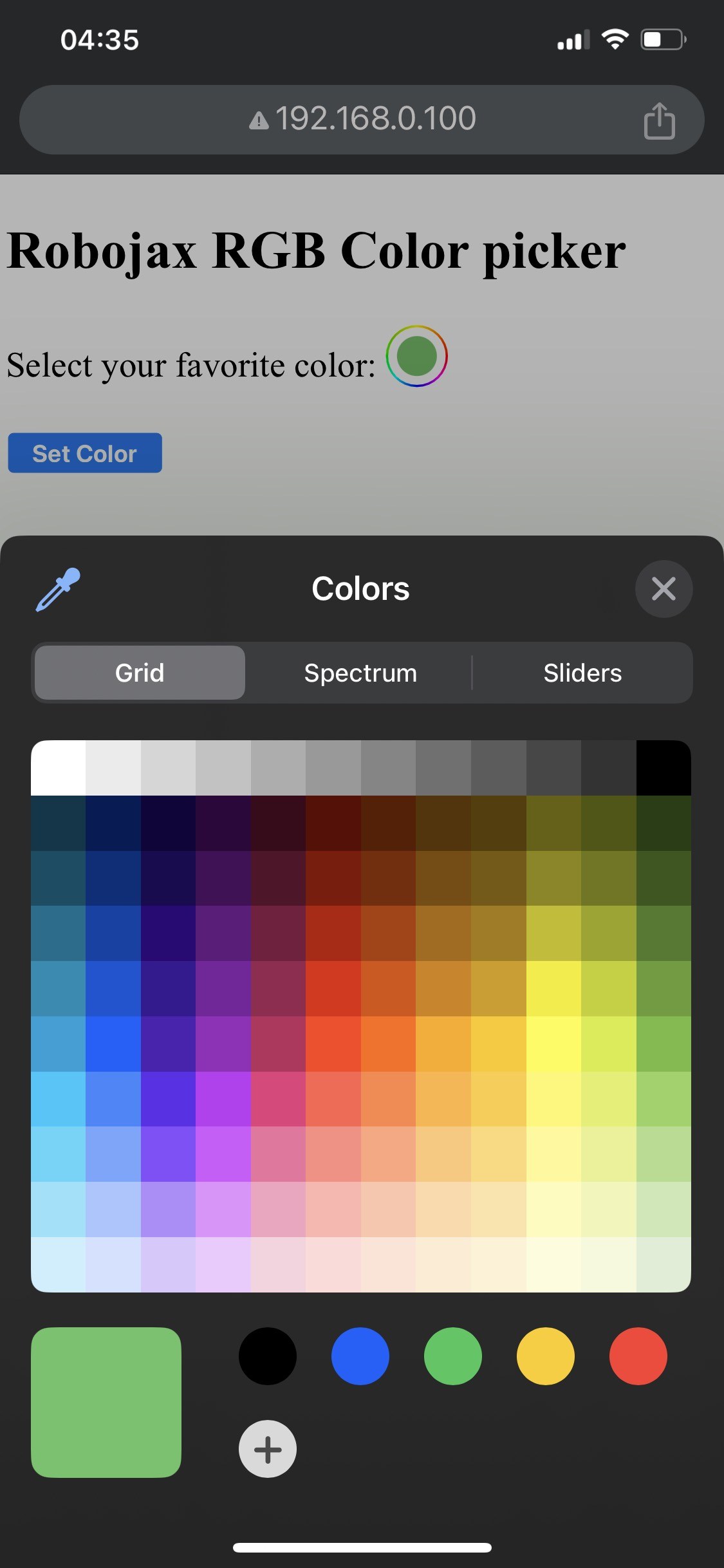

When the setup is complete, you should be able to access the web interface via the ESP32's IP address. You will see a color picker that allows you to select any color, which will then be sent to the LED strip. If the ESP32 loses Wi-Fi connection, the strip will blink a warning color, indicating the issue (in video at 14:30).
Common pitfalls include incorrect wiring, which can lead to the LEDs not lighting up, or using incorrect SSID/password combinations that prevent the ESP32 from connecting to the network. Always double-check your connections and credentials.
Video Timestamps
- 00:00 Start
- 2:01 Introduction to the project
- 3:09 Docs
- 3:47 RGB color explained
- 7:47 Wiring
- 8:40 Arduino code for WS2812 with WIFI explained
- 19:35 Selecting ESP32 board and COM port in Arduino IDE
- 21:17 Controlling LED Strip over wifi demo
Images
/*
 * Control RGB LED over wifi using ESP32
 *
 full video instrucions https://youtu.be/J_UFHk_T9aE
📚⬇️ Download and resource page https://robojax.com/RJT687
 * Written by Ahmad Shamshiri on Dec 18, 2023
 *
 * Watch video instruciton for this video:
 *
 * I have combined DHT library of Adafruit with ESP8266 WebServer both links
 * Adafruit DHT library on GitHub: https://github.com/adafruit/DHT-sensor-library
 * and
 * ESP8266 on GitHub : https://github.com/esp8266/Arduino
 *
   Copyright (c) 2015, Majenko Technologies
   All rights reserved.

   Redistribution and use in source and binary forms, with or without modification,
   are permitted provided that the following conditions are met:

 * * Redistributions of source code must retain the above copyright notice, this
     list of conditions and the following disclaimer.

 * * Redistributions in binary form must reproduce the above copyright notice, this
     list of conditions and the following disclaimer in the documentation and/or
     other materials provided with the distribution.

 * * Neither the name of Majenko Technologies nor the names of its
     contributors may be used to endorse or promote products derived from
     this software without specific prior written permission.

   THIS SOFTWARE IS PROVIDED BY THE COPYRIGHT HOLDERS AND CONTRIBUTORS "AS IS" AND
   ANY EXPRESS OR IMPLIED WARRANTIES, INCLUDING, BUT NOT LIMITED TO, THE IMPLIED
   WARRANTIES OF MERCHANTABILITY AND FITNESS FOR A PARTICULAR PURPOSE ARE
   DISCLAIMED. IN NO EVENT SHALL THE COPYRIGHT HOLDER OR CONTRIBUTORS BE LIABLE FOR
   ANY DIRECT, INDIRECT, INCIDENTAL, SPECIAL, EXEMPLARY, OR CONSEQUENTIAL DAMAGES
   (INCLUDING, BUT NOT LIMITED TO, PROCUREMENT OF SUBSTITUTE GOODS OR SERVICES;
   LOSS OF USE, DATA, OR PROFITS; OR BUSINESS INTERRUPTION) HOWEVER CAUSED AND ON
   ANY THEORY OF LIABILITY, WHETHER IN CONTRACT, STRICT LIABILITY, OR TORT
   (INCLUDING NEGLIGENCE OR OTHERWISE) ARISING IN ANY WAY OUT OF THE USE OF THIS
   SOFTWARE, EVEN IF ADVISED OF THE POSSIBILITY OF SUCH DAMAGE.
*/

#include <Adafruit_NeoPixel.h> // Include the Adafruit NeoPixel library

#define LED_PIN 13 // NeoPixel LED strip
#define NUM_LEDS 8 // Number of LEDs
// Create an instance of the Adafruit_NeoPixel class
Adafruit_NeoPixel strip = Adafruit_NeoPixel(NUM_LEDS, LED_PIN, NEO_GRB + NEO_KHZ800);


//initial color of LED strip
int valueR = 178;//from 0 to 255 for Red
int valueG = 27;//from 0 to 255 for Green
int valueB = 84;//from 0 to 255 for Blue

bool showSerialData = false;
String theColorR, theColorG, theColorB;
String theColor ="ff0000";

#include <WiFi.h>
#include <WiFiClient.h>
#include <WebServer.h>
#include <ESPmDNS.h>

const char *ssid = "dars";
const char *password = "hhhhhhhhhhh";

WebServer server(80);

void showColorPicker() {
  String page = "<!DOCTYPE html>\n";
  page +="<html>\n";
  page +="<body>\n";
  page +="<div style=\"zoom: 300%;\">\n";
  page +="<h2>Robojax RGB Color picker</h2>\n";
  page +="<p id=\"result\"></p>\n";
  page +="<form action=\"/color\">\n";
  page +="  <label for=\"favcolor\">Select your favorite color:</label>\n";
  page +="  <input type=\"color\" id=\"favcolor\" name=\"favcolor\" value=\"#";
  page += theColor;
  page +="\"><br><br>\n";
  page +="   <input type=\"submit\" value=\"Set Color\" />\n";
  page +="</form> \n</div>\n";
  page +="</body>\n";
  page +="</html>\n";

  server.send(200,  "text/html", page);


}

//from https://stackoverflow.com/questions/44683071/convert-string-as-hex-to-hexadecimal
uint64_t StrToHex(const char* str)
{
  return (uint64_t) strtoull(str, 0, 16);
}

void getColor(){

 // server.send(200, "text/plain", message);

  if(server.argName(0) == "favcolor")
  {
    String newColor = String(server.arg(0));//get the GET ardument 0 and convert it to string
    theColor = newColor.substring(1);//remove the # sybmot from the begining of color like #B2a48d
    theColorR = newColor.substring(1, 3);//extract B2 from  #B2a48d for example
    theColorG = newColor.substring(3, 5);//extract a4 from  #B2a48d for example
    theColorB = newColor.substring(5, 7);//extract 8d from  #B2a48d for example

    valueR = StrToHex(theColorR.c_str());//convert String to HEX for R
    valueG = StrToHex(theColorG.c_str());//convert String to HEX for G
    valueB = StrToHex(theColorB.c_str());//convert String to HEX for B
    if(showSerialData)
    {
      Serial.print("valueR: ");
      Serial.println(valueR);
      Serial.print("valueG: ");
      Serial.println(valueG);
      Serial.print("valueB: ");
      Serial.println(valueB );
    }

  }

  showColorPicker();//make sure the color picker is shown
  //server.send(200, "text/plain", message);

}


void setColor()
{
  for (int i = 0; i < NUM_LEDS; i++) {
    strip.setPixelColor(i, valueR, valueG, valueB); // Set the color of the i-th LED to red
    strip.show(); // Update the LED strip with the new colors
    delay(10); // Wait for 100 milliseconds
  }
}//

void noConnection()
{
   for (int i = 0; i < NUM_LEDS; i++) {
    strip.setPixelColor(i, 255, 45, 0); // Set the color of the i-th LED to red
    strip.show(); // Update the LED strip with the new colors
    delay(50); // Wait for 100 milliseconds
  }

  delay(200);
   for (int i = NUM_LEDS-1; i >=0; i--) {
    strip.setPixelColor(i, 0, 255, 180); // Set the color of the i-th LED to red
    strip.show(); // Update the LED strip with the new colors
    delay(50); // Wait for 100 milliseconds
  }
}

void handleNotFound() {
  String message = "File Not Found\n\n";
  message += "URI: ";
  message += server.uri();
  message += "\nMethod: ";
  message += (server.method() == HTTP_GET) ? "GET" : "POST";
  message += "\nArguments: ";
  message += server.args();
  message += "\n";

  for (uint8_t i = 0; i < server.args(); i++) {
    message += " " + server.argName(i) + ": " + server.arg(i) + "\n";
  }

  server.send(404, "text/plain", message);

}

void setup_wifi() {
  delay(10);
  // We start by connecting to a WiFi network
  WiFi.mode(WIFI_STA);
  WiFi.begin(ssid, password);
  Serial.println("");

  // Wait for connection
  while (WiFi.status() != WL_CONNECTED) {
    noConnection();
    delay(500);
    Serial.print(".");
  }

  Serial.println("");
  Serial.print("Connected to ");
  Serial.println(ssid);
  Serial.print("Open: http://");
  Serial.print(WiFi.localIP());
  Serial.println(" to read temperature");

  if (MDNS.begin("robojaxRGB")) {
    Serial.println("MDNS responder started");
  }

}

void setup(void) {

  Serial.begin(115200);

  strip.begin(); // Initialize the NeoPixel strip
  strip.show(); // Set initial color to black

  setup_wifi();

  server.on("/", showColorPicker);//show the main page with color picker
  //server.on("/color", setColor);//changes teh color on WS2812 RGB LED


  server.on("/color", HTTP_GET, getColor);


  server.on("/inline", []() {
    server.send(200, "text/plain", "this works as well");
  });
  server.onNotFound(handleNotFound);
  server.begin();
  Serial.println("HTTP server started");
}

void loop(void) {
  //Robojax.com
    while (WiFi.status() != WL_CONNECTED) {
      setup_wifi();
    }

  server.handleClient();
  //showColorPicker();
  setColor();
  delay(300);// change this to larger value (1000 or more) if you don't need very often reading
  // Robojax.com code for ESP32 and DHT11 DHT22
}
Common Course Links
Common Course Files
Resources & references
No resources yet.
Files📁
No files available.