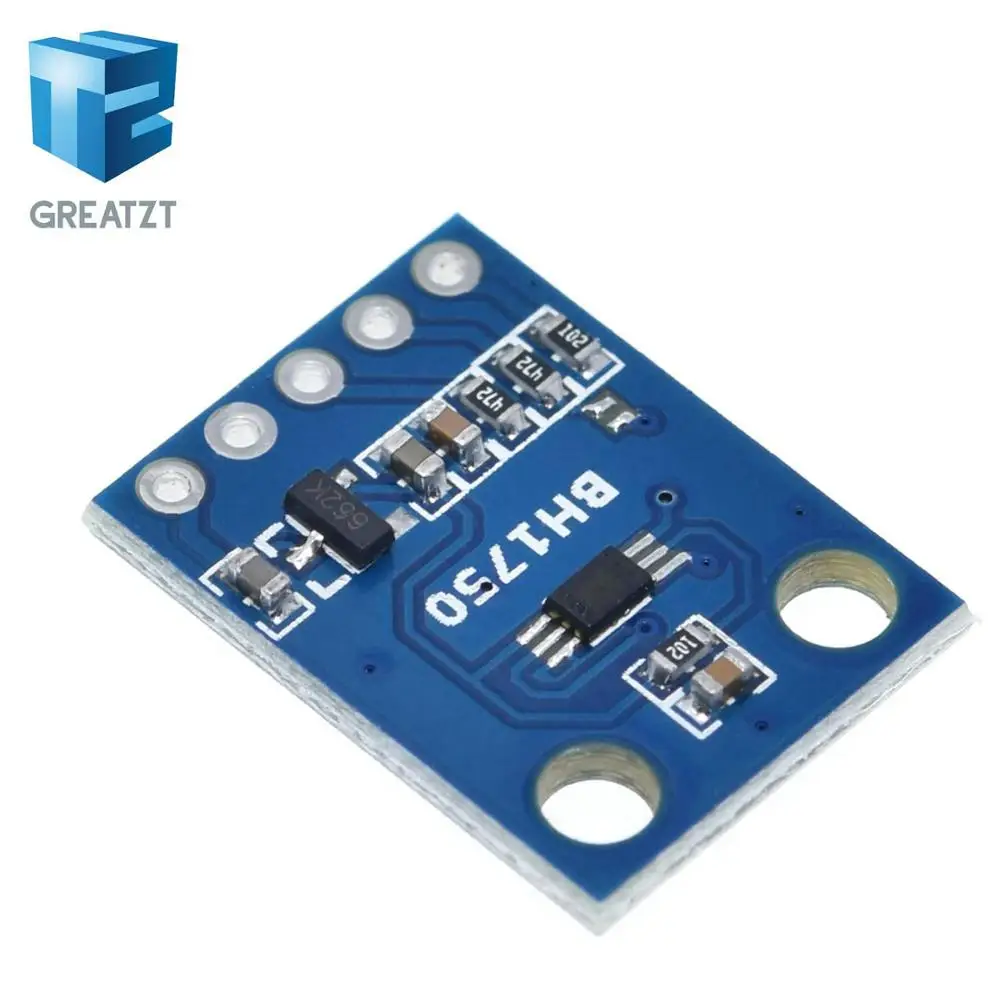
Mateya oyo ezali eteni ya: Capteur numérique ya humidité & température relative HTU21D
Videos related to Capteur numérique ya humidité & température relative HTU21D. Ba liens ya ba vidéos misusu ezali na se ya article oyo.
Leson 36: Kosalela ya Temperature ya HTU21D na LCD Arduino Eteyelo ya Malembe na Malembe

Sensor ya température na mafuta ya HTU21D ezali choix populaire mpo na misala mingi ya Arduino likolo ya mpasi ya kosalela na yango mpe précision na yango. Na liteya oyo, tokosala projet ya pete oyo etangaka ba données ya température na mafuta longwa na sensor mpe emonisaka yango na écran ya LCD. Na suka ya tutoriel oyo, okozala na système ya mosala oyo emonisaka na tango nyonso température na Celsius, Fahrenheit, mpe Kelvin, mpe mpe pourcentage ya mafuta relatif. Mpo na ndimbola ya koleka, okoki kotala vidéo (na vidéo na mm:ss).

Matériel Explicé
Élément principal ya projet oyo ezali sensor ya température na mafuta ya HTU21D, oyo esalaka communication na I2C. Sensor oyo esalaka na voltage ya 1.5 kino 3.6 volts, oyo esalaka ete ekoki mpo na ba systèmes ya 3.3V mpe 5V. Esalaka konsomation ya courant moke mingi, mingi mpenza 0.02 microampères ntango ezali na pemi mpe 450 microampères ntango ezali na mesure. Na libanda ya HTU21D, tokosalela mpe écran ya LCD, mingi mpenza LCD1602 na I2C. Écran oyo epesaka possibilité ya kobimisa ba données ya texte na pete mpe esengaka ba pins mibale kaka mpo na communication: SDA (ligne ya données) mpe SCL (ligne ya horloge). Kosangisa ba éléments oyo ekopesa biso possibilité ya kosala écran ya information mpo na kolandela ba niveaux ya température na mafuta.
Détails ya Datasheet
| Fabricant | TE Connectivity |
|---|---|
| Numéro ya pièce | HTU21D-F |
| Voltage ya logique/IO | 1.5 - 3.6 V |
| Voltage ya alimentation | 3.3 V (typ.) |
| Courant ya sortie (typ.) | 0.02 µA (na pemi), 450 µA (na mesure) |
| Intervalle ya température | -40 kino +125 °C |
| Intervalle ya mafuta | 0 kino 100 %RH |
| Résolution (Température) | 0.01 °C |
| Résolution (Mafuta) | 0.04 %RH |
| Paquet | DFN-6 |
- Salela résistance ya pull-up mpo na ba lignes SDA na SCL soki ezali na kati te.
- Kokamba ete voltage ya alimentation ezali correcte mpo na kobundisa kobebisa sensor.
- Kokamba ba connexions ya malamu mpo na kopekisa ba erreurs ya communication.
- Kotala adresse ya I2C soki sensor azongi kopesa réponse te.
- Salela délai kati na ba lectures mpo na kopekisa surcharge ya sensor.
- Kokamba ete LCD ezali compatible na communication I2C.
Instructions ya Câblage
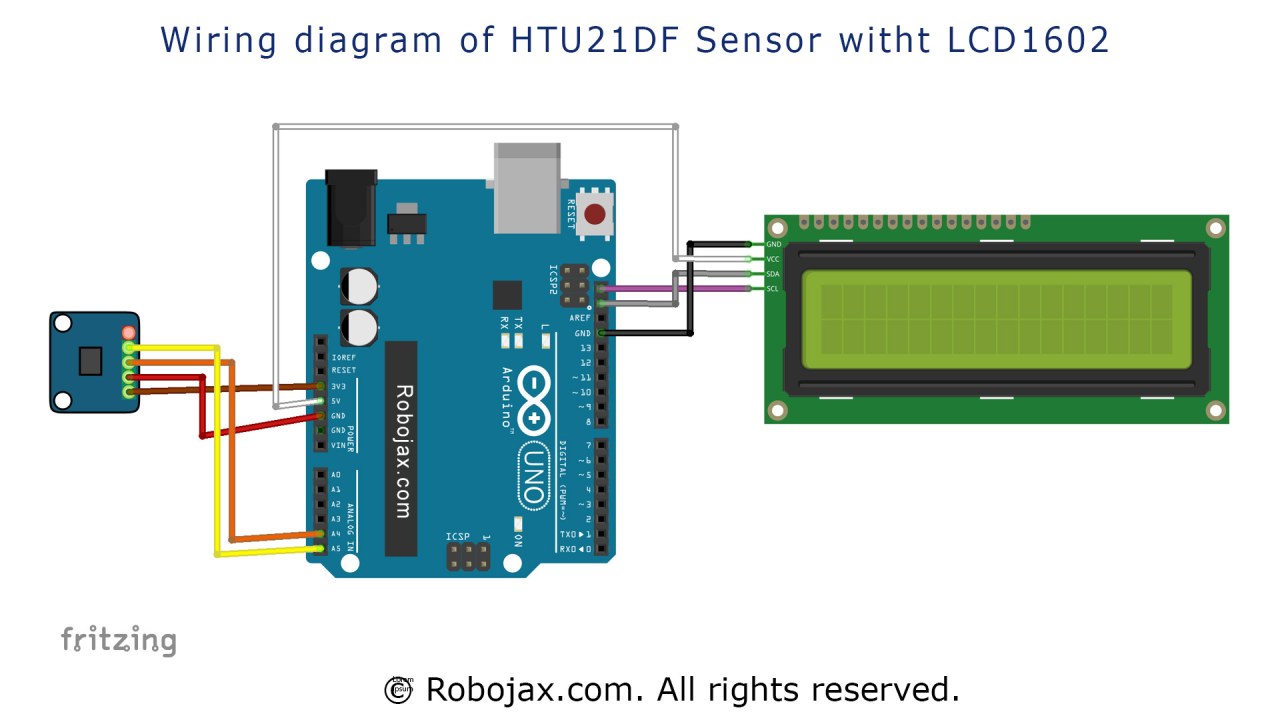
Mpo na kokamba sensor ya HTU21D mpe écran ya LCD, banda na ba connexions ya puissance. Kanga pin ya liboso ya HTU21D na source ya puissance ya 3.3V, mpe pin ya mibale (mbala mingi ya motane) na terre. Na nsima, kanga pin ya SDA ya HTU21D na pin ya analogique A4 ya Arduino, mpe pin ya SCL na pin ya analogique A5. Mpo na écran ya LCD1602, kanga pin ya VCC na source ya puissance ya 3.3V yango moko, mpe kanga pin ya GND na terre. Pin ya SDA na LCD esengeli mpe kokangama na A4, mpe pin ya SCL esengeli kokangama na A5, mpo ete ba composants mibale bakoka kokabola bus ya I2C. Kamba ete ba connexions nyonso ezali ya libende mpo na kosalisa communication ya malamu kati na Arduino, sensor, mpe écran.
Ba Exemples ya Code & Explication
Code oyo elandaka ebandisaka sensor ya HTU21D mpe écran ya LCD. Na fonction ya setup, LCD ebongisamaki mpo na kosalela mpe sensor ekomonamaki mpo na connexion:
void setup() {
  lcd.begin();
  lcd.backlight();
  if (!htu.begin()) {
      lcd.print("Robojax HTUD1DF");
      lcd.setCursor(0,1);
      lcd.print("sensor missing");
      while (1);
  } else {
      lcd.print("Robojax HTUD1DF");
      lcd.setCursor(0,1);
      lcd.print("Demo");
  }
  delay(2000);
}
Exemple oyo ekomonaka soki sensor ekangami malamu. Soki te, emonisaka message ya erreur na LCD mpe ekosepelaka programme. Soki sensor ezali na mosala, emonisaka message ya démonstration mpo na secondes mibale. Fonction ya loop ezali esika ya lecture principale mpe ya monstration esalemaka. Awa, tobengaka fonction ya `lcdDisplay` mpo na komonisa température na ba unités ndenge na ndenge:
void loop() {
   lcd.clear(); // kolongola ba valeurs ya liboso na écran
   lcdDisplay(0, 0, "Celsius: ", 10, 0, getHTU('C'), 'd');
   lcdDisplay(0, 1, "Fahrenheit: ", 10, 1, getHTU('F'), 'd');
   delay(5000);
}
Na boucle oyo, LCD ekomi propre, mpe ba lectures ya température na Celsius mpe Fahrenheit emonisamaki. Fonction ya `getHTU` ebengamaki na caractère 'C' mpo na Celsius mpe 'F' mpo na Fahrenheit, na ndenge yango. Na suka, fonction ya `getHTU` ekomami mpo na kotanga température to mafuta kolanda caractère ya bokoti:
float getHTU(char type) {
   float temp = htu.readTemperature();
   float rel_hum = htu.readHumidity();
   if(type =='F') {
       return temp * 9/5 + 32; // kobongola na Fahrenheit
   } else if(type =='K') {
       return temp + 273.15; // kobongola na Kelvin
   } else if(type =='H') {
       return rel_hum; // kozongisa mafuta relatif
   } else {
       return temp; // kozongisa Celsius
   }
}
Fonction oyo etangaka température mpe humidité longwa na capteur mpe ebongolaka température na unité oyo esengeli. Sɔ́plɛ tálá kode mobimba oyo ekomami na nse ya lisolo mpo na makambo mosusu.
Elakiseli / Nini Okomona
Sima ya kosala câblage mpe kotia kode, okomona motuya ya température mpe humidité na LCD. Ba lectures ekobongwana na ntango nyonso ya secondes mingi, kolakisa makambo ya sika. Soki otie moto na capteur, okomona température ezali komata, kasi humidité ekokita mua. Tala ete température ya suka ya capteur eleka te; koleka yango ekoki kopesa ba lectures ya mabe to kobebisa capteur (na vidéo na mm:ss).
Ba Timestamps ya Vidéo
- 00:00 - Libandeli ya projet
- 01:15 - Malakisi ya câblage
- 03:30 - Etaleli ya kode
- 10:00 - Elakiseli ya mise en place
Images
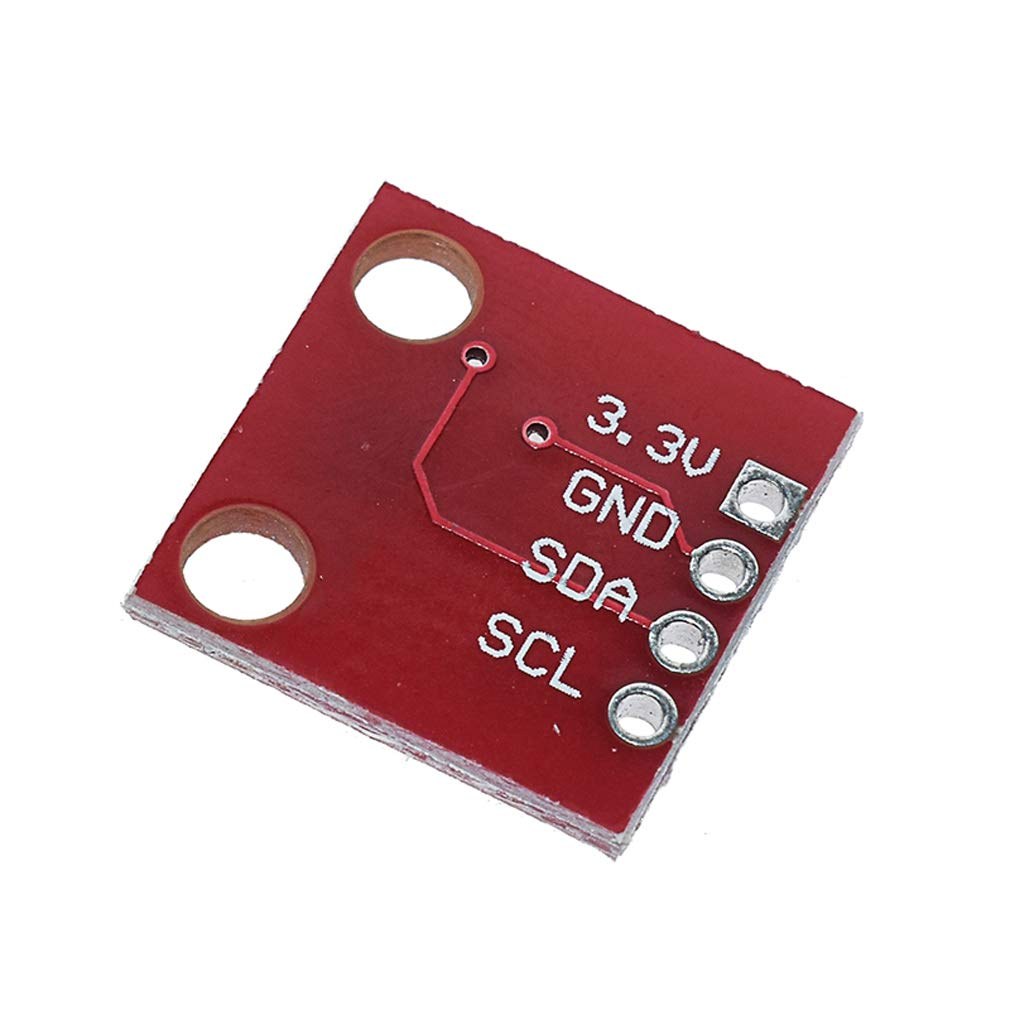
Mateya oyo ezali eteni ya: Capteur numérique ya humidité & température relative HTU21D
- Lis 35-1: Kosalela ya température HTU21D
- Lis 35-2: Kosalela ya Temperature Sensor ya HTU21D na Code ya Esengeli
- Lisolo 35: Kosalela senseur ya température HTU21D na Arduino
- Using Two More HTU21DF Humidity and Temperature Sensors with Arduino
- Displaying Temperature from an HTU21D on an LCD
- Displaying Temperature from an HTU21D as a Bar Graph on an LCD
- How to Use the HTU21DF Humidity and Temperature Sensor with Arduino (Basic Code)
- How to Use the HTU21DF Humidity and Temperature Sensor with Arduino (Custom Code)
/*
 * Robojax Arduino Step-by-Step Course
 * Part 4: Temperature Sensors
 * Lesson 36: HTU21D Temperature Sensor with LCD1602 and LCD2004 Display


 * Display Temperature from HTU21DF on LCD1602-I2C or LCD2004
 * Updated by Ahmad Shamshiri on July 13, 2019


  Please watch video instructions here https://youtu.be/SrFJKbmiaPM
 This code is available at http://robojax.com/course1/?vid=lecture36

with over 100 lectures free on YouTube. Watch it here http://robojax.com/L/?id=338
Get the code for the course: http://robojax.com/L/?id=339

If you found this tutorial helpful, please support me so I can continue creating
and make a donation using PayPal http://robojax.com/L/?id=64


*
  This is an example for the HTU21D-F Humidity & Temp Sensor

  Designed specifically to work with the HTU21D-F sensor from Adafruit
  ----> https://www.adafruit.com/products/1899

  These displays use I2C to communicate; 2 pins are required to
  interface

 Watch Introduction to a 360 Servo video with code: https://youtu.be/b_xvu6wWafA
You can get the wiring diagram from my Arduino Course at Udemy.com
Learn Arduino step by step with all libraries, codes, and wiring diagrams all in one place.
Visit my course now http://robojax.com/L/?id=62

If you found this tutorial helpful, please support me so I can continue creating
content like this.
or make a donation using PayPal http://robojax.com/L/?id=64

 * Code is available at http://robojax.com/learn/arduino

 * This code is "AS IS" without warranty or liability. Free to be used as long as you keep this note intact.
 * This code has been downloaded from Robojax.com
    This program is free software: you can redistribute it and/or modify
    it under the terms of the GNU General Public License as published by
    the Free Software Foundation, either version 3 of the License, or
    (at your option) any later version.

    This program is distributed in the hope that it will be useful,
    but WITHOUT ANY WARRANTY; without even the implied warranty of
    MERCHANTABILITY or FITNESS FOR A PARTICULAR PURPOSE.  See the
    GNU General Public License for more details.

    You should have received a copy of the GNU General Public License
    along with this program.  If not, see <https://www.gnu.org/licenses/>.

*/

#include <Wire.h>
#include "Adafruit_HTU21DF.h"

// Connect Vin to 3-5VDC
// Connect GND to ground
// Connect SCL to I2C clock pin (A5 on UNO)
// Connect SDA to I2C data pin (A4 on UNO)

Adafruit_HTU21DF htu = Adafruit_HTU21DF();

// start of settings for LCD1602 with I2C
#include <LiquidCrystal_I2C.h>
// Set the LCD address to 0x27 for a 16 chars and 2 line display
LiquidCrystal_I2C lcd(0x3F, 16, 2);
// end of settings for LCD1602 with I2C

void setup() {
	//Get the code for the course: http://robojax.com/L/?id=339
  lcd.begin();
  lcd.backlight();
  if (!htu.begin()) {
      lcd.print("Robojax HTUD1DF");
      lcd.setCursor(0,1);
      lcd.print("sensor missing");
    while (1);
  }else{
  // initialize the LCD

  lcd.print("Robojax HTUD1DF");
  lcd.setCursor(0,1);
  lcd.print("Demo");
  }
  delay(2000);
}

void loop() {
//Get the code for the course: http://robojax.com/L/?id=339
   lcd.clear();// clear previous values from screen
lcdDisplay(
             // to print Celsius:
             0, // character 0
             0, // line 0
             "Celsius: ",

             // to print Celsius
             10, // character 10
             0, // line 0
             getHTU('C'),
             'd'
             );

  lcdDisplay(
             // to print fahrenheit:
             0, // character 0
             1, // line 1
             "Fahrenheit: ",

             // to print Fahrenheit
             10, // character 9
             1, // line 0
             getHTU('F'),
             'd'
             );
    delay(5000);
lcdDisplay(
             // to print Kelvin:
             0, // character 0
             0, // line 0
             "Kelvin: ",

             // to print Celsius
             9, // character 10
             0, // line 0
             getHTU('K'),
             'k'
             );
  lcdDisplay(
             // to print humidity text
             0, // character 0
             1, // line 1
             "Humidity: ",

             // to print humidity
             10, // character 9
             1, // line 1
             getHTU('H'),
             '%'
             );

        delay(5000);
}

/*
 * @brief returns temperature or relative humidity
 * @param "type" is character
 *     C = Celsius
 *     K = Kelvin
 *     F = Fahrenheit
 *     H = Humidity
 * @return returns one of the values above
 * Usage: to get Fahrenheit type: getHTU('F')
 * to print it on serial monitor Serial.println(getHTU('F'));
 * Written by Ahmad Shamshiri on July 13, 2019
 * in Ajax, Ontario, Canada
 * www.Robojax.com
 */
float getHTU(char type)
{
	//Get the code for the course: http://robojax.com/L/?id=339
  float value;
    float temp = htu.readTemperature();
    float rel_hum = htu.readHumidity();
   if(type =='F')
   {
    value = temp *9/5 + 32;//convert to Fahrenheit
   }else if(type =='K')
   {
    value = temp + 273.15;//convert to Kelvin
   }else if(type =='H')
   {
    value = rel_hum;//return relative humidity
   }else{
    value = temp;// return Celsius
   }
   return value;
}//


/*
 * lcdDisplay(int tc, int tr, String title, int vc, int vr, float value)
 * displays value and title on LCD1602
 * How to use:
 * If you want to display: "Voltage: 13.56mV" starting from the first character
 * on the second row.
 * use:
 * lcdDisplay(0, 1, "Voltage: ", 13.56,'d')
 *
 *   'd' is degree symbol
 * tc  is character number  (0)
 * tr is row in the lcd (1)
 * title is the text (Voltage:)
 * vc value for character
 * vr value for  row or line
 * value is the value (13.56)
 */
void lcdDisplay(int tc, int tr, String title, int vc, int vr, float value,char symbol)
{
   // Robojax.com LCD1602 for HTU21D Demo
   lcd.setCursor (tc,tr); //
   lcd.print(title);

   lcd.setCursor (vc,vr); //
   lcd.print(value);
   if(symbol == 'd')
   {
    lcd.print((char)223);
   }else if(symbol =='%')
   {
    lcd.print("%");
   }else if(symbol =='k')
   {
    lcd.print("K");
   }
 // Robojax.com LCD1602 for HTU21D Demo
}
Nko o na nki.
-
Amazon
-
eBayPurchase HTU21D from eBayebay.us
-
AliExpressPurchase HTU21D or SHT21 from AliExpresss.click.aliexpress.com
Mokili na bisika
-
L'extérieurAdafruit HTU21D Library (GitHub)github.com
-
L'extérieurDifference between HTU21DF and HTU21D (image)robojax.com
-
L'extérieur
Fichiers📁
Fiche technique (pdf)
-
HTU21D_temerature_humidity_datasheet
HTU21D_temerature_humidity_datasheet.pdf0.96 MB