Verwendung des LCD1602 mit I2C-Schnittstelle - Arduino-Tutorial
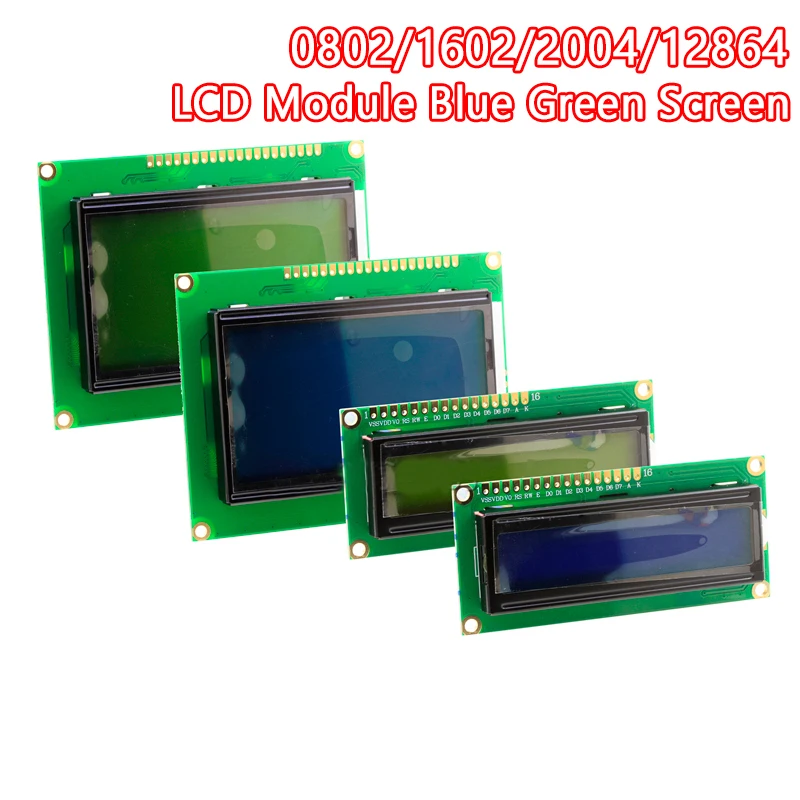
Dieses Tutorial zeigt, wie man ein1602-LCD-Displaymit Arduino unter Verwendung einesI2C-Modul, wodurch sich der Anschluss im Vergleich zur herkömmlichen parallelen Verdrahtung einfacher und sauberer gestaltet. Mit nur vier Verbindungen (VCC, GND, SDA, SCL) können Sie das Display vollständig steuern und in Ihren Arduino-Projekten Text oder Sensordaten anzeigen.

Der gesamte benötigte Code, die Schaltpläne und die Links zum Herunterladen der Bibliotheken sind unterhalb dieses Artikels angegeben.
Was ist ein LCD1602 mit I2C?
Der/Die/DasLCD1602ist ein Display mit 16 Zeichen und 2 Zeilen, das häufig in eingebetteten Systemen verwendet wird. Normalerweise benötigt es6 bis 10 Pinszu betreiben, aber durch das Hinzufügen einesI2C-Modul, nurzwei Datenzeilen(SDA und SCL) werden für die Kommunikation benötigt. Dadurch wird die Verdrahtung drastisch vereinfacht und am Arduino bleiben mehr Pins für andere Komponenten frei.
Anschluss des LCD1602 an den Arduino

So schließen Sie Ihr LCD1602 mit dem I2C-Modul an einen Arduino Uno an:
-
VCC-5V
-
Masse-Masse
-
SDA-A4
-
SCL-A5
Bildunterschrift: LCD1602 über I2C mit dem Arduino verbunden; es werden dabei nur 4 Drähte verwendet.
- Codeerklärung: Text auf dem LCD anzeigen
Der folgende Code initialisiert das LCD, aktiviert die Hintergrundbeleuchtung und gibt in einer Schleife Text aus.
cppCopyEdit#include <Wire.h>
#include <LiquidCrystal_I2C.h>

// Set the LCD address to 0x27 for a 16 chars and 2 line display
LiquidCrystal_I2C lcd(0x27, 16, 2);
-
Wire.h: Erforderlich für die I2C-Kommunikation. -
LiquidCrystal_I2C.h: Bibliothek zur Steuerung des LCDs über I2C. -
lcd(0x27, 16, 2): Initialisiert das LCD an der Adresse0x27mit 16 Spalten und 2 Zeilen.
cppCopyEditvoid setup()
{
  lcd.begin();       // Initialize LCD
  lcd.backlight();   // Turn on backlight
}
-
lcd.begin()bereitet das LCD zur Verwendung vor. -
lcd.backlight()Schaltet die Hintergrundbeleuchtung des Displays ein.
cppCopyEditvoid loop()
{
  lcd.clear();                 // Clear previous content
  lcd.print("Robojax");        // Print on first line
  lcd.setCursor(0,1);          // Move cursor to beginning of second line
  lcd.print("Hello World!");   // Print on second line
  delay(500);                  // Wait for 0.5 seconds
}
-
Der Bildschirm wird jede halbe Sekunde aktualisiert.
-
Sie könnten auch weitere Daten anzeigen, wie die Uhrzeit oder Sensorwerte.
Installation der erforderlichen Bibliothek
Sie müssen das installierenLiquidCrystal_I2CBibliothek:
-
Arduino-IDE öffnen
-
Gehe zuSketch > Bibliothek einbinden > Bibliotheken verwalten
-
Suche nach
LiquidCrystal_I2C -
KlickInstallieren
Sobald es installiert ist, sind Sie bereit, den Code zu kompilieren und hochzuladen.
Kapitel des Videos
-
00:00- Start
-
00:35-LCD1602 und I2C-Modul erklärt
-
04:37-Verdrahtung erklärt
-
05:35-Herunterladen der LCD1602-I2C-Bibliothek
-
07:13-Erklärung des Codes für LCD1602
Bilder


/*
This is code for LCD1602 Display with I2C module
 * Watch the video for this code https://youtu.be/q9YC_GVHy5A

 * Permission granted to share this code given that this
 * note is kept with the code.
 * Disclaimer: this code is "AS IS" and for educational purposes only.
 * This library is based on work done by DFROBOT (www.dfrobot.com).
 */
/*
 *  This code has been modified from the Arduino library
 *  Updated by Ahmad Nejrabi on Jan 20, 2018 at 11:09
 *  in Ajax, Ontario, Canada
 *  for Robojax.com
 *
 *  This is code for LCD1602 Display with I2C module
 *  which can display text on the screen.
 */
#include <Wire.h>
#include <LiquidCrystal_I2C.h>

// Set the LCD address to 0x27 for a 16 chars and 2 line display
LiquidCrystal_I2C lcd(0x27, 16, 2);

void setup()
{
  // Robojax code for LCD with I2C
	// initialize the LCD,
	lcd.begin();

	// Turn on the backlight and print a message.
	lcd.backlight();
  // Robojax code for LCD with I2C


}

void loop()
{

  //start of loop Robojax code for LCD with I2C
  lcd.clear();
  lcd.print("Robojax");
  lcd.setCursor (0,1); // go to start of 2nd line
 lcd.print("Hello World!");
  //lcd.print(millis() / 1000);
  delay(500);
 //end of loop Robojax code for LCD with I2C
}
Dinge, die Sie vielleicht brauchen
-
eBay
-
AliExpressArduino Starter-Kit von AliExpress kaufens.click.aliexpress.com
-
BanggoodKaufe das LCD1602-Display bei Banggood.banggood.com
Ressourcen & Referenzen
-
ExternKaufe das LCD1602-Display bei Banggood.banggood.com
-
Extern
-
Extern
-
Extern
Dateien📁
Arduino-Bibliotheken (zip)
-
LCD1602 LCD Arduino-Bibliothek von Robojax
robojax-LCD1602-I2C-library-master.zip0.01 MB
Fritzing-Datei
-
LCD LCD1602-I2C-Modul mit 4 Drähten
LCD1602-I2C.fzpz0.01 MB


![Arduino Uno REV3 [A000066] - ATmega328P Microcontroller, 16MHz, 14 Digital I/O Pins, 6 Analog Inputs, 32KB Flash, USB Connectivity, Compatible with Arduino IDE for DIY Projects and Prototyping](https://m.media-amazon.com/images/I/515P6aYSP4L._SL75_.jpg)
![Arduino UNO R4 WiFi [ABX00087] - Renesas RA4M1 + ESP32-S3, Wi-Fi, Bluetooth, USB-C, CAN, 12-bit DAC, OP AMP, Qwiic Connector, 12x8 LED Matrix for Advanced IoT & Embedded Projects](https://m.media-amazon.com/images/I/416S910MpBL._SL75_.jpg)


![[20 for $11] NE555 Timer IC Integrated Circuit NE555N/P TTL Arduino Rasberry Pi](https://i.ebayimg.com/images/g/ZIEAAOSwZ11aW54u/s-l225.jpg)