Этот учебник является частью: Использование цифро-аналогового преобразователя MCP4725 с Arduino (5 проектов)
Все обучающие материалы по цифро-аналоговому преобразователю MCP4725. Ссылки на другие видео находятся ниже этой статьи.

Lesson 109-5: Setting Output Voltage with a Push Button Using an MCP4725 DAC with Arduino
In this lesson, we learn how to use the MCP4725 12-bit digital-to-analog converter (DAC). The chip and module are explained, the datasheet is reviewed, and then, using five projects, this MCP4725 is practically shown. Full wiring diagrams are shown, and how to use the code and library is explained.
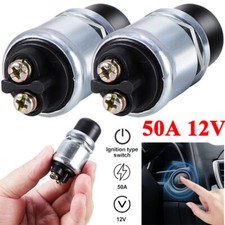
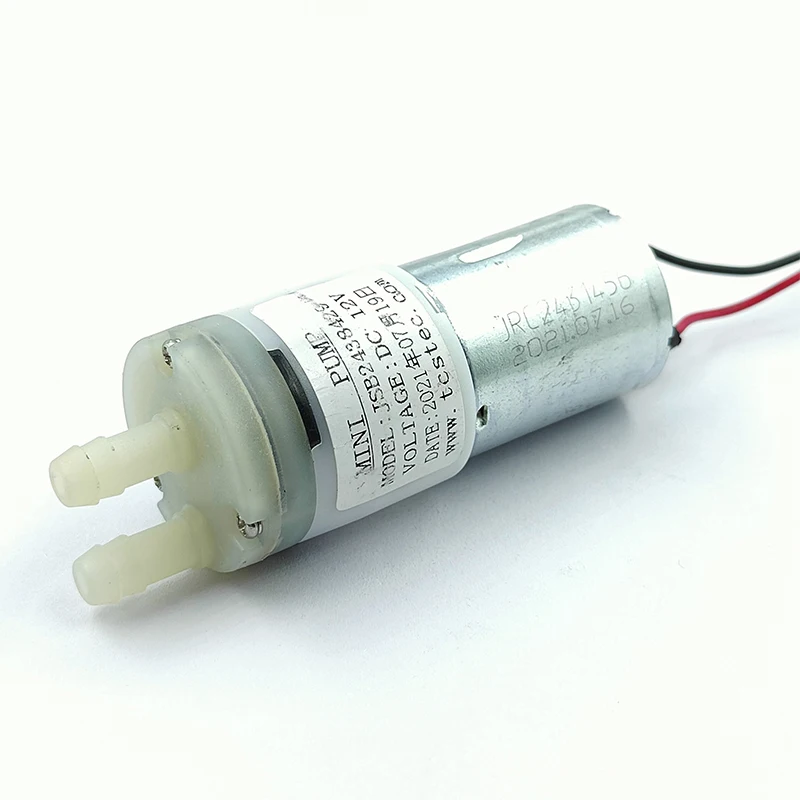
Project 5 in lesson 109, Lesson 109-5: Controlling the speed of a motor using a variable resistor (potentiometer) and a start/stop push button with Arduino.
Этот учебник является частью: Использование цифро-аналогового преобразователя MCP4725 с Arduino (5 проектов)
- Lesson 109-1: How to Use the MCP4725 DAC Outputting DC, Sine/Triangular Waves Using Arduino
- Lesson 109-2: Controlling the Output Voltage of the MCP4725 from Serial Monitor
- Lesson 109-3: Convert PWM Duty Cycle to Voltage Using MCP4725 12-Bit DAC with Arduino
- Lesson 109-4: Using Two MCP4725 DAC Modules with an Arduino
383-Lesson 109: Generating DC Voltage Using an MCP4725 DAC with LCD and PWM-to-Voltage Converter with Arduino (5 Projects)
Язык: C++
/*
 * Lesson 109-5: Controlling Speed of a motor using a Variable Resistor (potentiometer) and using a Start/Stop push button with Arduino.
 *
 * Generates output DC Voltage from 0 to 5.5V or lower. If the power supply
 * is 3.3V, then the maximum voltage is 3.3V.
 * We can set the voltage using 3 push buttons.
 * Button1 to increase
 * Button2 to decrease
 * Button3 to multiply the increment/decrement by 100 or whatever value
 * you see in the code
 *
 * Watch Video instruction for this code: https://youtu.be/j_BwZT9z-0g
 *
 * Projects in this video: https://youtu.be/j_BwZT9z-0g
 * Project 1: Output 0 to 5V or 0 to 3V depending on which kind of power source you use for the module. The output is shown on a digital multimeter.
 * Project 2: Serial command to set voltage
 * Project 3: PWM duty cycle to Voltage converter
 * Project 4: Using two MCP4725 DAC modules
 * Project 5 (this project): Using Push buttons to set voltage on LCD
 *
 * Written by Ahmad Shamshiri
 * Sep 27, 2022
 * www.Robojax.com
 *
 *
 * This code is part of the Arduino Step by Step Course which starts here:  https://youtu.be/-6qSrDUA5a8
 *
 * For the library for this code, visit http://robojax.com/
 *
 * If you found this tutorial helpful, please support me so I can continue creating
 * content like this. Make a donation using PayPal by credit card: https://bit.ly/donate-robojax
 *
 *
 * This code is "AS IS" without warranty or liability. Free to be used as long as you keep this note intact.
 * This code has been downloaded from Robojax.com
 * This program is free software: you can redistribute it and/or modify
 * it under the terms of the GNU General Public License as published by
 * the Free Software Foundation, either version 3 of the License, or
 * (at your option) any later version.
 *
 * This program is distributed in the hope that it will be useful,
 * but WITHOUT ANY WARRANTY; without even the implied warranty of
 * MERCHANTABILITY or FITNESS FOR A PARTICULAR PURPOSE.  See the
 * GNU General Public License for more details.
 *
 * You should have received a copy of the GNU General Public License
 * along with this program.  If not, see <https://www.gnu.org/licenses/>.
 *
 * Based on the Adafruit MCP4725 Library
 * ----> http://www.adafruit.com/products/935
 *
 * Adafruit invests time and resources providing this open source code,
 * please support Adafruit and open-source hardware by purchasing
 * products from Adafruit!
 */


#include <Wire.h>
#include <Adafruit_MCP4725.h>
const int refV = 4652;//reference voltage. see video for details

Adafruit_MCP4725 dac;
int mV =1356;//default value
float V;

#include <LiquidCrystal_I2C.h>
// Set the LCD address to 0x3f(green) for a 20 chars and 4 line display
int displayChars =16;//number of characters of display 16 or 20
int displayRows=2;//number of row of dispaly 2 or 4

const uint8_t PUSHBUTTON_PIN_1 =2;
const uint8_t PUSHBUTTON_PIN_2 =3;
const uint8_t PUSHBUTTON_PIN_3 =4;


const int incrementValue=15;//10mv
const int incrmentFast = 100;//
boolean showVolt=true;//false=millivolt, true=Volt


bool valueUpdate = false;

bool fastIncrementSet=false;
int newIncrementValue =0;
  //see video for details https://youtu.be/j_BwZT9z-0g
  //get more code from www.Robojax.com
LiquidCrystal_I2C lcd(0x3f, displayChars, displayRows);


void setup(void) {
  Serial.begin(9600);
  Serial.println("MCP4725 by Robojax");
  pinMode(PUSHBUTTON_PIN_1, INPUT_PULLUP);
  pinMode(PUSHBUTTON_PIN_2, INPUT_PULLUP);
  pinMode(PUSHBUTTON_PIN_3, INPUT_PULLUP);

  //run i2C scanner to find out the I2C address and enter it below
    //see video for details https://youtu.be/j_BwZT9z-0g
  //get more code from www.Robojax.com
  dac.begin(0x60);

  Serial.println("Output Voltage");
  // Turn on the blacklight and print a message.

  // initialize the LCD
  lcd.begin();
  lcd.backlight();
  lcd.print("Robojax MCP4725");
  lcd.setCursor(0,1);
  lcd.print("Voltage: ");
  lcd.setCursor(8,1);//start from charcter 9 of line 1
  if(showVolt)
  {
    float Volt = (float) mV/1000;
    lcd.print(Volt);//print current voltage
    lcd.print("V");//print V
  }else{
     lcd.print(mV);//print current voltage
    lcd.print("mV");//print mV
  }

  setmV(mV);
  //delay(2000);
  //see video for details https://youtu.be/j_BwZT9z-0g
  //get more code from www.Robojax.com
}

void loop(void) {
     pushButtons();
    //setmV(465);//set output to 465mV
//    Serial.print(mV);
//    Serial.println("mV");
//    delay(5000);
//
//    setV(2.635);//set output to 2.6V
//    Serial.print(V, 3);
//    Serial.println("V");
//    delay(5000);
//    Serial.println();
//      clearCharFrom(8, 1);//clear the previous value (if updated)
//      lcd.setCursor(8,1);//start from charcter 8 of line 1
//      lcd.print(mV);//print voltage
//      lcd.print("mV");//print mV
    //delay(100);
    if(valueUpdate)
    {
      printVoltage();
    }
    setmV(mV);
   //see video for details https://youtu.be/j_BwZT9z-0g
  //get more code from www.Robojax.com
}


void pushButtons()
{
  int pb1 = digitalRead(PUSHBUTTON_PIN_1);
  int pb2 = digitalRead(PUSHBUTTON_PIN_2);
  int pb3 = digitalRead(PUSHBUTTON_PIN_3);

    //see video for details https://youtu.be/j_BwZT9z-0g
  //get more code from www.Robojax.com
      if( (pb1 == LOW && pb3 == LOW ) || (pb2 == LOW && pb3 == LOW ) )
      {
        if(!fastIncrementSet)
        {
          newIncrementValue = incrementValue + incrmentFast;
          fastIncrementSet = true;
        }

      }else{
          newIncrementValue = incrementValue;
          fastIncrementSet = false;
      }

  if(pb1 ==LOW){

    if( (mV + newIncrementValue) <= refV )
    {

      mV =mV + newIncrementValue;

    }else{
      mV =refV;
    }
     valueUpdate = true;
  }else if(pb2 ==LOW){
    if( (mV -newIncrementValue) >= 0)
    {
      mV =mV - newIncrementValue;
    }else{
      mV  =0;

    }
    valueUpdate = true;
  }else{
    valueUpdate = false;
  }

 delay(50);
}//

void printVoltage()
{
    //see video for details https://youtu.be/j_BwZT9z-0g
  //get more code from www.Robojax.com
      clearCharFrom(8, 1);//clear the previous value (if updated)
      lcd.setCursor(8,1);//start from charcter 8 of line 1
      if(showVolt)
      {
        float volt= (float)mV/1000.0;
        lcd.print(volt);//print voltage
        lcd.print("V");//print V
      }else{
        lcd.print(mV);//print voltage
        lcd.print("mV");//print mV
      }

}


/*
 * setmV()
 * sets mV value such as 35mV or 2654mV (2.654V)
 * Written Sep 25, 2022
 * by Ahmad Shamshiri www.Robojax.com
 */
void setmV(int d)
{

    mV =d;
    dac.setVoltage(map(d, 0, refV, 0, 4095), false);

}


/*
 * setV()
 * sets Voltage value in volts such as 3.764
 * Written Sep 25, 2022
 * by Ahmad Shamshiri www.Robojax.com
 */
void setV(float d)
{
    V = d;
    dac.setVoltage( map((d *1000), 0, refV, 0, 4095), false);

}


void clearCharFrom(int c, int row)
{
    //see video for details https://youtu.be/j_BwZT9z-0g
  //get more code from www.Robojax.com

    for(int i=c; i<displayChars; i++)
    {
      lcd.setCursor(i,row);//start from charcter 8 of line 1
      lcd.print(" ");
    }//for loop


}//clearCharFrom()
Вещи, которые могут вам понадобиться
-
eBayPurchase MCP4725 DAC from eBayebay.us
-
АлиЭкспрессPurchase MCP4725 DAC from AliExpresss.click.aliexpress.com
-
БанггудPurchase LCD1602 display from Banggoodbanggood.com
Ресурсы и ссылки
-
Внешний
-
Внешний
-
Внешний
-
ВнешнийPurchase LCD1602 display from Banggoodbanggood.com
-
ВнешнийPurchase MCP4725 DAC from AliExpresss.click.aliexpress.com
-
ВнешнийPurchase MCP4725 DAC from eBayebay.us
-
Внешний
-
Внешний
-
Внешний
-
Внешний
-
Внешний
-
Внешний
Файлы📁
Нет доступных файлов.