如何使用LM35测量摄氏度、华氏度和开尔文温度
在本教程中,我们将学习如何使用LM35温度传感器来测量温度,并在串口监视器上以摄氏度、华氏度和开尔文显示。LM35是一个简单而有效的传感器,它输出与温度成比例的电压,从而便于读取和转换。该项目非常适合希望将温度传感器集成到其Arduino项目中的初学者。
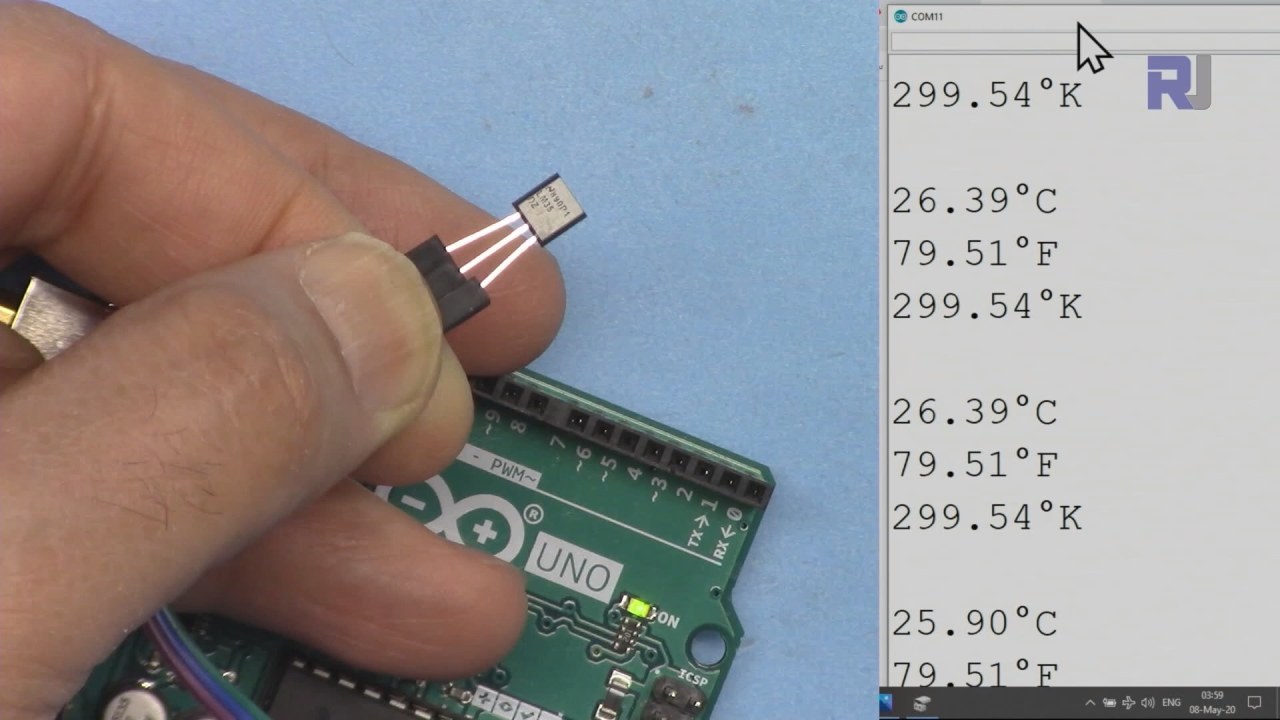
硬件解析
LM35温度传感器是一种高精度设备,提供与摄氏温度对应的模拟电压输出。该传感器的工作范围为-55°C到150°C,精度为±0.5°C。其60微安的低功耗使其适合电池供电的设备。 LM35的输出阻抗低,能够有效驱动负载而不会出现显著的电压下降,这对于保持准确的读数至关重要。该传感器通常采用TO-92封装,便于集成到各种项目中。
数据表详情
| 制造商 | 德州仪器 |
|---|---|
| 零件编号 | LM35 |
| 逻辑/IO电压 | 4-30 伏 |
| 输出电流(典型) | 60 微安培 |
| 温度范围 | -55 至 150 °C |
| 输出电压 | 10 mV/°C |
| 精度(典型) | ±0.5 °C (最高可达 25 °C) |
| 包裹 | TO-92 |
- 确保电源供应在4V到30V之间。
- 注意电源连接的极性反向。
- 使用稳定的接地连接以避免读数中的噪声。
- 将传感器远离直接热源,以防止出现错误读数。
- 如果您在输出电压中经历波动,考虑使用低通滤波器。
接线说明
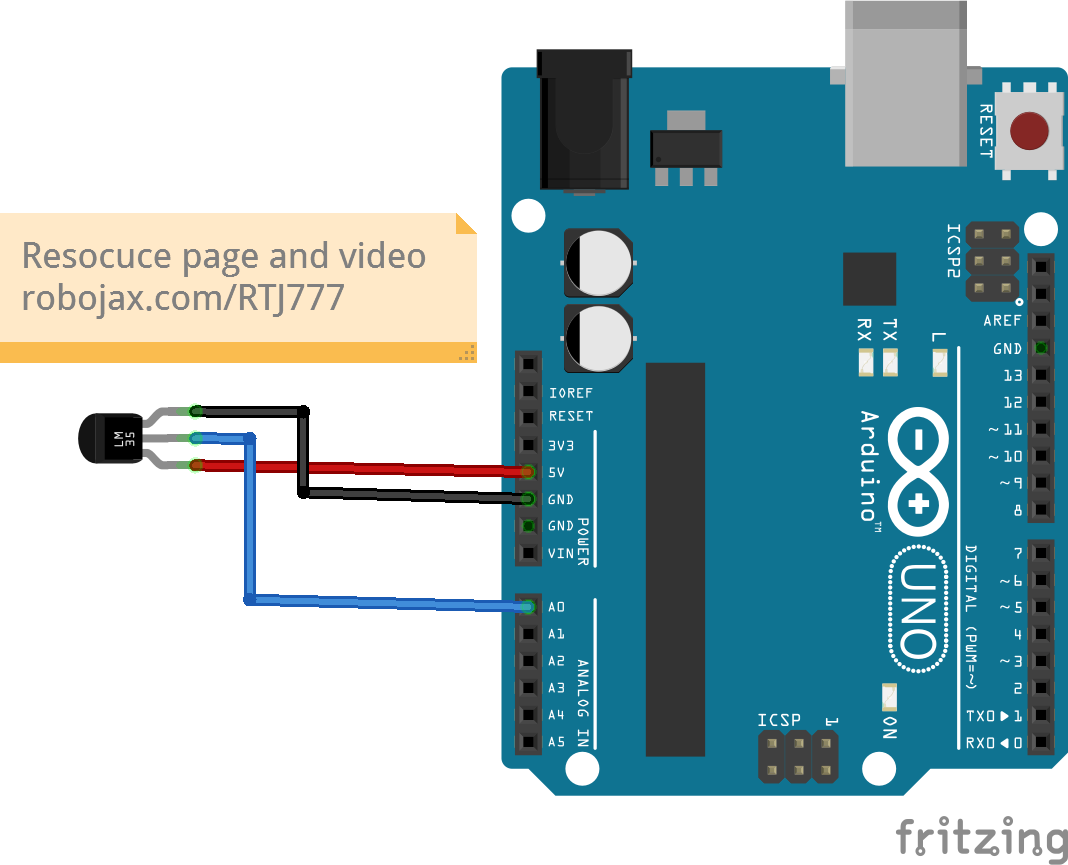
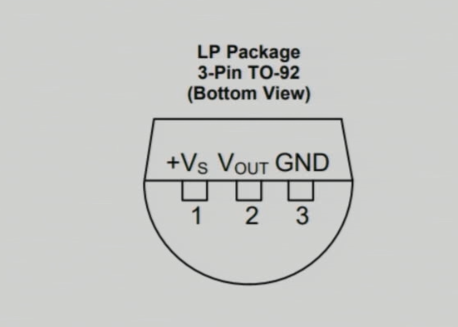
将LM35传感器接线,左脚(VCC)连接到Arduino的5V电源。右脚(GND)应连接到Arduino的地(GND)。中间脚(输出)是读取温度数据的地方;将此引脚连接到模拟输入引脚。A0在Arduino上。这种设置将允许Arduino读取来自LM35的电压输出,该电压对应于温度。
如果您需要调整不同配置的接线,请确保在代码中更新模拟引脚引用以匹配您的新设置。(在视频中于03:15)
代码示例和演练
以下代码片段演示了如何从LM35读取温度并以不同单位显示它。 首先,我们定义输入引脚和LM35转换因子:
const int inPin = A0; // can change
const float LM35_FACTOR = 0.01; // do not change在这个片段中,inPin表示连接到LM35输出的模拟引脚,和LM35_FACTOR定义将电压转换为摄氏温度所需的转换。
接下来,我们建立串行通信:
void setup() {
  Serial.begin(9600);
  Serial.println("Robojax LM35 for Arduino");
  delay(500);
}这里,Serial.begin(9600)以9600波特率初始化串口通信,允许我们与串口监视器发送和接收数据。
循环函数持续读取温度并打印出来:
void loop() {
  printTemperature('C');
  printTemperature('F');
  printTemperature('K');
  delay(1000);
}在这个循环中,我们调用了printTemperature每个单位(摄氏度,华氏度,开尔文)的函数,用于在串口监视器上显示相应的温度。
演示 / 什么可以期待
当LM35连接正确时,您应该在串行监视器上看到以摄氏度、华氏度和开尔文显示的温度读数。当您给传感器加热时,读数将相应增加。如果您注意到任何随机或不稳定的值,请检查您的接线,以确保没有松动的连接或错误的引脚分配。(视频中在05:00)
视频时间戳
- 00:00- 介绍
- 01:00- LM35 概述
- 02:30- 接线说明
- 03:15- 代码解释
- 05:00- 示范
图像
/*
 * This Arduino sketch is to use LM35 to measure temperature
 * This code has two ways to get temperature
 * 1-To print the temperature either in C, F or K on the serial monitor
 * 2-To return the value in C, F and K
 *
 * Watch Video instruction for this code:https://youtu.be/S5IBc_epa1A
 *
 * Full explanation of this code and wiring diagram is available at
 * my Arduino Course at Udemy.com here: http://robojax.com/L/?id=62

 * Written by Ahmad Shamshiri on May 08, 2020 at 02:45 in Ajax, Ontario, Canada
 * in Ajax, Ontario, Canada. www.robojax.com
 *

 * Get this code and other Arduino codes from Robojax.com
Learn Arduino step by step in a structured course with all material, wiring diagrams and libraries
all in one place. Purchase My course on Udemy.com http://robojax.com/L/?id=62

If you found this tutorial helpful, please support me so I can continue creating
content like this.

or make a donation using PayPal http://robojax.com/L/?id=64

 *  * This code is "AS IS" without warranty or liability. Free to be used as long as you keep this note intact.*
 * This code has been downloaded from Robojax.com
    This program is free software: you can redistribute it and/or modify
    it under the terms of the GNU General Public License as published by
    the Free Software Foundation, either version 3 of the License, or
    (at your option) any later version.

    This program is distributed in the hope that it will be useful,
    but WITHOUT ANY WARRANTY; without even the implied warranty of
    MERCHANTABILITY or FITNESS FOR A PARTICULAR PURPOSE.  See the
    GNU General Public License for more details.

    You should have received a copy of the GNU General Public License
    along with this program.  If not, see <https://www.gnu.org/licenses/>.


*/

const int inPin =A0;//can change
const int iteration = 1000; //can change (see video)
const float LM35_FACTOR =0.01;// do not change

// the setup routine runs once when you press reset:
void setup() {
  // initialize serial communication at 9600 bits per second:
  Serial.begin(9600);
  Serial.println("Robojax LM35 for Arduino");
  delay(500);
}

// the loop routine runs over and over again forever:
void loop() {
 //robojax.com LM35 Code for Arduino
  printTemperature('C');
  Serial.println();
  printTemperature('F');
  Serial.println();
  printTemperature('K');
  Serial.println();
  Serial.println();
//  Serial.print(" Temperature: ");
//  printDegree();
//  Serial.print(getTemperature('C'));
if(getTemperature('C') >87)
{
 // do something here (watch video)
}
//  Serial.println();
  delay(1000);
}


/*
 * getTemperature()
 * @brief gets the average temperature
 * @param average temperature
 * @param "type" is character
 *     C = Celsius
 *     K = Kelvin
 *     F = Fahrenheit
 * @return returns one of the values above
 * Written by Ahmad Shamshiri for robojax.com
 * on May 08, 2020 at 02:36 in Ajax, Ontario, Canada
 */
float getTemperature(char type)
{
    float value;
    float averageTemperature =0;
    int sensorValue = analogRead(inPin);
    float voltage = sensorValue * (5.0 / 1023.0);
    float temperature = voltage / LM35_FACTOR;
    for(int i=0; i< iteration; i++)
    {
      averageTemperature += temperature;
    }

    averageTemperature /=iteration;
  if(type =='F')
   {
    value = averageTemperature *9/5 + 32;//convert to Fahrenheit
   }else if(type =='K')
   {
    value = averageTemperature + 273.15;//convert to Kelvin
   }else{
    value = averageTemperature;// return Celsius
   }
    return value ;
}//getTemperature()

/*
 * printTemperature()
 * @brief prints  temperature on serial monitor
 * @param character type
 * @param "type" is character
 *     C = Celsius
 *     K = Kelvin
 *     F = Fahrenheit
 * @return none
 * Written by Ahmad Shamshiri for robojax.com
 * on May 08, 2020 at 02:45 in Ajax, Ontario, Canada
 */
void printTemperature(char type)
{
    float value;
    float temp = getTemperature(type);
   Serial.print(temp);
    printDegree();
  if(type =='F')
   {
     Serial.print("F");
    }else if(type =='K')
   {
     Serial.print("K");
   }else{
     Serial.print("C");
   }

}//printTemperature()

/*
 * @brief prints degree symbol on serial monitor
 * @param none
 * @return returns nothing
 * Written by Ahmad Shamshiri on July 13, 2019
 * for Robojax Tutorial Robojax.com
 */
void printDegree()
{
    Serial.print("\\xC2");
    Serial.print("\\xB0");
}
|||您可能需要的东西
-
亚马逊在亚马逊购买LM35amzn.to
-
易趣从eBay购买LM35ebay.us
资源与参考
-
产品规格书LM35 数据表ti.com
文件📁
没有可用的文件。