使用 TM1637 四位数 7 段显示器与 Arduino 结合
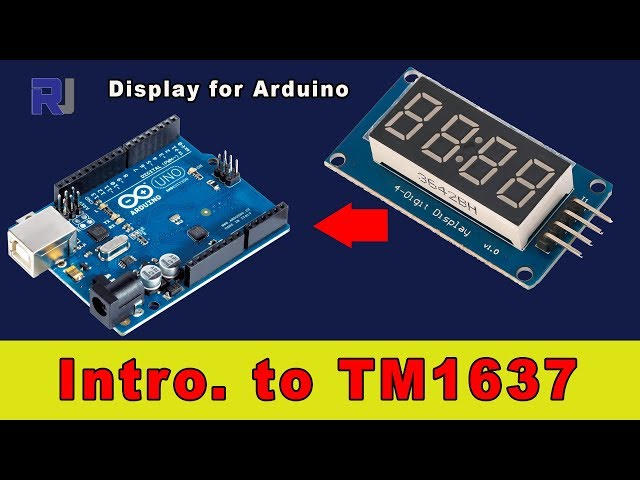
在本教程中,我们将学习如何使用TM1637四位七段显示器与Arduino。该显示器可以用于显示数字、计数器或其他任何数值数据。在项目结束时,您将拥有一个从0计数到500的功能正常的显示器,并演示各种功能,例如亮度调节。

对于这个项目,我们将仅用几根导线将TM1637显示屏连接到Arduino。显示屏有四个引脚:VCC,GND,DIO和CLK。VCC连接到5V电源,GND连接到地。DIO引脚将连接到Arduino的数字引脚3,CLK引脚将连接到数字引脚2。这种设置使Arduino能够轻松与显示屏进行通信。
要查看实际实施,请确保跟随视频(视频在:00)以获得视觉指导。
硬件解析
TM1637 是一款多功能的 7 段显示驱动器,允许轻松控制 4 位显示器。它通过一个两线接口进行控制,该接口由一个数据引脚 (DIO) 和一个时钟引脚 (CLK) 组成。这样可以方便地连接到如 Arduino 等微控制器,而无需额外的组件。
显示屏可以显示小数,并支持亮度控制,使其适用于计数器、时钟和计时器等多种应用。它的紧凑设计和易用性使其成为业余爱好者和专业人士的热门选择。
数据表详细信息
| 制造商 | 泰坦微电子 |
|---|---|
| 零件编号 | TM1637 |
| 逻辑/IO 电压 | 5 V |
| 供电电压 | 3.3 V - 5.5 V |
| 每段的输出电流 | 20 毫安 |
| PWM频率指导 | N/A |
| 输入逻辑阈值 | 0.3 VCC(低),0.7 VCC(高) |
| 电压降 / RDS(通电状态)/ 饱和度 | 2.5 伏(典型) |
| 热极限 | 125 °C |
| 包裹 | 16针双列直插封装 |
- 确保VCC连接到稳定的5V电源,以避免显示故障。
- 如有必要,请使用限流电阻以防止对段的损害。
- 保持接线短,以减少噪音和干扰。
- 始终仔细检查引脚连接,以防止极性反转。
- 使用调节亮度级别的
setBrightness最佳可视性的功能。
接线说明


要连接TM1637显示屏,首先将VCC引脚连接到Arduino的5V输出。接下来,将GND引脚连接到Arduino的一个地引脚。对于数据通信,将显示屏的DIO引脚连接到Arduino的数字引脚3,将CLK引脚连接到数字引脚2。这种简单的设置使Arduino能够有效地与显示屏通信。
确保您有安全的连接,以避免任何松动的接线问题。在视频中,展示了替代的接线配置,但提供的连接是最简单的基本操作(视频时间:01:30)。
代码示例与教程
提供的代码初始化显示并设置必要的配置。代码中的关键标识符包括CLK和DIO,分别定义为数字引脚2和3。显示器的亮度通过设置来调整setBrightness功能。
#define CLK 2
#define DIO 3

TM1637Display display(CLK, DIO);

void setup() {
    display.setBrightness(0x0f);  // Set maximum brightness
}
该代码片段显示了显示器的初始化以及最大亮度的设置。接下来,loop函数演示了如何显示各种数字。

void loop() {
    uint8_t data[] = { 0x0, 0x0, 0x0, 0x0 };
    display.setSegments(data);  // Clear the display
    display.showNumberDec(23, false, 2, 1);  // Show number 23
    delay(TEST_DELAY);
}
这里,显示被清除,并显示数字23。该功能showNumberDec接受参数以控制显示的数字及其格式。循环继续显示高达 500 的数字。
for(int i=0; i<=500; i++) {
    display.showNumberDec(i);  // Show numbers from 0 to 500
}
该代码片段演示了一个简单的计数器,在TM1637显示屏上显示从0到500的数字。该显示屏将持续更新,直到达到500,然后循环回0。完整代码可以在文章下方找到以供参考。
演示 / 期待什么
一旦所有线路连接完毕并且代码上传成功,显示屏应该会顺序显示从 0 到 500 的数字。它还会演示各种亮度设置,并在更新之间适当地清空屏幕。请注意极性反转,因为这可能会损坏显示屏。您可以通过观察视频中的显示屏(在视频的 04:00)来确认功能是否正常。
视频时间戳
- 00:00TM1637 显示器介绍
- 01:30- 接线说明
- 02:45- 代码演练
- 04:00- 显示演示
图像


/*
 * This is the Arduino code for TM1637 4-digit display.
 *
 * Written by Ahmad S. for Robojax Video
 *visit www.Robojax.com to get wiring diagram and other resources for this project
 * Permission granted to share this code given that this
 * note is kept with the code.
 * Disclaimer: this code is "AS IS" and for educational purposes only.
 *
 */

/*
 * Original code from https://github.com/avishorp/TM1637
 * Modified for Robojax video on December 6, 2017

 */
#include <Arduino.h>
#include <TM1637Display.h>

// Module connection pins (Digital Pins)
#define CLK 2
#define DIO 3

// The amount of time (in milliseconds) between tests
#define TEST_DELAY   2000


TM1637Display display(CLK, DIO);

void setup()
{
}

void loop()
{


  display.setBrightness(0x0f);

  uint8_t data[] = { 0x0, 0x0, 0x0, 0x0 };
  display.setSegments(data);
  display.showNumberDec(23, false, 2,1);
  delay(TEST_DELAY);

  display.setSegments(data);
  display.showNumberDec(153, false, 3, 1);
  delay(TEST_DELAY);

  display.setSegments(data);
  for(int i=0; i<=500; i++)
  {
    display.showNumberDec(i);
  }

}
资源与参考
尚无可用资源。
文件📁
Arduino 库(zip 格式)
-
TM1637 Arduino Library
TM1637_library.zip1.36 MB
数据手册 (pdf)
-
TM1637 数据表
/download/datasheet/robojax_TM1637_datasheet.pdf0.67 MB
用户手册
-
TM1637 显示器手册
robojax-TM1637_display_manual.pdf0.31 MB


![Sangoma Technologies PHON-D10M D10m Dect Extra Handset [universal Handset]](https://i.ebayimg.com/images/g/mfUAAOSwsWZm6g-W/s-l225.jpg)