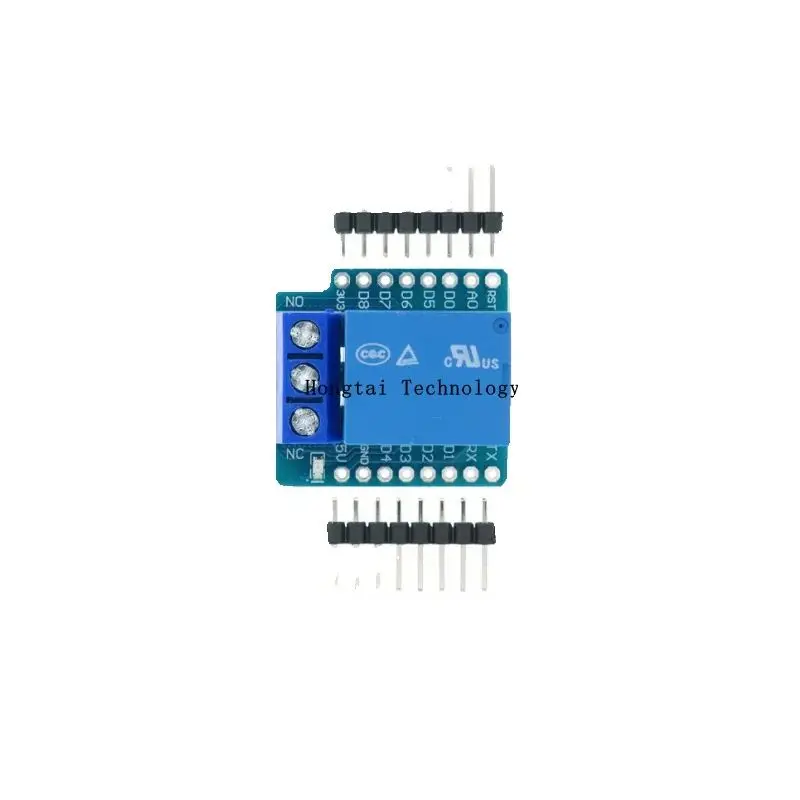
本教程是的一部分: 使用 Arduino 控制继电器
这里是所有与接力赛相关的视频合集。其他视频的链接在本文下方。

Using a TTP223B touch module and relay to control AC/DC loads with an Arduino
In this tutorial, we will explore how to use the TTP223B capacitive touch module alongside a relay to control AC or DC loads with an Arduino. This setup allows for convenient touch-based activation of devices such as light bulbs or other electrical components. You will learn how to wire the components, write the Arduino code, and adjust the timing for how long the load remains active after being touched. This is a great project for both beginners and experienced users looking to expand their skills.


Throughout this guide, we will walk you through the essential components, wiring instructions, and the programming required to get this project up and running. You will also learn how to modify the timing for load activation based on your preferences (in video at 10:15). Be sure to check out the accompanying video for a visual demonstration of the process.
Hardware Explained
The key components for this project include the TTP223B touch module, a relay, and an Arduino. The TTP223B module detects touch inputs and sends a signal to the Arduino, which can then control the relay. The relay acts as a switch, allowing you to control higher voltage AC or DC loads safely.
The TTP223B chip is made by Taiwan Semiconductor (TONTEK) and module operates on a supply voltage of 2.2V to 5.5V and has three pins: VCC (power), GND (ground), and SIG (signal). When the touchpad is activated, the SIG pin sends a high signal to the Arduino. View datasheet for full details. The relay, on the other hand, requires a control signal from the Arduino to switch the load on or off. This control is achieved through a digital output pin connected to the relay.
Datasheet Details
| Manufacturer | Taiwan Semiconductor (TONTEK) |
|---|---|
| Part number | TTP223B |
| Logic/IO voltage | 2.2 - 5.5 V |
| Supply voltage | 2.2 - 5.5 V |
| Output current (per channel) | 20 mA max |
| Peak current (per channel) | 50 mA max |
| PWM frequency guidance | N/A |
| Input logic thresholds | 0.3 * VCC (low), 0.7 * VCC (high) |
| Voltage drop / RDS(on) / saturation | N/A |
| Thermal limits | N/A |
| Package | TO-220 |
| Notes / variants | Also known as BA6 |
- Ensure proper grounding to avoid false triggering.
- Use a capacitor to filter noise on the touch signal line.
- Verify relay specifications to match load requirements.
- Be cautious with AC connections—ensure proper insulation and safety measures.
- Adjust the timing in the code for desired load activation duration.
Wiring Instructions
To wire the TTP223B touch module and relay with the Arduino, follow these steps:
First, connect the VCC pin of the TTP223B to a 5V power source, either from the Arduino or an external supply. Next, connect the GND pin of the TTP223B to the ground. The SIG pin should be connected to pin 2 on the Arduino, which will read the touch input.
For the relay, connect its VCC pin to the same 5V power source, and connect its GND pin to ground. The control signal pin of the relay should be connected to pin 10 on the Arduino. Ensure that the relay is wired correctly to the load you want to control, with one wire going to the common (COM) pin and the other to the normally open (NO) pin. This setup allows the relay to switch the load on and off based on the Arduino's control signal.
Code Examples & Walkthrough
The following code snippet initializes the setup for the TTP223B touch module and relay. It sets pin modes for input and output, enabling the Arduino to read touch signals and control the relay.
void setup() {
    Serial.begin(9600);
    pinMode(10, OUTPUT); // Relay control pin
    pinMode(2, INPUT);   // Touch input pin
    Serial.println("Robojax Test: TTP223B touch");
}
In the setup, we define pin 10 as an output to control the relay and pin 2 as an input to read the touch signal. A serial monitor is initiated for debugging purposes.
The main loop of the program checks if the touch button is pressed. If it is, the relay is activated, turning on the connected load.
void loop() {
    if(digitalRead(2)) {
        Serial.println("Button Touched");
        digitalWrite(10, LOW); // Turn the relay ON
        delay(LD);
    } else {
        digitalWrite(10, HIGH); // Turn OFF the relay
    }
}
This code continuously reads the state of pin 2. If the touch sensor is activated, it turns the relay on for a specified duration defined by the variable LD. If the sensor is not touched, the relay turns off.
Demonstration / What to Expect
Upon completing the wiring and uploading the code, you should see the connected load (e.g., a light bulb) turn on when you touch the TTP223B module. The duration for which the load remains on is controlled by the LD variable in the code. If you want the load to stay on longer, simply increase the value of LD to the desired duration in milliseconds.
Common pitfalls include incorrect wiring, which could lead to the relay not activating or the touch sensor not responding. Ensure that all connections are secure and that you are using the correct pins as defined in the code. Additionally, be cautious when working with AC loads to avoid electric shock or damage.
Video Timestamps
- 00:00 - Introduction to the project
- 02:30 - Wiring overview
- 05:15 - Code explanation
- 10:15 - Demonstration of the setup
图像


本教程是……的一部分: 使用 Arduino 控制继电器
- Arduino Code and Video for a Dual-Channel 5V Relay
- Controlling a 5V Relay Using Arduino to cotrol AC or DC load like bulb or motor
- TTP224 4-Channel Touch Sensor to Turn AC/DC Loads with Relay
- 使用5V继电器模块(低触发)与Arduino
- Using a MAX6675 K-Type Thermocouple with Relay and Display
- Using a Reed Switch to Control a Relay and AC/DC Loads with an Arduino
- Using an Arduino push button to switch a relay and AC bulb
/*
 * 这是TTP223B电容触摸开关与继电器的Arduino代码
 * 输出引脚10连接到继电器
 * 通过触摸TTP223B或TTP223N-BA6触摸板,继电器将被打开
 *
 * 作者:Ahmad Nejrabi,Roboja视频
 * 日期:2017年12月4日,加拿大安大略省Ajax
 * 允许分享此代码,前提是此注释与代码同享。
 * 免责声明:此代码为“按原样”提供,仅用于教育目的。
 */
 int LD = 200; // 循环延迟。控制灯泡在释放后保持开启的时间。

void setup() {
    Serial.begin(9600);
 // 输出引脚
    pinMode(10, OUTPUT); // 按钮1的LED


 // 输入引脚
    pinMode(2, INPUT); // 按钮1输入引脚2


    Serial.println("Robojax Test: TTP223B touch");

}

void loop() {

 // 按钮 1 动作
    if(digitalRead(2)){
      Serial.println("Button Touched");
      digitalWrite(10, LOW); // 打开LED灯
      delay(LD);
    }else{
      digitalWrite(10, HIGH); // 关闭LED
    }


} // 循环
/*
 * 这是用于TTP223电容触摸开关的Arduino代码,带有继电器以切换交流或直流负载。
 * // 2017年12月13日
 * // 为RoboJax.com视频编写
 * // 使用TTP223触摸模块打开或关闭交流(或直流)负载。
 * // 当触摸板被触摸时,继电器上的指示灯将亮起,COM和NO引脚将被连接
 * 观看视频以获取详细信息 https://youtu.be/YSI1PdSLbt0
 *
 * 由Ahmad Nejrabi为RoboJax视频编写
 * 日期:2017年12月4日,位于加拿大安大略省Ajax
 * 允许分享此代码,前提是保留此备注。
 * 免责声明:此代码为“原样提供”,仅用于教育目的。
 *
 * /
 *
 * // 2017年12月12日
 * // 为RoboJax.com视频编写
 * // 使用TTP223触摸模块打开或关闭交流(或直流)负载。
 * // 当触摸板被触摸时,继电器上的指示灯将亮起,COM和NO引脚将被连接
 */
int touchPin = 2; // 将 TTP223 的输出连接到此处
int val = 0;
int relayPin = 10; // 连接到继电器


void setup() {
  Serial.begin(9600);
  pinMode(touchPin, INPUT);
  pinMode(relayPin, OUTPUT);

}

void loop() {
  digitalWrite(relayPin, HIGH);
  val = digitalRead(touchPin);
  if(val ==1){
    Serial.println("Touched");
    digitalWrite(relayPin, LOW);

  }
  delay(100);
  Serial.println();
}
/*
 * 这是用于TTP223电容触摸开关的Arduino代码,带有继电器,可延迟开启交流或直流负载
 * // 2017年12月13日
 * // 为Robojax.com视频编写
 * // 使用TTP223触摸模块开启交流(或直流)负载,并在5秒后关闭
 * // 当触摸板被触摸时,继电器上的灯会亮起,COM和NO引脚将连接
 * 观看视频以获取详细信息:https://youtu.be/YSI1PdSLbt0
 *
 * 由Ahmad Nejrabi为RoboJax视频编写
 * 日期:2017年12月4日,加拿大安大略省Ajax
 * 授权分享此代码,前提是此
 * 说明与代码一起保留。
 * 免责声明:此代码为“按原样”提供,仅供教育用途。
 *
 * /
 *
 * // 2017年12月12日
 * // 为Robojax.com视频编写
 * // 使用TTP223触摸模块开启或关闭交流(或直流)负载。
 * // 当触摸板被触摸时,继电器上的灯会亮起,COM和NO引脚将连接
 */
int touchPin = 2; // 将TTP223的输出连接到这个。
int val = 0;
int relayPin = 10; // 已连接到继电器
int wait = 5; // 等待5秒钟


void setup() {
  Serial.begin(9600);
  pinMode(touchPin, INPUT);
  pinMode(relayPin, OUTPUT);

}

void loop() {
  digitalWrite(relayPin, HIGH);
  val = digitalRead(touchPin);
  if(val ==1){
    Serial.println("Touched");
    digitalWrite(relayPin, LOW);
    delay(wait*1000);
  }
  delay(100);
  Serial.println();
}
资源与参考
尚无可用资源。
文件📁
数据手册 (pdf)
-
TTP223 datasheet by Taiwan Semiconductor (TONTEK)
TTP223_datasheet.pdf0.27 MB