Display VL53L0X Distance as Bar Graph on LCD
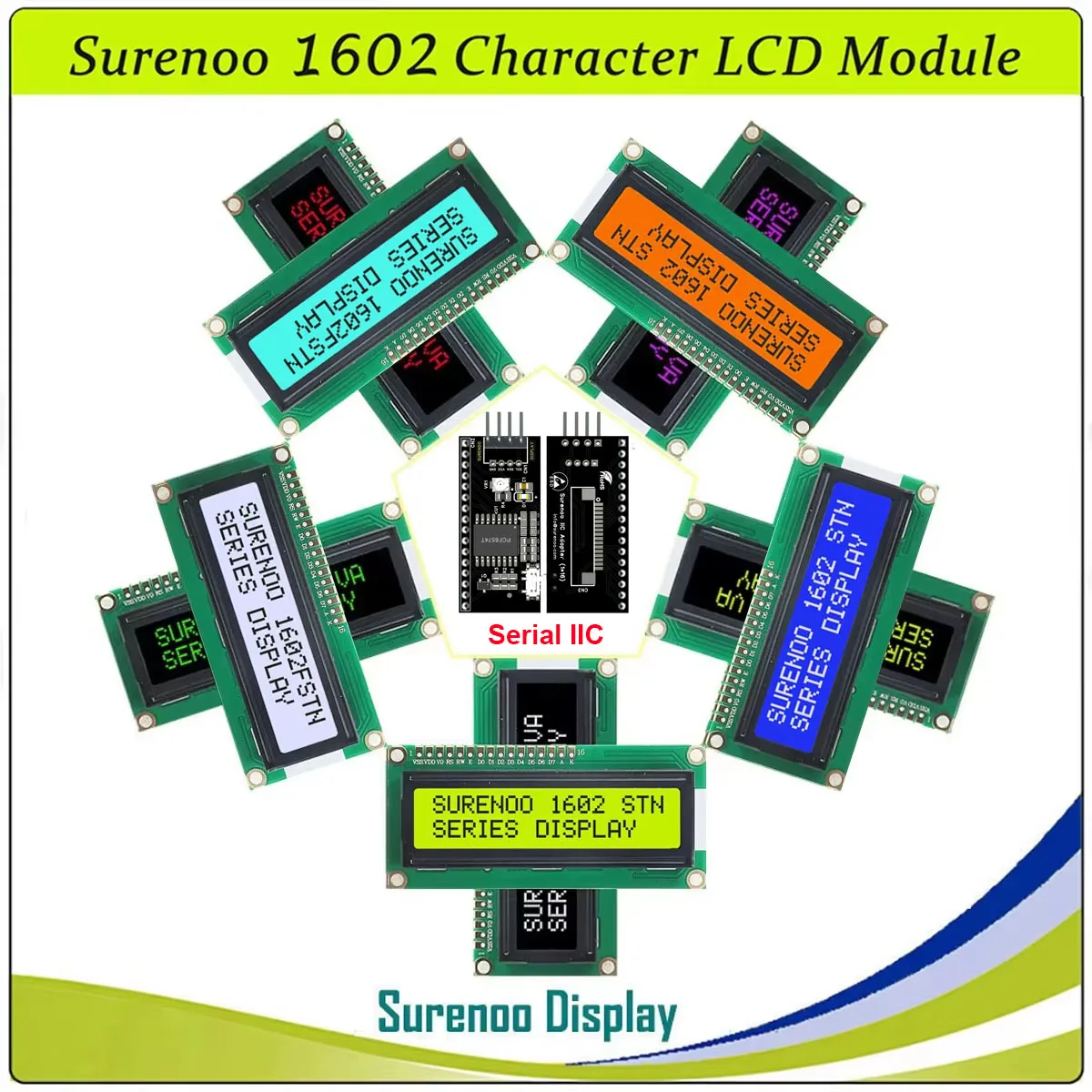
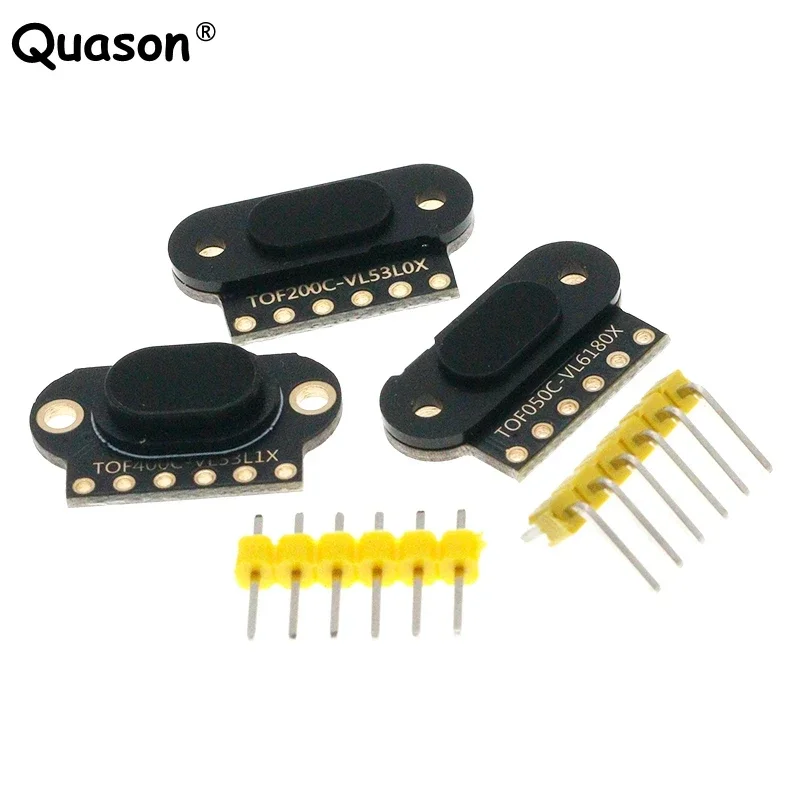
This video explains how to display input voltage at A0 pin as a bar graph on LCD1602-I2C and LCD2014-I2C displays. Robojax LCD Bargraph Library (zip file) I2C Scanner Introduction to LCD1602-I2C with code Introduction to VL53L0X laser sensor Arduino You Know Course on Udemy194-VL53L0X laser distance as bar graph
语言: C++
/*
 *
 * This Arduino sketch displays the distance measured
 * using a VL53L0X laser sensor as a bar graph on an LCD1602-I2C.
 * (Simple project)
 * Advanced code at http://bit.ly/rj-udemy
 *
 * Original library was taken from https://playground.arduino.cc/Code/LcdBarGraph/
 * Modified by Ahmad Shamshiri on May 31, 2019 at 03:43 in Ajax, Ontario, Canada
 * Visit http://robojax.com/learn/arduino for other Arduino codes
 * Watch YouTube video instructions for this code: https://youtu.be/vJStXiSS23Q
 *
 * Robojax Arduino Course on Udemy where you get a schematic diagram of this sketch
 * and many other robotics-related lectures and codes. Purchase the course here: http://bit.ly/rj-udemy
 *

 * This code is "AS IS" without warranty or liability. Free to be used as long as you keep this note intact.
 * This code has been downloaded from Robojax.com
    This program is free software: you can redistribute it and/or modify
    it under the terms of the GNU General Public License as published by
    the Free Software Foundation, either version 3 of the License, or
    (at your option) any later version.

    This program is distributed in the hope that it will be useful,
    but WITHOUT ANY WARRANTY; without even the implied warranty of
    MERCHANTABILITY or FITNESS FOR A PARTICULAR PURPOSE.  See the
    GNU General Public License for more details.

    You should have received a copy of the GNU General Public License
    along with this program.  If not, see <https://www.gnu.org/licenses/>.
 */
/*
 *

This is Arduino code to measure distance with a VL53L0X and display it on an LCD1602 with an I2C module.
Distance is displayed in mm (millimeter) or cm (centimeter).

Original Laser Sensor source: https://github.com/adafruit/Adafruit_VL53L0X
Modified by Ahmad Shamshiri for Robojax.com
Date Modified: June 28, 2018 at 19:06 in Ajax, Ontario, Canada


Pin connection

VL53L0X Pin  Arduino Pin
VCC         5V
GND         GND
SDA         A4 or SDA if available
SCL         A5 or SCL if available
GPIO1       leave it unconnected
XSHUT       unconnected


*/


#include <Wire.h>
#include <VL53L0X.h>
VL53L0X sensor;
#define maxDistance 200

int VCC2= 2;// 2nd VCC for laser sensor

#include <LiquidCrystal_I2C.h>
byte lcdNumCols = 16; // -- number of columns in the LCD
byte lcdLine = 2; // -- number of line in the LCD
// Set the LCD address to 0x26/0x3F for a 16 chars and 2 line display
LiquidCrystal_I2C lcd(0x3f, lcdNumCols, lcdLine);// use I2C Scanner to find the address: 0x27 or something like that

#include <LcdBarGraphRobojax.h>
LcdBarGraphRobojax rjx(&lcd, 16, 0, 0);  // -- creating 16 character long bargraph starting at char 0 of line 0 (see video)


void setup()
{

  Serial.begin(9600);
  pinMode(VCC2, OUTPUT);// set pin 13 HIGH for extra 5V
  digitalWrite(VCC2, HIGH);// make pin 13 HIGH so we have extra 5V

  Wire.begin();

  sensor.init();
  sensor.setTimeout(500);

  // Start continuous back-to-back mode (take readings as
  // fast as possible).  To use continuous timed mode
  // instead, provide a desired inter-measurement period in
  // ms (e.g. sensor.startContinuous(100)).
  sensor.startContinuous();

  // initialize the LCD,
    lcd.begin();
  lcd.clear();
  lcd.print("Robojax");
  lcd.setCursor (0,1); //
  lcd.print("Bargraph VL53L0X");
    // Turn on the blacklight and print a message.
  //lcd.backlight();
  // -- do some delay: some time I've got broken visualization

  delay(2000);
 lcd.clear();// clear the screen from previous value

}

void loop()
{
  int distance =sensor.readRangeContinuousMillimeters();
  if(maxDistance<distance){
    distance=0;
  }
  //int distance =sensor.startContinuous(100);
  rjx.clearLine(1);// clear line 1 to display fresh voltage value

  // -- draw bar graph from the analog value read
  rjx.drawValue( distance, maxDistance);
  // -- do some delay: frequent draw may cause broken visualization


  lcd.setCursor (0,1); // go to start of 2nd line
  lcd.print("Dist.:");
  lcd.setCursor (7,1); // go to start of 2nd line
  lcd.print(distance);
  lcd.print("mm");


  if (sensor.timeoutOccurred()) { Serial.print(" TIMEOUT"); }

  Serial.println();
  delay(500);
}
资源与参考
文件📁
Arduino 库(zip 格式)
-
Robojax LCD Bargraph Library (ZIP file)
robojax-LCD-bargraph-Library.zip0.10 MB