Come utilizzare due o più moduli LCD1602-I2C con Arduino
Questo progetto dimostra come collegare e controllare due o più display LCD1602 con moduli I2C a un singolo Arduino. Questa configurazione è altamente versatile e apre una serie di possibilità per visualizzare dati su più schermi.
Ecco alcune idee di progetto che utilizzano più LCD:
- Visualizzazione delle letture dei sensori da diverse posizioni su schermi separati.
- Creazione di un display informativo multi-schermo per un progetto.
- Creare un'interfaccia basata su menu con opzioni di navigazione su uno schermo e contenuto su un altro.
- Estendere l'area di visualizzazione per i progetti che richiedono più di 16x2 caratteri.
Hardware/Componenti
- Arduino Uno (o altra scheda compatibile)
- Due o più display LCD1602 con zaini I2C
- Cavi jumper
- Potenziometro (per la regolazione del contrasto sugli LCD - solitamente incluso con il backpack I2C)
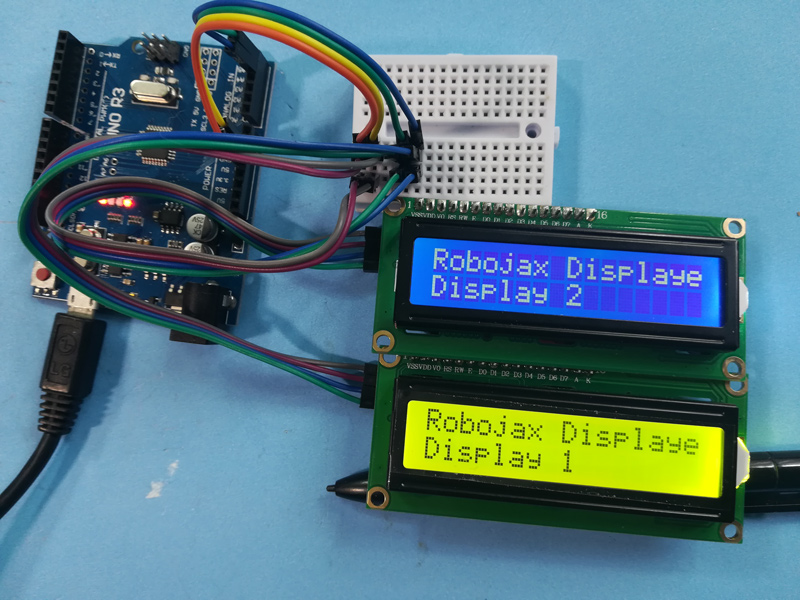
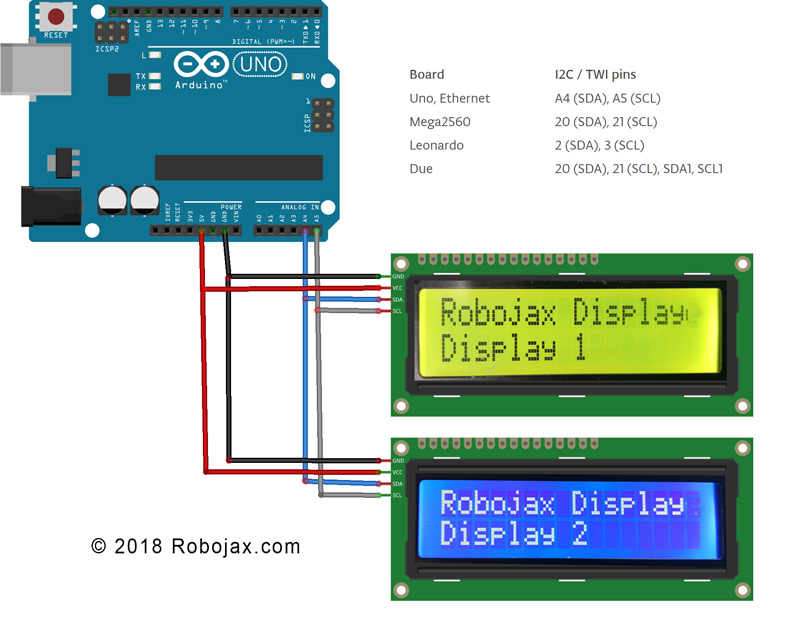
Guida all'impianto elettrico
(in video at 01:16)
- Collega il pin VCC di ciascun LCD I2C al pin 5V dell'Arduino.
- Collegare il pin GND di ciascun LCD I2C al pin GND dell'Arduino.
- Collega il pin SDA di ciascun LCD I2C al pin SDA dell'Arduino (A4 su Uno).
- Collegare il pin SCL di ogni LCD I2C al pin SCL dell'Arduino (A5 su Uno).
Per altre schede Arduino, consulta il diagramma dei pin per i pin SDA e SCL (nel video al 02:20).
Indirizzo:Ogni LCD ha bisogno di un indirizzo I2C unico. Questo viene solitamente impostato utilizzando pad di saldatura sul backpack I2C (nel video al 02:41). Usa il codice dello scanner I2C fornito (nel video al 06:16) per determinare l'indirizzo di ciascun LCD.
Spiegazione del codice
Il codice è progettato per facilitare la visualizzazione di vari tipi di dati (interi, float, stringhe) su più LCD. La funzionalità principale ruota attorno a funzioni personalizzate:
LiquidCrystal_I2C lcd1(0x3F, 16, 2); // Display 1 (in video at 05:24)
LiquidCrystal_I2C lcd2(0x26, 16, 2); // Display 2
// ... add more LCD objects as needed
Sostituire0x3Fe0x26con gli indirizzi I2C dei tuoi LCD.
lcdDisplay(1, 0, "Age: ", intToStr(age), " years"); // (in video at 09:23)
Questa funzione semplifica la visualizzazione dei dati su un LCD specifico (primo argomento), riga (secondo argomento), con un titolo (terzo argomento), valore (quarto argomento) e unità (quinto argomento). IlintToStr()efloatToStr()le funzioni convertono i dati numerici in stringhe per la visualizzazione.
Progetto dal vivo/Demostrazione
La dimostrazione mostra come visualizzare età, giorni, peso e voltaggio su due diversi LCD. I valori vengono aggiornati dinamicamente nel ciclo.
Capitoli
- [00:00] Introduzione e panoramica del progetto
- [01:16] Spiegazione del cablaggio
- [02:20] Pinout della scheda Arduino
- [02:41] Indirizzamento I2C
- [04:40] Panoramica del codice
- [06:16] Scanner I2C
- [07:21] Posizioni decimali e formattazione dei numeri
- [08:00] Funzione di configurazione
- [08:58] Funzione di loop e visualizzazione dei dati
- [12:01] Funzione di Visualizzazione Personalizzata
- [13:10] Funzioni di Conversione delle Stringhe
Immagini
/*
 * Arduino code for use with two or more LCD1602 I2C displays with Arduino
 *  Custom function to display floats (like 2.45), integers (like 2 or 8), and strings
 *  very easily

 * This Arduino sketch makes it possible to use two displays at the same time.
 *
* Watch video instructions for this code: https://youtu.be/L6ekl2ABcuY
* *
 * Written by Ahmad Shamshiri for Robojax.com on Saturday, November 17, 2018
 * at 20:45 in Ajax, Ontario, Canada
 *

 * This code is "AS IS" without warranty or liability. Free to be used as long as you keep this note intact.
 * This code has been downloaded from Robojax.com
    This program is free software: you can redistribute it and/or modify
    it under the terms of the GNU General Public License as published by
    the Free Software Foundation, either version 3 of the License, or
    (at your option) any later version.

    This program is distributed in the hope that it will be useful,
    but WITHOUT ANY WARRANTY; without even the implied warranty of
    MERCHANTABILITY or FITNESS FOR A PARTICULAR PURPOSE.  See the
    GNU General Public License for more details.

    You should have received a copy of the GNU General Public License
    along with this program.  If not, see <https://www.gnu.org/licenses/>.
 */


#include <Wire.h> // this is part of arduino
#include <LiquidCrystal_I2C.h>

LiquidCrystal_I2C lcd1(0x3F, 16, 2);// display 1
LiquidCrystal_I2C lcd2(0x26, 16, 2);// display 2


// number settings
const int decimals = 2;// number of decimal places needed to be displayed
const int positions = 5;// total position of numbers including the decimal places

void setup() {
  // initialize the LCD
  lcd1.begin();//initialize LCD1
  lcd2.begin();//initialize LCD2
  lcd1.backlight();// turn the backlight ON for the LCD1
  lcd2.backlight();// turn the backlight ON for the LCD2


  Serial.begin(9600);// initialize serial monitor with 9600 baud

      lcd1.print("Robojax Display");
      lcd1.setCursor(0,1);
      lcd1.print("Display 1");

      lcd2.print("Robojax Display");
      lcd2.setCursor(0,1);
      lcd2.print("Display 2");

      Serial.println("Robojax Displays");
      Serial.println("2 or More");

  delay(3000);// change this line if you want not to wait
  lcd1.clear();// clear screen 1
  lcd2.clear();// clear screen 2
}

void loop() {
  // Robojax.com multiple LCD1602 I2C display

  int age = 31;
  int days= age * 365;
  float weight = 4.84;
  float voltage = 22.1;


      lcdDisplay(1, 0, "Age: ", intToStr(age), " years"); // print "Age: 31 years" to line 1 of display 1
      lcdDisplay(1, 1, "Days: ", intToStr(days), " days");// print "Days: 11351 days" to line 2 of display 1

      lcdDisplay(2, 0, "Weight: ", floatToStr(weight), " kg");//print "Weight: 2.84 kg" to line 1 of display 2
      lcdDisplay(2, 1, "Voltage: ", floatToStr(voltage), "V");// print "Voltage 22.10V" to line 2 of display 2

      Serial.println("Age: ");Serial.print(age); Serial.print(" years");
      Serial.println("Days: ");Serial.print(days); Serial.print(" days");
    Serial.println("====");

 delay(50); // wait for 200 milliseconds
}// loop end


/*
 * Written by Ahmad Shamshiri on November 17, 2018 for Robojax.com
 * lcdDisplay(int dis, int rowNum, String titleText, String valueText, String value2Text)
  for example to display:
 * dis is the display number
 * rowNum  is the row number  (0 or 1)
 * titleText is the text (e.g., "Voltage:")
 * valueText is the value
 *  value2Text is the text appended to the valueText (e.g., "A", "V", etc.)
 *
 * @brief Prints text on the screen on a specific row and character.
 * @param tc=text character number, trc=text row number,
 * @return the remaining time as an integer (seconds)

 *
 */
void lcdDisplay(int dis, int rowNum, String titleText, String valueText, String value2Text)
{
    clearRow(dis,rowNum);
    String myStr;
    myStr = String(valueText);

    int titleTextLength = titleText.length();
   // Robojax.com multiple LCD1602 I2C display
   if(dis ==1)
   {
     lcd1.setCursor (0,rowNum); //
     lcd1.print(titleText);

     lcd1.setCursor (titleTextLength,rowNum); //
     lcd1.print(myStr);

     lcd1.setCursor (myStr.length()+titleTextLength,rowNum); //
     lcd1.print(value2Text);
   }
   if(dis ==2)
   {
     lcd2.setCursor (0,rowNum); //
     lcd2.print(titleText);

     lcd2.setCursor (titleTextLength,rowNum); //
     lcd2.print(myStr);

     lcd2.setCursor (myStr.length()+titleTextLength,rowNum); //
     lcd2.print(value2Text);
   }

}

/*
 * Written by Ahmad Shamshiri on November 17, 2018 for Robojax.com
 * @brief Clears only one row of a specific display.
 * @param d, the display number (integer)
 * @param r, the row number (integer)
 * @return no return value
 */
void clearRow(int d,int r)
{
  //
  for(int i=0; i<16; i++)
  {
    if(d ==1)
    {
      lcd1.setCursor (i,r); //
      lcd1.print(" ");
    }
    if(d ==2)
    {
      lcd2.setCursor (i,r); //
      lcd2.print(" ");
    }

  }
}//clearRow end


/*
 * Written by Ahmad Shamshiri on November 18, 2018 for Robojax.com
 * @brief Converts an integer to a string.
 * @param a, the integer to convert.
 * @return the converted value as a string.
 */
String intToStr(int a)
{

  return String(a);
}//intToStr end


/*
 * Written by Ahmad Shamshiri on November 18, 2018 for Robojax.com
 * @brief Converts a float to a string.
 * @param a, the float to convert.
 * @return the converted value as a string.
 */
String floatToStr(float a)
{
  char buff[6]; // create a buffer of 6 characters
  dtostrf(a, positions, decimals, buff );// 5 positions and 2 decimal places
  return buff;// return the buffer
}//floatToStr end
Cose di cui potresti avere bisogno
-
AmazonAcquista LCD1602-I2C da Amazonamzn.to
-
eBayAcquista LCD1602-I2C da eBayebay.us
-
AliExpressAcquista 10 pezzi di LCD1602-I2C da AliExpresss.click.aliexpress.com
-
AliExpressAcquista LCD1602-I2C da AliExpresss.click.aliexpress.com
Risorse e riferimenti
-
EsternoPagina di documentazione di Arduino Wirearduino.cc
File📁
File Fritzing
-
Modulo LCD LCD1602-I2C con 4 fili
LCD1602-I2C.fzpz0.01 MB
Altri file
-
Libreria LiquidCrystal LCD1602
robojax-LCD1602_LiquidCrystal.zip




![Arduino Motor Shield REV3 [A000079] - NEW](https://i.ebayimg.com/images/g/JoQAAeSwEm9pG15L/s-l225.jpg)