ESP32 Tutorial 10/55 - Digital counter using Seven Segment Display 74HC595 -ESP32 IoT Learning kit
In this tutorial, we will create a digital counter using a seven-segment display controlled by the ESP32 microcontroller. The counter will increment from 0 to 9 and then decrement back to 0, providing a clear visual of the counting process. We will also explore how to turn on individual segments and display letters on the seven-segment display.
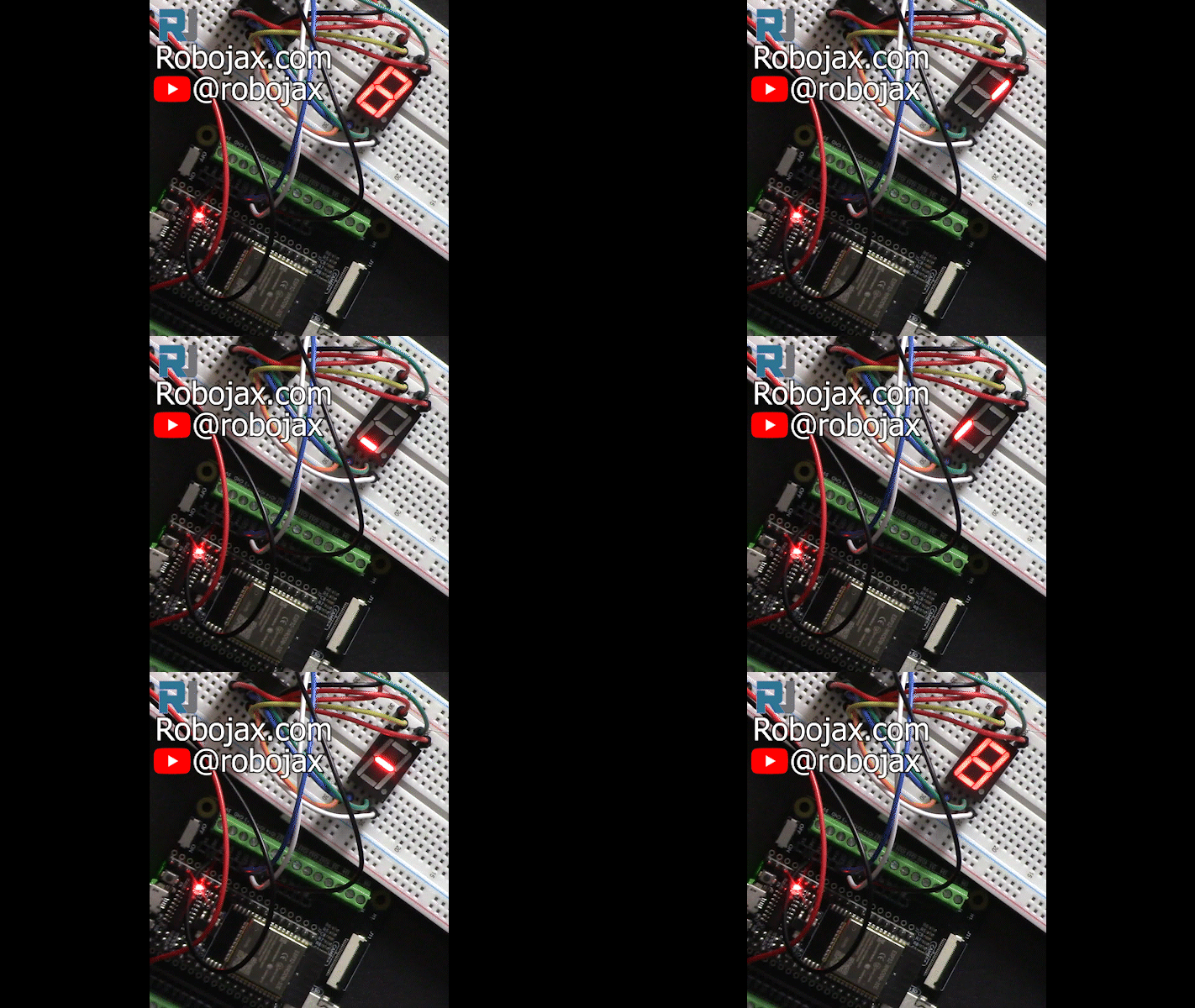
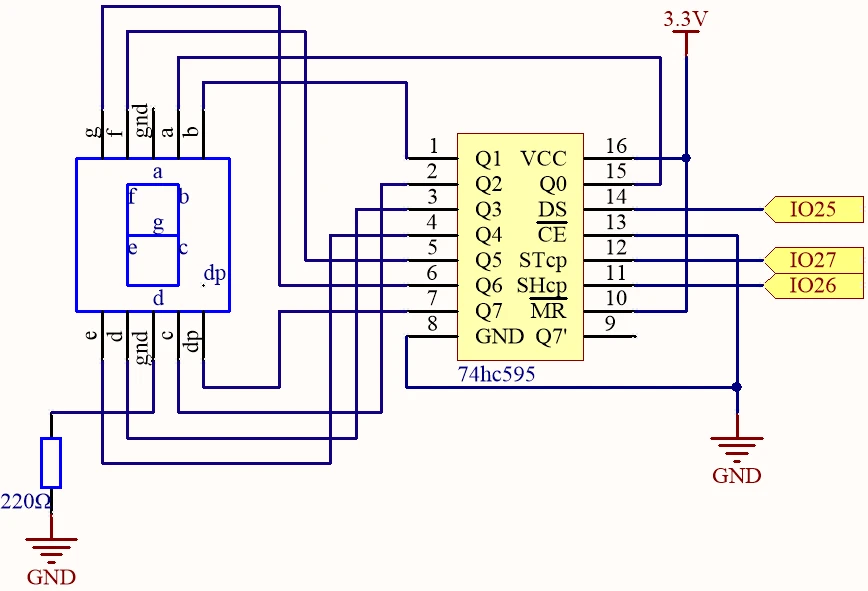
This project utilizes a 74HC595 shift register to control the display, allowing us to efficiently manage the segments without using too many GPIO pins on the ESP32. By sending binary values to the shift register, we can light up the corresponding segments to represent numbers and letters. For a deeper understanding of the process, you can refer to the video (in video at 03:15).
Hardware Explained
The main components of this project include the ESP32 microcontroller, a 74HC595 shift register, and a seven-segment display. The ESP32 is a powerful microcontroller with built-in Wi-Fi and Bluetooth capabilities, making it suitable for IoT projects. The 74HC595 is a shift register that allows us to control multiple outputs using only a few input pins. It works by taking serial data and converting it into parallel output, which is perfect for driving a seven-segment display.
The seven-segment display consists of seven individual LEDs arranged in a figure-eight pattern. Each segment can be turned on or off by sending the appropriate binary value to the shift register. For instance, to display the number 0, all segments except the middle one (G) need to be lit.
Datasheet Details
| Manufacturer | Texas Instruments |
|---|---|
| Part number | 74HC595 |
| Logic/IO voltage | 2 V to 6 V |
| Supply voltage | 2 V to 6 V |
| Output current (per channel) | 6 mA |
| Peak current (per channel) | 35 mA |
| PWM frequency guidance | Up to 1 kHz |
| Input logic thresholds | 0.3 VCC to 0.7 VCC |
| Voltage drop / RDS(on) / saturation | 0.2 V max |
| Thermal limits | 125 °C |
| Package | DIP-16 |
| Notes / variants | Available in various packages |
- Ensure proper voltage supply (2 V to 6 V).
- Limit output current to prevent overheating.
- Use separate resistors for each segment for optimal brightness.
- Be cautious of wiring to avoid shorts and incorrect connections.
- Follow the pinout carefully to avoid misconfiguration.
Wiring Instructions
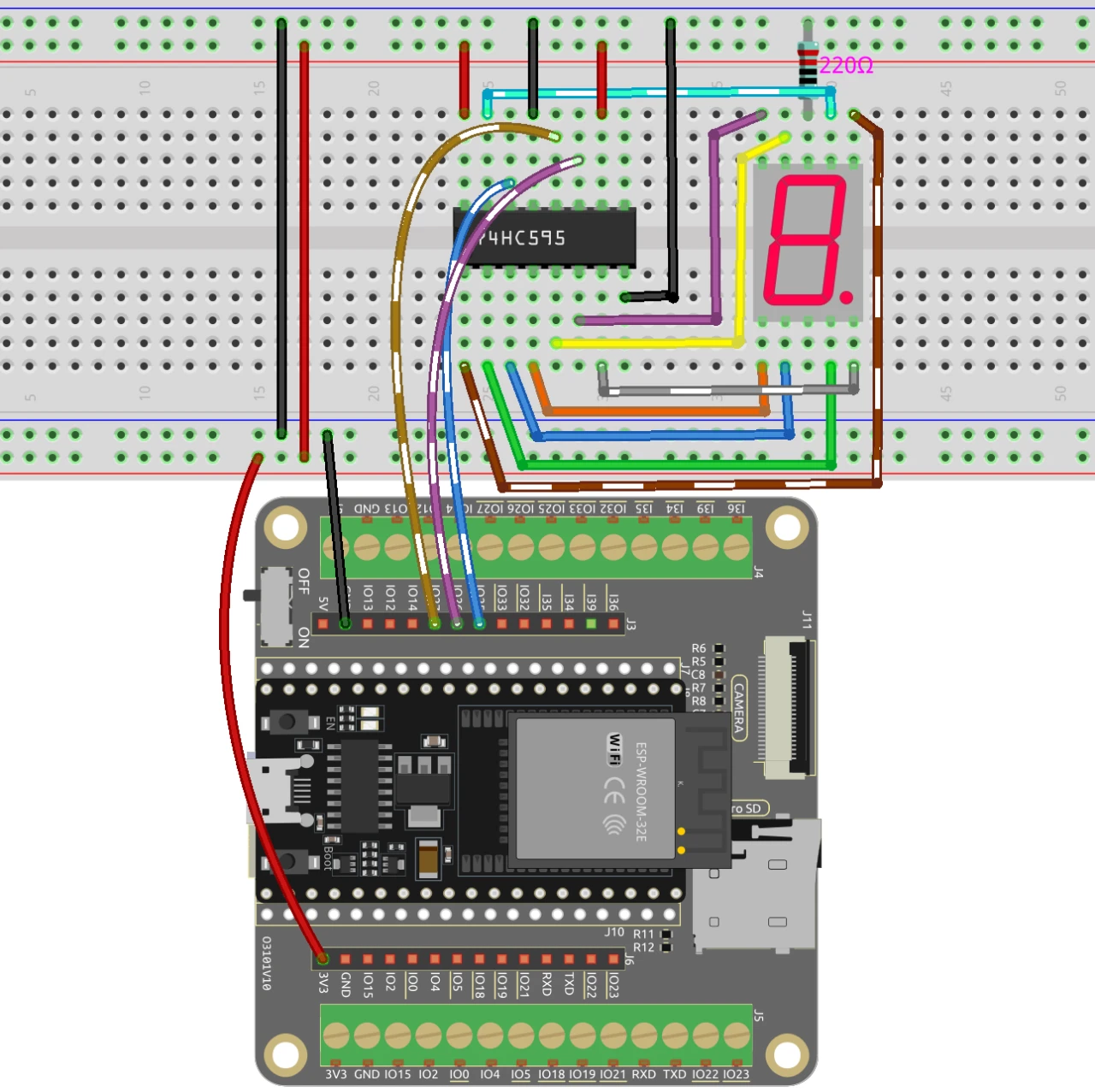
Begin by setting up your breadboard. Connect the ground rail (blue line) and the power rail (red line). The ground should connect to the blue line on one side of the breadboard, while the power should connect to the red line on the opposite side. Use a black wire to connect the ground of the ESP32 to the ground rail and a red wire to connect the 3.3V pin of the ESP32 to the power rail.
Next, insert the 74HC595 shift register into the breadboard, ensuring the notch is oriented correctly. Connect pin 11 (DS) to pin 25 on the ESP32, pin 12 (SH_CP) to pin 26, and pin 14 (ST_CP) to pin 27. Connect the ground (pin 8) of the shift register to the ground rail and pin 10 (MR) to the power rail for activation.
For the seven-segment display, connect the pins corresponding to the segments (a-g) to the output pins of the shift register. Use a resistor (220 ohm) in series for each segment to limit current. Ensure you have proper connections for the common pin, which can be either common anode or cathode based on your display type.
Code Examples & Walkthrough
In the setup function, we start by defining the pins connected to the shift register as outputs. This ensures that our ESP32 can control the data being sent to the display.
void setup ()
{
  //set pins to output
  pinMode(STcp,OUTPUT);
  pinMode(SHcp,OUTPUT);
  pinMode(DS,OUTPUT);
}
Here, we define STcp, SHcp, and DS as the pins connected to the ST_CP, SH_CP, and DS of the shift register, respectively. Setting these pins as outputs allows us to control the shift register.
The main loop of the program counts from 0 to 9, sending the corresponding values to the display using the shiftOut function.
for(int num = 0; num <10; num++)
{
    digitalWrite(STcp,LOW); //ground ST_CP and hold low for as long as you are transmitting
    shiftOut(DS,SHcp,MSBFIRST,datArray[num]);
    digitalWrite(STcp,HIGH); //pull the ST_CPST_CP to save the data
    delay(1000);
}
This loop increments the num variable, sending the corresponding value from the datArray to the display every second. The shiftOut function transmits the data to the shift register, which then lights up the appropriate segments.
Demonstration / What to Expect
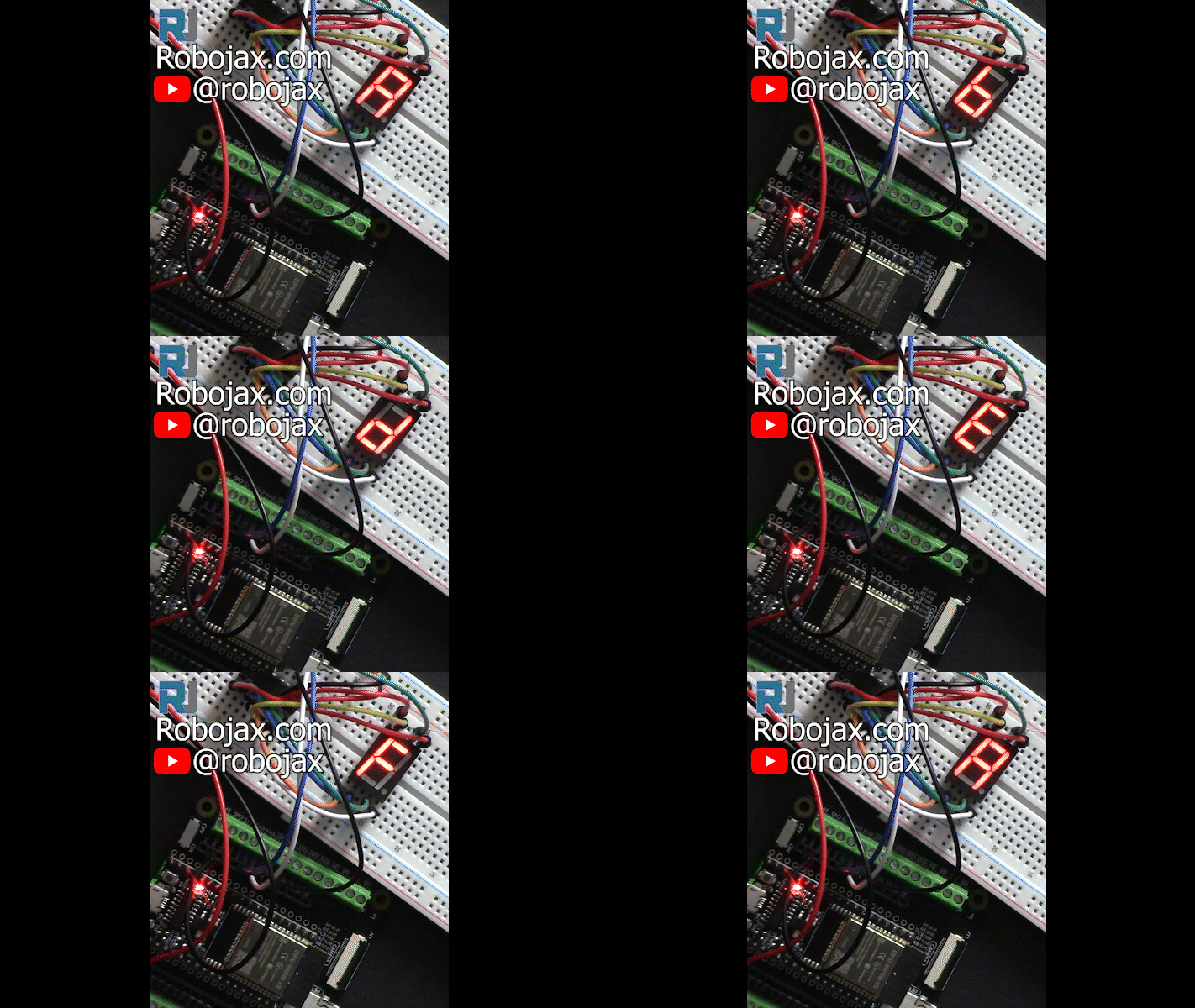
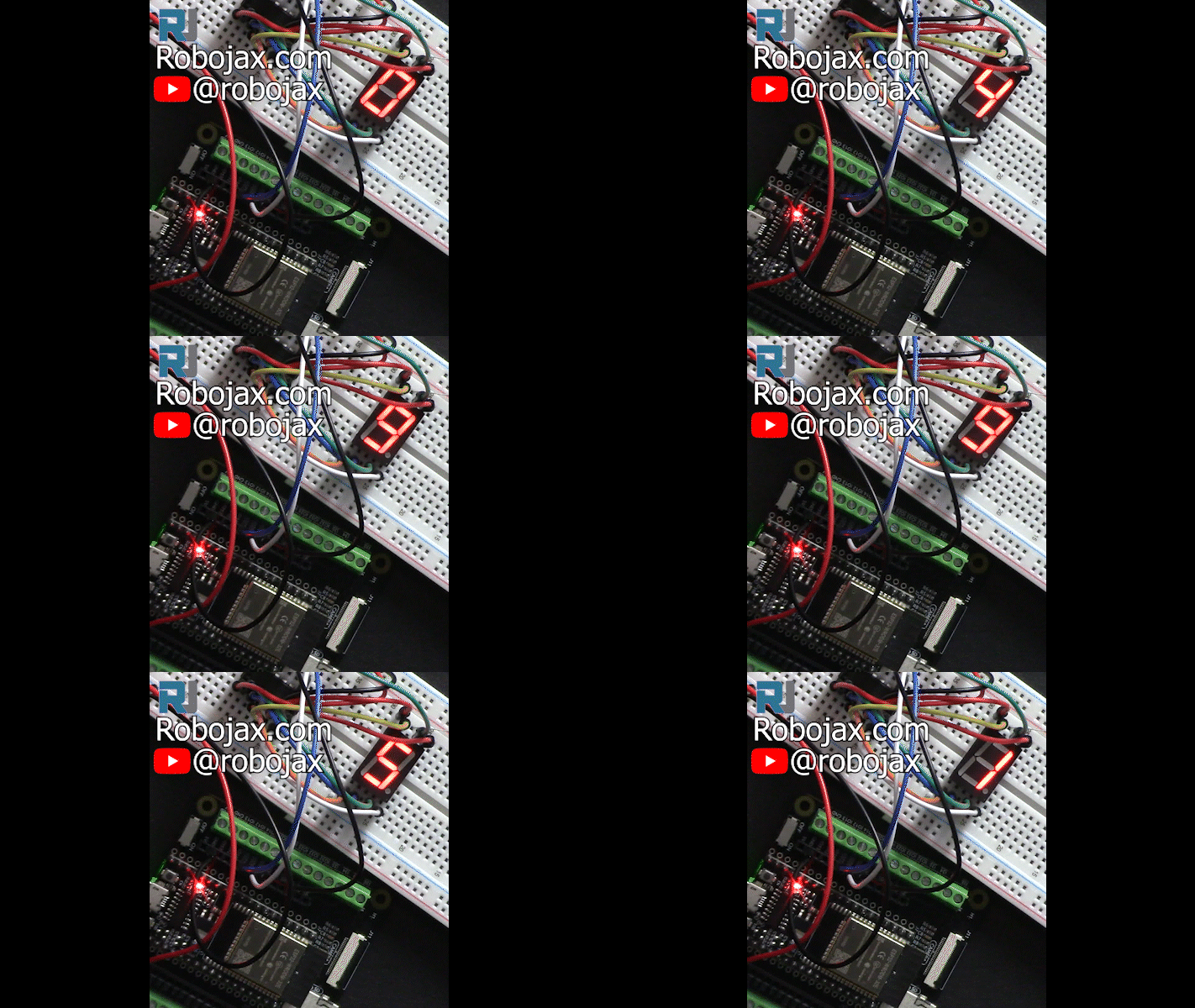
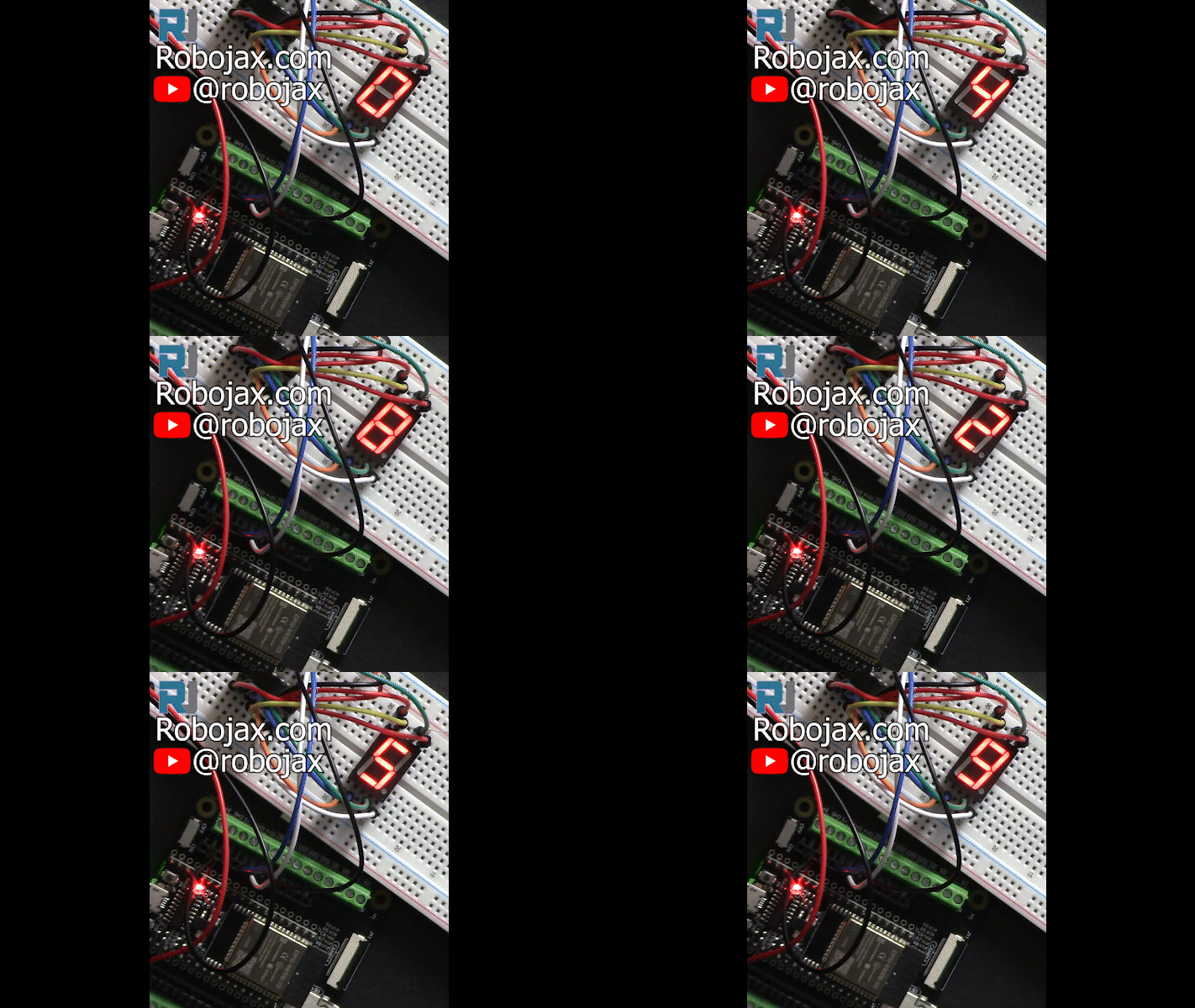
Once the wiring is complete and the code is uploaded, you should see the seven-segment display counting from 0 to 9, pausing briefly before counting back down to 0. Each number will be displayed for one second. If you want to speed up the counting, you can adjust the delay in the loop (in video at 15:30).
When manipulating the segments individually, remember to send the correct binary values to display letters or specific segments. If the display appears dim, consider adding individual resistors for each segment to ensure consistent brightness across the display.
Video Timestamps
- 00:00 Start
- 1:53 Introduction to seven segment
- 4:38 Wiring explained
- 13:15 Arduino Code-1
- 17:01 Selecting COM port and ESP32 board
- 18:43 Demonstration-1
- 20:13 Displaying one digit only
- 21:38 Up and down counter
- 23:07 Turning each segment ON/OFF
- 24:53 Displaying A, B, C, D, E and F
Images
const int STcp = 27;//ST_CP
const int SHcp = 26;//SH_CP
const int DS = 25; //DS

int datArray[] = {0x3f,0x06,0x5b,0x4f,0x66,0x6d,0x7d,0x07,0x7f,0x6f};

void setup ()
{
  //set pins to output
  pinMode(STcp,OUTPUT);
  pinMode(SHcp,OUTPUT);
  pinMode(DS,OUTPUT);
}
void loop()
{
  for(int num = 0; num <10; num++)
  {
    digitalWrite(STcp,LOW); //ground ST_CP and hold low for as long as you are transmitting
    shiftOut(DS,SHcp,MSBFIRST,datArray[num]);
    digitalWrite(STcp,HIGH); //pull the ST_CPST_CP to save the data
    delay(1000);
  }
}
Common Course Links
Common Course Files
Resources & references
-
DocumentationESP32 Tutorial 10/55 - SunFounder page for Seven Segmentdocs.sunfounder.com
Files📁
No files available.