ESP32 教程 12/55 - 使用 SunFounder 的 ESP32 IoT 学习套件进行 WS2812 RGB 灯带 4 项目
在本教程中,我们将探讨如何使用ESP32微控制器控制WS2812 LED灯带。该项目允许您创建各种颜色并单独控制每个LED,为学习编程和电子学提供了一种有趣且视觉上吸引人的方式。在本教程结束时,您将拥有一个功能齐全的设置,能够动态更改颜色和图案。

使用SunFounder的ESP32微控制器(内置Wi-Fi和蓝牙功能),我们可以轻松连接并控制WS2812 RGB LED灯带。该LED灯带的灵活性使其适用于创意应用,无论是装饰照明还是教育项目。为了更好地理解所涉及的步骤,您可以参考视频(视频中00:00处)。
硬件说明
该项目的主要组件包括ESP32微控制器和WS2812 LED灯带。ESP32是一款功能强大的微控制器,可以执行与Arduino类似的任务,但具有更多的连接选项。它拥有丰富的功能,能够连接到云端,实现远程控制和数据记录。
WS2812 LED灯带由可单独寻址的RGB LED组成,这意味着每个LED都可以被控制以显示不同的颜色。该灯带采用单线协议工作,允许多个LED串联而不损失信号质量。每个LED都包含一个内置驱动器,接收输入信号并将其放大以传递给链中的下一个LED。
数据手册详情
| 制造商 | Worldsemi |
|---|---|
| 零件编号 | WS2812 |
| 逻辑/IO电压 | 3.5–5.3 V |
| 电源电压 | 5 V |
| 输出电流(每通道) | 最大20 mA |
| 峰值电流(每通道) | 最大60 mA |
| PWM频率建议 | 400 Hz |
| 输入逻辑阈值 | 0.3 x VDD 至 0.7 x VDD |
| 压降 / RDS(on) / 饱和 | 最大0.5 V |
| 热限制 | -25 至 80 °C |
| 封装 | 5050 |
| 备注 / 变体 | 可串联以延长灯带长度 |
- 确保提供正确的电源(5 V),以避免损坏LED。
- 在电源端子两端使用电容器(100 µF)以平滑电压尖峰。
- 保持数据线较短以减少信号衰减。
- 注意LED温度;确保适当的散热。
- 连接电源和地线时注意正确的极性。
- 如果使用长灯带,请在数据线上使用上拉电阻。
接线说明
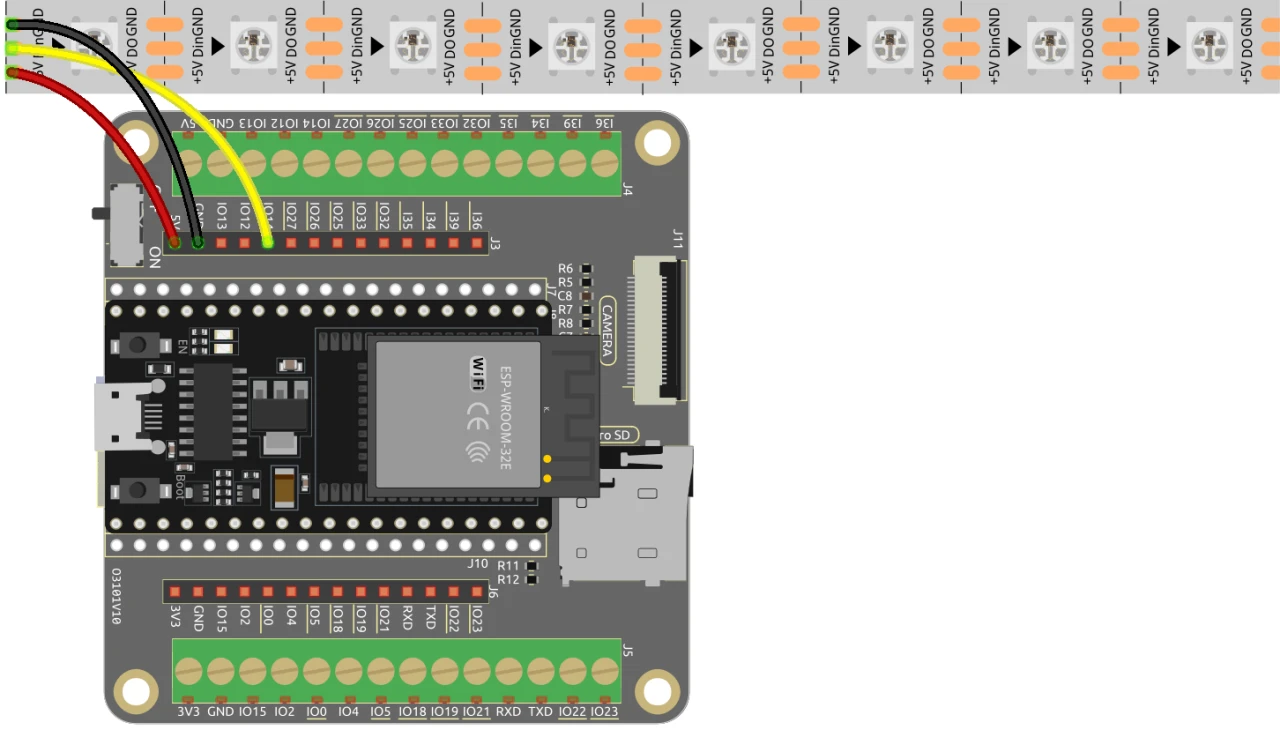
要将WS2812 LED灯带连接到ESP32,首先连接电源。LED灯带的+5V线应连接到ESP32上的5V引脚,地线(GND)应连接到ESP32上的一个GND引脚。
接下来,将LED灯带的数据输入线连接到ESP32上的引脚14。确保连接牢固,以保证数据传输正常。如果您使用多条灯带或更长的距离,请考虑使用电平转换器以确保信号完整性。此设置将允许您直接从ESP32控制LED灯带。
代码示例与讲解
该代码使用Adafruit NeoPixel库来控制WS2812 LED灯带。它首先初始化LED灯带并将初始颜色设置为黑色。代码中的关键标识符包括LED_PIN,它定义了连接到LED灯带数据线的引脚,以及NUM_LEDS,它指定了灯带中LED的数量。
#include  // 包含Adafruit NeoPixel库

#define LED_PIN 14 // NeoPixel LED灯带
#define NUM_LEDS 8 // LED数量
在setup函数中,使用strip.begin()初始化灯带,并使用strip.show()将初始颜色设置为黑色。这为程序运行时更改颜色做好了准备。
void setup() {
  strip.begin(); // 初始化NeoPixel灯带
  strip.show(); // 将初始颜色设置为黑色
}
程序的主循环由两个for循环组成。第一个循环通过设置每个LED的颜色并更新灯带,逐个点亮LED。第二个循环以相同方式逐个关闭每个LED。这创建了一个简单但有效的灯光动画。
void loop() {
  // 逐个点亮LED
  for (int i = 0; i < NUM_LEDS; i++) {
    strip.setPixelColor(i, 100, 45, 0); // 将第i个LED的颜色设置为红色
    strip.show(); // 使用新颜色更新LED灯带
    delay(100); // 等待100毫秒
  }

  // 逐个关闭LED
  for (int i = 0; i < NUM_LEDS; i++) {
    strip.setPixelColor(i, 0, 0, 0); // 将第i个LED的颜色设置为黑色(将其关闭)
    strip.show(); // 使用新颜色更新LED灯带
    delay(100); // 等待100毫秒
  }
}
请观看文章下方的完整代码加载,以了解如何实现不同颜色效果和动画的更多细节。
演示 / 预期效果
完成接线并上传代码后,您应该会看到灯带上的LED以指定颜色逐个亮起,随后按相同顺序熄灭。这会产生一种“跑马灯”效果。如果LED未按预期亮起,请仔细检查接线连接,并确保电源供电充足。同时,请确认代码中定义的引脚正确(视频中12:30处)。
视频时间戳
- 00:00 开始
- 1:40 WS2812 LED介绍
- 7:25 项目文档页面
- 9:16 RGB颜色解释
- 13:16 接线说明
- 13:48 Arduino代码-1解释
- 19:03 在Arduino IDE中选择ESP32开发板和端口
- 20:45 代码-1演示
- 22:00 控制单个LED
- 24:16 流水灯LED
- 25:41 来回流动灯
图像

#include <Adafruit_NeoPixel.h> // 包含 Adafruit NeoPixel 库

#define LED_PIN 14 // NeoPixel LED灯条
#define NUM_LEDS 8 // LED数量

 // 创建一个Adafruit_NeoPixel类的实例
Adafruit_NeoPixel strip = Adafruit_NeoPixel(NUM_LEDS, LED_PIN, NEO_GRB + NEO_KHZ800);

void setup() {
  strip.begin(); // 初始化 NeoPixel 灯条
  strip.show(); // 将初始颜色设置为黑色
}

void loop() {
 // 逐个打开LED灯
  for (int i = 0; i < NUM_LEDS; i++) {
    strip.setPixelColor(i, 100, 45, 0); // 将第 i 个 LED 的颜色设置为红色。
    strip.show(); // 用新颜色更新LED灯带
    delay(100); // 等待100毫秒
  }

 // 逐个关闭LED灯
  for (int i = 0; i < NUM_LEDS; i++) {
    strip.setPixelColor(i, 0, 0, 0); // 将第 i 个 LED 的颜色设置为黑色(关掉它)
    strip.show(); // 用新颜色更新LED灯带
    delay(100); // 等待100毫秒
  }
}
Common Course Links
Common Course Files
|||您可能需要的东西
-
亚马逊从亚马逊购买WS2812 LED灯条amzn.to
-
易趣从eBay购买WS2812 LED条带ebay.us
-
全球速卖通从AliExpress-2购买WS2812 LED灯带s.click.aliexpress.com
-
全球速卖通从AliExpress购买WS2812 LED灯条s.click.aliexpress.com
-
Banggood从Banggood购买WS2812 LED灯带banggood.com
资源与参考
尚无可用资源。
文件📁
没有可用的文件。