ESP32 教程 29/55 - 使用ESP32读取红外遥控按键| SunFounder的ESP32物联网学习套件
在本教程中,我们将学习如何使用ESP32模块和兼容的红外接收器检测红外(IR)信号。当我们按下遥控器上的按钮时,ESP32将识别该信号并执行特定操作,例如针对特定按键发出蜂鸣器声音。该项目非常适合那些希望将遥控功能集成到ESP32应用中的人(视频中02:15处)。

ESP32是一款功能强大的微控制器,结合了Wi-Fi和蓝牙功能,适用于广泛的物联网应用。在本项目中,我们将使用红外接收器来解读遥控器发出的信号。按键操作将在代码中处理,使我们能够根据接收到的命令执行相应操作。
硬件说明
本项目的主要组件包括ESP32微控制器、红外接收器模块和蜂鸣器。ESP32作为操作的核心,处理从红外接收器接收到的信号。红外接收器检测遥控器发出的红外信号,并将其转换为ESP32能够理解的电气信号。
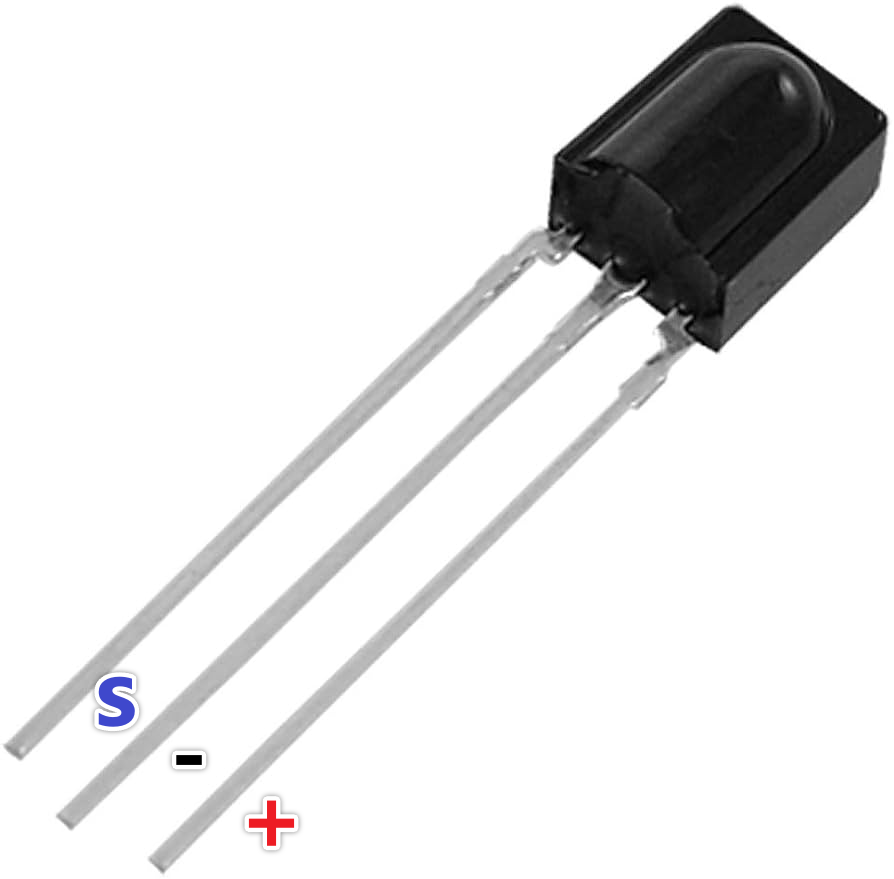
红外接收器通常有三个引脚:VCC(电源)、GND(接地)和OUT(信号)。VCC引脚连接到电源(3.3V或5V),而GND连接到地线。OUT引脚将解码后的信号发送到ESP32,然后可用于触发各种操作,例如在按下特定按键时激活蜂鸣器。
数据手册详情
| 制造商 | 夏普 |
|---|---|
| 零件编号 | GP1UXC41 |
| 逻辑/IO电压 | 3.3 - 5.0 V |
| 电源电压 | 3.3 V(典型值) |
| 输出电流(每通道) | 20 mA(最大) |
| 峰值电流(每通道) | 50 mA(最大) |
| PWM频率指导 | 38 kHz |
| 输入逻辑阈值 | 0.3 Vcc(高电平),0.2 Vcc(低电平) |
| 压降 / RDS(on) / 饱和电压 | 0.5 V(最大) |
| 热限制 | 85 °C(最大) |
| 封装 | TO-92 |
| 备注 / 变体 | 提供多种配置 |
- 确保电源供应正确,以避免损坏。
- 使用短线以尽量减少信号干扰。
- 连接前检查红外接收器的方向。
- 确认遥控器电池正常工作。
- 如有必要,使用上拉电阻以确保稳定性。
接线说明
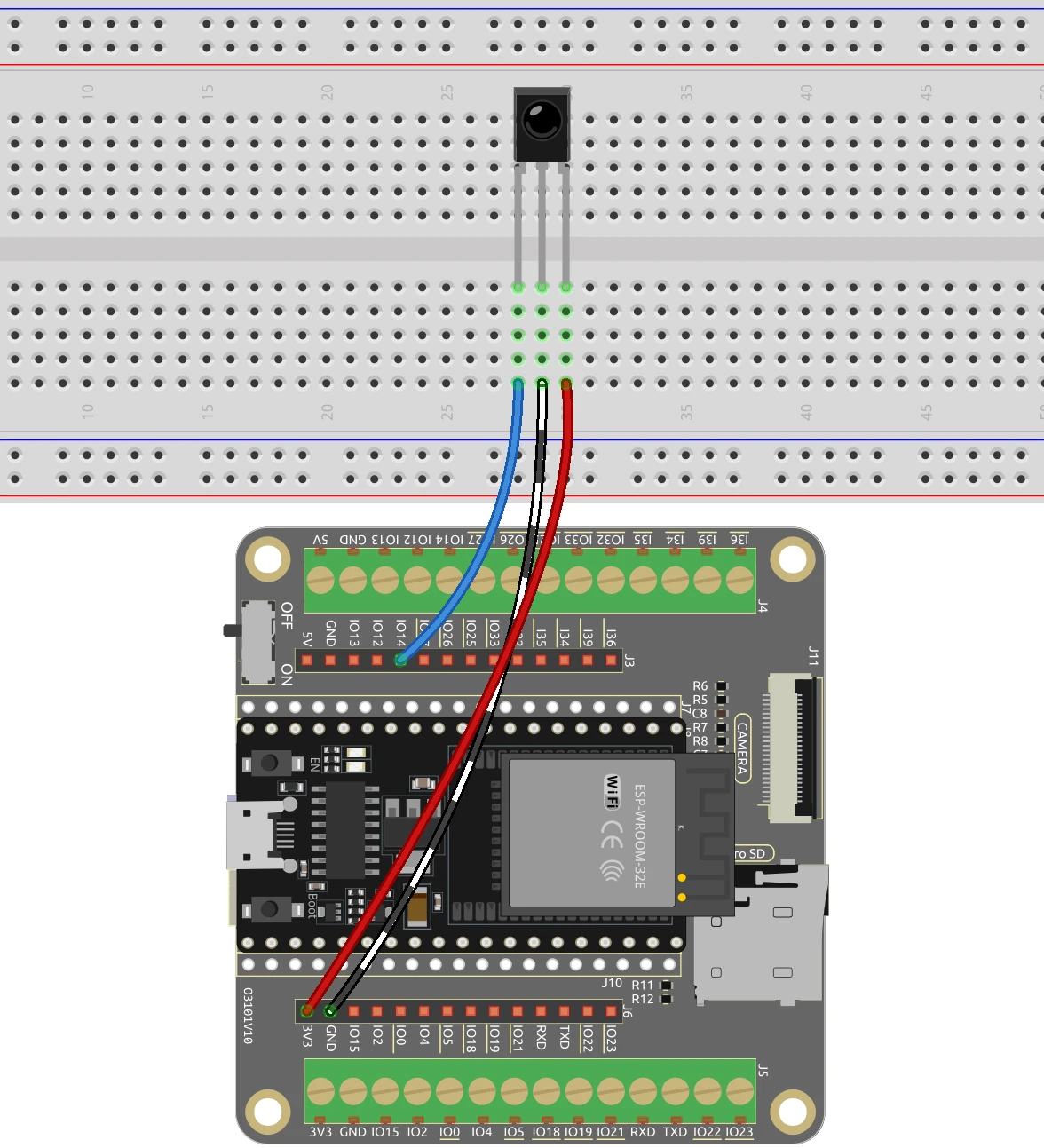
要将红外接收器连接到ESP32,首先识别红外接收器上的三个引脚:VCC、GND和OUT。将VCC引脚连接到ESP32上的3.3V电源。接下来,将GND引脚连接到ESP32上的一个接地(GND)引脚。最后,将OUT引脚连接到ESP32上的GPIO 14引脚,该引脚在代码中被指定用于红外接收器。

连接完成后,确保接线牢固。如果使用面包板,插入红外接收器时应使平面朝向自己,凸起部分在另一侧。这种方向有助于正确识别引脚。在给ESP32上电之前,务必验证连接是否正确。
代码示例与讲解

安装由David Conran、Sebastien编写的IRremoteESP8266库。
在代码中,我们使用常量IR_RECEIVE_PIN定义红外接收器引脚,该常量设置为14。我们还创建了一个IRrecv实例来处理红外信号。
const uint16_t IR_RECEIVE_PIN = 14;
IRrecv irrecv(IR_RECEIVE_PIN);
decode_results results;此设置使我们能够接收来自红外遥控器的信号。在setup()函数中,我们初始化串行通信并启用红外接收器。
void setup() {
  Serial.begin(115200);
  irrecv.enableIRIn();
}在loop()函数中,我们检查是否接收到红外信号。如果接收到,我们解码按键值并将其打印到串行监视器。
if (irrecv.decode(&results)) {
    String key = decodeKeyValue(results.value);
    Serial.println(key);
    irrecv.resume();
}此代码片段展示了我们如何解码接收到的信号并将相应的按键值打印到串行监视器。decodeKeyValue()函数将接收到的信号映射到特定的按钮值,例如“0”、“1”、“EQ”等。您可以在文章下方找到完整的代码。
演示 / 预期效果
接线完成并上传代码后,按下遥控器上的按钮,串口监视器应显示相应的键值。例如,按下“2”按钮将在监视器上打印“2”。如果按键无法识别,将返回“ERROR”。当按下指定按键(如“EQ”)时,蜂鸣器将发出声音,提供即时反馈。
注意常见的陷阱,例如连接极性接反或使用错误的电压电平。在测试您的设置之前,请确保遥控器正常工作且电池有电(视频中15:30处)。
视频时间戳
- 00:00 开始
- 2:05 红外接收器介绍
- 4:24 接线说明
- 6:08 红外接收器的Arduino代码说明
- 10:06 在Arduino IDE中选择ESP32开发板和COM端口
- 11:48 项目演示
- 13:09 有源蜂鸣器直接连接到ESP32
- 14:40 按键按下时执行操作
- 15:30 执行操作的Arduino代码
- 16:54 按键和蜂鸣器演示
图像
#include <IRremoteESP8266.h>
#include <IRrecv.h>

 // 定义红外接收器引脚
const uint16_t IR_RECEIVE_PIN = 14;

 // 创建一个 IRrecv 对象
IRrecv irrecv(IR_RECEIVE_PIN);

 // 创建一个 decode_results 对象
decode_results results;

void setup() {
 // 开始串行通信
  Serial.begin(115200);

 // 启动红外接收器
  irrecv.enableIRIn();
}

void loop() {
 // 如果接收到红外信号
  if (irrecv.decode(&results)) {
    String key = decodeKeyValue(results.value);
    if (key != "ERROR") {
 // 将信号的值打印到串行监视器上
      Serial.println(key);
    }
    irrecv.resume(); // 继续接收下一个信号
  }
}

 // 解码红外信号值的函数
String decodeKeyValue(long result)
{
  switch(result){
    case 0xFF6897:
      return "0";
    case 0xFF30CF:
      return "1";
    case 0xFF18E7:
      return "2";
    case 0xFF7A85:
      return "3";
    case 0xFF10EF:
      return "4";
    case 0xFF38C7:
      return "5";
    case 0xFF5AA5:
      return "6";
    case 0xFF42BD:
      return "7";
    case 0xFF4AB5:
      return "8";
    case 0xFF52AD:
      return "9";
    case 0xFF906F:
      return "+";
    case 0xFFA857:
      return "-";
    case 0xFFE01F:
      return "EQ";
    case 0xFFB04F:
      return "U/SD";
    case 0xFF9867:
      return "CYCLE";
    case 0xFF22DD:
      return "PLAY/PAUSE";
    case 0xFF02FD:
      return "BACKWARD";
    case 0xFFC23D:
      return "FORWARD";
    case 0xFFA25D:
      return "POWER";
    case 0xFFE21D:
      return "MUTE";
    case 0xFF629D:
      return "MODE";
    case 0xFFFFFFFF:
      return "ERROR";
    default :
      return "ERROR";
  }
}
Common Course Links
Common Course Files
|||您可能需要的东西
-
亚马逊从亚马逊购买红外遥控器amzn.to
-
易趣从eBay购买红外遥控器ebay.us
资源与参考
-
文档ESP32教程 23/55- SunFounder红外接收器文档页面docs.sunfounder.com
文件📁
数据手册 (pdf)
-
IR-remote_TL1838-Infrared-Receiver-datasheet
robojax-IR-remote_TL1838-Infrared-Receiver-datasheet.pdf0.46 MB