ESP32教程37/55 - 使用蓝牙应用与ESP32 BLE | SunFounder的ESP32物联网学习套件
在本教程中,我们将探讨如何将ESP32用作蓝牙服务器,从移动应用发送和接收消息。这使您的ESP32开发板与移动设备之间能够进行交互式通信,为您的物联网项目增添多功能性。学完本课后,您将能够从移动设备向ESP32发送文本,并在串行监视器上看到显示。
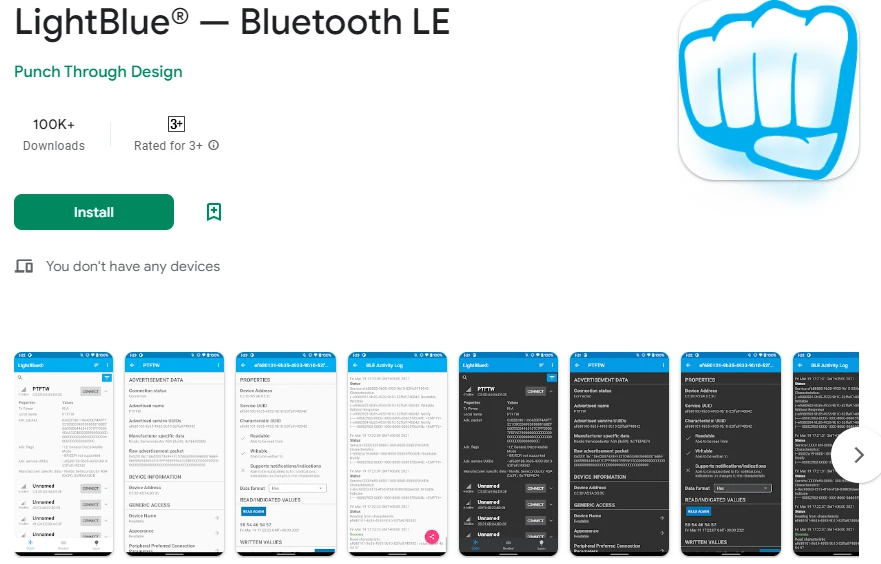
我们将使用可在iOS和Android上使用的LightBlue Explorer应用与ESP32通信。本教程是理解蓝牙低功耗(BLE)通信的基础,并为更高级的项目奠定基础。如需视觉指南,请参考视频(视频中02:00处)。
硬件说明
本项目的主要组件是ESP32微控制器,它集成了Wi-Fi和蓝牙功能。这使得ESP32能够充当服务器,无线接收和发送数据。ESP32内置的蓝牙功能支持BLE,使其在低功耗应用中高效运行。
除了ESP32,我们还将使用安装了LightBlue应用的移动设备。该应用允许用户连接到ESP32并通过蓝牙发送数据。这些组件的集成实现了ESP32与移动设备之间的无缝通信,增强了用户交互。
数据手册详情
| 制造商 | 乐鑫科技 |
|---|---|
| 零件编号 | ESP32-WROOM-32 |
| 逻辑/IO电压 | 3.3 V |
| 电源电压 | 3.0 – 3.6 V |
| 输出电流(每通道) | 40 mA |
| 峰值电流(每通道) | 160 mA |
| PWM频率指南 | 1 kHz |
| 输入逻辑阈值 | 0.2 VCC(低),0.8 VCC(高) |
| 压降 / RDS(on) / 饱和 | 0.1 V |
| 热限制 | 125 °C |
| 封装 | QFN48 |
| 备注 / 变体 | ESP32-WROOM-32, ESP32-WROVER |
- 确保稳定的电源供应(3.3 V),以防止欠压。
- 在电源引脚附近使用去耦电容。
- 如果使用高电流,请保持适当的散热。
- 注意GPIO引脚电压电平;它们兼容3.3 V。
- 根据需要为GPIO配置使用上拉或下拉电阻。
- 监控BLE连接;确保应用已正确配对。
- 验证服务和特性的UUID是唯一的。
- 定期检查串行监视器以获取调试消息。
- 考虑使用逻辑分析仪进行复杂信号故障排除。
接线说明
本项目的接线很简单,因为ESP32主要通过USB连接进行供电和编程。使用微型USB电缆将ESP32连接到计算机。确保USB端口提供足够的电源(通常为5 V)。串行监视器将用于调试,因此此应用无需额外的硬件连接。
在未来的项目中,当ESP32与外部组件一起使用时,请记住将接地引脚连接到公共地。这确保ESP32和任何连接的传感器或模块共享相同的参考点。此外,如果您使用电池,请将正极端子连接到3.3 V引脚,负极端子连接到ESP32上的接地引脚。
代码示例与讲解
提供的代码初始化蓝牙服务器,设置必要的服务和特性,并处理传入消息。关键标识符包括bleName,它定义蓝牙设备的名称,以及receivedText,它存储来自移动应用的传入消息。
const char *bleName = "ESP32_Bluetooth";
String receivedText = "";
setup()函数初始化串行通信和BLE设置。这对于与LightBlue应用建立连接至关重要。
void setup() {
  Serial.begin(115200);  // 初始化串行端口
  setupBLE();            // 初始化蓝牙BLE
}
在loop()函数中,代码检查传入消息。如果收到新消息,它会打印到串行监视器,并向连接的BLE设备发送通知。
if (receivedText.length() > 0 && millis() - lastMessageTime > 1000) {
    Serial.print("Received message: ");
    Serial.println(receivedText);
    pCharacteristic->setValue(receivedText.c_str());
    pCharacteristic->notify();
    receivedText = "";
}
如需全面理解,请参考文章下方加载的完整代码。这将为您提供成功实施项目所需的所有详细信息。
演示 / 预期效果
成功实施后,您应该能够从LightBlue应用向ESP32发送消息。当您输入消息(如“Hello”)时,它将出现在串行监视器上。此外,您还可以向应用发送消息,确认双向通信。如果遇到消息不显示等问题,请确保ESP32已与应用正确配对,并且UUID匹配。
视频时间戳
- 00:00 开始
- 2:10 项目介绍
- 2:45 文档页面
- 4:04 Arduino 代码
- 6:31 安装蓝牙应用
- 7:12 选择 ESP32 开发板和 COM 端口
- 8:54 项目演示
图像
#include "BLEDevice.h"
#include "BLEServer.h"
#include "BLEUtils.h"
#include "BLE2902.h"

// Define the Bluetooth device name
const char *bleName = "ESP32_Bluetooth";

// Define the received text and the time of the last message
String receivedText = "";
unsigned long lastMessageTime = 0;

// Define the UUIDs of the service and characteristics
#define SERVICE_UUID           "your_service_uuid_here"
#define CHARACTERISTIC_UUID_RX "your_rx_characteristic_uuid_here"
#define CHARACTERISTIC_UUID_TX "your_tx_characteristic_uuid_here"

// Define the Bluetooth characteristic
BLECharacteristic *pCharacteristic;

void setup() {
  Serial.begin(115200);  // Initialize the serial port
  setupBLE();            // Initialize the Bluetooth BLE
}

void loop() {
  // When the received text is not empty and the time since the last message is over 1 second
  // Send a notification and print the received text
  if (receivedText.length() > 0 && millis() - lastMessageTime > 1000) {
    Serial.print("Received message: ");
    Serial.println(receivedText);
    pCharacteristic->setValue(receivedText.c_str());
    pCharacteristic->notify();
    receivedText = "";
  }

  // Read data from the serial port and send it to BLE characteristic
  if (Serial.available() > 0) {
    String str = Serial.readStringUntil('\n');
    const char *newValue = str.c_str();
    pCharacteristic->setValue(newValue);
    pCharacteristic->notify();
  }
}

// Define the BLE server callbacks
class MyServerCallbacks : public BLEServerCallbacks {
  // Print the connection message when a client is connected
  void onConnect(BLEServer *pServer) {
    Serial.println("Connected");
  }
  // Print the disconnection message when a client is disconnected
  void onDisconnect(BLEServer *pServer) {
    Serial.println("Disconnected");
  }
};

// Define the BLE characteristic callbacks
class MyCharacteristicCallbacks : public BLECharacteristicCallbacks {
  void onWrite(BLECharacteristic *pCharacteristic) {
    // When data is received, get the data and save it to receivedText, and record the time
    std::string value = std::string(pCharacteristic->getValue().c_str());
    receivedText = String(value.c_str());
    lastMessageTime = millis();
    Serial.print("Received: ");
    Serial.println(receivedText);
  }
};

// Initialize the Bluetooth BLE
void setupBLE() {
  BLEDevice::init(bleName);                        // Initialize the BLE device
  BLEServer *pServer = BLEDevice::createServer();  // Create the BLE server
  // Print the error message if the BLE server creation fails
  if (pServer == nullptr) {
    Serial.println("Error creating BLE server");
    return;
  }
  pServer->setCallbacks(new MyServerCallbacks());  // Set the BLE server callbacks

  // Create the BLE service
  BLEService *pService = pServer->createService(SERVICE_UUID);
  // Print the error message if the BLE service creation fails
  if (pService == nullptr) {
    Serial.println("Error creating BLE service");
    return;
  }
  // Create the BLE characteristic for sending notifications
  pCharacteristic = pService->createCharacteristic(CHARACTERISTIC_UUID_TX, BLECharacteristic::PROPERTY_NOTIFY);
  pCharacteristic->addDescriptor(new BLE2902());  // Add the descriptor
  // Create the BLE characteristic for receiving data
  BLECharacteristic *pCharacteristicRX = pService->createCharacteristic(CHARACTERISTIC_UUID_RX, BLECharacteristic::PROPERTY_WRITE);
  pCharacteristicRX->setCallbacks(new MyCharacteristicCallbacks());  // Set the BLE characteristic callbacks
  pService->start();                                                 // Start the BLE service
  pServer->getAdvertising()->start();                                // Start advertising
  Serial.println("Waiting for a client connection...");              // Wait for a client connection
}
Common Course Links
Common Course Files
资源与参考
-
文档ESP32 教程 37/55 - SunFounder 蓝牙应用文档页面docs.sunfounder.com
文件📁
没有可用的文件。