ESP32教程44/55 - ESP32摄像头WiFi视频流网页服务器 CAM-2 | SunFounder的ESP32套件
在本教程中,我们将使用ESP32及其摄像头扩展模块创建一个实时气象站。该项目将使ESP32能够在LCD屏幕上显示温度和湿度等天气数据,同时通过Wi-Fi传输视频。在本教程结束时,您将拥有一个每10秒更新一次的全功能气象站,随时为您提供有价值的天气信息。如需更清晰的说明,请参考视频(视频中00:00处)。

硬件说明
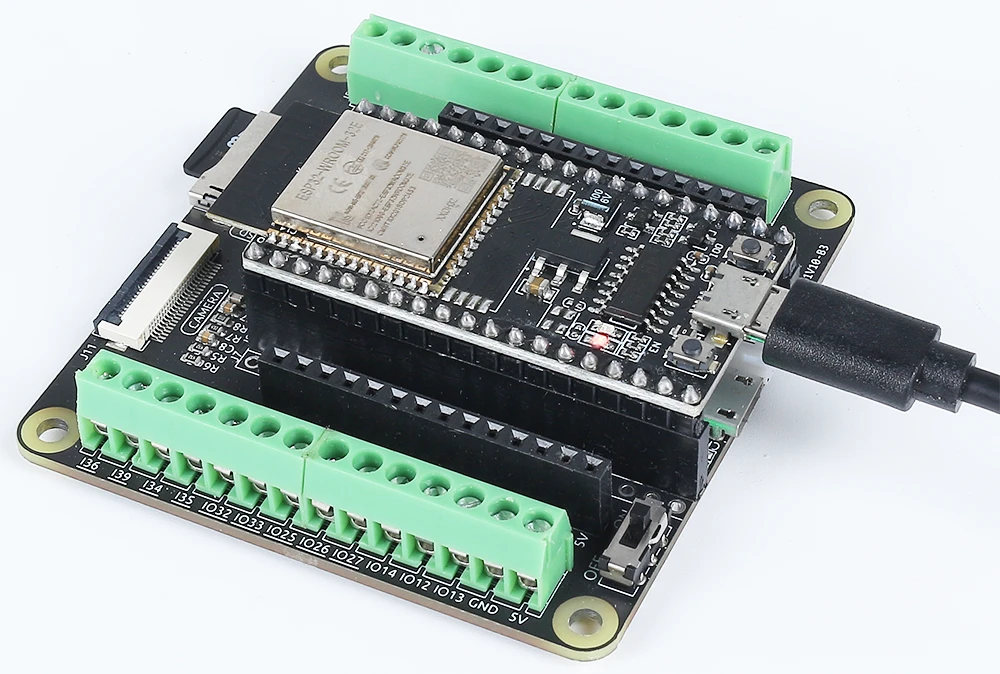
该项目的主要组件包括ESP32微控制器、LCD显示屏和摄像头模块。ESP32是一款功能强大的微控制器,具有内置Wi-Fi和蓝牙功能,可连接互联网并与其他设备通信。摄像头模块支持视频流传输,而LCD显示屏则向用户展示天气信息。
本项目使用的LCD是20x4字符显示屏,可同时显示大量信息。它连接到ESP32,用于显示从在线API获取的温度、湿度和其他天气数据。ESP32还包含电池管理系统,使其能够无线运行。
数据手册详情
| 制造商 | 乐鑫 |
|---|---|
| 型号 | ESP32-WROOM-32 |
| 逻辑/IO电压 | 3.3 V |
| 供电电压 | 3.0 - 3.6 V |
| 输出电流(每GPIO) | 12 mA |
| 峰值电流(每GPIO) | 40 mA |
| PWM频率建议 | 1 kHz |
| 输入逻辑阈值 | 0.3 * VDD 至 0.7 * VDD |
| 压降 / RDS(on) / 饱和电压 | 0.1 V(典型值) |
| 热限制 | 125 °C |
| 封装 | QFN48 |
| 备注 / 变体 | 包含PSRAM选项 |
- 确保电源供应正确(3.0 - 3.6 V)。
- 高电流应用时使用散热器。
- 注意GPIO电流限制(每引脚12 mA)。
- 正确连接LCD和摄像头,避免通信错误。
- 检查Wi-Fi凭据和API密钥以解决连接问题。
接线说明
要将ESP32与LCD和摄像头模块接线,首先连接电源和地线引脚。将ESP32的地线引脚连接到LCD和摄像头的地线。然后,将ESP32的5V引脚连接到LCD的VCC。对于摄像头,将棕色线连接到地线,红色线连接到5V,黄色线连接到GPIO 21,橙色线连接到GPIO 22。确保连接牢固,以避免运行期间出现问题。
接下来,将LCD连接到相应的GPIO引脚。具体引脚可能因您的设置而异,但通常您会将控制引脚连接到ESP32上指定的GPIO。请务必参考您特定LCD型号的数据手册或引脚图,以确认正确的接线。完成这些连接后,请仔细检查所有接线,确保没有松动或错误的连接。
代码示例与讲解
在代码中,我们首先包含处理摄像头和Wi-Fi功能所需的库。声明了必要的标识符,包括Wi-Fi凭据的ssid和password。使用camera_config_t结构体设置摄像头配置,在其中定义像素格式和帧大小等各种参数。
const char* ssid = "SSID";
const char* password = "PASSWORD";

void setup() {
  Serial.begin(115200);
  camera_config_t config;
  // ...(配置设置)
  esp_err_t err = esp_camera_init(&config);
  // 检查错误
}
此代码片段初始化摄像头并检查设置过程中是否有错误。如果摄像头初始化失败,将在串行监视器上打印错误消息。
接下来,我们处理Wi-Fi连接并启动摄像头服务器。连接循环持续运行,直到成功建立Wi-Fi连接,这对于从API获取天气数据至关重要。
WiFi.begin(ssid, password);
while (WiFi.status() != WL_CONNECTED) {
  delay(500);
  Serial.print(".");
}
startCameraServer();
在此部分中,我们启动Wi-Fi连接,并在连接建立之前在串行监视器上打印点号。连接成功后,启动摄像头服务器,从而实现视频流传输。
完整代码将加载在文章下方,您可以在其中看到所有部分如何组合在一起。
演示 / 预期效果
当所有接线完成并上传代码后,您可以预期ESP32将连接到Wi-Fi网络并开始每10秒获取一次天气数据。温度和湿度读数将显示在LCD屏幕上。此外,摄像头将通过Wi-Fi传输视频,可通过串行监视器中打印的本地IP地址访问。如果Wi-Fi连接失败,ESP32将通过串行输出通知您(视频中10:00处)。
视频时间戳
- 00:00 开始
- 1:42 ESP32-Cam介绍
- 4:30 Arduino代码讲解
- 7:35 在Arduino IDE中选择ESP32开发板和COM端口
- 9:17 演示
- 12:06 手机端演示
图像
#include "esp_camera.h"
#include <WiFi.h>

//
// WARNING!!! PSRAM IC required for UXGA resolution and high JPEG quality
//            Ensure ESP32 Wrover Module or other board with PSRAM is selected
//            Partial images will be transmitted if image exceeds buffer size
//
//            You must select partition scheme from the board menu that has at least 3MB APP space.
//            Face Recognition is DISABLED for ESP32 and ESP32-S2, because it takes up from 15
//            seconds to process single frame. Face Detection is ENABLED if PSRAM is enabled as well

// ===================
// Select camera model
// ===================
//#define CAMERA_MODEL_WROVER_KIT // Has PSRAM
// #define CAMERA_MODEL_ESP_EYE // Has PSRAM
//#define CAMERA_MODEL_ESP32S3_EYE // Has PSRAM
//#define CAMERA_MODEL_M5STACK_PSRAM // Has PSRAM
//#define CAMERA_MODEL_M5STACK_V2_PSRAM // M5Camera version B Has PSRAM
//#define CAMERA_MODEL_M5STACK_WIDE // Has PSRAM
//#define CAMERA_MODEL_M5STACK_ESP32CAM // No PSRAM
//#define CAMERA_MODEL_M5STACK_UNITCAM // No PSRAM
#define CAMERA_MODEL_AI_THINKER // Has PSRAM
//#define CAMERA_MODEL_TTGO_T_JOURNAL // No PSRAM
//#define CAMERA_MODEL_XIAO_ESP32S3 // Has PSRAM
// ** Espressif Internal Boards **
//#define CAMERA_MODEL_ESP32_CAM_BOARD
//#define CAMERA_MODEL_ESP32S2_CAM_BOARD
//#define CAMERA_MODEL_ESP32S3_CAM_LCD

#include "camera_pins.h"

// Replace the next variables with your SSID/Password combination
const char* ssid = "SSID";
const char* password = "PASSWORD";

void startCameraServer();
void setupLedFlash(int pin);

void setup() {
  Serial.begin(115200);
  Serial.setDebugOutput(true);
  Serial.println();

  camera_config_t config;
  config.ledc_channel = LEDC_CHANNEL_0;
  config.ledc_timer = LEDC_TIMER_0;
  config.pin_d0 = Y2_GPIO_NUM;
  config.pin_d1 = Y3_GPIO_NUM;
  config.pin_d2 = Y4_GPIO_NUM;
  config.pin_d3 = Y5_GPIO_NUM;
  config.pin_d4 = Y6_GPIO_NUM;
  config.pin_d5 = Y7_GPIO_NUM;
  config.pin_d6 = Y8_GPIO_NUM;
  config.pin_d7 = Y9_GPIO_NUM;
  config.pin_xclk = XCLK_GPIO_NUM;
  config.pin_pclk = PCLK_GPIO_NUM;
  config.pin_vsync = VSYNC_GPIO_NUM;
  config.pin_href = HREF_GPIO_NUM;
  config.pin_sccb_sda = SIOD_GPIO_NUM;
  config.pin_sccb_scl = SIOC_GPIO_NUM;
  config.pin_pwdn = PWDN_GPIO_NUM;
  config.pin_reset = RESET_GPIO_NUM;
  config.xclk_freq_hz = 20000000;
  config.frame_size = FRAMESIZE_UXGA;
  config.pixel_format = PIXFORMAT_JPEG; // for streaming
  // config.pixel_format = PIXFORMAT_RGB565; // for face detection/recognition
  config.grab_mode = CAMERA_GRAB_WHEN_EMPTY;
  config.fb_location = CAMERA_FB_IN_PSRAM;
  config.jpeg_quality = 12;
  config.fb_count = 1;

  // if PSRAM IC present, init with UXGA resolution and higher JPEG quality
  //                      for larger pre-allocated frame buffer.
  if(config.pixel_format == PIXFORMAT_JPEG){
    if(psramFound()){
      config.jpeg_quality = 10;
      config.fb_count = 2;
      config.grab_mode = CAMERA_GRAB_LATEST;
    } else {
      // Limit the frame size when PSRAM is not available
      config.frame_size = FRAMESIZE_SVGA;
      config.fb_location = CAMERA_FB_IN_DRAM;
    }
  } else {
    // Best option for face detection/recognition
    config.frame_size = FRAMESIZE_240X240;
#if CONFIG_IDF_TARGET_ESP32S3
    config.fb_count = 2;
#endif
  }

#if defined(CAMERA_MODEL_ESP_EYE)
  pinMode(13, INPUT_PULLUP);
  pinMode(14, INPUT_PULLUP);
#endif

  // camera init
  esp_err_t err = esp_camera_init(&config);
  if (err != ESP_OK) {
    Serial.printf("Camera init failed with error 0x%x", err);
    return;
  }

  sensor_t * s = esp_camera_sensor_get();
  // initial sensors are flipped vertically and colors are a bit saturated
  if (s->id.PID == OV3660_PID) {
    s->set_vflip(s, 1); // flip it back
    s->set_brightness(s, 1); // up the brightness just a bit
    s->set_saturation(s, -2); // lower the saturation
  }
  // drop down frame size for higher initial frame rate
  if(config.pixel_format == PIXFORMAT_JPEG){
    s->set_framesize(s, FRAMESIZE_QVGA);
  }

#if defined(CAMERA_MODEL_M5STACK_WIDE) || defined(CAMERA_MODEL_M5STACK_ESP32CAM)
  s->set_vflip(s, 1);
  s->set_hmirror(s, 1);
#endif

#if defined(CAMERA_MODEL_ESP32S3_EYE)
  s->set_vflip(s, 1);
#endif

// Setup LED FLash if LED pin is defined in camera_pins.h
#if defined(LED_GPIO_NUM)
  setupLedFlash(LED_GPIO_NUM);
#endif

  WiFi.begin(ssid, password);
  WiFi.setSleep(false);

  while (WiFi.status() != WL_CONNECTED) {
    delay(500);
    Serial.print(".");
  }
  Serial.println("");
  Serial.println("WiFi connected");

  startCameraServer();

  Serial.print("Camera Ready! Use 'http://");
  Serial.print(WiFi.localIP());
  Serial.println("' to connect");
}

void loop() {
  // Do nothing. Everything is done in another task by the web server
  delay(10000);
}
Common Course Links
Common Course Files
资源与参考
-
文档ESP32教程 44/55 - SunFounder相机网络服务器文档页面docs.sunfounder.com
文件📁
没有可用的文件。