ESP32 Tutorial 53/55 - Build an LCD Internet Clock | SunFounder's ESP32 IoT Learning kit
In this tutorial, we will build an Internet-connected LCD clock using the ESP32 microcontroller from SunFounder. This clock will automatically sync to the current time via the Internet, displaying the time in either 12-hour or 24-hour format, along with the day of the week, date, and month. The use of the Network Time Protocol (NTP) ensures that the clock remains accurate without manual adjustments.

This project leverages the ESP32's built-in Wi-Fi capabilities to fetch the current time from an NTP server. We will be utilizing a Liquid Crystal Display (LCD) to showcase the time, which can be formatted according to user preferences. For further clarification on any steps, please refer to the video at (in video at 00:30).
Hardware Explained
The primary components for this project include the ESP32 microcontroller, a 20x4 LCD display, and a power source. The ESP32 is a powerful microcontroller with built-in Wi-Fi and Bluetooth, making it suitable for IoT projects. The LCD is used to display the time and date, and it can be configured for different display sizes.
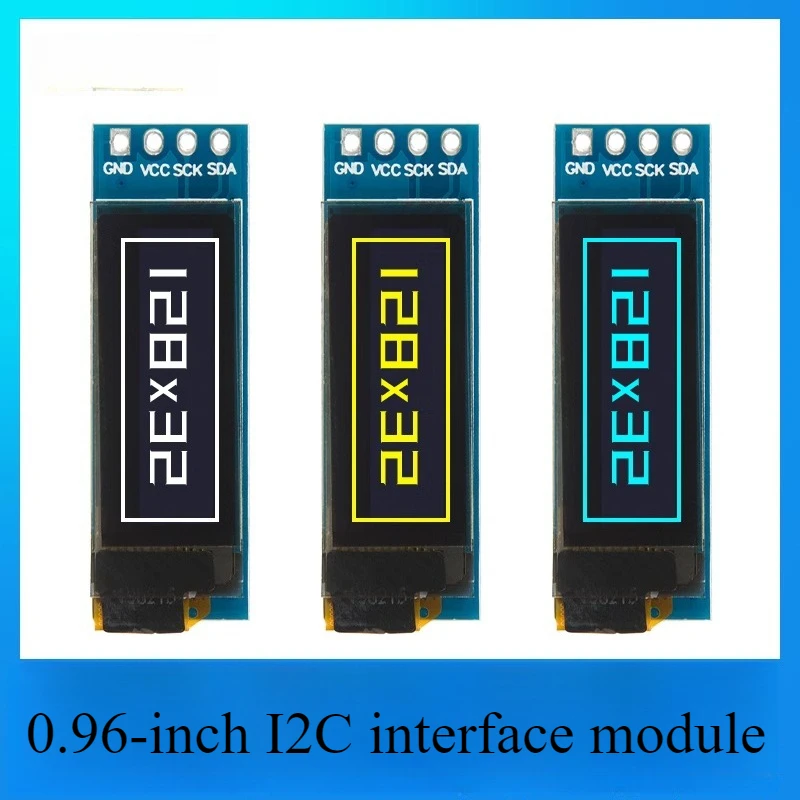
The LCD operates via the I2C protocol, which allows for communication over two wires (SDA and SCL). This simplifies wiring and reduces the number of pins needed on the ESP32. The connection to the NTP server is made using the Wi-Fi capabilities of the ESP32, enabling real-time updates.
- Ensure correct power supply voltage (5 V).
- Use decoupling capacitors near the power pins for stability.
- Be cautious with I2C connections to avoid bus conflicts.
- Verify the I2C address of the LCD (0x27 or 0x3F).
- Check Wi-Fi credentials for accurate connection.
- Handle daylight saving time adjustments in your code.
- Utilize the correct NTP server for your geographical location.
- Always clear the LCD before updating the display.
Wiring Instructions

To wire the ESP32 with the LCD, start by connecting the power pins. Connect the LCD's VCC to the 5V pin on the ESP32 and the GND pin of the LCD to the GND pin on the ESP32. For the I2C communication, connect the SDA pin of the LCD to GPIO 21 on the ESP32 and the SCL pin to GPIO 22. Ensure the connections are secure to avoid any communication issues.
When setting up the wiring, use male-to-female jumper wires for easy connections. If your LCD has a different I2C address or pin configuration, adjust the code accordingly. Refer to the video at (in video at 05:30) for alternative wiring options if necessary.
Code Examples & Walkthrough
The code initializes the LCD and sets up the Wi-Fi connection to fetch time data from the NTP server. Key identifiers such as ssid and password are used to connect to the Wi-Fi network, while ntpServer1 and ntpServer2 specify the NTP servers to use.
const char* ssid = "dars";
const char* password = "llllllllllllll";
const char* ntpServer1 = "pool.ntp.org";
const char* ntpServer2 = "time.nist.gov";
This snippet shows the network credentials and server addresses. Ensure you enter your Wi-Fi SSID and password accurately, as any mistake will prevent the ESP32 from connecting to the Internet.
In the printLocalTime() function, the current time is formatted for display. The structure tm is used to store time information, while strftime helps format the time into a readable string.
void printLocalTime() {
  struct tm timeinfo;
  if(!getLocalTime(&timeinfo)) {
    Serial.println("No time available (yet)");
    return;
  }
  char timeHour[5];
  strftime(timeHour, 5, "%H", &timeinfo);
This code checks if the local time is available and retrieves the hour. The formatted hour is then used to display the current time on the LCD. If time is not yet available, it prints a message to the Serial Monitor.
Finally, the setup() function initializes the LCD and connects to Wi-Fi. It also configures the NTP server settings and sets a callback for time synchronization.
void setup() {
  Serial.begin(115200);
  lcd.init(); // initialize the lcd
  lcd.backlight(); // Turns on the LCD backlight.
  Serial.printf("Connecting to %s ", ssid);
  WiFi.begin(ssid, password);
This excerpt initializes the Serial Monitor for debugging, sets up the LCD, and attempts to connect to the specified Wi-Fi network. The connection status will be printed to the Serial Monitor, allowing you to verify the connection.
Demonstration / What to Expect
Upon successful setup, the LCD will display the current time, day of the week, and the date. You can expect the time to update every 5 seconds, thanks to the loop() function. If the connection to the NTP server fails, a message will appear on the Serial Monitor indicating that the time is not yet available (in video at 12:00).
Common pitfalls include incorrect wiring, wrong I2C addresses, and incorrect Wi-Fi credentials. Ensure all connections are secure and that the NTP server is reachable from your network.
Video Timestamps
- 00:00 Start
- 2:10 Introduction
- 5:15 Wiring explained
- 7:32 Arduino code explained
- 18:43 Selecting ESP32 board and COM port in Arduino IDE
- 20:27 Internet Clock Demonstration
Images

/*
Internet Clock using SunFounder's IoT ESP32 Learning kit
Full video instruction https://youtu.be/0KnuNqfiVug
📚⬇️ Download and resource page https://robojax.com/RJT686
Internet Clock for ESP32
Written by Ahamd Shasmhiri on Dec 31, 2023 at 19:29
www.Robojax.com

*/
#include <Wire.h>
#include <LiquidCrystal_I2C.h>
//SDA->21,SCL->22
LiquidCrystal_I2C lcd(0x27,16,2);  // set the LCD address to 0x27 for a 16 chars and 2 line display

const bool showSeconds = true;//set to "true" to show seconds and "false" to hide
const bool showShortMonth = false;//December = false, Dec=true
const bool show24Hours = true;//true to have 18:30 or false to have 6:30

#include <WiFi.h>
#include "time.h"
#include "sntp.h"
#include "TZ.h"
//TZ.h is taken from https://github.com/esp8266/Arduino/blob/master/cores/esp8266/TZ.h


const char* ssid       = "dars";
const char* password   = "llllllllllllll";

const char* ntpServer1 = "pool.ntp.org";
const char* ntpServer2 = "time.nist.gov";
const long  gmtOffset_sec = -5 * 3600;
const int   daylightOffset_sec = 3600;


const String months[][2] ={
            "January","Jan",
            "February","Feb",
            "March","Mar",
            "April","Apr",
            "May","May",
            "June","Jun",
            "July","Jul",
            "August","Aug",
            "September","Sep",
            "October","Oct",
            "November","Nov",
            "December","Dec"
      };


void printLocalTime()
{
  struct tm timeinfo;
  if(!getLocalTime(&timeinfo)){
    Serial.println("No time available (yet)");
    return;
  }


  //Serial.println(&timeinfo, "%A, %B %d %Y %H:%M:%S 12Hours: %I:%M:%S");

    // get time format HH:MM
  char timeHour[5];
  strftime(timeHour,5, "%H", &timeinfo);
  String hourString = String(timeHour);//convert timeHour to string
  char timeMinute[3];
  strftime(timeMinute,3, "%M", &timeinfo);
  String minuteString = String(timeMinute);
  //Serial.println(hourString);
  if(!show24Hours)
  {
    if(hourString.toInt()  >= 12)
    {
       minuteString =  minuteString + "PM";
    }else{
       minuteString =  minuteString + "AM";
    }

  }


  char timeSeconds[3];
  strftime(timeSeconds,3, "%S", &timeinfo);

  char timeDayofWeek[10];
  strftime(timeDayofWeek, 10 , "%A", &timeinfo);

  char timeMonth[10];
  strftime(timeMonth, 10 , "%B", &timeinfo);
  String Month = String(timeMonth);
  if(showShortMonth)
  {
  for(int m=0; m <12; m++)
  {

    if(Month == months[m][0] )
    {
      Month = months[m][1];
      //Serial.println(months[m][1]);
    }
  }
  }

  char timeDayofMonth[3];
  strftime(timeDayofMonth,3 , "%d", &timeinfo);

  char timeYear[5];
  strftime(timeYear, 5 , "%Y", &timeinfo);


  String time = String(timeHour) + ":" +  minuteString ;
  if(showSeconds) time = time +":" + String(timeSeconds);//add seconds if showSeconds=true
  lcd.clear();
  lcd.setCursor(0, 0);
  lcd.print(time);
  lcd.print(" ");
  lcd.print(String(timeDayofWeek));
  //
  lcd.setCursor(0, 1);
  lcd.print(timeDayofMonth);

  lcd.print(" ");
  lcd.print(Month);

  lcd.print(" ");
  lcd.print(timeYear);


}

// Callback function (get's called when time adjusts via NTP)
void timeavailable(struct timeval *t)
{
  Serial.println("Got time adjustment from NTP!");
  printLocalTime();
}

void setup()
{
  Serial.begin(115200);
  lcd.init();// initialize the lcd
  lcd.backlight(); // Turns on the LCD backlight.
  lcd.print("Internet Clock");
  delay(3000);//waif 3 seconds
  // set notification call-back function
  sntp_set_time_sync_notification_cb( timeavailable );

  /**
   * NTP server address could be aquired via DHCP,
   *
   * NOTE: This call should be made BEFORE esp32 aquires IP address via DHCP,
   * otherwise SNTP option 42 would be rejected by default.
   * NOTE: configTime() function call if made AFTER DHCP-client run
   * will OVERRIDE aquired NTP server address
   */
  sntp_servermode_dhcp(1);    // (optional)

  /**
   * This will set configured ntp servers and constant TimeZone/daylightOffset
   * should be OK if your time zone does not need to adjust daylightOffset twice a year,
   * in such a case time adjustment won't be handled automagicaly.
   */
// configTime(gmtOffset_sec, daylightOffset_sec, ntpServer1, ntpServer2);

  /**
   * A more convenient approach to handle TimeZones with daylightOffset
   * would be to specify a environmnet variable with TimeZone definition including daylight adjustmnet rules.
   * A list of rules for your zone could be obtained from https://github.com/esp8266/Arduino/blob/master/cores/esp8266/TZ.h
   */

  //configTzTime(TZ_America_Toronto, ntpServer1, ntpServer2);
  configTzTime(TZ_America_Toronto, ntpServer1, ntpServer2);

  //connect to WiFi
  Serial.printf("Connecting to %s ", ssid);
  WiFi.begin(ssid, password);
  while (WiFi.status() != WL_CONNECTED) {
      delay(500);
      Serial.print(".");
  }
  Serial.println(" CONNECTED");

}

void loop()
{
  delay(5000);
  printLocalTime();     // it will take some time to sync time :)
}
Common Course Links
Common Course Files
Things you might need
-
AmazonPurchase LCD1602-I2C from Amazonamzn.to
-
eBayPurchase LCD1602-I2C from eBayebay.us
-
BanggoodPurchase LCD1602 display from Banggoodbanggood.com
Resources & references
-
ExternalPurchase LCD1602 display from Banggoodbanggood.com
Files📁
Required File (.h)
-
TZ.h
TZ.h0.02 MB