ESP32 Tutorial 40/55 - Reading and writing to Micro SD Card | SunFounder's ESP32 IoT Learning kit
In this tutorial, we will learn how to read from and write to a micro SD card using the ESP32 and the SunFounder ESP32 extension board. This will allow us to store data and retrieve it later, which is essential for many IoT applications. By the end of this tutorial, you will have a working setup that can create, write to, and read files from the micro SD card.
To get started, make sure that your micro SD card is properly formatted to FAT32, as this is the required file system for the ESP32 to interact with the card. We will be using the SD_MMC library, which simplifies the process of accessing files on the micro SD card. It's important to note that the maximum capacity for the micro SD card should not exceed 32 GB.
Hardware Explained
The primary components in this project include the ESP32 microcontroller and the micro SD card module. The ESP32 is a versatile microcontroller that features built-in Wi-Fi and Bluetooth capabilities, making it ideal for IoT applications. The micro SD card module allows the ESP32 to read from and write to the card, enabling data storage for various applications.
The micro SD card operates by using a file system to store data in a structured manner. It communicates with the ESP32 through the SD_MMC interface, which allows for efficient reading and writing of files. This setup can be used for logging data, saving images, or any other application where data persistence is required.
Wiring Instructions
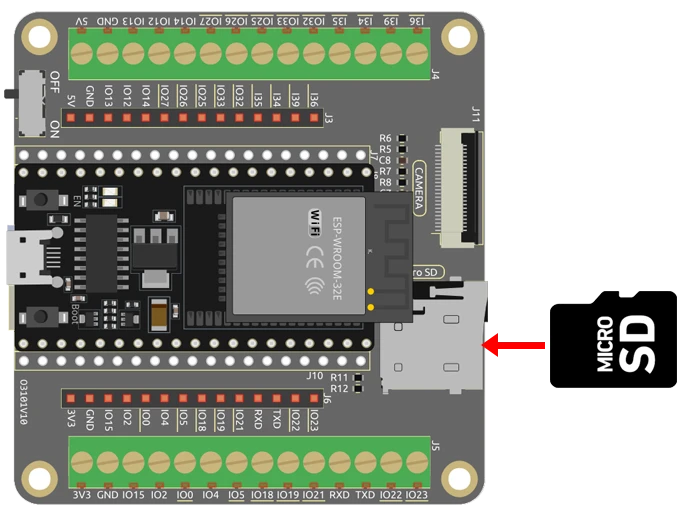
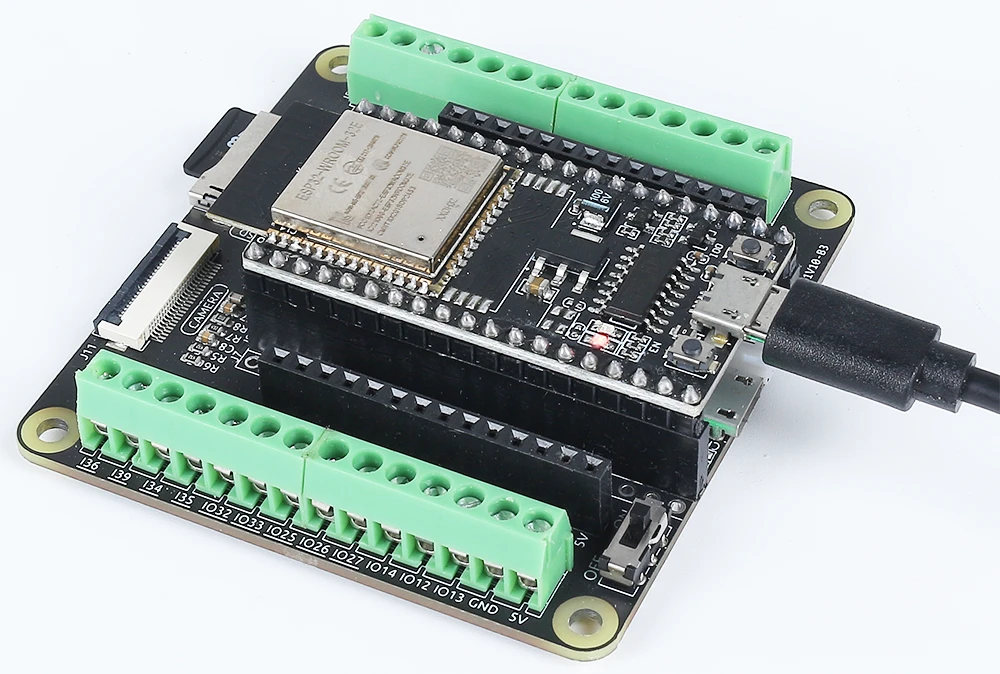
To wire the micro SD card to the ESP32, follow these steps:
First, connect the power and ground pins. Connect the VCC pin of the micro SD card module to the 3.3V pin on the ESP32, and connect the GND pin to one of the GND pins on the ESP32. Next, connect the data pins: connect the CS (Chip Select) pin of the micro SD card module to pin 5 on the ESP32, the MOSI (Master Out Slave In) pin to pin 23, the MISO (Master In Slave Out) pin to pin 19, and the SCK (Serial Clock) pin to pin 18. Ensure that these connections are secure to avoid any communication issues.
If you are using a different extension board, the pin numbers may vary, so refer to the documentation specific to your board. The wiring is crucial for the successful operation of reading and writing files to the micro SD card.
Code Examples & Walkthrough
Now, let's take a look at the main parts of the code that interact with the micro SD card. The setup begins with initializing serial communication and checking if the micro SD card is mounted successfully.
Serial.begin(115200); // Initialize serial communication
if (!SD_MMC.begin()) { // Check if SD card is mounted successfully
  Serial.println("Failed to mount SD card"); // Print error message if SD card failed to mount
  return;
}
In this code snippet, the serial communication is set to a baud rate of 115200, which is important for monitoring output. The SD_MMC.begin() function attempts to mount the SD card; if it fails, an error message is printed to the serial monitor.
The next part of the code creates a new file on the micro SD card and writes a line of text to it.
File file = SD_MMC.open("/test.txt", FILE_WRITE);
if (!file) {
  Serial.println("Failed to open file for writing"); // Print error message if file failed to open
  return;
}
if (file.println("Test file write")) { // Write a line of text to the file
  Serial.println("File write successful"); // Print success message if write operation is successful
} else {
  Serial.println("File write failed"); // Print error message if write operation failed
}
file.close(); // Close the file
Here, a file named test.txt is opened in write mode. If the file is successfully opened, it writes a line of text and prints a success message. If the write operation fails, an error message is printed instead. Finally, the file is closed to ensure that changes are saved.
The code also reads files from the root directory of the micro SD card and prints their names and sizes.
File root = SD_MMC.open("/"); // Open the root directory of SD card
while (File file = root.openNextFile()) { // Loop through all the files in the root directory
  Serial.print(file.name()); // Print the filename
  Serial.print("\t");
  Serial.println(file.size()); // Print the filesize
  file.close(); // Close the file
}
This snippet opens the root directory and iterates through all files, printing their names and sizes to the serial monitor. This is useful for verifying that the data was written successfully and to see the contents of the SD card.
For further details, refer to the full code loaded below the article.
Demonstration / What to Expect
After uploading the code and resetting the ESP32, you should see messages in the serial monitor indicating whether the SD card was successfully mounted and if the file operations were successful. You will also see the list of files found in the root directory, which confirms that the data was written correctly (in video at 13:45).
Common pitfalls include ensuring that the micro SD card is properly formatted and connected, as well as verifying that the serial monitor is set to the correct baud rate. If any issues arise, double-check your wiring and connections.
Video Timestamps
- 00:00 Start
- 1:45 Introduction to Micro SD card on ESP32
- 3:46 Docs page
- 4:43 Arduino Code
- 8:09 Selecting ESP32 Board and COM port in Arduino IDE
- 9:51 Demonstration of writing MicroSD Card
- 11:12 Viewing written files on PC
Images
#include "SD_MMC.h"

void setup() {
  Serial.begin(115200); // Initialize serial communication
  if (!SD_MMC.begin()) { // Check if SD card is mounted successfully
    Serial.println("Failed to mount SD card"); // Print error message if SD card failed to mount
    return;
  }

  // Create a file in the root directory of SD card and open it in write mode.
  File file = SD_MMC.open("/test.txt", FILE_WRITE);
  if (!file) {
    Serial.println("Failed to open file for writing"); // Print error message if file failed to open
    return;
  }
  if (file.println("Test file write")) { // Write a line of text to the file
    Serial.println("File write successful"); // Print success message if write operation is successful
  } else {
    Serial.println("File write failed"); // Print error message if write operation failed
  }
  file.close(); // Close the file

  File root = SD_MMC.open("/"); // Open the root directory of SD card
  if (!root) {
    Serial.println("Failed to open directory"); // Print error message if directory failed to open
    return;
  }
  Serial.println("Files found in root directory:"); // Print the list of files found in the root directory
  while (File file = root.openNextFile()) { // Loop through all the files in the root directory
    Serial.print("  ");
    Serial.print(file.name()); // Print the filename
    Serial.print("\t");
    Serial.println(file.size()); // Print the filesize
    file.close(); // Close the file
  }
}
void loop() {} // Empty loop function, does nothing
Common Course Links
Common Course Files
Things you might need
-
AliExpressPurchase a microSD card module from AliExpresss.click.aliexpress.com
-
BanggoodPurchase a microSD card module from Banggoodbanggood.com
Resources & references
-
DocumentationESP32 Tutorial 40/55 - SunFounder doc page for MicroSD carddocs.sunfounder.com
-
ExternalPurchase a microSD card module from AliExpresss.click.aliexpress.com
-
External
-
External
-
ExternalPurchase a microSD card module from Banggoodbanggood.com
Files📁
No files available.