Lesson 2/31: Getting Arduino Software and using Documentation for SunFounder Arduino Kit
In this lesson, we will explore how to download and install the Arduino IDE, and how to navigate through its features. This will help you become familiar with the Arduino software environment, which is essential for programming your Arduino projects. Additionally, we will discuss how to access the official documentation for both Arduino and the SunFounder kit, providing you with the resources needed for your projects.
Understanding how to use the Arduino IDE is crucial for effective programming. The IDE provides a user-friendly interface where you can write, edit, and upload your code to the Arduino board. By familiarizing yourself with the IDE's layout and functions, you'll be able to efficiently work on various projects included in the SunFounder kit.
Hardware Explained
The SunFounder Arduino Kit includes various components, but the key part for this lesson is the Arduino Uno board. The Arduino Uno is a microcontroller board based on the ATmega328P. It features 14 digital input/output pins, 6 analog inputs, a USB connection, and a power jack. This board serves as the heart of your projects, allowing you to control sensors, motors, and other devices.
Another important component is the USB cable used to connect the Arduino board to your computer. This cable facilitates the upload of code and allows for serial communication between the Arduino and the IDE. Understanding these components will help you effectively use the Arduino software and documentation.
Wiring Instructions
To wire your Arduino Uno, first connect the USB cable from the Arduino board to your computer. This will provide power and allow for data transfer. Next, ensure that the Arduino IDE is installed and opened on your computer. The IDE should automatically recognize the board once connected.
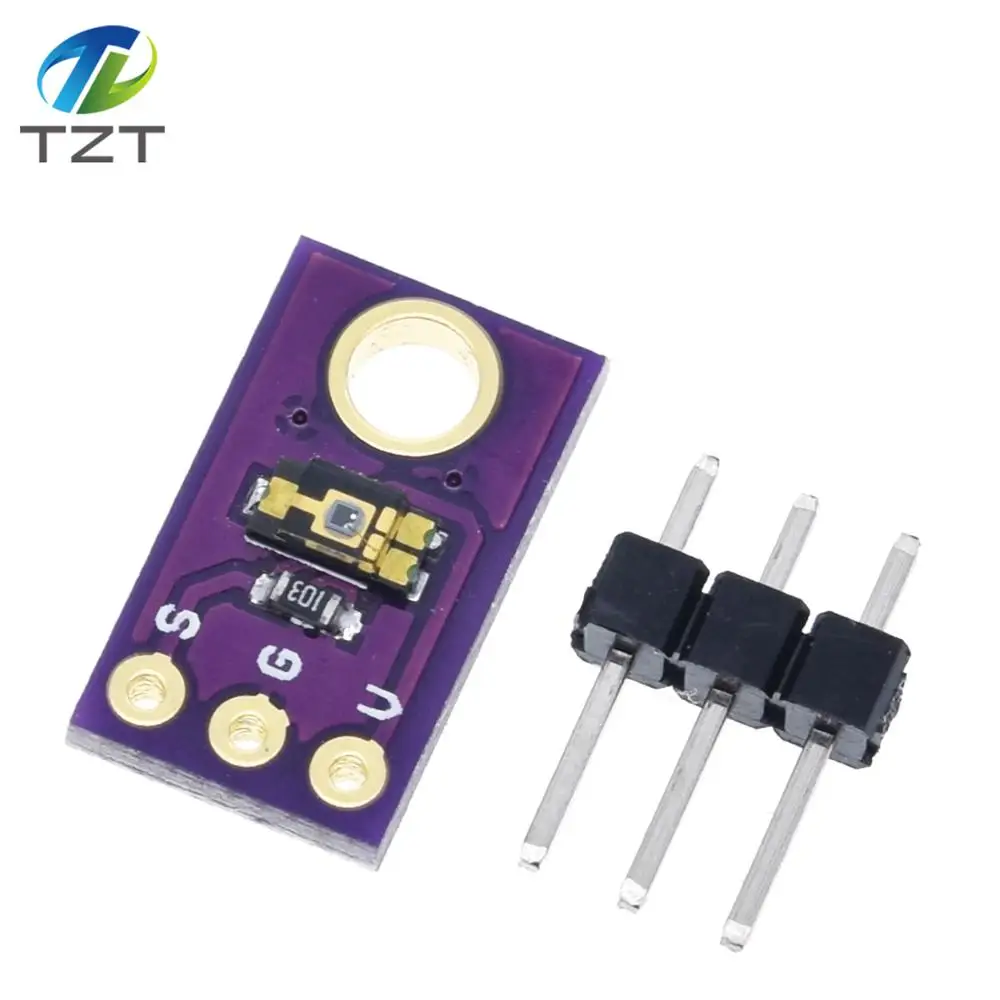
For any additional components from the SunFounder kit, follow the schematic provided in the documentation. Typically, you will connect sensors to the digital or analog pins on the Arduino board. For example, if you are using a light sensor, connect its output pin to one of the analog input pins, like A0. Make sure to connect the ground pins of all components to the Arduino's ground to ensure proper operation.
Code Examples & Walkthrough
As there are no specific code snippets provided for this lesson, I encourage you to explore the examples available in the Arduino IDE. For instance, you can access built-in examples by navigating to File > Examples. This will give you a good starting point to understand how to structure your code and use different functions.
void setup() {
  Serial.begin(9600); // Start the serial communication
}
This snippet initializes serial communication at a baud rate of 9600, allowing you to send and receive data through the serial port. You will often need this in your projects to debug and monitor sensor values.
void loop() {
  int sensorValue = analogRead(A0); // Read the sensor value
  Serial.println(sensorValue); // Print the value to the Serial Monitor
}
In this loop, the code reads the value from an analog sensor connected to pin A0 and prints it to the Serial Monitor. This is a common method for checking the output of various sensors.
Demonstration / What to Expect
After setting up your Arduino and running the examples, you should be able to see the output in the Serial Monitor. If you encounter issues, double-check your wiring and ensure the correct COM port is selected in the IDE. You can also refer to the documentation for troubleshooting tips (in video at 14:30).
Video Timestamps
- 00:00 Introduction
- 1:35 Downloading and Installing Arduino Software
- 9:04 Plugging in Arduino board for the first time
- 10:56 Arduino Documentation
- 15:46 SunFounder Documentation
Common Course Links
Common Course Files
リソースと参考文献
まだリソースはありません。
ファイル📁
ファイルは利用できません。